
1. Introduction
Welcome to the user manual for your new Taurus Homeland Laser Robot Vacuum Cleaner. This intelligent cleaning device is designed to provide efficient and thorough cleaning for your home, utilizing advanced ElegantLaser technology for precise navigation and mapping. Please read this manual carefully before using the product to ensure proper operation, maintenance, and safety.
Safety Information
Always adhere to the following safety guidelines:
- Do not allow children to operate the robot vacuum cleaner.
- Ensure the charging base is placed on a flat, stable surface against a wall, with no obstacles within 1 meter in front and 0.5 meters on either side.
- Keep the robot away from water or wet surfaces to prevent electric shock.
- Do not use the robot to clean liquids, burning objects, or large, sharp debris.
- Regularly check and clean the brushes and sensors to maintain optimal performance.
- Only use the original power adapter and charging base provided with the product.
- If the power cord is damaged, it must be replaced by the manufacturer or a qualified service agent.
2. Product Overview
Familiarize yourself with the components of your Taurus Homeland Laser Robot Vacuum Cleaner.
Package Contents
- Taurus Homeland Laser Robot Vacuum Cleaner
- Charging Base
- Power Adapter
- Remote Control
- Side Brushes (2 pairs)
- Main Brush
- Dustbin
- Water Tank with Mop Cloth
- Cleaning Tool
- User Manual
Robot Components


3. Setup
Unpacking and Initial Placement
- Carefully remove all components from the packaging.
- Choose a suitable location for the charging base. It should be placed against a wall on a hard, level surface. Ensure there are no obstacles within 1 meter (3.3 feet) in front of the base and 0.5 meters (1.6 feet) on either side to allow the robot to dock easily.
- Connect the power adapter to the charging base and plug it into a wall outlet. Ensure the indicator light on the charging base illuminates.
Installing Side Brushes
Turn the robot over. Align the side brushes with the corresponding slots (L and R) on the bottom of the robot and press them down until they click into place.
Initial Charging
Place the robot onto the charging base, ensuring the charging contacts on the robot align with those on the base. The robot will begin charging automatically. For first-time use, it is recommended to fully charge the robot before its initial cleaning cycle (approximately 4-5 hours).
App Setup and Wi-Fi Connection
To unlock the full potential of your robot, download the dedicated mobile application.

- Search for the 'Taurus Homeland' app in your smartphone's app store (Google Play Store for Android or Apple App Store for iOS).
- Download and install the app.
- Follow the in-app instructions to create an account and connect your robot vacuum cleaner to your home Wi-Fi network. Ensure your Wi-Fi network is 2.4GHz.
- Once connected, you can control the robot, schedule cleanings, and view cleaning maps from your smartphone.
4. Operating Instructions
Powering On/Off
- Power On: Press and hold the power button on the robot or the remote control until the indicator lights illuminate.
- Power Off: Press and hold the power button on the robot or the remote control until the indicator lights turn off.
Starting a Cleaning Cycle
Press the power button on the robot or the 'Clean' button on the remote control/app to start an automatic cleaning cycle. The robot will begin mapping and cleaning your home using its ElegantLaser navigation.


Cleaning Modes
The robot offers 10 different cleaning modes, accessible via the remote control or the mobile app:
- Auto: Standard cleaning mode, the robot intelligently navigates and cleans the entire area.
- Select Room: Clean specific rooms identified on the app's map.
- Perimeter: Cleans along walls and furniture edges.
- Spiral: Cleans a concentrated area in a spiral pattern.
- Manual: Control the robot's movement manually using the remote control or app.
- Return to Home: Robot returns to the charging base.
- Max Power: Increases suction power for deeper cleaning.
- Restricted Zone: Define areas on the app map that the robot should avoid.
- Restricted Wall: Create virtual walls on the app map to block off areas.
- Spot Cleaning: Cleans a specific small area intensively.
Using the Mobile Application
The app provides comprehensive control and customization options:

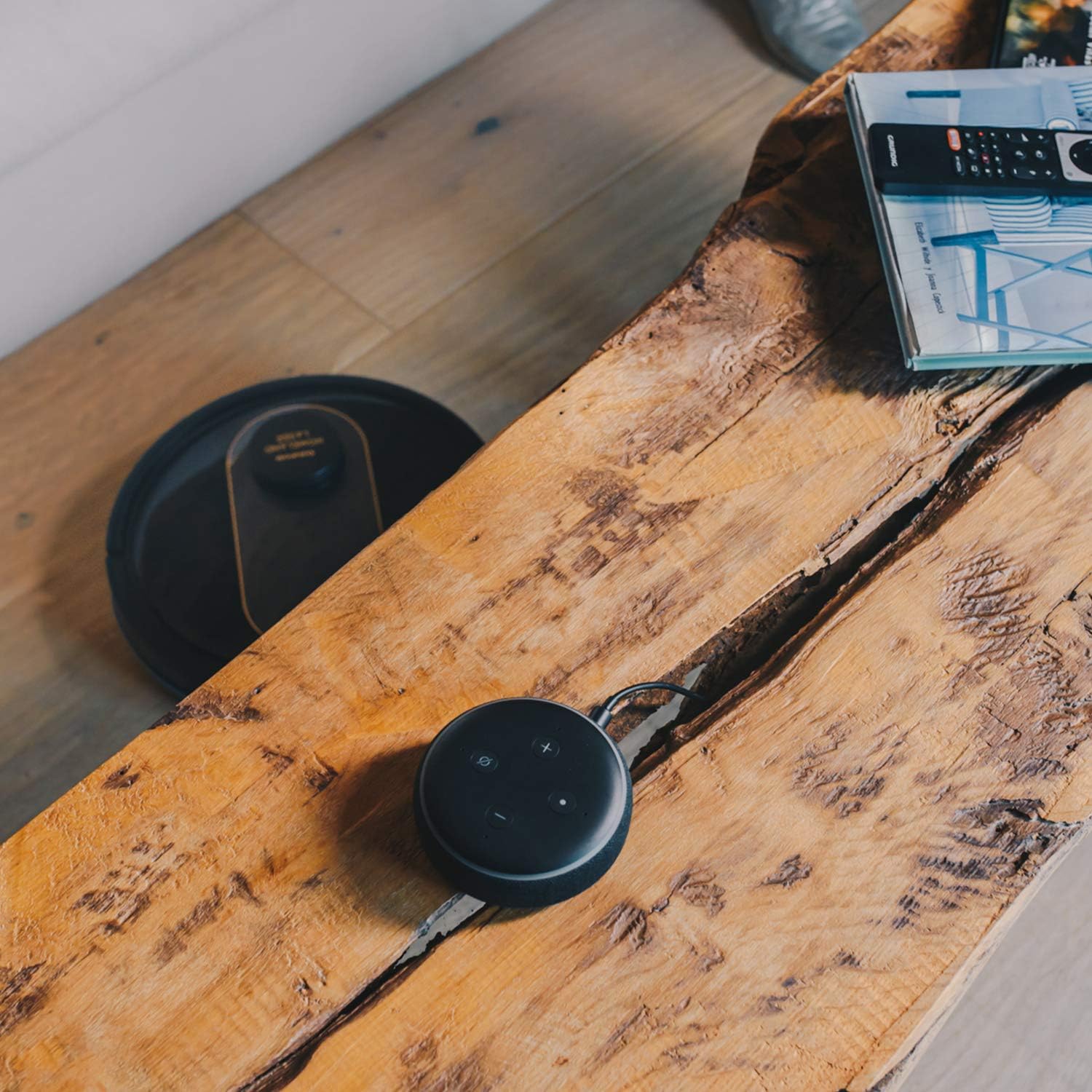
- Mapping: The robot creates a real-time map of your home, which is displayed in the app.
- Zone Restriction: Draw virtual boundaries or no-go zones on the map to prevent the robot from entering certain areas.
- Scheduling: Set daily or weekly cleaning schedules for automated cleaning.
- Voice Control: Compatible with Alexa and Google Assistant for convenient voice commands (e.g., "Alexa, start cleaning").
Mopping Function
To use the mopping function, fill the water tank with clean water and attach the mop cloth. Insert the water tank into the robot. The robot will then vacuum and mop simultaneously. Do not use detergents or harsh chemicals in the water tank.
5. Maintenance
Regular maintenance ensures optimal performance and extends the lifespan of your robot vacuum cleaner.
Emptying the Dustbin
The dustbin should be emptied after each cleaning cycle or when the 'dustbin full' indicator (if available) illuminates. Press the dustbin release button, pull out the dustbin, open its lid, and discard the debris.
Cleaning the Filter
The HEPA filter should be cleaned weekly. Remove the filter from the dustbin and tap it gently over a trash can to remove dust. Do not wash the HEPA filter with water; if it becomes heavily soiled, replace it.
Cleaning Brushes
- Main Brush: Remove the main brush cover and lift out the main brush. Use the provided cleaning tool to remove hair and debris tangled around the brush. Clean the brush compartment.
- Side Brushes: Periodically check the side brushes for tangled hair or debris. If necessary, remove them and clean them. Replace worn or damaged side brushes.
Cleaning Sensors and Charging Contacts
Wipe the cliff sensors (located on the bottom of the robot), wall sensors (on the front bumper), and charging contacts (on the robot and charging base) with a clean, dry cloth. This ensures proper navigation and charging.
Cleaning the Water Tank and Mop Cloth
After mopping, empty any remaining water from the tank. Remove the mop cloth and wash it thoroughly. Allow both the tank and cloth to air dry completely before reassembling.
6. Troubleshooting
If you encounter issues with your robot vacuum cleaner, refer to the following common problems and solutions:
| Problem | Possible Cause | Solution |
|---|---|---|
| Robot does not power on. | Low battery; Power button not pressed correctly. | Place robot on charging base; Press and hold power button for a few seconds. |
| Robot does not charge. | Charging contacts are dirty; Power adapter not connected. | Clean charging contacts on robot and base; Ensure power adapter is securely plugged in. |
| Robot gets stuck frequently. | Too many obstacles; Cliff sensors dirty. | Clear obstacles from cleaning path; Clean cliff sensors. |
| Poor cleaning performance. | Dustbin full; Brushes tangled; Filter clogged. | Empty dustbin; Clean main and side brushes; Clean or replace filter. |
| App connectivity issues. | Incorrect Wi-Fi password; Router too far; 5GHz Wi-Fi network. | Re-enter Wi-Fi password; Move robot closer to router; Ensure 2.4GHz Wi-Fi is used. |
| Robot makes unusual noise. | Debris in brushes or wheels; Fan obstruction. | Inspect and clean main brush, side brushes, and wheels; Check for obstructions in the suction path. |
If the problem persists after trying these solutions, please contact Taurus customer support.
7. Specifications
Key technical specifications for the Taurus Homeland Laser Robot Vacuum Cleaner:
| Feature | Specification |
|---|---|
| Brand | Taurus |
| Model Name | Homeland Laser |
| Model Number | 948895000 |
| Color | Black/Gold |
| Dimensions (L x W x H) | 32L x 32W x 10H cm (approx. 7.6 cm height for cleaning under furniture) |
| Item Weight | 2.7 Kilograms |
| Voltage | 240 Volts |
| Material | Plastic |
| Suction Power | 1800 PA |
| Battery Type | Lithium-ion |
| Battery Life | Up to 120 minutes |
| Filter Type | HEPA |
| Connectivity | Wi-Fi (2.4GHz), Smartphone App, Alexa & Google Assistant compatible |
| Cleaning Modes | 10 (Auto, Select Room, Perimeter, Spiral, Manual, Return to Home, Max Power, Restricted Zone, Restricted Wall, Spot Cleaning) |
8. Warranty and Support
Your Taurus Homeland Laser Robot Vacuum Cleaner comes with a manufacturer's warranty. Please refer to the warranty card included in your product packaging for specific terms and conditions, including the warranty period and coverage details.
Customer Support
For technical assistance, troubleshooting beyond this manual, or warranty claims, please contact Taurus customer support. Contact information can typically be found on the official Taurus website or on your product's packaging.
We recommend registering your product on the Taurus website to receive updates and support.


