1. Introduction
This manual provides essential information for the proper setup, operation, and maintenance of your LG UltraWide QHD 34-Inch Computer Monitor, Model 34GP83A-B. This monitor features a QHD (3440x1440) VA display with a 21:9 aspect ratio, offering an expansive viewing experience. It supports HDR 10 compatibility and covers 99% of the sRGB color gamut, delivering accurate and vibrant colors. For gaming, it includes AMD FreeSync Premium technology for smooth visuals and a 160Hz refresh rate.
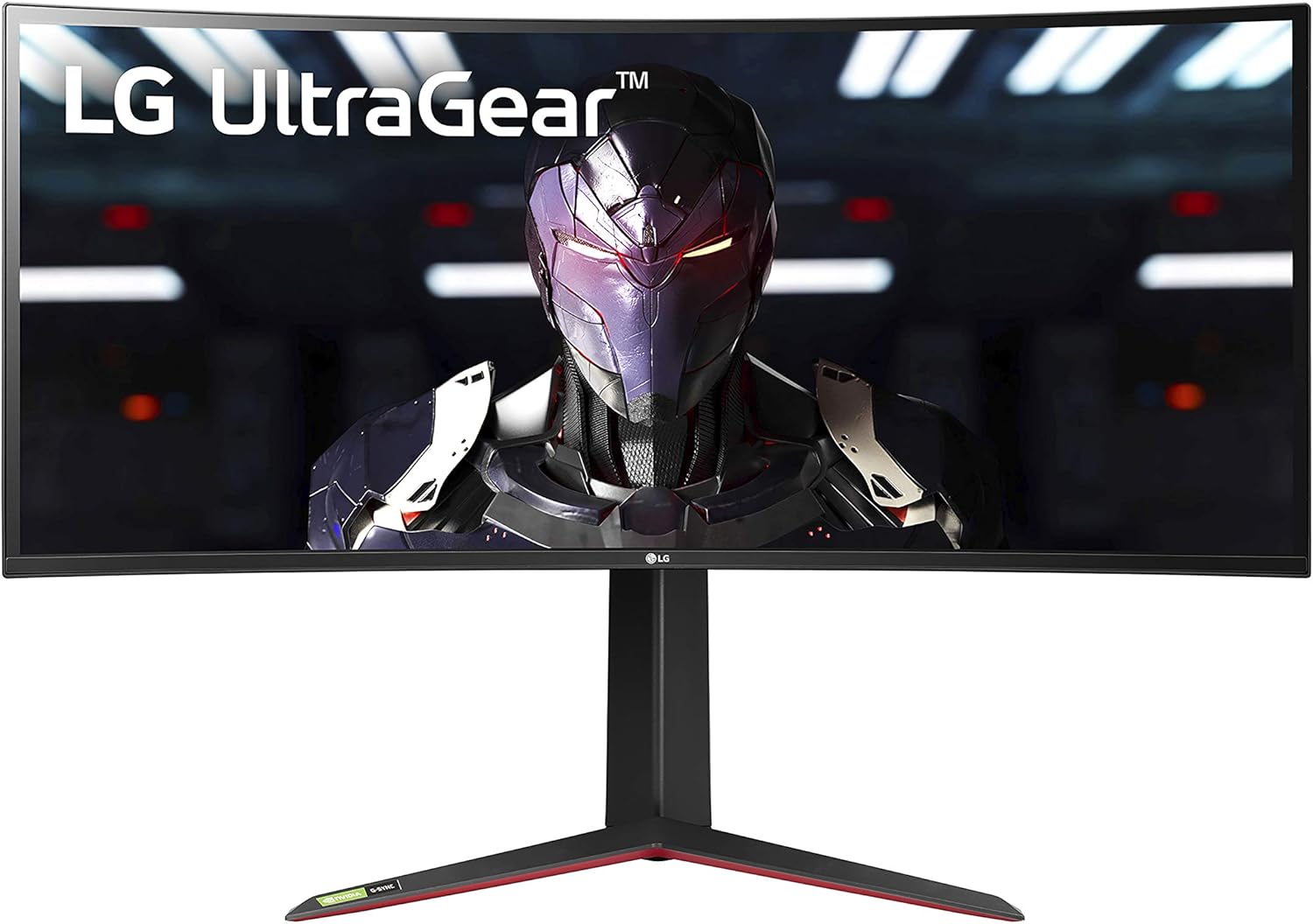
Figure 1: Front view of the LG UltraWide QHD 34-Inch Computer Monitor 34GP83A-B.
2. Setup
2.1. Package Contents
Before beginning, ensure all components are present:
- LG UltraWide QHD 34-Inch Monitor (34GP83A-B)
- Monitor Stand (Base and Neck)
- Power Adapter and Power Cord
- DisplayPort Cable
- HDMI Cable
- USB Upstream Cable
- User Manual and Warranty Card

Figure 2: Included components for the LG 34GP83A-B monitor.
2.2. Stand Assembly
- Carefully place the monitor panel face down on a soft, clean cloth to prevent scratches.
- Attach the stand neck to the monitor panel using the provided screws.
- Attach the stand base to the stand neck and secure it with the thumb screw.
- Carefully lift the assembled monitor and place it on a stable, level surface.
2.3. Connecting the Monitor
Connect the necessary cables to the monitor's rear ports. Ensure all connections are secure.
- Power: Connect the power adapter to the monitor and then to a power outlet.
- Video Input: Use either the DisplayPort cable for optimal performance (up to 160Hz) or an HDMI cable (2 ports available).
- USB Upstream: Connect the USB upstream cable from your computer to the monitor to enable the monitor's USB ports.
- USB Downstream: Two USB 3.0 ports are available for connecting peripherals.
- Headphone Out: Connect headphones or external speakers to the 3.5mm audio jack.

Figure 3: Rear ports of the LG 34GP83A-B monitor.
2.4. VESA Wall Mount Installation
The monitor supports a 100 x 100 mm VESA mount. If using a wall mount, ensure it is rated for the monitor's weight and size. Follow the instructions provided with your VESA mount for installation.

Figure 4: Monitor dimensions and VESA mount points.
3. Operating the Monitor
3.1. Power On/Off
Press the joystick button located at the bottom center of the monitor to power it on or off. A single press will bring up the On-Screen Display (OSD) menu.
3.2. On-Screen Display (OSD) Menu Navigation
The OSD menu allows you to adjust various monitor settings. Use the joystick button to navigate:
- Move the joystick up/down to scroll through menu options.
- Move the joystick left/right to adjust values or enter sub-menus.
- Press the joystick to confirm a selection.
3.3. Picture Settings
Adjust display settings for optimal viewing:
- Brightness/Contrast: Adjust the overall luminance and contrast levels.
- Color Mode: Select from various preset modes (e.g., Gamer, Reader, sRGB, HDR Effect) or customize your own.
- HDR 10: Enable or disable High Dynamic Range for enhanced contrast and color in compatible content.
- Color Gamut: The monitor supports 99% sRGB for accurate color reproduction.
3.4. Gaming Features
The LG 34GP83A-B is equipped with several features to enhance your gaming experience:
- Refresh Rate: Native 144Hz, overclockable to 160Hz for smoother motion.
- AMD FreeSync Premium: Synchronizes the monitor's refresh rate with your GPU's frame rate to eliminate screen tearing and stuttering.
- Dynamic Action Sync (DAS): Minimizes input lag, allowing for quicker responses in fast-paced games.
- Black Stabilizer: Automatically brightens dark areas of the screen, making it easier to spot enemies hidden in shadows.
- Crosshair: Places a fixed crosshair in the center of the screen for improved aiming accuracy in first-person shooter games.

Figure 5: Monitor in use, demonstrating gaming capabilities.
3.5. Stand Adjustments
The monitor stand offers ergonomic adjustments for comfortable viewing:
- Height Adjustment: Raise or lower the monitor to your preferred eye level.
- Tilt Adjustment: Tilt the screen forward or backward to find the optimal viewing angle.

Figure 6: Side view showing stand adjustability.
4. Maintenance
4.1. Cleaning the Monitor
- Always unplug the monitor before cleaning.
- Use a soft, lint-free cloth lightly dampened with water or a mild, non-abrasive screen cleaner.
- Do not spray cleaner directly onto the screen.
- Avoid using harsh chemicals, solvents, or abrasive materials.
4.2. General Care
- Avoid placing heavy objects on the monitor or its cables.
- Keep the monitor away from direct sunlight, heat sources, and excessive moisture.
- Ensure adequate ventilation around the monitor to prevent overheating.
5. Troubleshooting
If you encounter issues with your monitor, refer to the following common problems and solutions:
| Problem | Possible Cause | Solution |
|---|---|---|
| No power | Power cable not connected or power outlet issue. | Ensure power cable is securely connected. Test the power outlet with another device. |
| No image on screen | Video cable not connected or incorrect input selected. | Check video cable connections. Select the correct input source via the OSD menu. |
| Screen tearing/stuttering in games | AMD FreeSync Premium not enabled or incompatible GPU. | Ensure FreeSync is enabled in the OSD menu and your GPU settings. Update graphics drivers. |
| High input lag | Dynamic Action Sync (DAS) not enabled. | Enable Dynamic Action Sync in the OSD menu. |
| Dark areas are too dim | Black Stabilizer not configured. | Adjust Black Stabilizer settings in the OSD menu to brighten dark areas. |
For more complex issues or problems not listed here, please contact LG customer support.
6. Specifications
| Feature | Specification |
|---|---|
| Brand | LG |
| Model Number | 34GP83A-B |
| Screen Size | 34 Inches |
| Resolution | QHD Ultra Wide 1440p (3440 x 1440 Pixels) |
| Aspect Ratio | 21:9 |
| Screen Surface Description | Curved |
| Contrast Ratio | 1000:1 |
| Refresh Rate | 144 Hz (Overclockable to 160 Hz) |
| Response Time | 1 Milliseconds |
| Display Technology | LED (VA Panel) |
| Viewing Angle | 178 Degrees |
| Brightness | 400 candela_per_square_meter |
| Color Gamut | 99% sRGB |
| Picture Quality Enhancement | sRGB color gamut, HDR 10, AMD FreeSync Premium |
| Connectivity Technology | USB |
| Hardware Connectivity | DisplayPort, HDMI (x2), USB 3.0 (x2) |
| Adaptive Sync | AMD FreeSync Premium, G-Sync Compatible |
| Mounting Type | Wall Mount (VESA 100 x 100 mm) |
| Item Weight | 16.8 Pounds |
| Power Consumption | 80 Watts |
7. Warranty and Support
7.1. Warranty Information
This LG monitor comes with a Limited: 1 Year Parts & Labor warranty. Please retain your proof of purchase for warranty claims. The warranty covers defects in materials and workmanship under normal use.
7.2. Customer Support
For technical assistance, troubleshooting beyond this manual, or warranty service, please visit the official LG website or contact LG customer support directly. You can find contact information and additional resources on the LG support page for your region.
8. Product Videos
LG 34GP83A-B Gaming Monitor Review
This video provides a detailed review of the LG 34GP83A-B gaming monitor, highlighting its features and performance.