
MERCUSYS MR50G
Mercusys MR50G AC1900 Dual-Band Wi-Fi 5 Router User Manual
Model: MR50G
Introduction
This manual provides comprehensive instructions for setting up, operating, maintaining, and troubleshooting your Mercusys MR50G AC1900 Dual-Band Wi-Fi 5 Router. The MR50G is designed to deliver high-speed wireless connectivity with AC1900 speeds, Gigabit Ethernet ports, and advanced features like MU-MIMO and Beamforming.

Image: Front view of the Mercusys MR50G router, illustrating its dual-band capabilities with 5GHz (1300 Mbps) and 2.4GHz (600 Mbps) speeds.
Setup Guide
1. Package Contents
Verify that your package contains the following items:
- Mercusys MR50G AC1900 Dual-Band Wi-Fi 5 Router
- Power Adapter
- Ethernet Cable
- Quick Installation Guide (User Guide)
2. Physical Connection
Follow these steps to connect your router:
- Power Off: Disconnect the power from your modem and router (if applicable).
- Connect Modem to Router: Connect one end of the provided Ethernet cable to the WAN port (usually blue) on your MR50G router and the other end to your modem's Ethernet port.
- Connect Devices (Optional): For wired connections, connect your computer or other devices to the LAN ports (yellow) on the MR50G router using Ethernet cables.
- Power On: Connect the power adapter to the router's power port and plug it into a power outlet. Power on your modem, then power on the MR50G router.
- Wait for Indicators: Wait for the router's LED indicators to stabilize. The Power LED should be solid green.
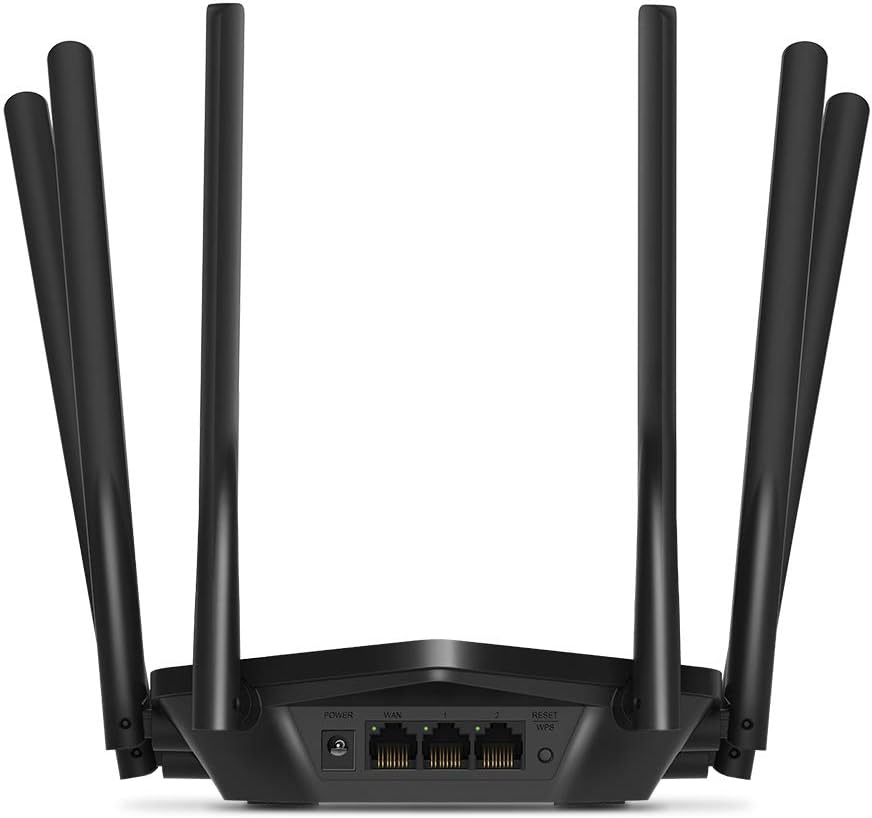
Image: Rear view of the Mercusys MR50G router, illustrating the power input, WAN port (blue), and three LAN ports (yellow) for wired connections, along with the Reset/WPS button.
3. Initial Configuration
To configure your router for the first time:
- Connect to Wi-Fi: Connect your computer or mobile device to the router's default Wi-Fi network (SSID and password are typically printed on a label on the bottom of the router).
- Access Web Interface: Open a web browser and type
mwlogin.netor192.168.1.1into the address bar. - Create Login Password: Follow the on-screen instructions to create a login password for the router's management page.
- Follow Quick Setup: The Quick Setup wizard will guide you through basic internet and wireless settings.
Operating Instructions
1. Basic Wi-Fi Settings
After logging into the web interface:
- Network Name (SSID): Navigate to the Wireless settings to change your Wi-Fi network names (SSIDs) for both 2.4 GHz and 5 GHz bands.
- Password: Set a strong, unique password for your Wi-Fi networks. The MR50G supports WPA3 for enhanced security.
- Security Type: It is recommended to use WPA2-PSK/WPA3-Personal for optimal security.
2. Dual-Band Operation
The MR50G operates on two frequency bands:
- 2.4 GHz: Provides wider coverage and better penetration through walls, suitable for general internet use and older devices.
- 5 GHz: Offers faster speeds and less interference, ideal for bandwidth-intensive activities like 4K streaming and online gaming, but with a shorter range.
You can configure separate SSIDs for each band or use Smart Connect to combine them into a single SSID, allowing the router to automatically assign devices to the optimal band.
3. Access Point Mode
To use the MR50G as an Access Point (AP) to extend an existing wired network:
- Connect: Connect an Ethernet cable from your existing router's LAN port to one of the MR50G's LAN ports (not the WAN port).
- Configure: Log into the MR50G's web interface, navigate to the Operation Mode settings, and select "Access Point Mode". Follow the prompts to complete the setup.
4. Advanced Features
- MU-MIMO: Multi-User, Multiple-Input, Multiple-Output technology allows the router to communicate with multiple devices simultaneously, improving network efficiency.
- Beamforming: Focuses Wi-Fi signals towards connected devices, enhancing signal strength and range.
- VPN Support: The router supports VPN functionality, allowing for secure remote access or connection to VPN services. Refer to the router's web interface for specific VPN client/server configurations.
- Parental Controls: Manage and restrict internet access for specific devices or users.
- Guest Network: Create a separate Wi-Fi network for guests, keeping your main network secure.
Maintenance
1. Firmware Updates
Regularly check for and install firmware updates to ensure optimal performance, security, and access to new features. Firmware updates can typically be found in the router's web interface under System Tools or Advanced settings.
2. Resetting the Router
If you encounter persistent issues or forget your login password, you may need to reset the router to its factory default settings:
- With the router powered on, press and hold the Reset/WPS button on the back panel for approximately 5-10 seconds until the LED indicators flash.
- Release the button and wait for the router to restart. All settings will be restored to factory defaults.
3. Optimal Placement
For the best Wi-Fi coverage and performance:
- Place the router in a central location in your home or office.
- Avoid placing it near obstructions like thick walls, metal objects, or large appliances (microwaves, refrigerators) that can interfere with Wi-Fi signals.
- Elevate the router if possible, as Wi-Fi signals tend to spread downwards.

Image: Mercusys MR50G router positioned on a table, demonstrating a typical placement for optimal signal distribution within a living space.
Troubleshooting
1. No Internet Access
- Check Connections: Ensure all Ethernet cables are securely connected to the correct ports (WAN to modem, LAN to devices).
- Restart Devices: Power cycle your modem, then the router, and then your connected devices.
- Check WAN LED: Verify that the WAN LED on the router is lit, indicating a connection to the modem.
- ISP Status: Contact your Internet Service Provider (ISP) to confirm there are no service outages in your area.
2. Slow Wi-Fi Speeds
- Router Placement: Ensure the router is placed optimally (refer to "Optimal Placement" section).
- Interference: Move the router away from other electronic devices that may cause interference.
- Band Selection: For speed-critical applications, ensure your device is connected to the 5 GHz band.
- Channel Optimization: In the router's web interface, try changing the Wi-Fi channel for both 2.4 GHz and 5 GHz bands to a less congested one.
- Firmware: Ensure your router's firmware is up to date.
3. Cannot Access Router Management Page
- IP Address: Ensure you are using the correct address (
mwlogin.netor192.168.1.1). - Wired Connection: Try accessing the page from a computer connected directly to the router via an Ethernet cable.
- Clear Browser Cache: Clear your web browser's cache and cookies, or try a different browser.
- Firewall/Antivirus: Temporarily disable any firewall or antivirus software on your computer that might be blocking access.
- Reset Router: If all else fails, perform a factory reset (refer to "Resetting the Router" section).
Specifications
| Model | MR50G (EU) |
| Wireless Standards | IEEE 802.11a/b/g/n/ac |
| Frequency | 2.4 GHz and 5 GHz (Dual-Band) |
| Data Rate | AC1900 (600 Mbps on 2.4 GHz, 1300 Mbps on 5 GHz) |
| Ethernet Ports | 1x Gigabit WAN Port, 3x Gigabit LAN Ports |
| Antennas | 6x Fixed Omni-Directional Antennas |
| Security | WPA-PSK / WPA2-PSK / WPA3-Personal |
| Dimensions (W x D x H) | 15.72 x 17.56 x 4.5 cm |
| Weight | 450 g |
| Special Features | MU-MIMO, Beamforming, Access Point Mode, VPN Support, Parental Controls, Guest Network |
| Power Input | 100-240V ~ 50/60Hz |
Warranty and Support
Mercusys products come with a limited warranty. For detailed warranty information, please refer to the warranty card included with your product or visit the official Mercusys website.
For technical support, firmware updates, and additional resources, please visit the Mercusys support website. You can typically find contact information and FAQs there.
Official Mercusys Website: www.mercusys.com
Related documentsMR50G


Ask a question about this manual
Ask about setup, troubleshooting, compatibility, parts, safety, or missing instructions. Manuals+ will review the question and use this page’s manual context to help answer it.