
Introduction
The Logitech C505e HD Business Webcam is designed to provide clear, smooth, and colorful widescreen HD 720p video for your desktop or laptop. It features a long-range omnidirectional microphone with noise-reduction technology, ensuring clear audio capture up to 3 meters away. This manual provides essential information for setting up, operating, maintaining, and troubleshooting your webcam.
Setup
1. Unboxing
Carefully remove the webcam and its USB-A cable from the packaging.

The Logitech C505e HD Business Webcam and its USB-A cable.
2. Mounting the Webcam
The C505e webcam features a versatile universal clip that allows for secure placement on various surfaces. You can position it on top of your laptop screen, an external monitor, or even on a shelf or fixture up to 7 feet (2 meters) away from your computer, thanks to its extra-long USB-A cable.

The webcam features a universal clip for secure placement on a laptop or external monitor.

The versatile clip allows for mounting on various surfaces, such as a stack of books, up to 7 feet away from your computer.
3. Connecting to Your Computer
Connect the USB-A cable from the webcam to an available USB-A port on your computer. The C505e is a plug-and-play device, meaning it should be automatically recognized by your operating system without the need for additional driver installation. Follow any on-screen prompts that may appear.
This video demonstrates the simple plug-and-play setup of the Logitech C505e webcam, showing how to connect it to a computer via USB-A.
Operating the Webcam
Video Quality
The C505e delivers crisp video quality with widescreen HD 720p resolution at 30 frames per second (fps). It features a 60° diagonal field of view, fixed focus, and automatic light correction that adjusts to the illumination of most personal meeting spaces, ensuring you look clear even in varying light conditions.
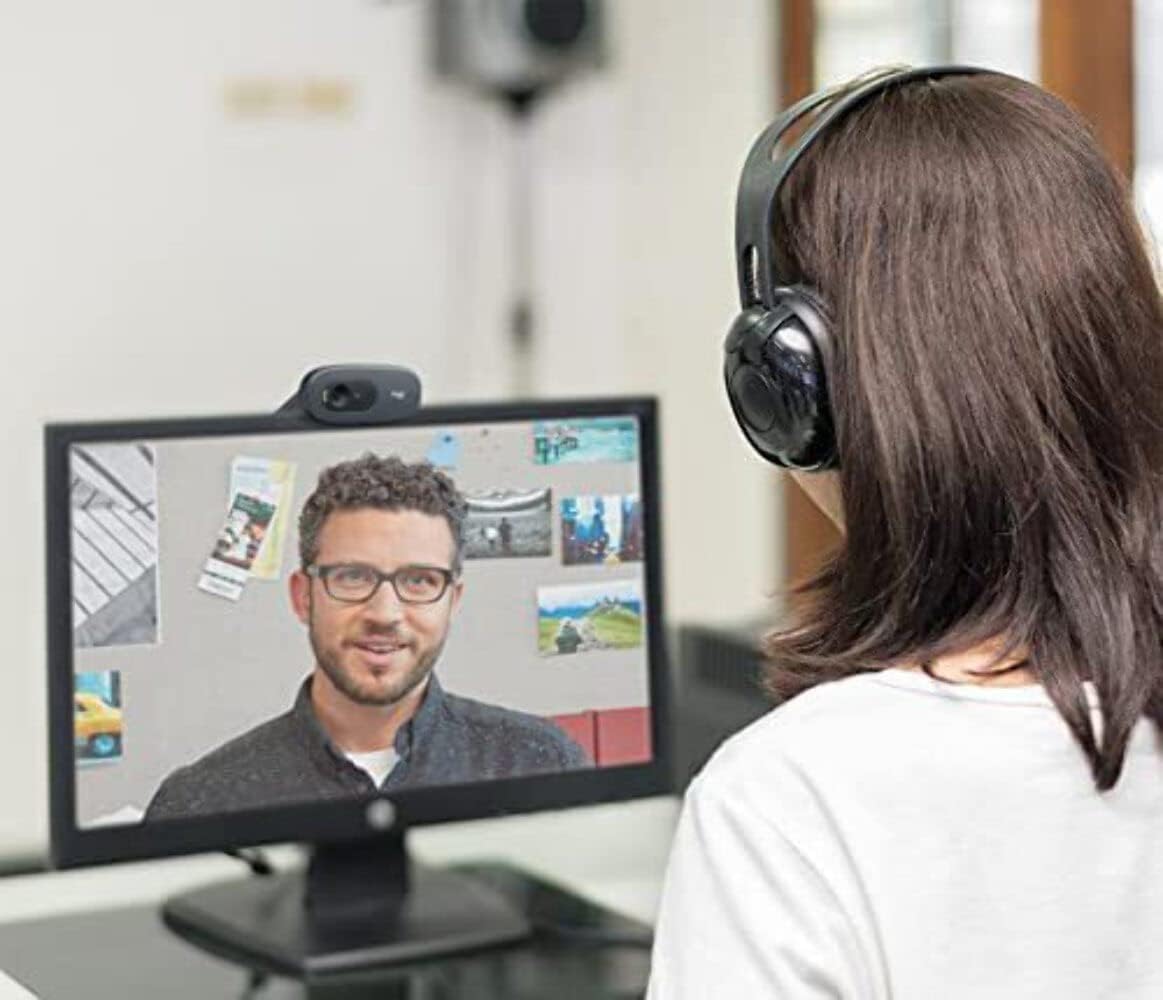
A user engaged in a video call, demonstrating the clear 720p HD video quality of the Logitech C505e webcam.
Audio Quality
The webcam is equipped with a single omnidirectional microphone that features noise-reduction technology. This design allows for clear and natural conversation, capturing your voice effectively from up to 3 meters (7 feet) away, even in environments with some background noise like open workspaces or classrooms.
Compatibility
The Logitech C505e is compatible with all popular video calling applications, ensuring seamless integration into your workflow. This includes platforms such as Microsoft® Teams, Skype™ for Business, Google Voice and Meet, and Zoom™.
Maintenance
To ensure optimal performance and longevity of your Logitech C505e webcam, follow these simple maintenance guidelines:
- Cleaning the Lens: Gently wipe the webcam lens with a soft, lint-free cloth. For stubborn smudges, slightly dampen the cloth with a lens cleaning solution designed for optics. Avoid using abrasive materials or harsh chemicals.
- Cleaning the Body: Use a soft, dry cloth to clean the exterior of the webcam. Do not immerse the webcam in water or any cleaning liquids.
- Storage: When not in use for extended periods, store the webcam in a clean, dry place away from extreme temperatures and direct sunlight.
Troubleshooting
If you encounter issues with your Logitech C505e webcam, refer to the following troubleshooting tips:
No Video or Audio
- Check USB Connection: Ensure the USB-A cable is securely plugged into both the webcam and a functioning USB-A port on your computer. Try a different USB port.
- Restart Computer: A simple restart can often resolve connectivity issues.
- Verify Device Recognition: In your computer's device manager (Windows) or System Information (Mac), check if the webcam is listed under 'Imaging devices' or 'Cameras'.
- Application Settings: Confirm that the correct webcam and microphone are selected within the settings of your video conferencing application.
Poor Video Quality
- Lighting Conditions: Ensure adequate lighting in your environment. The webcam's auto-light correction works best with sufficient ambient light. Avoid strong backlighting.
- Clean Lens: Refer to the Maintenance section for instructions on cleaning the webcam lens.
- Application Resolution: Check the video resolution settings within your video conferencing application. While the webcam supports 720p, some applications might default to lower resolutions.
- Internet Bandwidth: Poor internet connection can affect video quality. Ensure you have stable and sufficient bandwidth.
Poor Audio Quality
- Microphone Selection: Confirm that the Logitech C505e microphone is selected as the input device in your computer's sound settings and your video conferencing application.
- Reduce Background Noise: While the microphone has noise reduction, excessive background noise can still impact clarity. Try to use the webcam in a quieter environment.
- Microphone Placement: Ensure the webcam is positioned within the optimal 3-meter range for clear audio capture.
Specifications
| Feature | Detail |
|---|---|
| Product Dimensions | 0.95 x 2.87 x 1.26 inches |
| Item Weight | 2.65 ounces |
| Item Model Number | 960-001385 |
| Manufacturer | Logitech |
| Photo Sensor Technology | CCD |
| Video Capture Resolution | 720p |
| Maximum Focal Length | 0.1 |
| Maximum Aperture | 720 Millimeters |
| Flash Memory Type | Micro SD |
| Video Capture Format | MP4 |
| Supported Audio Format | AAC |
| Screen Size | 2 Inches |
| Connectivity Technology | USB-A |
What's in the Box
- Logitech C505e HD Business Webcam (with integrated USB-A cable)
Warranty and Support
This Logitech product is covered by a manufacturer's limited hardware warranty. For specific warranty terms and conditions, please refer to the warranty information included with your product packaging or visit the official Logitech support website. For technical assistance, driver downloads, or further troubleshooting, please visit the Logitech support portal.


