
Introduction
The Phomemo D30 is a compact and portable thermal label maker designed for efficient and convenient labeling in various environments, including home, office, and school. Utilizing thermal printing technology, it eliminates the need for ink or toner, offering a clean and cost-effective labeling solution. This device connects wirelessly via Bluetooth to your smartphone or tablet, allowing you to design and print custom labels using the dedicated 'Print Master' application. Its lightweight design and rechargeable battery make it ideal for on-the-go use, simplifying organization tasks.

Image: The Phomemo D30 label maker, shown in green, alongside a roll of labels and a smartphone screen displaying the 'Print Master' app, illustrating its compact size and digital interface.
What's in the Box
Upon unboxing your Phomemo D30 Label Maker, please verify that all the following components are included:
- 1 x Phomemo D30 Label Maker
- 1 x Roll of Label Paper
- 1 x USB Charging Cable
- 1 x User Guide
Setup Guide
1. Charging the Device
Before initial use, ensure the Phomemo D30 is fully charged. Connect the provided USB cable to the charging port on the device and plug the other end into a standard USB power adapter (not included) or a computer's USB port. The indicator light will show charging status. A full charge allows for continuous printing of approximately 34 rolls of paper.
2. Loading Label Paper
Proper loading of the label paper is crucial for optimal printing performance.
- Open the cover of the label maker.
- Insert the label paper roll into the compartment, ensuring the printing surface faces upwards and the paper feeds smoothly through the slot.
- Close the cover firmly until it clicks into place.
3. App Installation and Bluetooth Connection
The Phomemo D30 operates via the 'Print Master' mobile application.
- Download the App: Search for "Print Master" in the Apple App Store (for iOS devices) or Google Play Store (for Android devices) and install it.
- Power On Device: Press and hold the power button on your D30 label maker until the indicator light illuminates.
- Enable Bluetooth: On your smartphone or tablet, ensure Bluetooth is enabled.
- Connect via App: Open the 'Print Master' app. The app will guide you to search for and connect to your D30 printer. Select your device from the list (e.g., "D30").
- Confirm Connection: Once connected, the app will indicate a successful pairing.
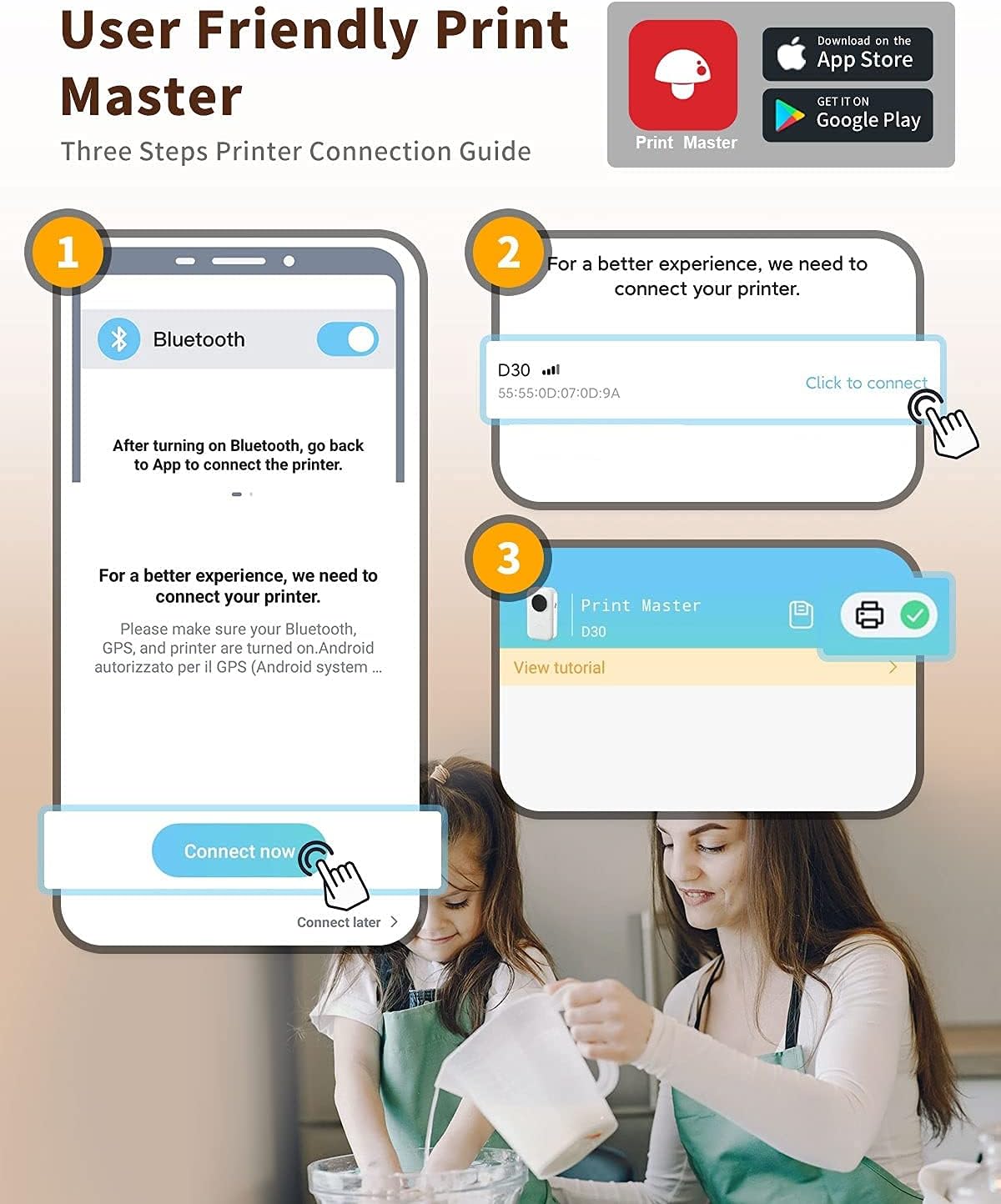
Image: A visual guide demonstrating the three steps to connect the Phomemo D30 to the 'Print Master' app via Bluetooth, as displayed on a smartphone screen.
Operating Instructions
1. Creating Labels with the Print Master App
The 'Print Master' app provides a comprehensive suite of tools for label design:
- Text: Enter custom text, choose from various fonts, sizes, and styles.
- Icons & Symbols: Access a library of icons and symbols to enhance your labels.
- QR Codes & Barcodes: Generate and print QR codes or various barcode types.
- Templates: Utilize pre-designed templates for common labeling needs.
- Images: Insert images from your device's gallery.
Ensure you select the correct label size within the app before you begin editing to match the paper roll loaded in your device.

Image: The 'Print Master' app interface, showcasing its user-friendly design tools for creating custom labels, including text, icons, and borders.
2. Printing Labels
Once your label design is complete in the 'Print Master' app:
- Review your label design on the app screen.
- Tap the "Print" button within the app.
- The D30 label maker will print the label. Gently tear off the printed label along the serrated edge.
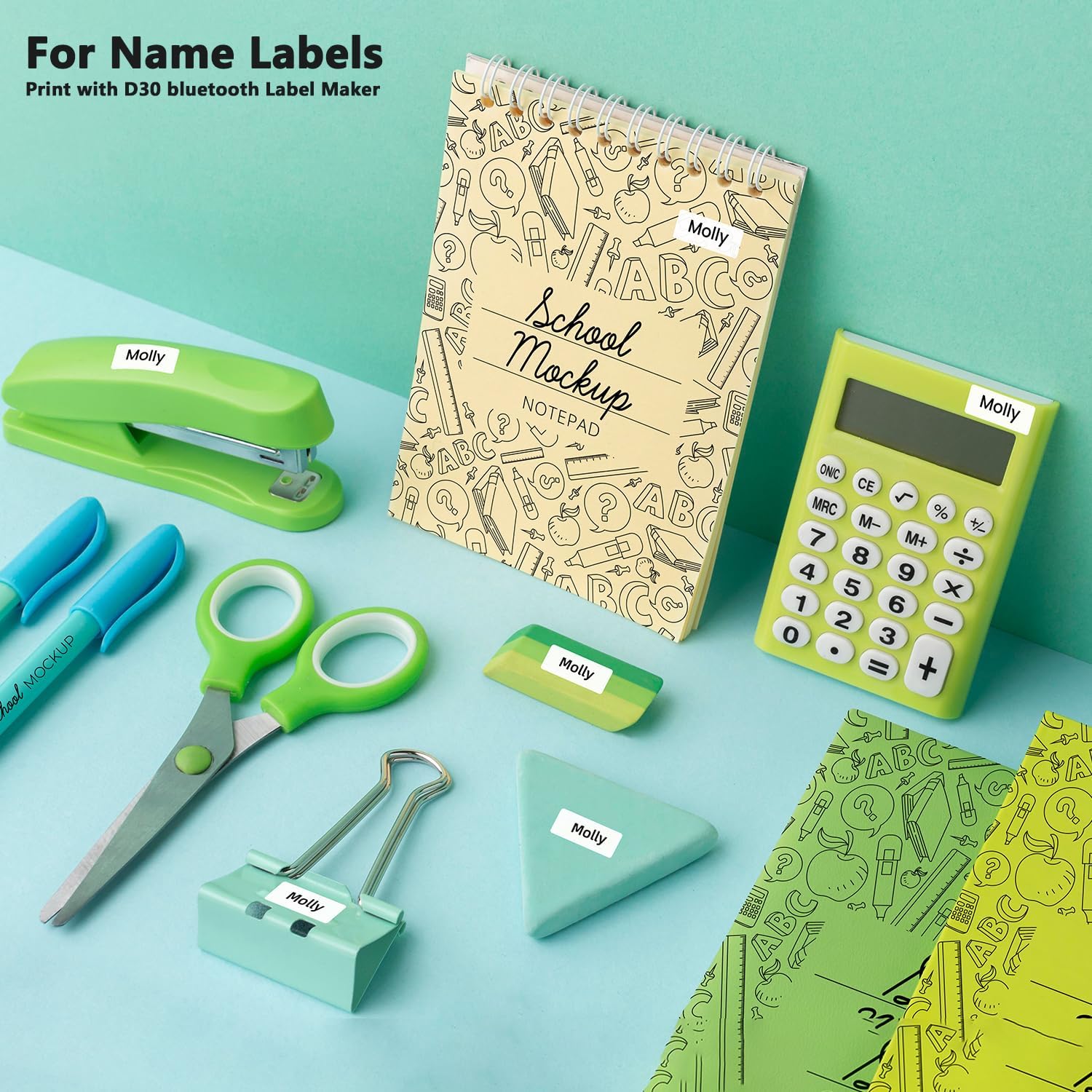
Image: Examples of labels printed with the Phomemo D30, applied to school and office supplies, demonstrating its utility for name labels and organization.
Maintenance
Regular maintenance ensures the longevity and optimal performance of your Phomemo D30 Label Maker.
- Cleaning the Print Head: If print quality degrades, gently wipe the thermal print head with a cotton swab lightly dampened with rubbing alcohol. Ensure the device is powered off before cleaning. Allow it to dry completely before use.
- Storage: Store the label maker in a cool, dry place away from direct sunlight and high humidity. Avoid extreme temperatures.
- Label Paper Care: Keep label paper rolls sealed in their original packaging until ready for use. Avoid exposing labels to direct sunlight or humid environments, as this can affect their quality and adhesion. The labels are designed to be slightly waterproof, abrasion-resistant, and oil-resistant.

Image: Visual examples illustrating the durability of Phomemo D30 labels, highlighting their resistance to water, abrasion, and oil, ensuring long-lasting legibility.
Troubleshooting
If you encounter issues with your Phomemo D30, refer to the following common problems and solutions:
| Problem | Possible Cause | Solution |
|---|---|---|
| Device does not power on. | Low battery. | Charge the device using the provided USB cable. |
| Cannot connect via Bluetooth. | Bluetooth is off on phone/tablet; device not in pairing mode; app issue. | Ensure Bluetooth is enabled on your mobile device. Restart the D30 and the 'Print Master' app. Try forgetting the device in your phone's Bluetooth settings and reconnecting through the app. |
| Poor print quality / Faint printing. | Print head dirty; incorrect label paper; low battery. | Clean the print head (refer to Maintenance section). Ensure you are using genuine Phomemo D30 thermal label paper. Charge the device. |
| Paper jam. | Improper paper loading; foreign object. | Open the cover and carefully remove any jammed paper. Reload the paper correctly. Check for any obstructions. |
| App crashes or freezes. | App software issue; outdated app version. | Close and restart the app. Check for app updates in your device's app store. Reinstall the app if necessary. |
Specifications
Key technical specifications for the Phomemo D30 Label Maker:
| Feature | Detail |
|---|---|
| Model Name | D30 |
| Printing Technology | Thermal |
| Connectivity Technology | Bluetooth |
| Maximum Media Size | 12*40mm |
| Maximum Print Resolution | 203 x 203 DPI |
| Compatible Devices | Smartphones, Tablets (iOS, Android) |
| Power Source | Rechargeable Lithium Ion Batteries (included) |
| Battery Capacity | 1200 mAh |
| Item Weight | 160 Grams (5.6 ounces) |
| Product Dimensions | 4.72"D x 1.97"W x 3.15"H (12 x 5 x 8 cm) |
| Color | Green (for this variant) |

Image: A diagram illustrating the compact dimensions of the Phomemo D30 and its key features, including inkless thermal printing, rechargeable battery, and Bluetooth connectivity.
Warranty and Support
Phomemo products are designed for reliability and performance. For specific warranty details, please refer to the warranty card included with your product or visit the official Phomemo website. For technical support, troubleshooting assistance, or inquiries regarding your Phomemo D30 Label Maker, please contact Phomemo customer service through their official channels. A digital version of the user guide is also available for download:
Official User Guide (PDF): Download Here
For further assistance, you may also visit the Phomemo Store on Amazon.


