
Introduction
The Montech Fighter 500 is an ATX mid-tower computer gaming case designed for optimal airflow and component visibility. It features a mesh 3D front panel, a tempered glass side panel, and pre-installed Rainbow LED fans. This manual provides essential information for setting up, operating, maintaining, and troubleshooting your Montech Fighter 500 case.
Product Features
- Full View Tempered Glass Side Panel: Allows for a clear view of internal components and lighting effects.
- Fine Metal Mesh Front Panel: Designed for maximum airflow to keep components cool.
- Unique M Modeling Architecture: Distinctive front panel design.
- Dazzling Rainbow Fans: Four pre-installed 120mm LED Rainbow fans provide cooling and aesthetic lighting.
- Excellent Dust Resistance: Features a magnetic top vent screen for easy cleaning and dust prevention.
Setup Instructions
1. Preparing the Case
Carefully unbox the Montech Fighter 500 case. Remove the tempered glass side panel by unscrewing the thumb screws, typically located at the rear corners of the panel. Place the case on a stable, flat surface.

Image: Interior view of the Montech Fighter 500 case, highlighting the spacious layout for component installation.
2. Motherboard Installation
The Montech Fighter 500 supports ATX, Micro ATX, and Mini-ITX motherboards. Install the necessary standoffs onto the motherboard tray according to your motherboard's form factor. Carefully place your motherboard onto the standoffs and secure it with screws.
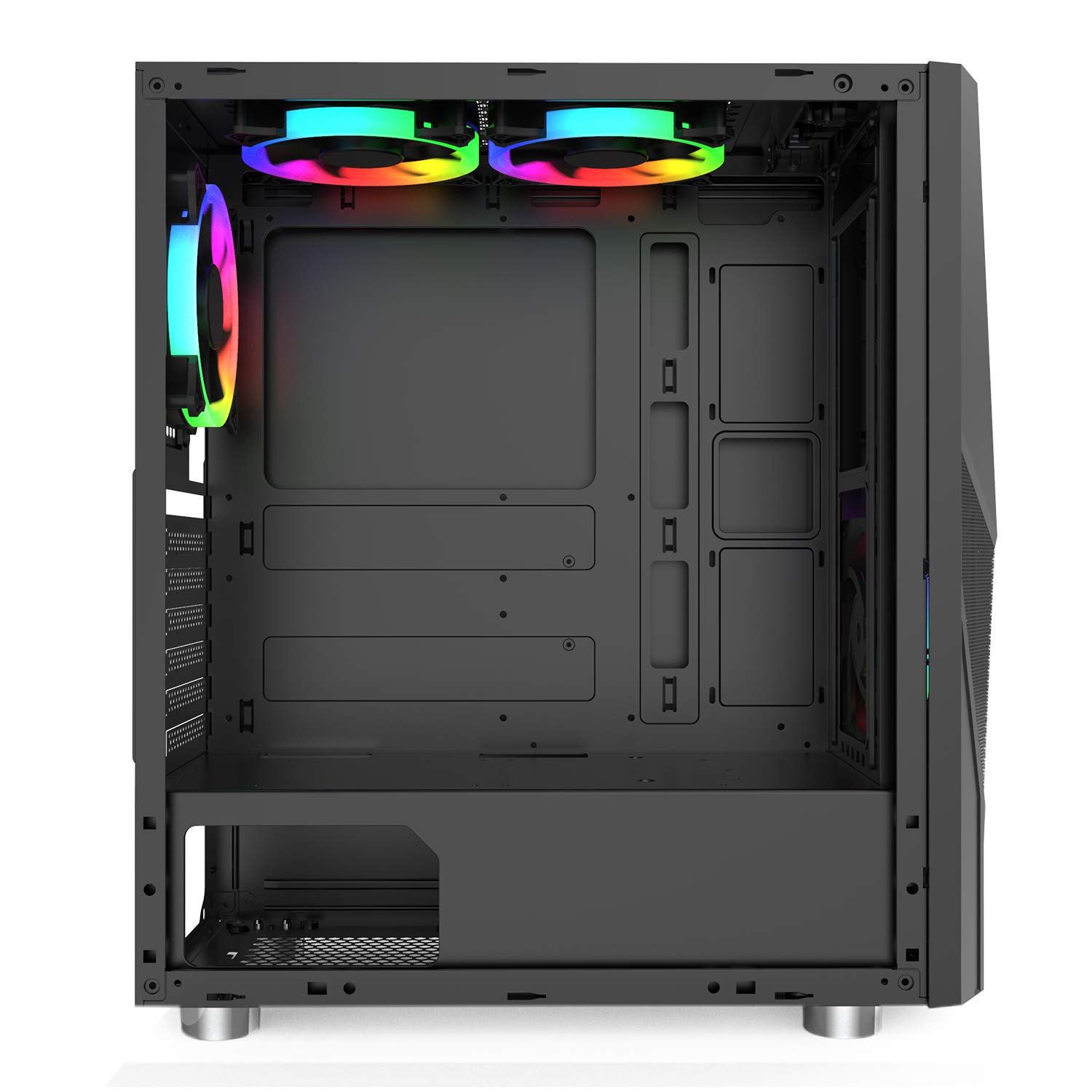
Image: Side interior view of the case, illustrating the motherboard mounting area and cutouts for cable management.
3. Power Supply Unit (PSU) Installation
The PSU mounts at the bottom of the case. Slide your ATX power supply into the designated compartment from the rear of the case and secure it with screws.

Image: Bottom view of the case, highlighting the PSU mounting area and its dedicated ventilation.
4. Drive Installation
The case provides 4 internal bays for 3.5-inch hard drives. Locate the drive cages and install your storage devices as per the case's design, typically using trays or direct mounting with screws.
5. Fan and Cooling System
The Montech Fighter 500 comes with four pre-installed 120mm Rainbow LED fans. Ensure all fan cables are properly connected to your motherboard or a fan controller for power and lighting control.
6. Front Panel Connections
Connect the front panel cables (USB 2.0 x 2, audio, power switch, reset switch, LED indicators) to the corresponding headers on your motherboard. Refer to your motherboard manual for correct pin assignments.

Image: Rear view of the case, detailing the expansion slots and rear fan mount.
Operating Instructions
Once all components are installed and connected, and the side panel is re-secured, your Montech Fighter 500 case is ready for operation. The pre-installed Rainbow LED fans will illuminate upon system power-on, providing both cooling and visual effects. The mesh front panel and bottom mesh ensure consistent airflow for optimal component temperatures.

Image: Front view of the Montech Fighter 500, demonstrating the mesh design and the visual effect of the Rainbow LED fans.
Maintenance
Regular maintenance helps ensure optimal performance and longevity of your PC components.
Dust Filter Cleaning
The Montech Fighter 500 features a magnetic top vent screen for dust resistance. Periodically remove this filter, clean it with compressed air or a soft brush, and reattach it. The bottom mesh filter for the PSU should also be cleaned regularly.

Image: Top view of the case, illustrating the magnetic dust filter for easy removal and cleaning.
General Cleaning
Use a soft, damp cloth to clean the exterior surfaces of the case, including the tempered glass panel. Avoid abrasive cleaners. For interior cleaning, use compressed air to remove dust from fans and components.
Troubleshooting
- System Not Powering On: Double-check all power connections, including the PSU to the wall, PSU to motherboard, and front panel power switch cable to the motherboard header.
- Fans Not Spinning/Lighting: Ensure fan power cables are securely connected to the motherboard or fan controller. Verify that the fan headers are enabled in the BIOS/UEFI settings if applicable.
- Overheating Issues: Confirm that all case fans are spinning correctly and oriented for proper airflow (intake/exhaust). Ensure dust filters are clean and not obstructing airflow.
- USB Ports Not Working: Check the front panel USB cables are correctly connected to the motherboard's USB headers.
For more complex issues related to specific components (motherboard, CPU, GPU), refer to their respective user manuals or contact the component manufacturer's support.
Specifications
| Feature | Specification |
|---|---|
| Brand | Montech |
| Model Name | Fighter 500 |
| Case Type | Mid Tower |
| Motherboard Compatibility | ATX, Micro ATX, Mini-ITX |
| Colour | Black |
| Enclosure Material | Glass, Metal |
| Cooling Method | Air |
| Number of Fans | 4 (Pre-installed) |
| Fan Size | 120 Millimetres |
| Total USB Ports | 5 (2x USB 2.0, 3x other) |
| Internal Bays Quantity | 4 (for 3.5-inch drives) |
| Hard Disk Form Factor | 3.5 Inches |
| Power Supply Mounting Type | Bottom Mount |
Warranty and Support
For warranty information and technical support, please refer to the documentation included with your purchase or visit the official Montech website. Keep your proof of purchase for warranty claims.


