
Yottamaster FS5C3
Yottamaster 5-Bay USB C 10Gbps Hard Drive Enclosure User Manual
Model: FS5C3
Introduction
This manual provides detailed instructions for the Yottamaster 5-Bay USB C 10Gbps Hard Drive Enclosure (Model FS5C3). It covers setup, operation, maintenance, and troubleshooting to ensure optimal performance and longevity of your device. Please read this manual thoroughly before using the product.
Safety Information
To prevent damage to the device or injury to yourself and others, please observe the following safety precautions:
- Do not repair, disassemble, or modify the product without official permission. Unauthorized modifications can void your warranty and cause damage.
- Keep the device away from water, moisture, and extreme temperatures.
- Ensure proper ventilation to prevent overheating. Do not block the fan or ventilation holes.
- Use only the provided power adapter. Using an incorrect power supply can damage the device.
- Handle hard drives with care to avoid data loss or physical damage.

Image: Safety warning label indicating not to repair, disassemble, or modify the product without permission.
Package Contents
Please check the package contents upon unboxing. If any items are missing or damaged, contact customer support.
- Yottamaster 5-Bay USB C Hard Drive Enclosure (FS5C3)
- USB-C to USB-C Data Cable
- 150W Power Adapter
- Power Cord
- Screws for HDD/SSD installation
- Screwdriver
- User Manual (this document)
Product Overview
Familiarize yourself with the components of your Yottamaster enclosure.
Front Panel
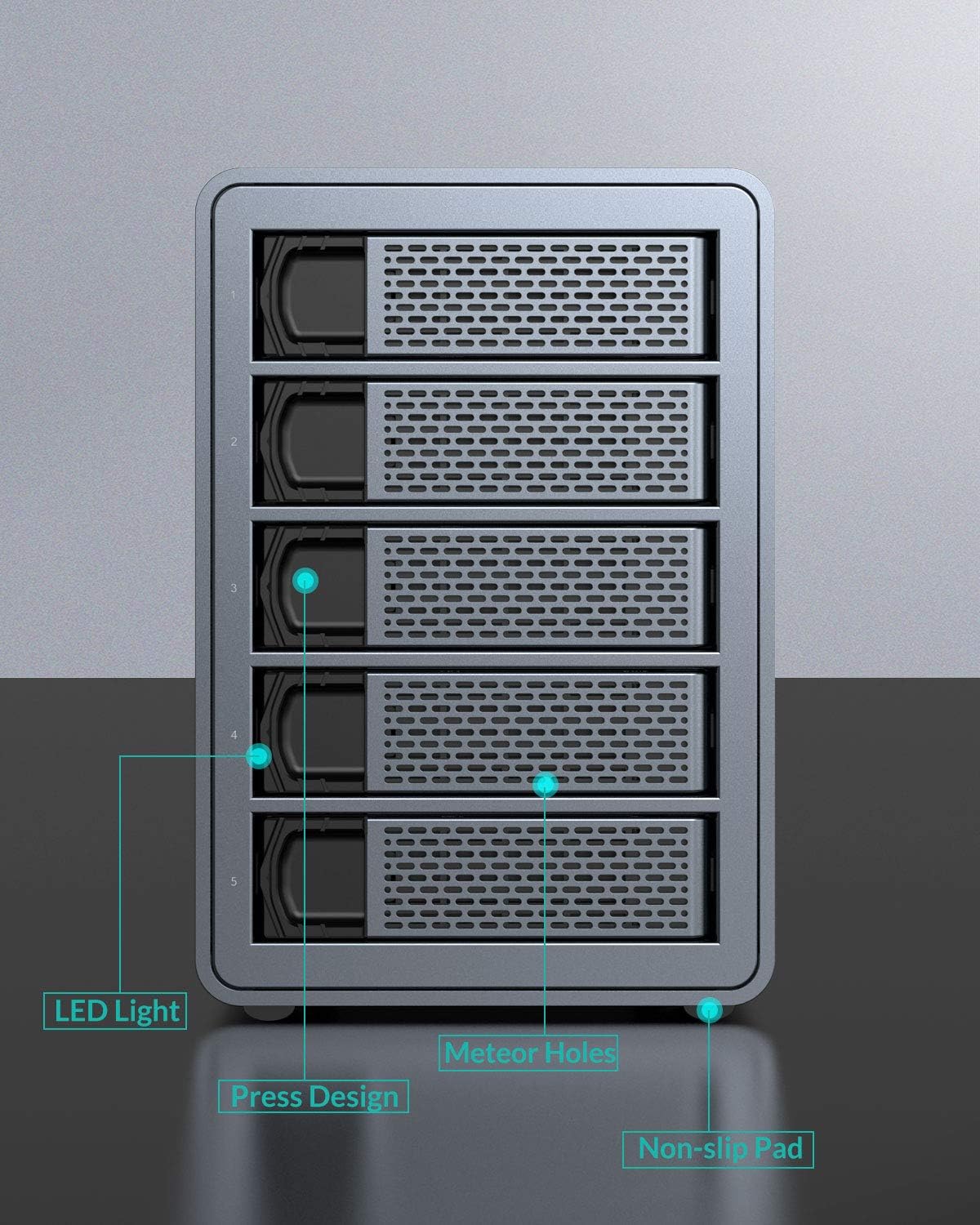
Image: Front view of the Yottamaster 5-Bay enclosure.
- Drive Bays (1-5): Slots for installing 2.5-inch or 3.5-inch SATA HDDs/SSDs.
- LED Indicators: Individual LEDs for each bay, indicating drive activity and status.
- Press Design: Mechanism for easy insertion and removal of drive trays.
- Non-slip Pads: Rubber feet at the bottom for stability.
Rear Panel

Image: Rear view of the Yottamaster 5-Bay enclosure.
- AC Power Input: Connects to the power adapter.
- Power Switch: Turns the enclosure on or off.
- 80mm Silent Fan: Provides cooling for the internal drives.
- USB 3.1 Type-C (Main): Primary data connection port to your computer.
- USB 3.1 Type-C (Hub): Secondary port for daisy-chaining additional devices.
Setup Guide
1. Installing Hard Drives/SSDs
The enclosure supports both 2.5-inch and 3.5-inch SATA HDDs/SSDs.

Image: Compatibility with 2.5" and 3.5" HDDs/SSDs.
- Gently press the release button on a drive tray and pull it out from the enclosure.
- Place your 2.5-inch or 3.5-inch SATA HDD/SSD onto the tray. Align the screw holes.
- Secure the drive to the tray using the provided screws and screwdriver.
- Slide the loaded tray back into the corresponding bay until it clicks into place.
- Repeat for all drives you wish to install.
2. Connecting to Your Computer
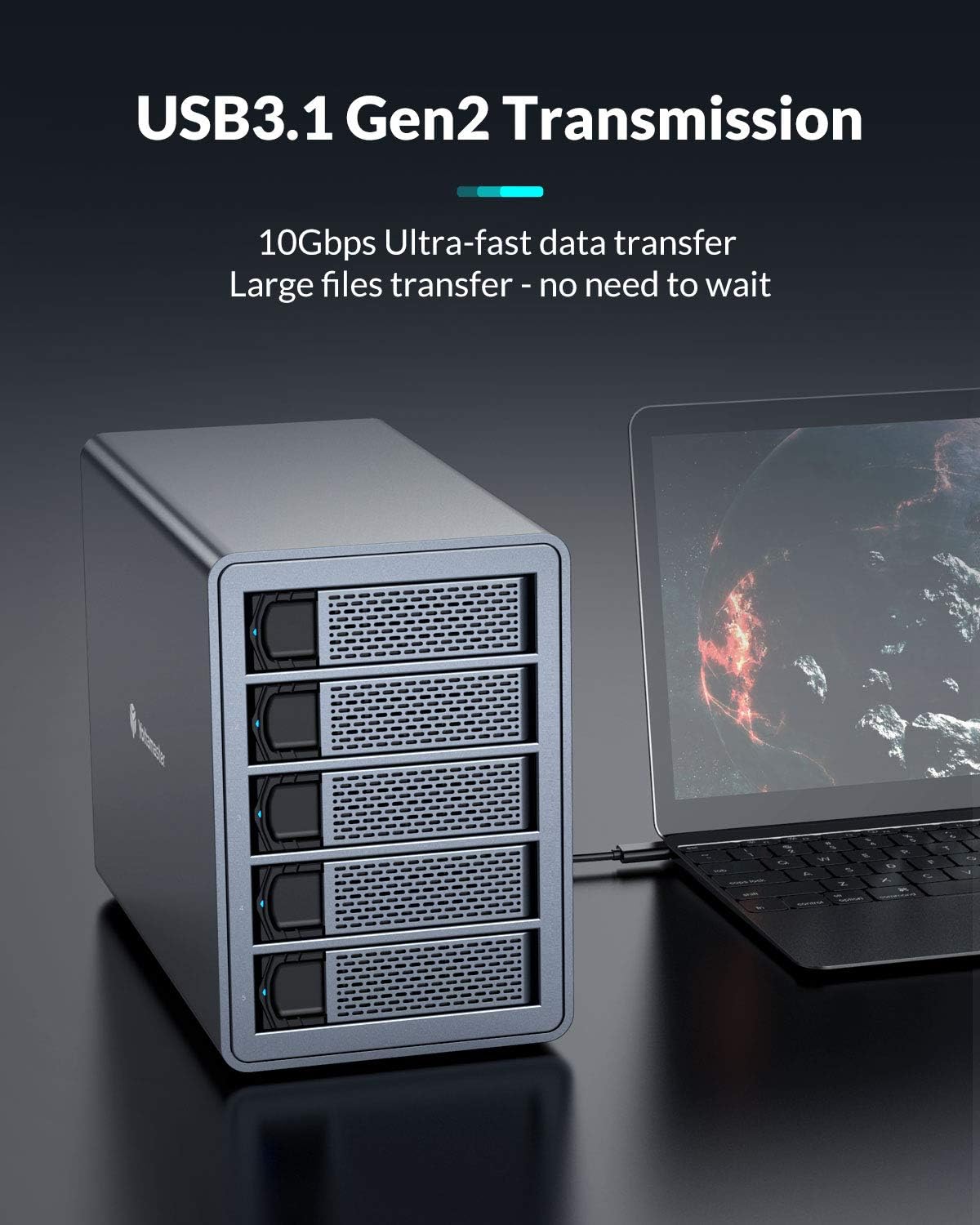
Image: Connecting the enclosure to a laptop for data transfer.
- Connect one end of the provided USB-C data cable to the "Main" USB 3.1 Type-C port on the rear of the enclosure.
- Connect the other end of the USB-C data cable to an available USB-C port on your computer.
3. Powering On

Image: Power connection and internal power supply features.
- Connect the 150W power adapter to the AC Power Input on the rear of the enclosure.
- Plug the power cord into a wall outlet.
- Flip the Power Switch on the rear panel to the "ON" position. The LED indicators on the front will light up.
4. Daisy Chain Connection (Optional)
The enclosure supports daisy-chaining up to two additional FS5C3 units or other compatible USB-C devices, expanding your total storage capacity.

Image: Daisy-chaining multiple enclosures for expanded storage.
- Connect the "Hub" USB 3.1 Type-C port of the first enclosure to the "Main" USB 3.1 Type-C port of the second enclosure.
- Repeat the process for a third enclosure if desired.
- Ensure all enclosures are powered on.
Operating Instructions
Data Transfer
Once connected and powered on, your computer should recognize the installed drives. You can now access and transfer data to and from the drives at speeds up to 10Gbps (USB 3.1 Gen2), depending on your host system and drive performance.
Automatic Hibernation Function
The enclosure is designed to automatically enter sleep mode after 10 minutes of data inactivity to conserve power and extend drive lifespan. The drives will wake up automatically when accessed.
Note: Some users may experience issues with the automatic hibernation function, such as drives not waking up or system freezes. Yottamaster provides a firmware update tool (Windows-only) to disable this feature. Alternatively, third-party software like Amphetamine (macOS), KeepAliveHD, or Prevent Disk Sleep can be used to prevent drives from sleeping by periodically writing small files.
Non-RAID DAS Configuration
The FS5C3 model is a Direct Attached Storage (DAS) enclosure and does not support hardware RAID. Each drive is recognized independently by your operating system. If you require RAID functionality, you must configure it via software RAID using your operating system's tools (e.g., Disk Utility on macOS, Disk Management on Windows, or mdadm on Linux).
Maintenance
- Cleaning: Use a soft, dry cloth to clean the exterior of the enclosure. Do not use liquid cleaners or aerosols.
- Fan Maintenance: Periodically check the 80mm cooling fan for dust buildup. Use compressed air to gently clear any obstructions to ensure optimal airflow.
- Proper Shutdown: Always safely eject or unmount the drives from your operating system before powering off the enclosure to prevent data corruption.
- Drive Health: Regularly check the health of your installed drives using S.M.A.R.T. tools provided by your operating system or third-party software.
Troubleshooting
If you encounter issues with your Yottamaster enclosure, refer to the following common problems and solutions:
Drives Not Detected / Enclosure Not Recognized
- Ensure the power adapter is securely connected and the enclosure is powered on.
- Verify the USB-C data cable is connected to the "Main" port on the enclosure and securely plugged into your computer.
- Try a different USB-C port on your computer or a different USB-C cable.
- Check if the drives are properly seated in their trays and secured with screws.
- Test the drives individually in another enclosure or directly connected to a computer if possible, to rule out drive failure.
- For new drives, ensure they are initialized, partitioned, and formatted in your operating system's Disk Management (Windows) or Disk Utility (macOS).
Drives Go to Sleep / System Freezes
- This is often related to the automatic hibernation feature. Refer to the "Automatic Hibernation Function" section under Operating Instructions for solutions.
- Consider using the Yottamaster firmware tool (Windows-only) to disable sleep mode if persistent issues occur.
Slow Data Transfer Speeds
- Ensure your computer's USB-C port supports USB 3.1 Gen2 (10Gbps). Older USB versions will result in lower speeds.
- Verify you are using the provided USB-C to USB-C cable, which is designed for 10Gbps transfer.
- The actual speed can be limited by the slowest component (e.g., older HDDs, system performance).
- Avoid transferring many small files simultaneously, as this can reduce overall transfer rates.
SMART Disk Errors
- If you observe SMART errors, this indicates potential issues with the hard drive itself, not necessarily the enclosure.
- Immediately back up any critical data from the affected drive.
- Replace the faulty drive.
Specifications
| Model Number | FS5C3 |
|---|---|
| Material | Aluminum Alloy |
| Drive Bays | 5 Bays |
| Compatible Drives | 2.5-inch / 3.5-inch SATA HDD/SSD |
| Max Single Drive Capacity | Up to 18 TB |
| Max Total Capacity | Up to 90 TB (5 x 18 TB) |
| Data Interface | USB 3.1 Gen2 Type-C |
| Transfer Rate | Up to 10 Gbps |
| Power Supply | 150W External Power Adapter |
| Cooling System | 80mm Silent Fan |
| Dimensions (L x W x H) | 26.5 x 13.7 x 20 cm (10.43 x 5.39 x 7.87 inches) |
| Weight | 4.54 kg (10 lbs) |
| Supported Operating Systems | Windows, macOS |
Warranty and Support
Yottamaster products typically come with a limited warranty. For specific warranty terms and conditions, please refer to the warranty card included with your product or visit the official Yottamaster website.
For technical support, product inquiries, or warranty claims, please contact Yottamaster customer service through their official website or the contact information provided in your product packaging. When contacting support, please have your product model (FS5C3) and purchase information ready.
Official Yottamaster Website: www.yottamaster.com
Related documentsFS5C3


Ask a question about this manual
Ask about setup, troubleshooting, compatibility, parts, safety, or missing instructions. Manuals+ will review the question and use this page’s manual context to help answer it.