
1. Introduction
The Motorola MBP75SN Care+ Non-Contact Smart Thermometer is designed for quick and accurate temperature readings of the forehead, liquids, and food. This device utilizes non-contact infrared technology for hygienic use and connects to the Hubble Connected app for enhanced monitoring and record-keeping capabilities.

Figure 1: Motorola MBP75SN Care+ Non-Contact Smart Thermometer packaging.
2. Setup
2.1. Battery Installation
The thermometer requires 2 AAA batteries (included). To install or replace batteries:
- Locate the battery compartment cover on the back of the device.
- Slide the cover open.
- Insert the 2 AAA batteries, ensuring correct polarity (+ and -).
- Close the battery compartment cover securely.
2.2. Initial Power On and App Connection
To utilize the smart features, download the Hubble Connected app and pair your thermometer.
- Download the "Hubble Connected" app from your smartphone's app store.
- Open the app and follow the on-screen instructions to create an account or log in.
- Power on the thermometer by pressing the main measurement button.
- Within the Hubble Connected app, select the option to add a new device and choose the MBP75SN thermometer.
- Follow the app's prompts to complete the Bluetooth pairing process.

Figure 2: Syncing temperature readings to the Hubble Connected app.
3. Operating Instructions
3.1. Taking Forehead Temperature
The thermometer provides accurate forehead temperature readings without direct contact.
- Ensure the thermometer is powered on.
- Point the thermometer sensor towards the center of the forehead, maintaining a distance of approximately 1 inch (2.5 cm).
- Press and release the main measurement button.
- The temperature reading will display on the LCD screen within one second.
- If connected to the Hubble Connected app, the reading will automatically sync.

Figure 3: Taking a non-contact temperature reading of baby food.
3.2. Measuring Liquid and Food Temperatures
The thermometer can also measure the temperature of liquids (like milk or bath water) and food.
- Ensure the thermometer is powered on.
- Point the thermometer sensor towards the surface of the liquid or food, maintaining a distance of approximately 1 inch (2.5 cm).
- Press and release the main measurement button.
- The temperature reading will display on the LCD screen within one second.
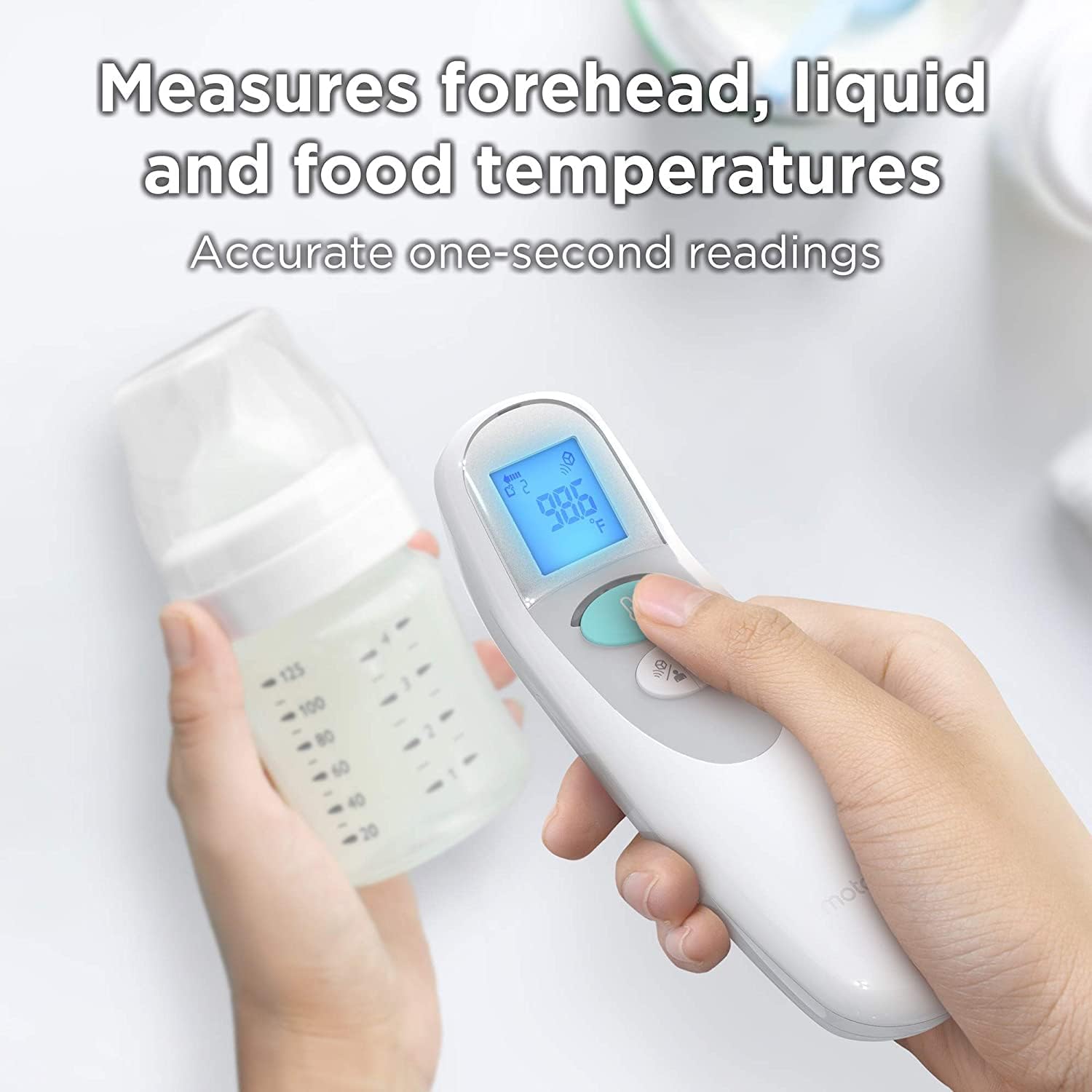
Figure 4: Measuring the temperature of liquid in a baby bottle.
3.3. Understanding Display Readings and Alerts
The LCD display shows the temperature reading. The device may also provide visual cues for high temperatures.
- Temperature Display: Shows the measured temperature in Celsius or Fahrenheit.
- High Temperature Alert: If a body temperature higher than normal is detected, the thermometer's backlight may change color (e.g., red) to indicate a fever.
- App Notifications: When connected, the Hubble Connected app can send real-time notifications to your smart device for high temperature readings.

Figure 5: High temperature alert displayed on a smartphone via the Hubble Connected app.
3.4. Using the Hubble Connected App
The Hubble Connected app enhances the functionality of your thermometer by allowing you to track and manage temperature data.
- Temperature History: View and store a history of temperature readings with easy-to-read charts and graphs.
- Log Medications and Symptoms: Record medications administered, symptoms observed, and health notes directly within the app.
- Reminders: Set reminders and alarms for doctor appointments and medicine administration.
- Share Data: Share temperature measurements and health logs with family members or healthcare providers.

Figure 6: Tracking and storing temperature history in the Hubble Connected app.
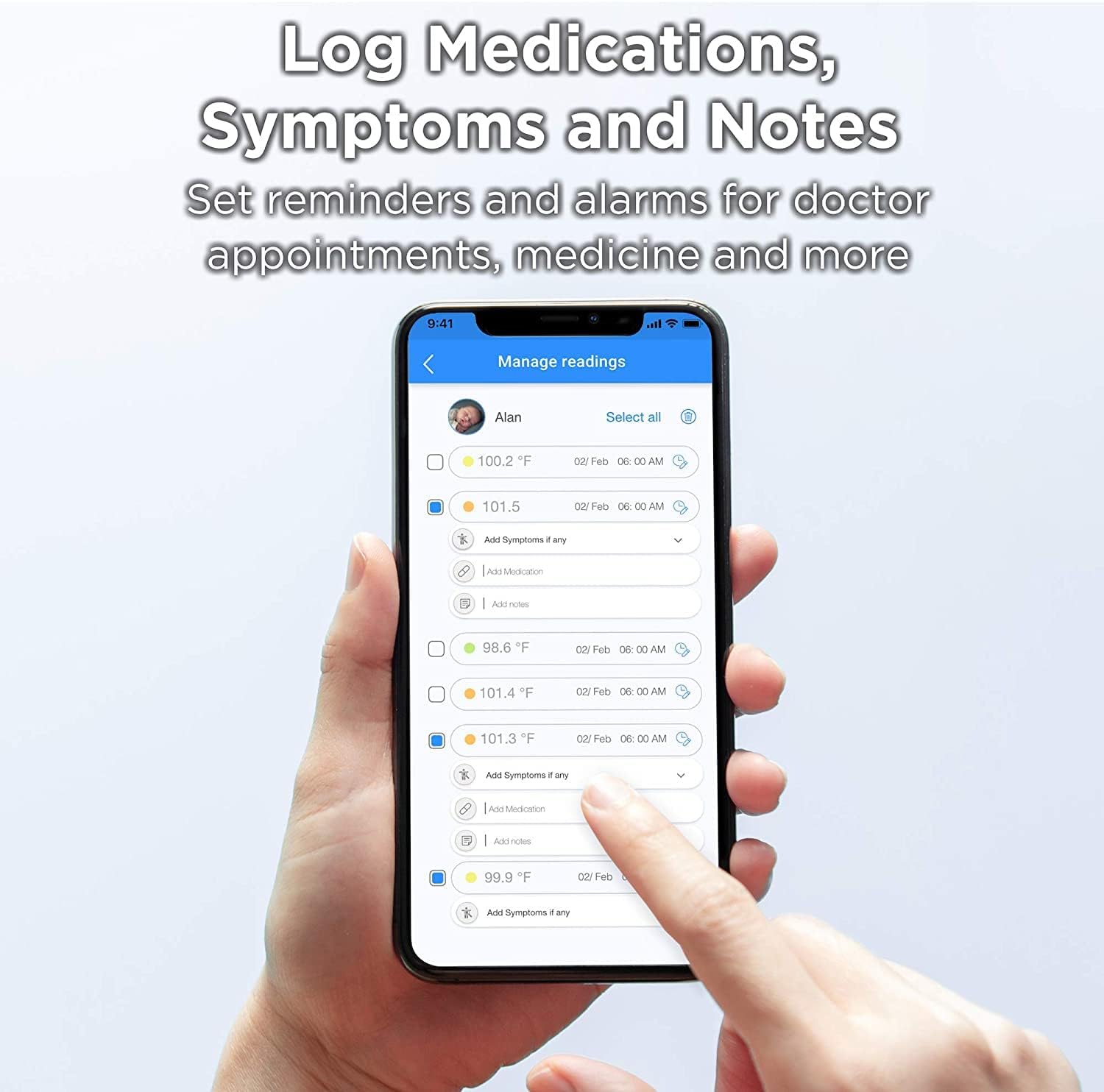
Figure 7: Logging medications, symptoms, and notes in the Hubble Connected app.
4. Maintenance
4.1. Cleaning the Thermometer
To ensure hygienic use and accurate readings, clean the thermometer regularly.
- Wipe the thermometer body and sensor with a soft, damp cloth.
- For disinfection, use an alcohol wipe or a cloth dampened with isopropyl alcohol (70%).
- Do not immerse the thermometer in water or any other liquid.
- Allow the thermometer to air dry completely before storage or next use.
4.2. Storage
Store the thermometer in a cool, dry place, away from direct sunlight and extreme temperatures.
4.3. Battery Replacement
Replace batteries when the low battery indicator appears on the display. Refer to section 2.1 for battery installation instructions.
5. Troubleshooting
If you encounter issues with your Motorola MBP75SN thermometer, refer to the following common problems and solutions:
| Problem | Possible Cause | Solution |
|---|---|---|
| No display or device won't turn on. | Dead or incorrectly installed batteries. | Replace batteries with new AAA batteries, ensuring correct polarity. |
| Inaccurate or inconsistent readings. | Incorrect measurement distance; dirty sensor; environmental factors (e.g., drafts); device malfunction. | Ensure 1-inch distance from forehead/surface. Clean the sensor. Take readings in a stable environment. If issues persist, contact support. |
| Difficulty connecting to Hubble Connected app. | Bluetooth is off; app not updated; pairing issue; device out of range. | Ensure Bluetooth is enabled on your smartphone. Update the Hubble Connected app. Restart both the thermometer and your smartphone. Re-attempt pairing within close proximity. |
| Error codes displayed. | Internal error or specific operational issue. | Turn the thermometer off and then on again. If the error persists, consult the full user manual (if available) or contact customer support. |
6. Specifications
The following are the technical specifications for the Motorola MBP75SN Care+ Non-Contact Smart Thermometer:
| Feature | Detail |
|---|---|
| Model Number | MBP75SN |
| Measurement Type | Non-Contact Infrared |
| Measurement Modes | Forehead, Liquid, Food |
| Accuracy | +/- 0.2°C / 0.4°F |
| Reading Time | Less than 1 second |
| Connectivity | Bluetooth (Hubble Connected App) |
| Power Source | 2 x AAA Batteries (included) |
| Display Type | LCD |
| Product Dimensions | 4.55 x 14.73 x 4.85 cm |
| Item Weight | 72.6 g |
| Special Features | Alarm, Auto Off, Digital, Night-time Mode, Non-Contact |
| Care Instructions | Wipe Clean |
| FDA Certified | Yes |
7. Warranty and Support
7.1. Warranty Information
This product is covered by a manufacturer's warranty. Please refer to the warranty card included in your product packaging or visit the official Motorola support website for detailed warranty terms and conditions.
7.2. Customer Support
For technical assistance, troubleshooting, or product inquiries, please contact Motorola customer support. Contact details can typically be found on the official Motorola website or within the Hubble Connected app.
Online Support: Visit motorolastore.support


