1. Introduction
This user manual provides comprehensive instructions for the installation, operation, and maintenance of your Antec Dark League DF600 Flux Mid-Tower ATX Gaming Case. Please read this manual thoroughly before beginning assembly or use to ensure proper functionality and longevity of your product. Keep this manual for future reference.
2. Product Overview
The Antec DF600 Flux is a mid-tower ATX gaming case designed for optimal thermal performance. It features the innovative F-LUX Platform, Antec's original cooling solution, which provides advanced ventilation and efficient heat dissipation for high-performance components. The case comes equipped with five pre-installed 120mm fans, including ARGB fans for customizable lighting, and a PWM fan controller. Its spacious interior supports high-end GPUs and offers ample room for cable management.

Figure 2.1: Front view of the Antec DF600 Flux case showcasing its illuminated ARGB fans and tempered glass side panel.
3. Key Features
- F-LUX Platform: Antec's advanced case structure designed for superior airflow, enhancing cooling performance for all components, especially the GPU.
- Pre-installed Fans: Includes 5 x 120mm fans (3 x 120mm front ARGB fans, 1 x 120mm reverse fan on PSU shroud, 1 x 120mm rear fan) for immediate cooling.
- ARGB & PWM Fan Controller: Integrated controller for managing fan speeds and customizable RGB lighting effects.
- Extensive Cooling Support: Accommodates up to 9 x 120mm fans and radiators up to 360mm in the front and top, and 120mm in the rear.
- High-End GPU Support: Designed to provide optimal cooling and physical space for large, high-performance graphics cards.
- Storage Options: Features 3 x 2.5" SSD bays and 3/2 convertible 3.5" HDDs/2.5" SSDs bays.
- Tempered Glass Side Panel: Provides a clear view of internal components and RGB lighting.
- I/O Panel Dust Plugs: Included to protect ports from dust accumulation.
- Cable Management: Ample space behind the motherboard tray for clean and efficient cable routing.
- Motherboard Compatibility: Supports ATX, Micro-ATX, and Mini-ITX motherboards.

Figure 3.1: Illustration of the F-LUX Platform's dual airflow channel design, optimizing cooling for both CPU and GPU.

Figure 3.2: The five pre-installed 120mm fans included with the DF600 Flux case, comprising three front ARGB fans, one reverse fan on the PSU shroud, and one rear fan.
Video 3.1: An official video demonstrating the Antec F-LUX Platform, highlighting its innovative cooling solution and airflow design.
4. Setup and Installation
4.1. Unboxing and Inspection
Carefully remove the Antec DF600 Flux case from its packaging. Inspect the case for any signs of damage during transit. Ensure all accessories, including screws, cable ties, and the user manual, are present.
4.2. Removing Side Panels
To access the interior, unscrew the thumbscrews on the rear of the case securing the tempered glass side panel and the solid steel side panel. Carefully remove both panels and set them aside on a soft, non-abrasive surface to prevent scratches.
4.3. Motherboard Installation
Install the appropriate standoffs for your motherboard form factor (ATX, Micro-ATX, or Mini-ITX). Carefully align your motherboard with the standoffs and the I/O shield opening, then secure it with screws. Ensure all necessary cables (front panel connectors, USB, audio) are accessible.

Figure 4.1: Internal layout indicating compatible motherboard sizes (Mini-ITX, Micro-ATX, ATX) and maximum GPU length.
4.4. Power Supply Unit (PSU) Installation
Slide your PSU into the dedicated compartment at the bottom rear of the case. Secure it with screws from the exterior rear of the case. Route the necessary power cables through the cutouts to the motherboard and other components.
4.5. Storage Drive Installation
Install your 2.5" SSDs into the dedicated mounting points behind the motherboard tray. For 3.5" HDDs or additional 2.5" SSDs, use the convertible drive bays located in the PSU shroud area. Secure drives with the provided screws.

Figure 4.2: Overview of the drive bay locations for 2.5" SSDs and convertible 3.5"/2.5" drives, along with the built-in LED & PWM Fan Controller.
4.6. Graphics Card (GPU) and Expansion Card Installation
Remove the necessary PCIe slot covers from the rear of the case. Insert your graphics card or other expansion cards into the appropriate PCIe slots on your motherboard and secure them with screws. Connect the required power cables from the PSU to your GPU.
4.7. Cable Management
Utilize the cable routing cutouts and tie-down points behind the motherboard tray to organize and secure all cables. This improves airflow and aesthetics. Connect the front panel I/O cables (USB 3.0, HD Audio, Power, Reset, LED Control) to your motherboard.

Figure 4.3: An internal view of the case with installed components, demonstrating the ample space for cable management behind the motherboard tray.
5. Operating Instructions
5.1. Powering On
Once all components are installed and cables are connected, replace the side panels. Connect your monitor, keyboard, mouse, and power cable to the PSU. Press the power button on the top I/O panel to start your system.
5.2. ARGB Lighting Control
The pre-installed ARGB fans can be controlled via the dedicated LED control button on the top I/O panel. Press the button to cycle through various lighting modes and colors. For advanced synchronization with your motherboard, connect the ARGB cable from the fan controller to a compatible 3-pin 5V ARGB header on your motherboard and use the motherboard's software.

Figure 5.1: The top I/O panel, featuring USB 3.0 ports, HD Audio jacks, power button, and the LED control button for ARGB lighting.
Video 5.1: An official video showcasing the Antec Dark Fleet DF600 Flux, demonstrating its design and lighting features.
5.3. Fan Speed Control (PWM)
The integrated PWM fan controller allows your motherboard to dynamically adjust fan speeds based on system temperature, ensuring optimal cooling and noise levels. Ensure the PWM cable from the controller is connected to a compatible PWM fan header on your motherboard.
6. Maintenance
6.1. Dust Filter Cleaning
The Antec DF600 Flux features removable dust filters on the top, front, and bottom (PSU intake) to prevent dust buildup inside the case. Regularly clean these filters by gently sliding them out, dusting them off with a soft brush or compressed air, and then reinserting them. Cleaning frequency depends on your environment, but monthly cleaning is recommended.
6.2. General Cleaning
Use a soft, damp cloth to wipe down the exterior surfaces of the case. For the tempered glass panel, use a glass cleaner and a microfiber cloth to avoid streaks. Avoid using abrasive cleaners or solvents that could damage the finish.
7. Troubleshooting
- System Not Powering On: Ensure the PSU is switched on and properly connected to the wall outlet and motherboard. Verify that the front panel power button cable is correctly connected to the motherboard's F_PANEL header.
- Fans Not Spinning/RGB Not Working: Check all fan and RGB connections to the integrated controller and to the motherboard. Ensure the controller is receiving power. If using motherboard software for RGB, verify it's installed and configured correctly.
- High Temperatures: Confirm that all fans are spinning in the correct direction (intake/exhaust). Ensure dust filters are clean and not obstructing airflow. Verify that CPU cooler and GPU fans are functioning properly. Check for proper cable management to avoid airflow obstruction.
- Loose Components: If you hear rattling or notice instability, power down the system and check that all components (motherboard, GPU, storage drives, PSU) are securely fastened with screws.
8. Specifications
| Feature | Detail |
|---|---|
| Model Name | DF600 FLUX |
| Dimensions (DxWxH) | 467 mm x 220 mm x 486 mm (18.4 x 8.7 x 19.1 inches) |
| Motherboard Compatibility | ATX, Micro-ATX, Mini-ITX |
| Case Type | Mid Tower |
| Material | Alloy Steel, Plastic, Tempered Glass |
| Pre-installed Fans | 3 x 120mm Front ARGB, 1 x 120mm Rear, 1 x 120mm Reverse (PSU Shroud) |
| Fan Support (Max) | Front: 3 x 120mm / 3 x 140mm; Top: 3 x 120mm / 2 x 140mm; Rear: 1 x 120mm; PSU Shroud: 1 x 120mm |
| Radiator Support (Max) | Front: Up to 360mm; Top: Up to 360mm; Rear: Up to 120mm |
| 2.5" SSD Bays | 3 |
| 3.5" HDD / 2.5" SSD (Convertible) | 3/2 |
| Expansion Slots | 7 |
| I/O Ports | 2 x USB 3.0, HD Audio, LED Control Button, Power Button |
| Maximum GPU Length | 405mm |
| Maximum CPU Cooler Height | 175mm |
| Power Supply Mounting Type | Bottom |
| Item Weight | 18.7 pounds (approx. 8.48 kg) |
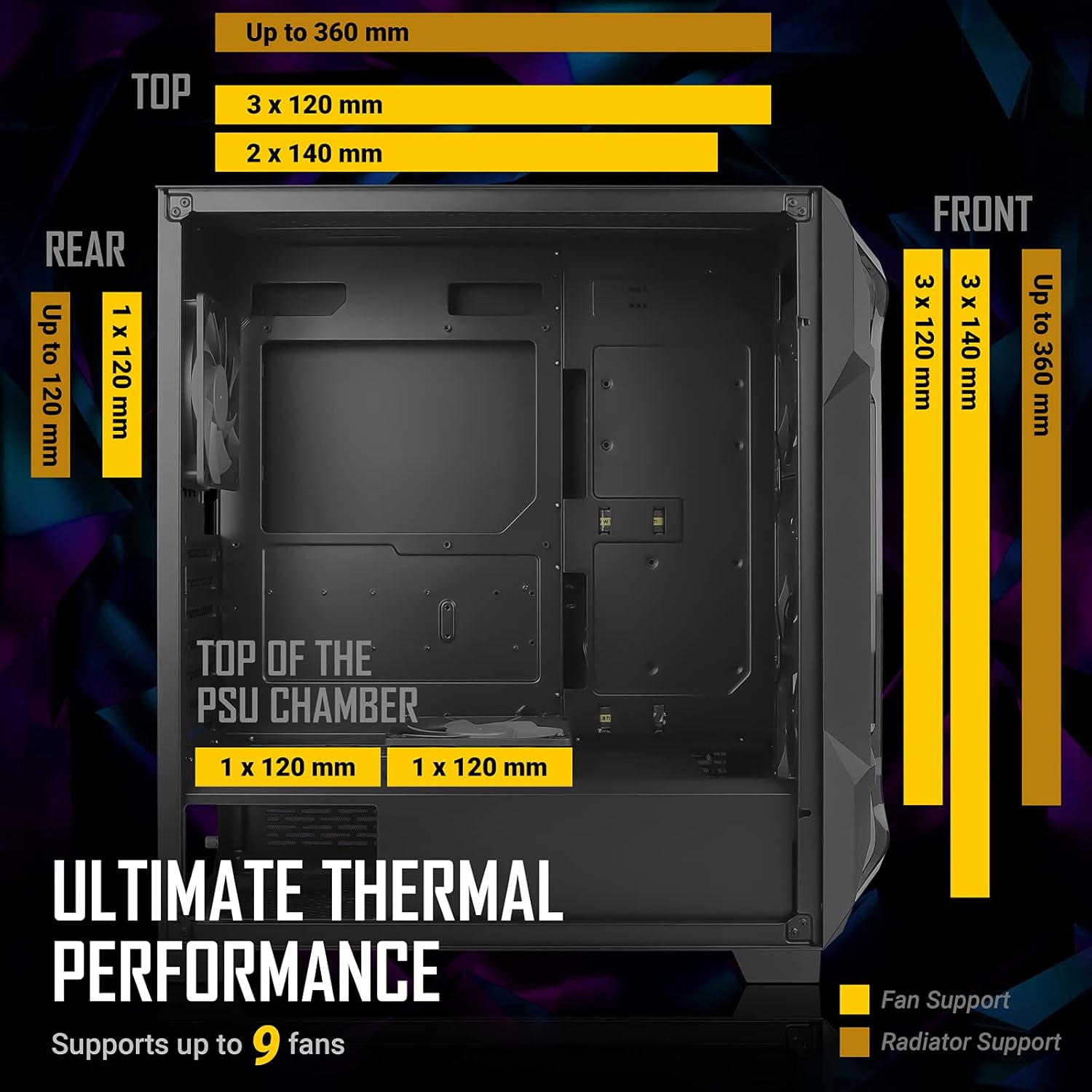
Figure 8.1: Detailed diagram illustrating the ultimate thermal performance capabilities, including fan and radiator support locations and sizes.
9. Warranty and Support
Antec products are backed by a limited warranty. For specific warranty terms and conditions, please refer to the warranty card included with your product or visit the official Antec website. For technical support, troubleshooting assistance, or to inquire about replacement parts, please contact Antec customer service through their official support channels.
Official Antec Website: www.antec.com


