
Introduction
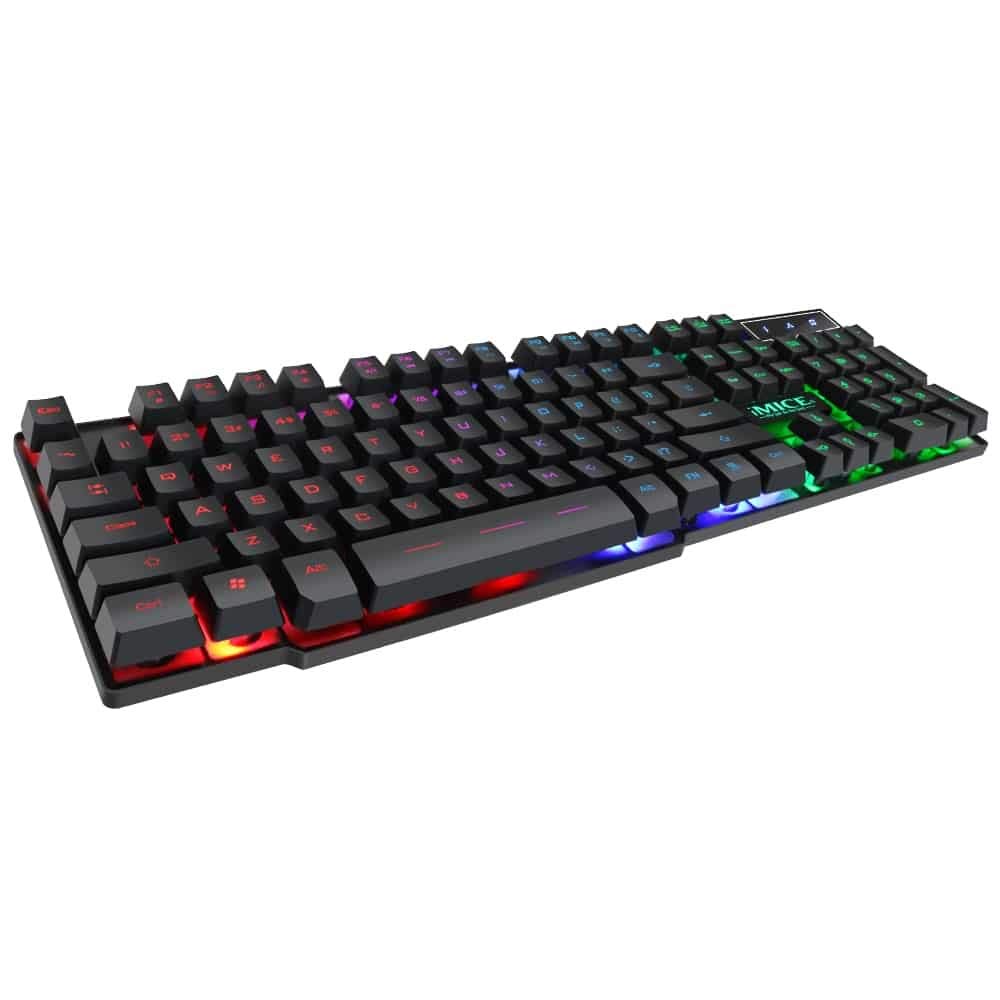
This manual provides instructions for the iMICE AK-600 Backlit USB Wired Gaming Keyboard. It covers setup, operation, maintenance, and troubleshooting to ensure optimal performance and longevity of your device. Please read this manual thoroughly before using the keyboard.
Setup
What's in the Box
The iMICE AK-600 keyboard package includes:
- iMICE AK-600 Backlit USB Wired Gaming Keyboard (with integrated USB cable)
Connecting the Keyboard
To connect your iMICE AK-600 keyboard:
- Locate an available USB port on your computer.
- Plug the integrated USB cable from the keyboard into the USB port.
- The keyboard is plug-and-play and should be automatically recognized by your operating system without requiring additional drivers for basic functionality.
Operating Instructions
Basic Keyboard Functions
The iMICE AK-600 features a standard 104-button layout, providing all essential keys for typing and gaming.
Backlight Control
The keyboard is equipped with a three-color backlight system (red, blue, green). The key characters are illuminated for visibility in low-light conditions.
- To change the backlight color or cycle through modes, use the dedicated backlight control key (often labeled with a light bulb icon or similar).
- Pressing the key repeatedly will switch between red, blue, green, and off modes.
Multimedia Keys
The keyboard includes 12 groups of multimedia function keys, typically accessed by pressing the Fn key in combination with the F1-F12 keys. These provide quick access to functions such as volume control, media playback, and more.
Anti-Ghosting
The iMICE AK-600 supports 19-key anti-ghosting. This feature ensures that multiple key presses are registered simultaneously and accurately, preventing input conflicts during fast-paced gaming or typing.
Maintenance and Care
Proper maintenance will extend the life of your keyboard:
- Cleaning: Regularly wipe the keyboard surface with a soft, dry, lint-free cloth to remove dust and debris. For deeper cleaning, use a slightly damp cloth with mild soap, ensuring no liquid enters the keyboard.
- Liquid Spills: The keyboard features an integrated liquid guide hole design to help with minor spills. However, it is not fully waterproof. In case of a spill, immediately disconnect the keyboard from your computer and allow it to dry completely before reconnecting.
- Avoid Harsh Chemicals: Do not use abrasive cleaners, solvents, or strong detergents, as these can damage the keyboard's finish and key legends.
- Cable Care: Ensure the USB cable is not excessively bent, twisted, or placed under heavy objects, which could damage the internal wires.
Troubleshooting
Keyboard Not Responding
- Ensure the USB cable is securely connected to both the keyboard and an active USB port on your computer.
- Try connecting the keyboard to a different USB port on your computer.
- Restart your computer.
- Test the keyboard on another computer to determine if the issue is with the keyboard or the computer's USB port/drivers.
Backlight Not Working
- Verify that the keyboard is properly connected and receiving power.
- Press the backlight control key (often labeled with a light bulb icon) to cycle through backlight modes and ensure it is not turned off.
Specific Keys Not Registering
- Gently clean around the affected keys to remove any dust or debris that might be obstructing the key mechanism.
- If the issue persists, contact customer support for further assistance.
Specifications
| Feature | Detail |
|---|---|
| Brand | OEM (iMICE) |
| Model | AK-600 |
| Connectivity Technology | USB (Wired) |
| Keyboard Description | Gaming |
| Special Feature | Backlit (Red, Blue, Green) |
| Material | Plastic |
| Included Components | Integrated USB Cable |
| Switch Type | Tactile |
| Hand Orientation | Ambidextrous |
| Number of Buttons/Keys | 104 |
| Compatible Operating Systems | Windows (XP/2000/Vista/7/8/10), Android, Linux |
| Cable Length | 1.3 meters |
| Key Lifespan | Up to 5 million presses |
Warranty and Support
For information regarding product warranty, returns, or technical support, please refer to the retailer's policy where the product was purchased. It is recommended to retain your purchase receipt as proof of purchase for any warranty claims. For direct manufacturer support, please visit the official OEM or iMICE website.


