
Introduction
Thank you for choosing the Brydge Stone II USB Hub Docking Station. This device is designed to expand the connectivity of your computer, providing a single solution for connecting multiple peripherals, external displays, and network access. It is compatible with both MacOS and Windows operating systems, offering a streamlined workspace experience.
Please read this manual carefully to ensure proper setup, operation, and maintenance of your Brydge Stone II docking station.
Product Overview
The Brydge Stone II is a versatile 7-port USB hub docking station that enhances your productivity by providing essential connectivity options. Its compact and elegant design complements any desktop environment.

Image: Top-down view of the Brydge Stone II USB Hub Docking Station, showcasing its sleek design and port arrangement.
Key Features:
- 7 Ports: Includes 2 x USB-C, 3 x USB-A, 1 x HDMI, and 1 x Ethernet.
- Single 4K Display Output: Connect an external monitor via HDMI for high-resolution visuals.
- USB-C Speeds: Utilizes USB-C technology for fast data transfer and power delivery.
- Wide Compatibility: Fully compatible with MacOS and Windows devices.
Port Layout:
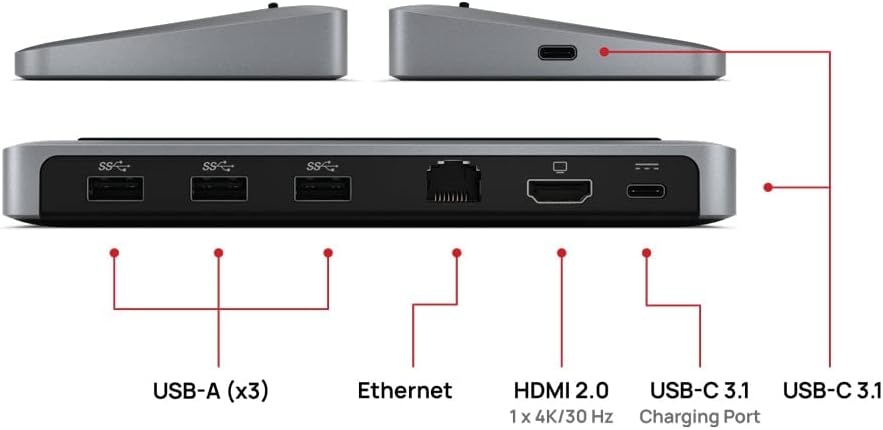
Image: Detailed diagram showing the various ports available on the Brydge Stone II docking station.
- USB-A (x3): For connecting standard USB devices such as keyboards, mice, external hard drives, and flash drives.
- Ethernet: Provides a stable wired network connection.
- HDMI 2.0: Supports single 4K display output at 30Hz.
- USB-C 3.1 (Charging Port): For power delivery to your host device.
- USB-C 3.1 (Data/Host Connection): Connects to your computer for data transfer and hub functionality.
Setup Instructions
Follow these steps to set up your Brydge Stone II docking station:
- Connect Power (Optional but Recommended): If your computer requires charging via the docking station, connect a USB-C power adapter (not included) to the USB-C Charging Port on the Brydge Stone II. The docking station supports up to 40 watts of power delivery.
- Connect to Computer: Use the provided USB-C cable to connect the USB-C 3.1 (Data/Host Connection) port on the Brydge Stone II to an available USB-C port on your MacOS or Windows laptop.
- Connect Peripherals:
- HDMI Display: Connect an HDMI cable from your monitor to the HDMI 2.0 port on the docking station.
- USB Devices: Plug your USB-A devices (e.g., keyboard, mouse, external hard drive) into the three USB-A ports.
- Ethernet: Connect an Ethernet cable from your router or modem to the Ethernet port on the docking station for a wired network connection.
- Verify Connections: Ensure all cables are securely connected. Your computer should automatically detect the docking station and connected peripherals.

Image: The Brydge Stone II docking station supporting a laptop, demonstrating a typical setup.

Image: Multiple cables connected to the Brydge Stone II, showing a fully utilized hub.
Video: An official Brydge video demonstrating the Stone II docking station in use, showcasing its connectivity and how it integrates into a workspace with external monitors and peripherals.
Operating Instructions
Once connected, the Brydge Stone II operates automatically. No additional drivers are typically required for basic functionality on supported operating systems.
- External Display: Your operating system should detect the connected HDMI display. You may need to adjust display settings (resolution, orientation, extended/mirrored desktop) within your computer's display preferences. The HDMI port supports a single 4K display at 30Hz.
- USB Devices: Plug-and-play functionality for most USB devices. Ensure devices requiring significant power are connected to an external power source if the hub's power delivery is insufficient for all connected devices.
- Ethernet: The wired network connection will typically be recognized automatically. Check your network settings if you experience connectivity issues.
- Power Delivery: If a USB-C power adapter is connected to the docking station's charging port, it will pass power through to your connected laptop.
Maintenance
To ensure the longevity and optimal performance of your Brydge Stone II docking station, follow these maintenance guidelines:
- Cleaning: Use a soft, dry, lint-free cloth to clean the exterior of the docking station. Avoid using harsh chemicals, solvents, or abrasive cleaners.
- Storage: When not in use, store the docking station in a cool, dry place away from direct sunlight and extreme temperatures.
- Handling: Handle the device with care. Avoid dropping it or subjecting it to strong impacts.
- Cable Management: Ensure cables are not excessively bent or strained, which can lead to damage over time.
Troubleshooting
If you encounter issues with your Brydge Stone II, refer to the following common problems and solutions:
| Problem | Possible Solution |
|---|---|
| No display output on external monitor. |
|
| USB devices are not recognized or not functioning. |
|
| Network connection issues via Ethernet. |
|
| Laptop is not charging via the docking station. |
|
Specifications
| Feature | Detail |
|---|---|
| Brand | Brydge |
| Model Number | BRYSTONE2 |
| Color | Space Grey |
| Hardware Interface | Ethernet, USB-C, HDMI, USB-A |
| Total USB Ports | 7 (2 x USB-C, 3 x USB-A) |
| Total HDMI Ports | 1 |
| Display Output | Single 4K @ 30Hz via HDMI |
| Power Delivery | Up to 40 watts (via USB-C Charging Port) |
| Item Weight | 308 Grams |
| Compatibility | MacOS, Windows |
| UPC | 787790155447 |
Warranty and Support
The Brydge Stone II USB Hub Docking Station comes with a one-year limited manufacturer's warranty. This warranty covers defects in materials and workmanship under normal use.
For warranty claims, technical assistance, or any questions regarding your product, please contact Brydge customer support. Refer to the official Brydge website for the most current support contact information and resources.


