
1. Introduction
The Autel MaxiCOM MK808Z-BT is an advanced diagnostic scanner designed for comprehensive vehicle system analysis. This device offers bidirectional control, over 28 special service functions, and all-system diagnostics, making it a versatile tool for automotive professionals and enthusiasts. It operates on Android 11 and features wireless connectivity via Bluetooth for enhanced flexibility.

Image: The Autel MaxiCOM MK808Z-BT diagnostic tablet and its wireless VCI (Vehicle Communication Interface) module, presented in a durable carrying case.
2. Device Overview and Key Features
The MK808Z-BT represents an upgrade from previous models like the MK808S and MK808BT, offering enhanced performance and functionality.
2.1 Key Features
- Bidirectional Control: Perform active tests on various vehicle components.
- 28+ Special Services: Access a wide range of maintenance and reset functions.
- All System Diagnostics: Read and clear codes, view live data, and retrieve ECU information from all available vehicle modules.
- Wireless Connectivity: Utilizes a MaxiVCI Mini VCI for stable Bluetooth communication up to 33 feet (10 meters).
- Android 11 Operating System: Provides a fast and user-friendly interface.
- FCA AutoAuth Support: Unlock SGW modules for post-2017 FCA vehicles.
- Expandable Functions: Supports battery testing with Autel BT506 and digital inspection with Autel MV108 (accessories sold separately).

Image: A visual representation highlighting the upgraded specifications of the Autel MaxiCOM MK808Z-BT, including 4GB RAM, 64GB ROM, 5000mAh battery, dual-band Wi-Fi, Rockchip RK3566 CPU, and Android 11 OS.
3. Setup and Initial Use
3.1 Unpacking and Powering On
- Carefully unpack all components from the packaging.
- Ensure the device is fully charged before first use. Connect the power adapter to the device and a power outlet.
- Press and hold the power button to turn on the device.
3.2 Language Selection
Upon first boot, you will be prompted to select your preferred language. The MK808Z-BT supports over 21 different languages. To change the language later, navigate to Settings > System Settings > Language & Input.
3.3 Connecting the MaxiVCI Mini
The MaxiVCI Mini is the wireless vehicle communication interface. It connects to the vehicle's OBDII port and communicates with the MK808Z-BT tablet via Bluetooth.
- Locate the vehicle's OBDII port, typically under the dashboard on the driver's side.
- Plug the MaxiVCI Mini firmly into the OBDII port. The VCI's indicator lights will illuminate.
- On the MK808Z-BT tablet, navigate to the VCI Manager application.
- Select Bluetooth as the connection method and pair with the MaxiVCI Mini.
3.4 Vehicle Identification
The MK808Z-BT offers several methods to identify the vehicle for diagnosis:
- Auto Detect: The system automatically reads the VIN (Vehicle Identification Number) from the vehicle's ECU.
- Manual Input: Enter the VIN manually.
- Automatic Selection: Select the vehicle make, model, and year from a guided menu.
- Manual Selection: Choose vehicle details step-by-step.

Image: The Autel MaxiCOM MK808Z-BT displaying its Auto VIN and Auto Scan capabilities, which allow for quick vehicle identification and a comprehensive scan of all systems.
4. Operating the Device
4.1 All System Diagnostics
This function allows you to access all available electronic control modules in the vehicle to perform comprehensive diagnostics.
- Read Codes: Retrieve Diagnostic Trouble Codes (DTCs) from the vehicle's ECUs.
- Clear Codes: Erase DTCs after repairs have been made.
- Live Data: View real-time data streams from various sensors and components in text, graph, or analog formats.
- Freeze Frame Data: Capture a snapshot of sensor values at the moment a DTC was set.
- ECU Information: Display detailed information about the control module.
- Auto Scan: Automatically scan all vehicle systems for DTCs.

Image: An overview of the OE-Level All System Diagnosis capabilities, including reading/erasing codes, viewing ECU info, Auto VIN, live data, freeze frame data, and auto scan.
4.2 Bidirectional Control (Active Test)
Bidirectional control allows the diagnostic tool to send commands to vehicle systems and components to test their functionality, helping to quickly pinpoint faulty parts.
- Activate components such as ABS pumps, windows, doors, solenoids, valves, wipers, and headlamps.
- Monitor the component's response to verify its operational integrity.

Image: The Autel MaxiCOM MK808Z-BT performing bidirectional control, demonstrating its ability to activate and test various vehicle components like headlights, throttle valves, sunroofs, air conditioning systems, and power seats.
4.3 Special Service Functions
The MK808Z-BT provides access to over 28 common maintenance and reset services.
- Oil Reset
- EPB (Electronic Parking Brake) Reset
- SAS (Steering Angle Sensor) Reset
- BMS (Battery Management System) Reset
- Auto Brake Bleed
- Injector Coding
- Throttle Adaptation
- Initial Adaptation, Self-learning, and Relearn functions (e.g., Crankshaft Position Sensor Learn, transmission fast learn).
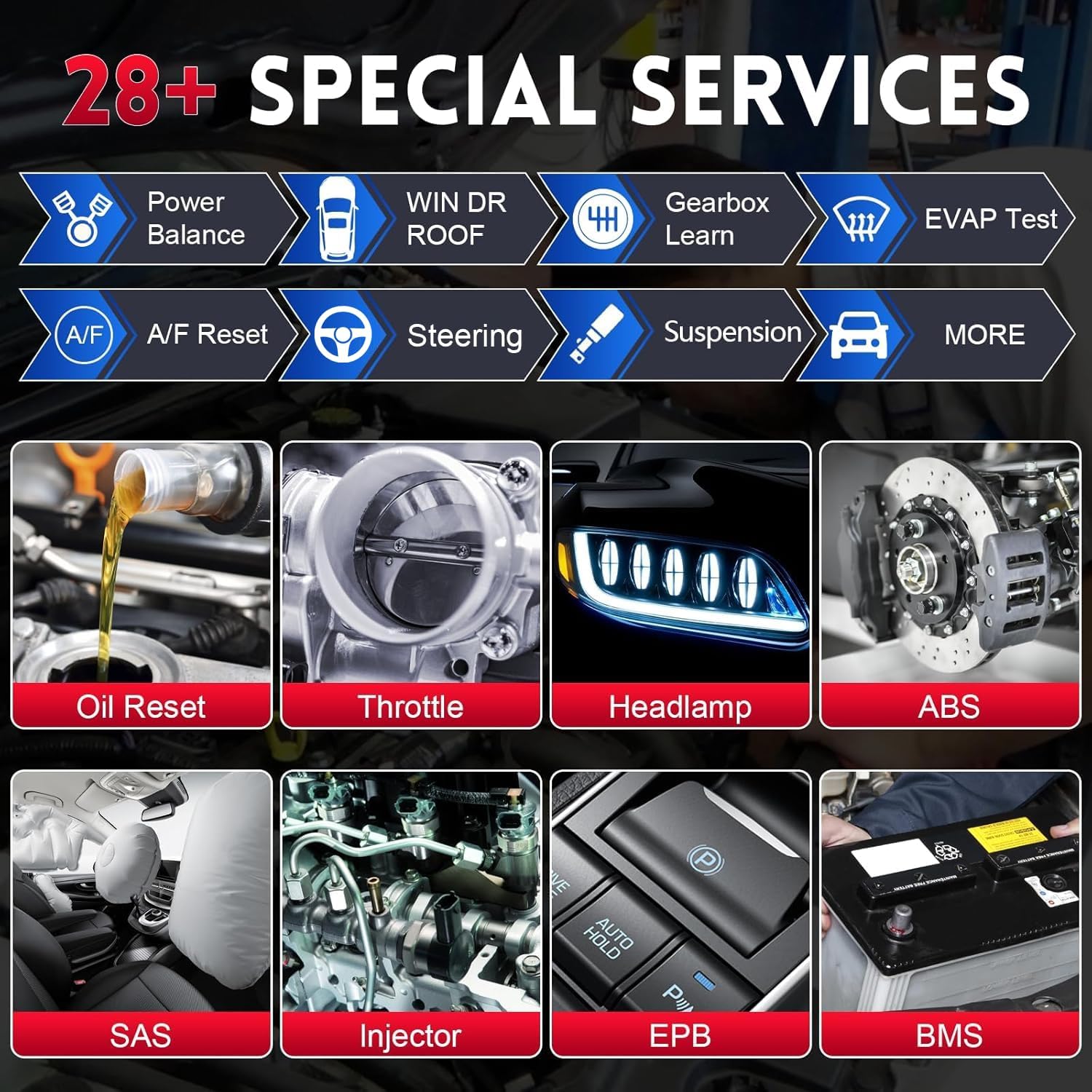
Image: A display of the 28+ special service functions offered by the Autel MaxiCOM MK808Z-BT, including common maintenance tasks like oil reset, throttle adaptation, headlamp adjustment, ABS bleeding, SAS reset, injector coding, EPB reset, and BMS reset.
4.4 FCA AutoAuth
For post-2017 FCA (Fiat Chrysler Automobiles) vehicles, the MK808Z-BT supports FCA AutoAuth, allowing access to the Secure Gateway Module (SGW) without needing a bypass cable.
- Register for an authorized OEM access account.
- Confirm your Autel scanner in the account.
- Proceed with direct diagnosis on FCA vehicles.
Note: FCA AutoAuth works for post-2017 vehicles in the United States, Canada, and Mexico only.

Image: A sequence of three screens illustrating the FCA AutoAuth process: registration, scanner confirmation, and direct diagnosis on FCA vehicles.
4.5 Optional Functions (Accessories Sold Separately)
- Battery Testing with Autel BT506: Perform professional battery diagnosing, starter, and generator tests.
- Digital Inspection with Autel MV108/MV105: Conduct close-up HD visual inspections in confined or hard-to-reach areas.

Image: An overview of new features for the Autel MaxiCOM MK808Z-BT, including compatibility with the Autel BT506 for battery testing and the Autel MV108 for digital inspection, alongside its special functions for adaptation and relearn.
5. Maintenance
5.1 Software Updates
Regular software updates are crucial for maintaining optimal performance and expanding vehicle coverage and functionality. The MK808Z-BT includes one year of free software updates. After the initial year, updates are available for an annual fee.
- Ensure the device is connected to a stable Wi-Fi network.
- Tap the Update icon on the main menu.
- Select the available updates and follow the on-screen instructions to install them.
5.2 Device Care
- Keep the device clean using a soft, dry cloth. Avoid abrasive cleaners or solvents.
- Store the device in its protective case when not in use to prevent damage.
- Avoid exposing the device to extreme temperatures or direct sunlight for prolonged periods.
5.3 Battery Care
The device is equipped with a Lithium Polymer battery. To prolong battery life:
- Avoid fully discharging the battery frequently.
- Charge the device regularly, even if not in constant use.
- If storing the device for an extended period, ensure the battery is charged to approximately 50-70%.
6. Troubleshooting
This section addresses common issues you might encounter with your Autel MaxiCOM MK808Z-BT.
6.1 Device Not Powering On
- Ensure the battery is sufficiently charged. Connect the device to the power adapter and allow it to charge for at least 30 minutes before attempting to power on again.
- Verify that the power adapter is functioning correctly and the power outlet is active.
6.2 VCI Connection Issues
- Confirm the MaxiVCI Mini is securely plugged into the vehicle's OBDII port and its indicator lights are on.
- Ensure the vehicle's ignition is in the ON position (engine off).
- Check Bluetooth settings on the MK808Z-BT tablet to ensure the VCI is paired and connected.
- Move the tablet closer to the vehicle to ensure it is within the 33-foot (10-meter) Bluetooth range.
6.3 Diagnostic Communication Errors
- Verify that the correct vehicle information (make, model, year) has been selected.
- Ensure the vehicle's battery has sufficient voltage. Low battery voltage can interfere with communication.
- Check for any visible damage to the OBDII port or the MaxiVCI Mini.
- If diagnosing an FCA vehicle, ensure FCA AutoAuth is properly registered and authorized.
6.4 "Solid Red Error Light" on VCI
If the MaxiVCI Mini displays a solid red error light, it typically indicates a communication fault or an internal issue. Try the following:
- Disconnect and reconnect the VCI from the OBDII port.
- Restart the MK808Z-BT tablet.
- If the issue persists, contact Autel technical support.
7. Specifications
| Model | MaxiCOM MK808Z-BT |
| Operating System | Android 11.0 |
| Processor | Rockchip RK3566 |
| Memory | 4GB RAM, 64GB ROM |
| Display | 7-inch LCD capacitive touchscreen |
| Connectivity | Wi-Fi (2.4GHz & 5.0GHz), Bluetooth (MaxiVCI Mini) |
| Battery | 5000 mAh Lithium-Polymer battery |
| Dimensions (L x W x H) | 10 x 6.89 x 1.4 inches |
| Weight | 2.31 pounds |
| Operating Temperature | 0 to 50°C (32 to 122°F) |
| Storage Temperature | -20 to 60°C (-4 to 140°F) |
| Date First Available | July 22, 2020 |
8. Warranty and Support
8.1 Software Updates
The Autel MaxiCOM MK808Z-BT includes one year of free software updates from the date of purchase. After this period, an annual subscription fee applies for continued updates.
8.2 Technical Support
For technical assistance, troubleshooting, or inquiries regarding your device, please contact Autel customer support. When contacting support, please have your device's 12-digit serial number ready (e.g., VB7GL6C0579).
- For language switching requests, provide your device serial number to Autel support.
- Refer to the official Autel website for the most current support contact information.


