
1. Introduction
The OKN Intel AX200 WiFi 6 PCIe Card and M.2 Adapter offers high-speed wireless connectivity and Bluetooth 5.1 capabilities for both desktop PCs and laptops. This adapter supports the latest WiFi 6 standard, providing faster speeds and improved network efficiency. This manual provides detailed instructions for installation, driver setup, and general usage.
Key Features:
- Max speed up to 2974Mbps with Bluetooth 5.1.
- PCIE x1, x8, x16 slot compatibility for desktop PCs.
- Intel AX200 M.2 WiFi Card with Bluetooth 5.1 NGFF 2230 A or E Key for laptops.
- Supports WPA3 for enhanced security.
- Compatible with Windows 10 64-bit and Windows 11.
2. Package Contents
Please verify that all items are present in your package:
- 1x OKN Intel AX200 WiFi 6 PCIe Card / M.2 Adapter
- 2x High-Gain Antennas
- 1x USB Cable for Bluetooth Functionality
- 1x Low-Profile Bracket (for smaller PC cases)
- 1x Screw for fixing
- 1x Quick Installation Guide
- 1x Driver CD (Note: Latest drivers should be downloaded from the Intel website for optimal performance.)
3. Safety Information
Before proceeding with installation, please read and understand the following safety precautions:
- Power Off: Always power off your computer and disconnect it from the power outlet before opening the case or handling internal components.
- ESD Precautions: Electrostatic Discharge (ESD) can damage electronic components. Wear an anti-static wrist strap or frequently touch a grounded metal object (like the unpainted metal chassis of your computer) to discharge static electricity.
- Handle with Care: Handle the PCIe card and M.2 adapter by their edges to avoid touching sensitive components.
- Ventilation: Ensure your computer case has adequate ventilation to prevent overheating.
- Professional Installation: If you are unsure about any step, seek assistance from a qualified technician.
4. Installation
4.1 Desktop PC Installation
- Prepare your PC: Power off your computer and unplug the power cord. Open the computer case.
- Identify PCIe Slot: Locate an available PCIe slot on your motherboard. The card is compatible with PCIe x1, x8, and x16 slots. For best compatibility, a PCIe x1 slot is recommended.
- Connect USB Cable: Connect the included USB cable to the PCIe card. The other end of this cable will connect to a 9-pin USB header on your motherboard to enable Bluetooth functionality.
- Insert PCIe Card: Carefully insert the PCIe card into the chosen PCIe slot. Press down firmly until it is securely seated.
- Secure the Card: Use the provided screw to fix the PCIe card to the computer case.
- Install Antennas: Screw the two high-gain antennas onto the connectors on the back of the PCIe card. Adjust their direction for optimal signal reception.
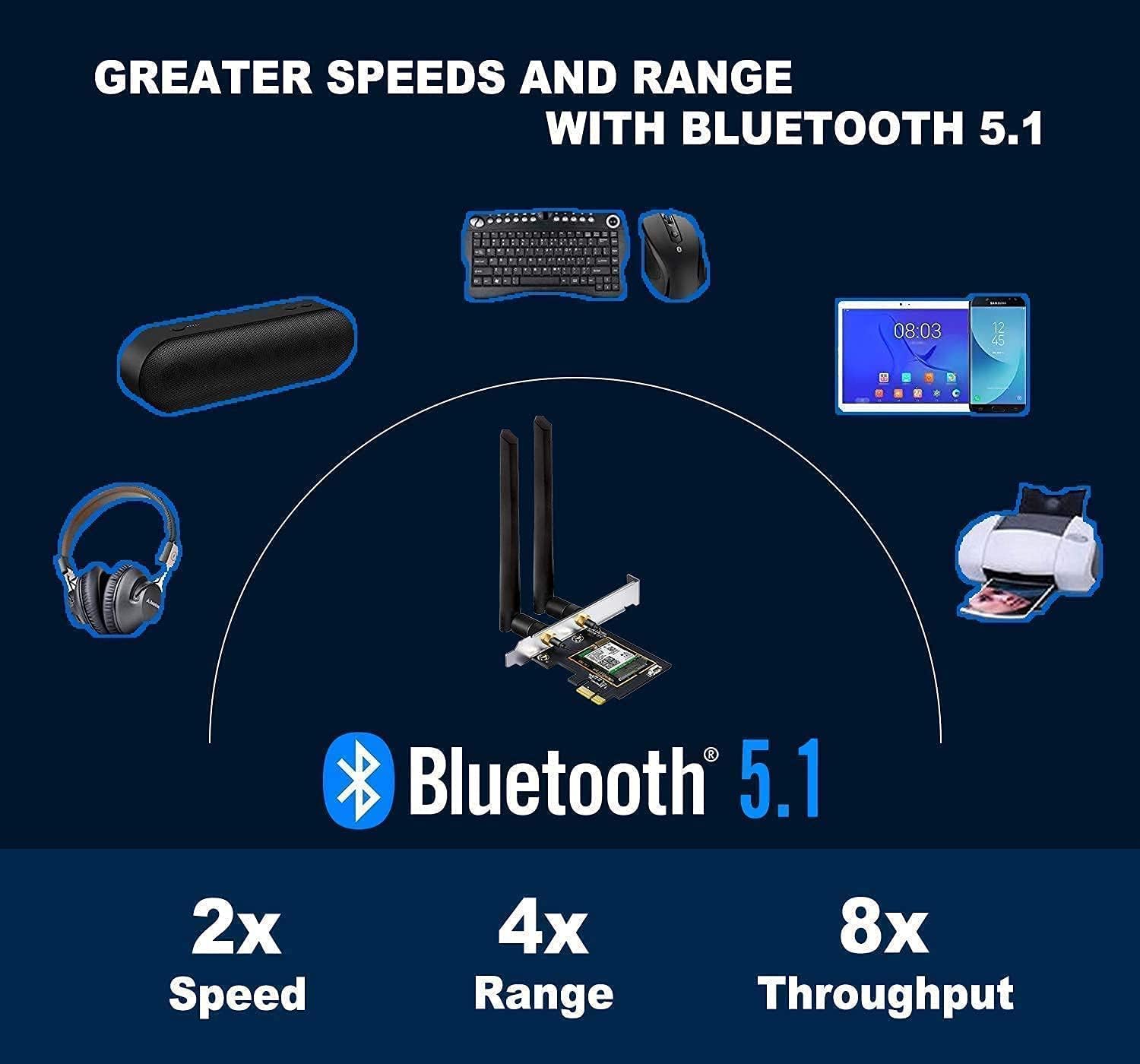
Image: Step-by-step guide for installing the WiFi 6 PCIe card in a desktop computer.
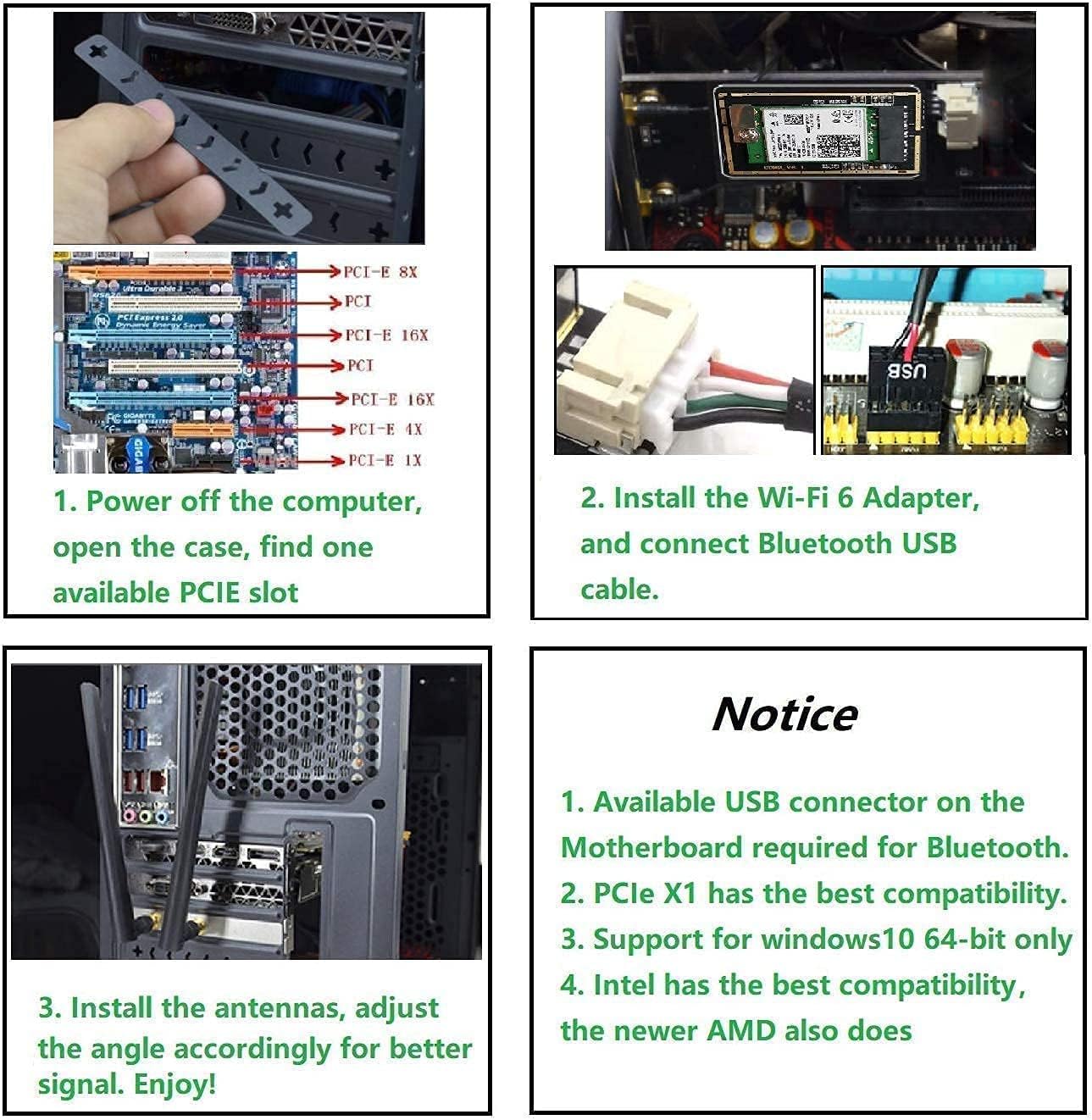
Image: Illustration showing various PCIe slot types (x1, x8, x16) and their compatibility.
Video: Official OKN PCIe WiFi Card Installation Guide. This video demonstrates the physical installation process for the PCIe card in a desktop computer.
4.2 Laptop M.2 Adapter Installation
The Intel AX200 M.2 WiFi Card is designed for laptops with an available M.2 slot (A key or E key).
- Prepare your Laptop: Power off your laptop and disconnect it from the power adapter. Remove the bottom panel of your laptop. Refer to your laptop's service manual for specific instructions.
- Locate M.2 Slot: Identify the M.2 slot for the wireless card. It typically has a screw to secure the card. If an old wireless card is present, carefully remove it.
- Check M.2 Key Type: Ensure your laptop's M.2 slot is compatible with A key or E key modules. The Intel AX200 is an M.2 2230 module.
- Insert M.2 Adapter: Gently insert the Intel AX200 M.2 adapter into the slot at an angle.
- Secure the Adapter: Push the adapter down and secure it with the small screw.
- Connect Antenna Wires: Carefully connect the existing antenna wires from your laptop to the corresponding connectors on the new AX200 M.2 adapter.
- Reassemble Laptop: Replace the bottom panel and power on your laptop.

Image: Comparison of M.2 slots in desktop and laptop configurations, highlighting availability.

Image: Visual guide to M.2 key types (A, E, M, Mini PCIe) and their compatibility with the Intel AX200.
5. Driver Installation
After physical installation, you need to install the appropriate drivers for your operating system.
- Download Drivers: Visit the official Intel website (support.intel.com) and search for


