
Introduction
The Fitbit Sense is an advanced smartwatch designed to help users monitor and improve their overall health and well-being. It integrates various sensors and features to provide insights into heart health, stress levels, sleep quality, and skin temperature trends. This manual provides essential information for setting up, operating, maintaining, and troubleshooting your Fitbit Sense.
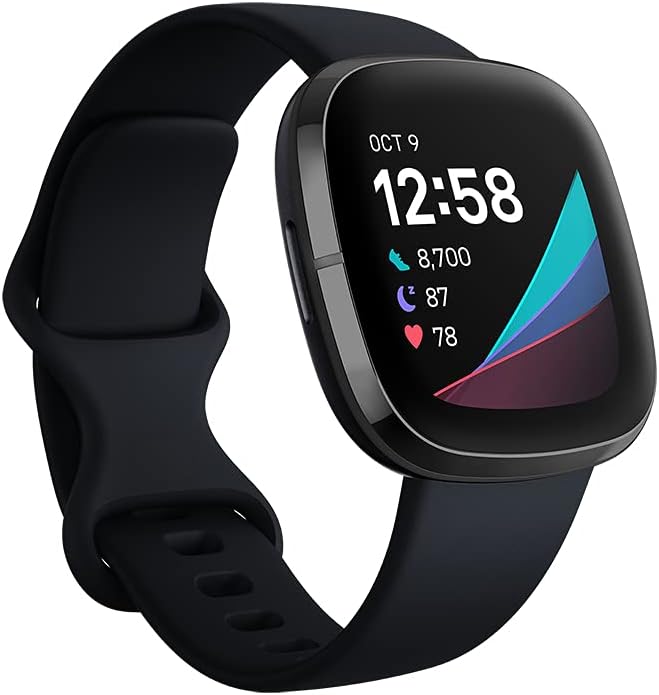
Figure 1: Fitbit Sense Advanced Smartwatch
Key Features
- EDA Scan App: Detects electrodermal activity, indicating your body's response to stress.
- Skin Temperature Sensor: Logs nightly skin temperature trends.
- ECG App: Assesses heart for atrial fibrillation (Afib) and allows sharing results with a doctor. (Note: Availability may vary by region. Not for users under 22 years old.)
- Heart Rate Notifications: Alerts for high or low heart rates.
- Long Battery Life: Up to 6+ days on a single charge, with fast charging providing a full day's charge in 12 minutes. (Note: Battery life varies with use and other factors.)
- Built-in GPS: Tracks pace and distance during outdoor activities without a phone.
- Built-in Mic and Speaker: Enables hands-free Bluetooth calls when connected to a nearby phone.
- Voice Assistant: Integrated Google Assistant or Amazon Alexa for quick news, reminders, and smart home control.

Figure 2: Stress Management with EDA Scan App
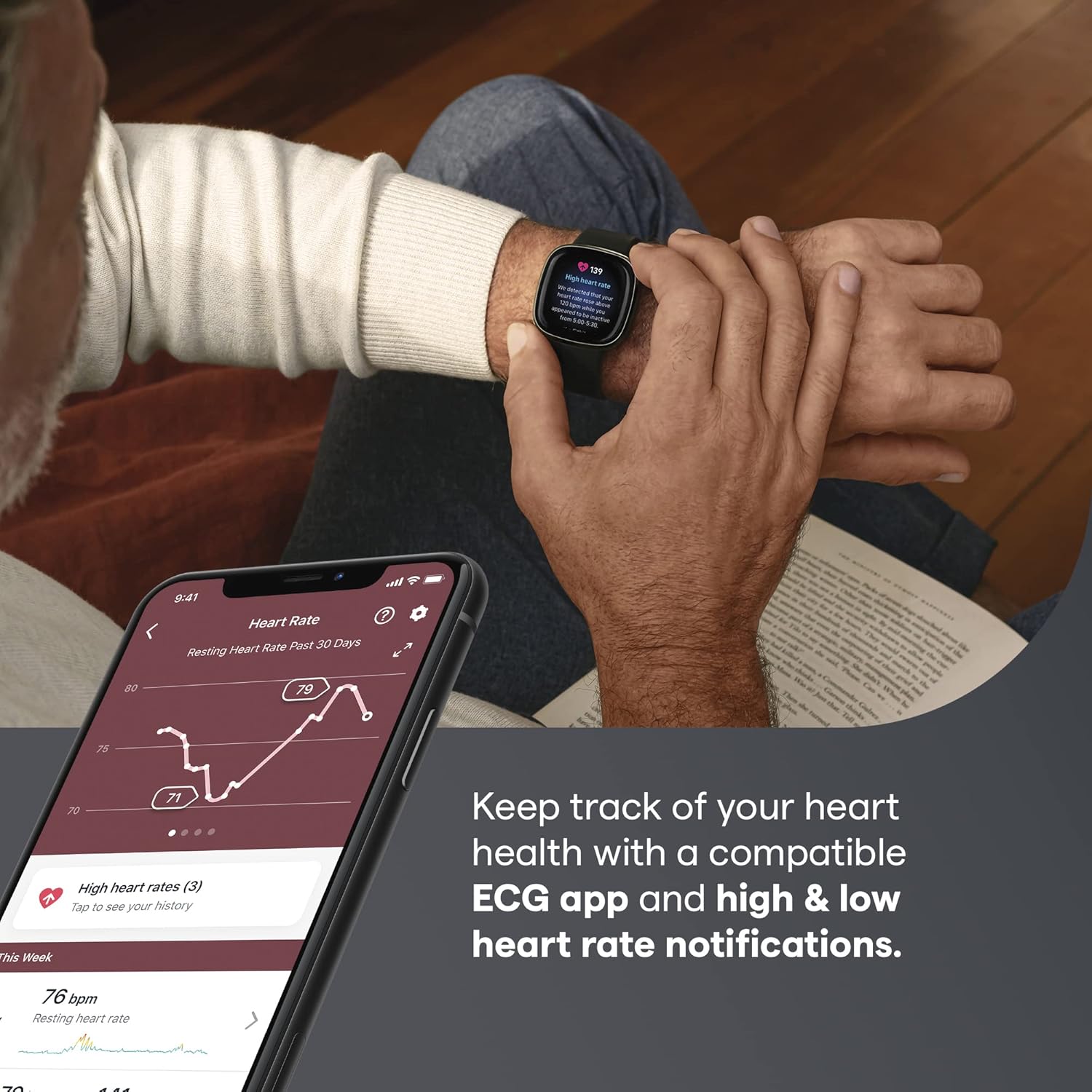
Figure 3: Heart Health Monitoring with ECG App

Figure 4: Built-in GPS for Activity Tracking
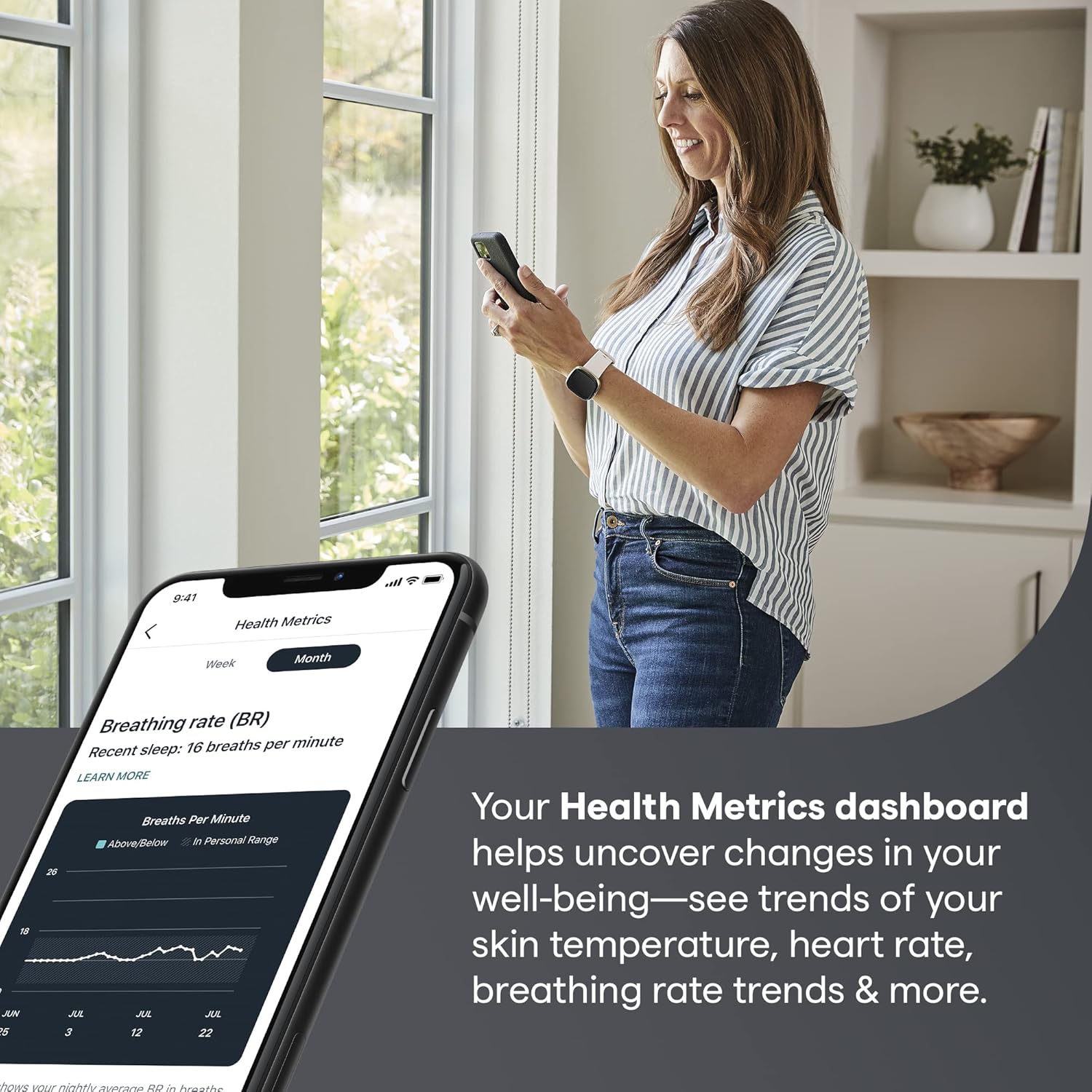
Figure 5: Health Metrics Dashboard
Setup
- Charge Your Device: Connect the charging cable to the back of your Fitbit Sense. Plug the other end into a USB port on your computer or a UL-certified USB wall charger. Ensure the device is fully charged before initial use.
- Download the Fitbit App: Download and install the Fitbit app on your compatible smartphone or tablet from the Apple App Store or Google Play Store.
- Create or Log In to Your Account: Open the Fitbit app and follow the on-screen instructions to create a new account or log in to an existing one.
- Pair Your Device: In the Fitbit app, tap your profile picture > Set Up a Device. Select Fitbit Sense and follow the pairing instructions. Ensure Bluetooth is enabled on your smartphone.
- Sync Your Device: After pairing, your Fitbit Sense will automatically sync data to the app. You can also manually sync by pulling down on the dashboard in the Fitbit app.
Operating Your Fitbit Sense
Navigation
- Swipe: Swipe left or right on the screen to access different apps and stats.
- Swipe Down: Swipe down from the clock face to access quick settings (e.g., Do Not Disturb, Sleep Mode, Screen Wake).
- Swipe Up: Swipe up from the clock face to view your daily stats (e.g., steps, heart rate, active zone minutes).
- Button: Press the button on the left side of the watch to return to the clock face or access shortcuts.
Monitoring Health Metrics
- Heart Rate: Your heart rate is continuously tracked. View real-time data on your watch or detailed trends in the Fitbit app.
- Stress Management: Use the EDA Scan app by placing your palm over the watch face. Follow the on-screen prompts to measure electrodermal activity. Review your Stress Management Score in the Fitbit app.
- Skin Temperature: Wear your Sense to sleep to track nightly skin temperature variations. View trends in the Health Metrics dashboard of the Fitbit app.
- Sleep Tracking: Wear your Sense to bed to automatically track your sleep stages (Light, Deep, REM) and sleep score. Access detailed sleep insights in the Fitbit app.
Activity Tracking
- Exercise App: Open the Exercise app on your Sense to select and track various workouts (e.g., Run, Bike, Swim). Built-in GPS will track outdoor activities.
- Daily Activity: Your Sense tracks daily steps, distance, calories burned, and active zone minutes automatically.
Voice Assistant
Set up Google Assistant or Amazon Alexa in the Fitbit app. Once configured, press and hold the button on your Sense to activate the voice assistant and speak your commands or questions.
Maintenance and Care
- Cleaning: Regularly clean your Sense and band, especially after workouts or exposure to sweat. Use a mild, soap-free cleanser and rinse thoroughly. Dry completely before wearing.
- Band Care: If you experience skin irritation, ensure the band is not too tight and clean it regularly. Allow your wrist to breathe by taking off the watch for an hour after extended wear.
- Water Resistance: Fitbit Sense is water-resistant up to 50 meters. It can be worn in the shower, pool, or ocean. After getting it wet, dry the device and band thoroughly.
- Charging: Use only the official Fitbit charging cable. Avoid exposing the charging contacts to liquids or debris.
Troubleshooting
- Device Not Syncing: Ensure Bluetooth is enabled on your phone, the Fitbit app is open, and your Sense is within range. Try restarting both your Sense and your phone.
- Device Not Charging: Check that the charging cable is securely connected to both the Sense and the power source. Ensure the charging contacts on the device and cable are clean.
- Screen Not Responding: Restart your Fitbit Sense by holding the button for 10 seconds until you see the Fitbit logo.
- Inaccurate Readings: Ensure your Sense is worn correctly (snugly, but not too tight, typically one finger's width above your wrist bone). Clean the sensors regularly.
Specifications
| Attribute | Value |
|---|---|
| Item Model Number | FB512BKBK |
| Product Dimensions | 1.59 x 1.59 x 0.49 inches |
| Item Weight | 1.1 ounces |
| Batteries | 1 Lithium Polymer batteries (included) |
| Screen Size | 1.58 Inches |
| Connectivity Technology | Bluetooth, GPS |
| Operating System | Android (compatible) |
| Memory Storage Capacity | 6400 MB |
Warranty and Support
For detailed warranty information and support, please refer to the official Fitbit website or the user guide provided with your product. A comprehensive User Guide (PDF) is available for download at https://manuals.plus/m/6768de76119f2cc290e6b850c930d7e147b6f0f082e87347434193d4e1f7b40c. For further assistance, contact Fitbit customer support.


