1. Product Overview
The ASUS USB-BT500 is a compact Bluetooth 5.0 USB adapter designed to provide wireless connectivity for a wide range of devices. It upgrades your system to the latest Bluetooth 5.0 technology, offering enhanced speed and range compared to previous Bluetooth versions. This adapter is backward compatible with Bluetooth 2.1, 3.x, and 4.x devices, ensuring broad compatibility.

Image: The ASUS USB-BT500 Bluetooth 5.0 USB Adapter, a small black and gold device.
2. Key Features
- Bluetooth 5.0 for Faster, Further Coverage: Experience data transfer speeds up to twice as fast and a range up to four times greater in Bluetooth Low Energy (BLE) mode.
- Wireless Connection, Free of Limitation: Enables seamless wireless communication with various Bluetooth-enabled devices.
- Full Compatibility: Backward compatible with Bluetooth 2.1, 3.x, and 4.x standards.
- Power Saving for Devices: Utilizes Bluetooth Low Energy technology for efficient and energy-saving wireless connectivity.
- Ultra-small Design: Highly portable and easy to use, with a compact form factor.

Image: A diagram showing 'up to 2X Faster Data Transfer Rate' and 'up to 4X Wider Data Transfer Range' with Bluetooth Low Energy Mode.
3. What's in the Box
Upon opening the package, you should find the following items:
- USB-BT500 Adapter
- Warranty card
4. Setup Guide
4.1 Hardware Installation
- Locate an available USB port on your desktop or laptop computer.
- Carefully insert the ASUS USB-BT500 adapter into the USB port. Ensure it is fully seated.

Image: The ASUS USB-BT500 adapter shown inserted into the USB port of a laptop.
4.2 Driver Installation
For most modern operating systems (Windows 10/11), the necessary drivers for the ASUS USB-BT500 will be installed automatically upon connecting the device. Please ensure your computer is connected to the internet during the initial setup to allow for automatic driver download and installation.
If automatic installation does not occur or if you experience issues, you may need to manually install drivers:
- Visit the official ASUS support website for the USB-BT500 model.
- Download the latest drivers compatible with your operating system.
- Follow the on-screen instructions to complete the driver installation.
Important Note: If your computer has existing built-in Bluetooth functionality, it is recommended to disable it in your system's Device Manager before installing the ASUS USB-BT500 to prevent potential conflicts.
5. Operating Instructions
5.1 Pairing Bluetooth Devices
Once the adapter is installed and drivers are active, you can pair your Bluetooth devices:
- Ensure the Bluetooth adapter is plugged into your computer.
- Go to your computer's Bluetooth settings (e.g., in Windows: Settings > Devices > Bluetooth & other devices).
- Turn on Bluetooth if it's not already enabled.
- Put your Bluetooth device (headphones, speaker, keyboard, mouse, controller, etc.) into pairing mode. Refer to your device's manual for specific instructions on how to do this.
- On your computer, click "Add Bluetooth or other device" and select "Bluetooth".
- Select your device from the list of discovered devices and follow any on-screen prompts to complete the pairing process.
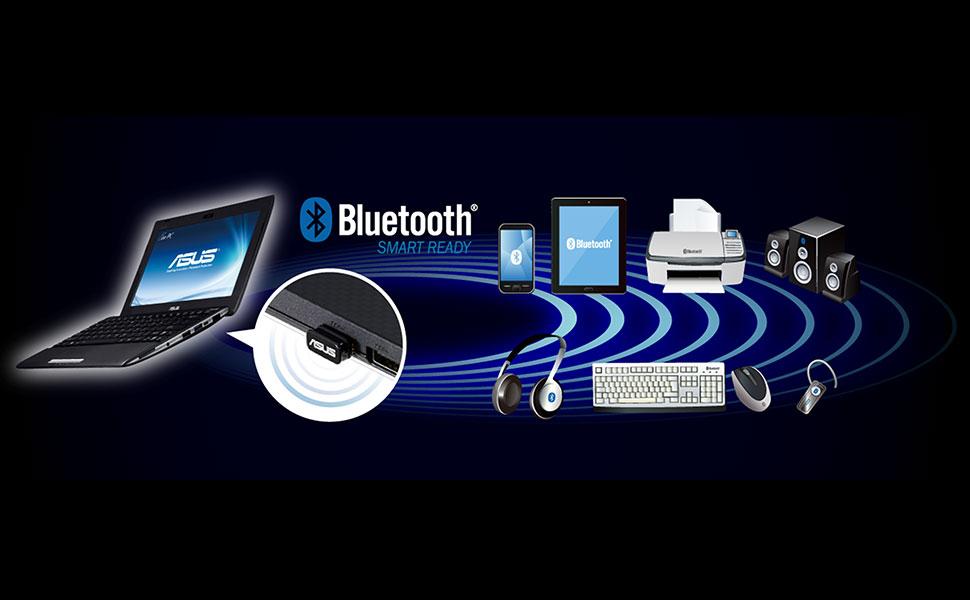
Image: A laptop with the ASUS USB-BT500 adapter wirelessly connected to multiple Bluetooth devices.
5.2 General Usage Tips
- Range: While Bluetooth 5.0 offers extended range, obstacles like walls and other electronic devices can affect signal strength. For optimal performance, keep paired devices within reasonable proximity.
- Interference: Other wireless devices operating on the 2.4 GHz frequency (e.g., Wi-Fi routers, cordless phones) can cause interference. Try to minimize such interference for stable connections.
- Multiple Devices: The adapter supports connecting to multiple Bluetooth devices simultaneously, though performance may vary depending on the type and number of connected devices.
6. Maintenance
The ASUS USB-BT500 adapter requires minimal maintenance:
- Keep the adapter clean and free from dust. Use a soft, dry cloth for cleaning.
- Avoid exposing the adapter to extreme temperatures, humidity, or direct sunlight.
- Do not attempt to disassemble or repair the adapter yourself, as this will void the warranty.
- Store the adapter in a safe place when not in use to prevent physical damage.
7. Troubleshooting
7.1 Adapter Not Recognized
- Try plugging the adapter into a different USB port on your computer.
- Restart your computer.
- Check Device Manager (Windows) to see if the Bluetooth adapter is listed and if there are any error indicators. If so, try updating or reinstalling the drivers.
7.2 Cannot Pair or Connect to Devices
- Ensure your Bluetooth device is in pairing mode and within range.
- Turn off and then turn on Bluetooth on your computer.
- Remove the device from your computer's Bluetooth settings and try pairing again.
- Check if there are other wireless devices causing interference.
- Ensure your computer's operating system is up to date.
7.3 Connection is Unstable or Choppy
- Reduce the distance between the adapter and the connected Bluetooth device.
- Remove any physical obstructions between the adapter and the device.
- Ensure there are no strong sources of interference nearby.
- Update the adapter's drivers to the latest version from the ASUS website.
8. Specifications
| Model Number | USB-BT500 |
| Hardware Interface | Bluetooth, USB |
| Bluetooth Version | 5.0 (Backward compatible with 2.1/3.x/4.x) |
| Data Link Protocol | Bluetooth |
| Data Transfer Rate | Up to 4 Megabits Per Second |
| Product Dimensions | 0.59 x 0.28 x 0.69 inches (1.5 x 0.7 x 1.75 cm) |
| Item Weight | 0.16 ounces (4.54 g) |
| Color | Black |
| Compatible Devices | Desktop, Headphone, Laptop, Speaker, etc. |
| UPC | 192876476772 |
9. Warranty and Support
9.1 Warranty Information
This product comes with a warranty provided by ASUS. Please refer to the included warranty card for specific terms, conditions, and duration of the warranty. Keep your proof of purchase for warranty claims.
9.2 Customer Support
For technical assistance, driver downloads, or further support, please visit the official ASUS support website. You can typically find FAQs, troubleshooting guides, and contact information for customer service there.
9.3 Legal Disclaimer
Actual data throughput and WiFi coverage will vary from network conditions and environmental factors, including the volume of network traffic, building material and construction, and network overhead, resulting in lower actual data throughput and wireless coverage.