
Product Overview
The Motorola MB8611 is an ultra-fast DOCSIS 3.1 cable modem designed to deliver true Gigabit-plus internet speeds. It is compatible with major internet service providers like Comcast Xfinity, Cox, and Spectrum, and features a 2.5 Gbps Ethernet port for high-speed connectivity. This modem is built for reliability and offers significant cost savings by eliminating monthly rental fees.
- Ultra-fast DOCSIS 3.1 performance: Delivers true Gigabit-plus speeds. Supports fast internet plans with Comcast Xfinity, Cox, and Spectrum. Backward compatible with 32x8 DOCSIS 3.0.
- Pairs with any WiFi router: Seamlessly compatible with any WiFi router to connect all your devices. This cable modem does NOT have a built-in wireless router or telephone call capability.
- Multi-gigabit Ethernet speed: A 2.5 GB Ethernet port delivers true high-speed connectivity to even the fastest routers and computers, providing downstream speeds just below 2,500 Mbps and upstream speeds up to 800 Mbps when supported by your internet service plan.
- Fast streaming, conferencing, gaming: Applies Active Queue Management (AQM) for reduced Internet latency and better app performance, including online gaming, conferencing, and streaming.
- Extreme cost savings: Owning your own modem typically saves the home $168 per year in monthly rental charges. (Savings described is for Comcast Xfinity and vary by service provider.)
- Built for reliability: Motorola is a worldwide leader in technology people depend on. Comes with a 2-year warranty and free support from our team of USA technicians.
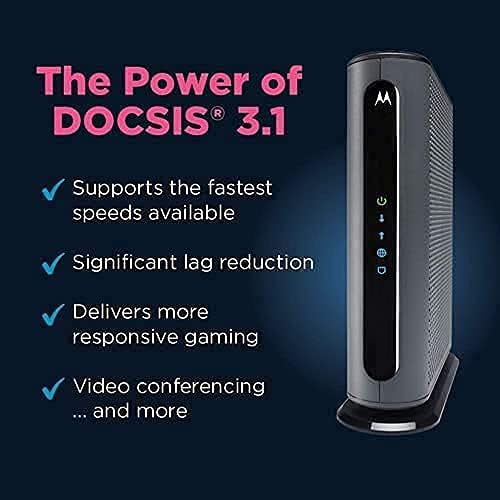
Figure 1: Chart illustrating potential cost savings over several years by owning your cable modem.
Setup Guide
1. Before You Begin
Before installing your new Motorola MB8611 modem, it is crucial to verify compatibility with your Internet Service Provider (ISP). Visit your ISP's website or contact their support to confirm that the Motorola MB8611 model is approved for your service plan and speed tier. Note down your account information, including your account number and any necessary login credentials, as these may be required for activation.
It is also recommended to locate the MAC address (Media Access Control) and serial number of your new modem, usually found on a label on the bottom or back of the device. This information will be needed during the activation process with your ISP.

Figure 2: Front and back view of the Motorola MB8611 modem, highlighting the power, coaxial, and Ethernet ports.
2. Physical Connection
- Disconnect Old Equipment: Unplug your existing modem and router (if separate) from power and disconnect all cables.
- Connect Coaxial Cable: Connect one end of a coaxial cable to the cable wall outlet and the other end to the COAX port on the back of your Motorola MB8611 modem. Ensure the connection is finger-tight.
- Connect Ethernet Cable: Connect one end of the provided Ethernet cable to the ETHERNET (LAN) port on the back of your MB8611 modem. Connect the other end to the WAN/Internet port on your WiFi router. If you are connecting directly to a computer, plug the Ethernet cable into your computer's Ethernet port.
- Connect Power: Plug the power adapter into the POWER port on the modem, then plug the adapter into an electrical outlet.
- Power On: Press the ON/OFF button on the modem to power it on. Wait for the modem's indicator lights to stabilize. The Power light should be solid green, the Downstream and Upstream lights should be solid blue (indicating DOCSIS 3.1 connection) or green (for DOCSIS 3.0), and the Internet light should be solid blue.
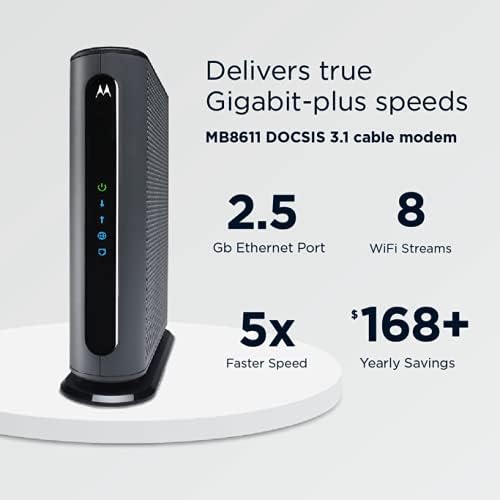
Figure 3: Diagram illustrating the easy setup process for the Motorola MB8611 cable modem, connecting to a wall outlet and a WiFi router.
3. Modem Activation
Once the modem lights are stable, you will need to activate the modem with your ISP. This can typically be done in one of two ways:
- Online Activation: Open a web browser on a device connected to your new router (or directly to the modem). Your ISP's activation page should automatically appear. Follow the on-screen instructions to enter your account details and modem information (MAC address, serial number).
- Phone Activation: If the online activation page does not appear, or if you encounter issues, call your ISP's customer support. Provide them with your account information and the modem's MAC address and serial number. They will remotely activate the modem for you.
The activation process usually takes 10-15 minutes. Once activated, your Internet light should turn solid blue, indicating a successful connection.
Video 1: An official Motorola Network video providing a brief overview of the Motorola MB8611 modem and its features.
Video 2: A detailed guide on how to upgrade your internet modem, featuring the Motorola MB8611 and covering activation steps with an ISP.
Operating Your Modem
The Motorola MB8611 modem operates continuously to provide internet access. Its front panel features LED indicator lights that provide status information:
| Indicator Light | Status | Description |
|---|---|---|
| Power (Green Circle) | Solid Green | Modem is powered on. |
| Downstream (Downward Arrow) | Solid Blue | DOCSIS 3.1 connection established. |
| Downstream (Downward Arrow) | Solid Green | DOCSIS 3.0 connection established. |
| Upstream (Upward Arrow) | Solid Blue | DOCSIS 3.1 connection established. |
| Upstream (Upward Arrow) | Solid Green | DOCSIS 3.0 connection established. |
| Internet (Globe Icon) | Solid Blue | Internet connectivity is active. |
| LAN (Computer Icon) | Solid Green | Ethernet connection to a device (e.g., router, computer) is active. |
| LAN (Computer Icon) | Blinking Green | Data is being transferred over the Ethernet connection. |

Figure 4: Front view of the Motorola MB8611 modem, showing the status indicator lights.
Maintenance
To ensure optimal performance and longevity of your Motorola MB8611 modem, consider the following maintenance tips:
- Regular Reboot: Periodically reboot your modem (e.g., once a month) by unplugging the power cord for 30 seconds and then plugging it back in. This can resolve minor connectivity issues and refresh the network connection.
- Proper Ventilation: Ensure the modem is placed in a well-ventilated area to prevent overheating. Avoid placing it in enclosed spaces or stacking other devices on top of it.
- Cleanliness: Keep the modem free from dust and debris. Use a soft, dry cloth to gently wipe the exterior. Do not use liquid cleaners.
- Cable Integrity: Periodically check all connected cables (coaxial, Ethernet, power) to ensure they are securely connected and free from damage.
Troubleshooting
If you experience issues with your Motorola MB8611 modem, try the following troubleshooting steps:
- No Internet Connection:
- Check all cable connections (coaxial, Ethernet, power) to ensure they are secure.
- Reboot the modem by unplugging it for 30 seconds and plugging it back in. Wait for all lights to stabilize.
- Verify the status of the indicator lights on the front panel (refer to the Operating Your Modem section). If the Internet light is not solid blue, contact your ISP.
- Slow Internet Speeds:
- Ensure your modem is placed in an optimal location, away from obstructions and other electronic devices that may cause interference.
- If using a WiFi router, ensure it is capable of supporting your internet speed plan.
- Perform a speed test (e.g., via your ISP's website) to confirm the actual speeds you are receiving.
- Contact your ISP if speeds are consistently below your subscribed plan.
- Modem Lights Not On:
- Check the power connection to the modem and the electrical outlet. Try a different outlet if necessary.
- Ensure the ON/OFF button on the back of the modem is in the 'On' position.
Technical Specifications
| Feature | Detail |
|---|---|
| Model Number | MB8611 |
| DOCSIS Standard | DOCSIS 3.1 (Backward compatible with 32x8 DOCSIS 3.0) |
| Ethernet Port | 2.5 Gbps Ethernet Port |
| Max Internet Speeds | Up to 2500 Mbps (Downstream), Up to 800 Mbps (Upstream) |
| Dimensions | 7.25"L x 2.25"W x 7.88"H |
| Item Weight | 1.1 ounces |
| Compatible ISPs | Comcast Xfinity, Cox Communications, Charter Spectrum, RCN |
| Connectivity Technology | Ethernet |
| Compatible Devices | Router |
Warranty and Support
The Motorola MB8611 DOCSIS 3.1 Multi-Gig Cable Modem comes with a 2-year warranty from the manufacturer, MTRLC LLC. This warranty covers defects in materials and workmanship under normal use.
For any technical assistance, troubleshooting, or warranty claims, you can access free support from our team of USA technicians. Please refer to the contact information provided in your product packaging or visit the official Motorola Network support website for further details.


