
Eonon Standard Android 10.0-GA2185US
Eonon GA2185 Android 10.0 Double Din Car Stereo User Manual
Model: Standard Android 10.0-GA2185US
Brand: Eonon
1. Introduction
Thank you for choosing the Eonon GA2185 Android 10.0 Double Din Car Stereo. This advanced car multimedia system features a 10.1-inch IPS display, Octa Core processor, 4GB RAM, and 64GB ROM, providing a powerful and versatile in-car entertainment and navigation experience. This manual provides detailed instructions for installation, operation, and maintenance to ensure optimal performance and user satisfaction.
2. Safety Information
Please read all safety warnings and instructions carefully before installing and operating the device. Failure to follow these instructions may result in injury or damage to the unit or vehicle.
- Professional Installation Recommended: Due to the complexity of car audio systems, professional installation is highly recommended.
- Power Supply: Ensure the unit is connected to a 12V DC power supply with negative grounding.
- Wiring: Do not modify or cut any wires. Incorrect wiring can cause damage or fire.
- Driving Safety: Do not operate the unit in a way that distracts you from driving. Always prioritize road safety.
- Temperature: Avoid exposing the unit to extreme temperatures or direct sunlight for prolonged periods.
3. What's in the Box?
Verify that all components are present upon unboxing:

Image: Overview of the Eonon GA2185 package contents, including the main unit, GPS antenna, power cable, audio/AUX harnesses, external microphone, USB adapter cables, Wi-Fi antenna, fuse, disassembly tool, screws, and user manual.
- Eonon GA2185 Head Unit
- GPS Antenna
- Power Cable
- Audio Output Harness
- AUX Input Harness
- External Microphone
- USB Adapter Cable (x2)
- Wi-Fi Antenna
- 15A Fuse
- Disassembly Tool
- Screws (x4)
- User Manual
Note: Double Din installation kits may need to be purchased separately depending on your vehicle model.
4. Product Overview
4.1 Front Panel and Display

Image: The Eonon GA2185 head unit, showcasing its 10.1-inch IPS touchscreen display with a clean Android interface and various application icons.
The GA2185 features a large 10.1-inch IPS touchscreen with a resolution of 1024 x 600 pixels, offering clear visuals and wide viewing angles. The screen is designed for optimal visibility and responsiveness.

Image: Illustration demonstrating the adjustable viewing angles of the Eonon GA2185 display, allowing for tilt adjustments of up to 18 degrees horizontally and 15 degrees vertically for optimal viewing.
4.2 Rear Connections

Image: A comprehensive diagram of the rear panel of the Eonon GA2185, detailing all input and output ports with corresponding numbered labels for easy identification during installation.
- Wi-Fi Antenna
- ISO Port
- Rear Camera Input
- Illumination
- KEY 1 (Steering Wheel Control 1)
- Brake Shift Ctrl
- GND (Ground)
- KEY 2 (Steering Wheel Control 2)
- Reverse Ctrl
- AMP Ctrl
- Front Audio Output L
- Front Audio Output R
- Rear Audio Output L
- Rear Audio Output R
- Subwoofer Output
- Video Output 1
- Video Output 2
- USB Input (x2)
- External Microphone
- Video Input
- N/A
- AUX Audio R Input
- AUX Audio L Input
- GPS Antenna
4.3 Core Components

Image: An internal view highlighting the key specifications of the Eonon GA2185: Android 10.0 operating system, PX5 Octa-core ARM Cortex-A53 MPcore processor up to 1.3GHz, 4GB RAM, and 64GB ROM.
- Operating System: Android 10.0
- Processor: PX5 Octa-core ARM Cortex-A53 MPcore processor (up to 1.3GHz)
- Memory: 4GB RAM + 64GB ROM
- Display: 10.1-inch IPS Touchscreen, 1024 x 600 Resolution, 178° Viewing Angles
- Audio: Built-in DSP (Digital Sound Field Processing) with 16-band graphic equalizer
- Connectivity: Wi-Fi, Bluetooth, USB, HDMI
5. Installation Guide
This section provides general guidelines for installing the Eonon GA2185. Specific vehicle models may require additional adapters or modifications. It is recommended to consult a professional installer if you are unsure about any steps.
5.1 Pre-Installation Checks
- Disconnect the vehicle's negative battery terminal before starting any electrical work.
- Ensure you have the correct double din installation kit for your vehicle.
- Familiarize yourself with your vehicle's existing wiring harness.
5.2 Wiring Connections
Refer to the rear connection diagram in Section 4.2 for port identification. Connect the provided power cable, audio harnesses, and other accessories according to the diagram and your vehicle's wiring.
- Power: Connect the main power harness to your vehicle's power supply (constant 12V, accessory 12V, and ground).
- Speakers: Connect the speaker wires from the ISO port to your vehicle's speaker wiring.
- GPS Antenna: Mount the GPS antenna in a location with a clear view of the sky (e.g., dashboard, under windshield).
- Wi-Fi Antenna: Connect the Wi-Fi antenna to the designated port.
- External Microphone: Connect the external microphone for improved call quality.
- Rear Camera: If installing a rear camera, connect its video output to the "Rear Camera Input" and its power to the reverse light circuit.
- Steering Wheel Control: Connect KEY1 and KEY2 wires to your vehicle's steering wheel control wires, if applicable.
5.3 Screen Disassembly Steps (if needed)
The screen can be detached from the main unit for easier installation or maintenance. Follow these steps:

Image: A visual guide detailing the five steps to safely disassemble the screen from the Eonon GA2185 head unit, involving pulling clips, removing screws, and unplugging cables.
- Pull the two clips (A&B) on the back of the screen to both sides.
- Remove the screen from the main unit.
- Remove the cable fixing clip after removing the screws that fix it.
- Press the clips toward the center and unplug the cable.
- Disassembly completed.
6. Initial Setup
After successful installation, reconnect the vehicle's negative battery terminal and power on the unit.
6.1 First Boot and Language Selection
Upon first boot, the system may guide you through initial setup steps, including language selection. Follow the on-screen prompts.
6.2 Network Configuration (Wi-Fi)
To access online features, connect the unit to a Wi-Fi network:
- Go to Settings > Network & Internet > Wi-Fi.
- Turn on Wi-Fi and select your desired network from the list.
- Enter the password if prompted and connect.
6.3 Bluetooth Pairing
Pair your mobile device for hands-free calling and audio streaming:
- Go to Settings > Connected devices > Bluetooth.
- Ensure Bluetooth is enabled on both the head unit and your mobile device.
- Search for available devices on your mobile phone and select "Eonon GA2185" (or similar name).
- Confirm the pairing code on both devices.
6.4 Connecting Optional Accessories

Image: A visual guide demonstrating the connection of an A0585 USB dongle to the Eonon GA2185 for enabling Android Auto functionality, with a smartphone connected to the dongle.
The GA2185 supports various optional accessories to enhance its functionality:
- Android Auto: To use Android Auto, you may need to purchase the Eonon A0585 USB dongle separately (ASIN: B08ZSKQBSH). Connect your Android phone to the dongle via USB.
- Backup Camera: Ensure the backup camera is properly wired and configured in the system settings for automatic display when reversing.
- OBD2 Dongle: Connect an OBD2 Bluetooth dongle (e.g., V0056) to your vehicle's OBD port and pair it via Bluetooth to access vehicle diagnostics.
7. Operating Instructions
7.1 User Interface Navigation
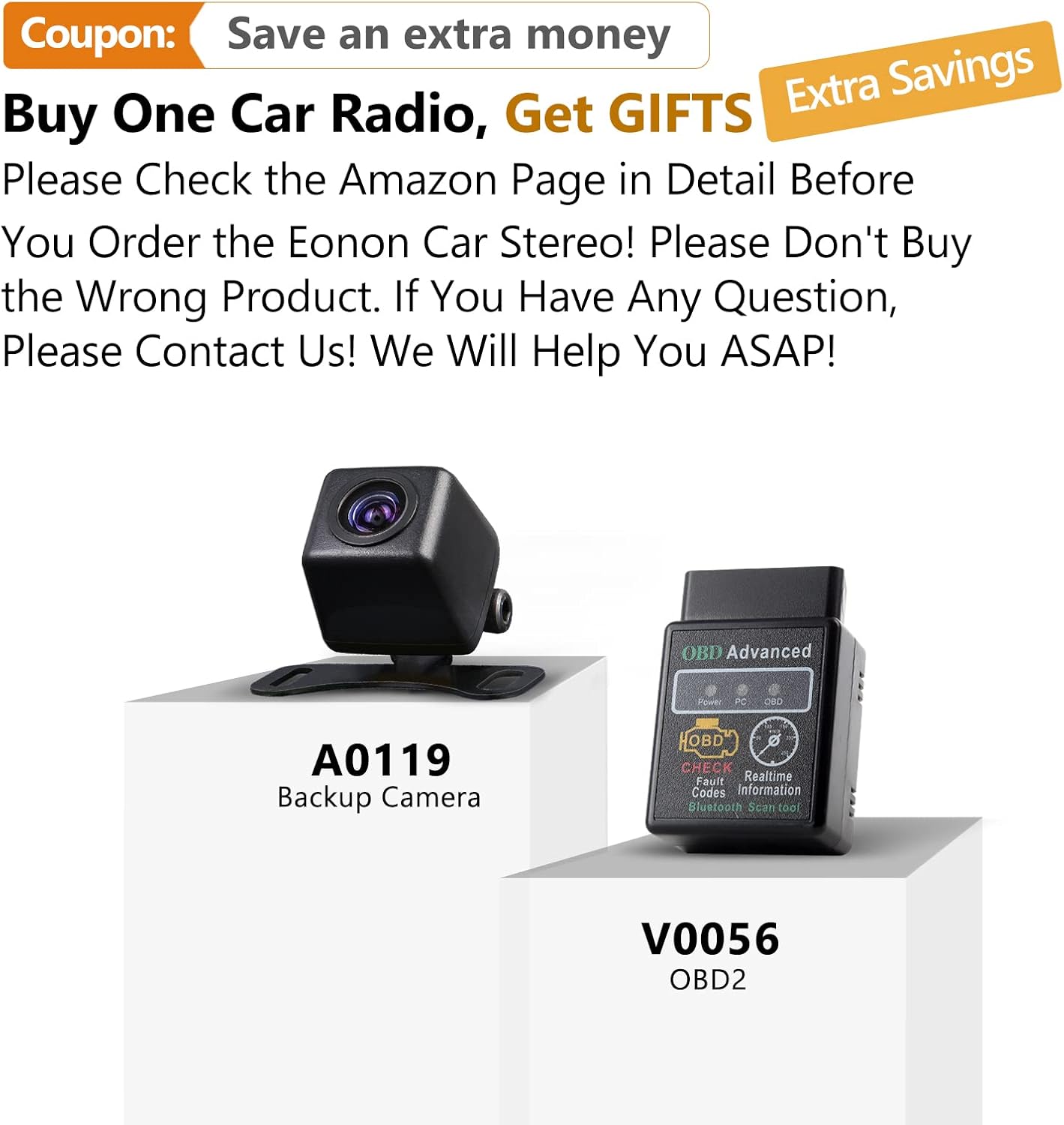
Image: The main user interface of the Eonon GA2185, displaying a grid of application icons for easy access to functions such as clock, file manager, email, Spotify, Google Play Store, Google Maps, and Netflix.
The unit operates on an Android platform, providing a familiar and intuitive interface. Swipe left/right to navigate between home screens, tap icons to open applications, and use the navigation bar at the bottom for quick access to home, back, and recent apps.
7.2 Audio Settings and DSP

Image: The audio settings interface of the Eonon GA2185, featuring a 16-band graphic equalizer for precise sound tuning and options to choose the optimal sound field, including driver, co-driver, rear, and center positions.
The built-in DSP (Digital Sound Field Processing) allows for extensive audio customization:
- Equalizer: Access the 16-band graphic equalizer to adjust frequency levels for different music genres or personal preference.
- Sound Field: Optimize the sound stage by selecting driver, co-driver, rear, or center positions to focus the audio.
- Bass Boost/Filter: Adjust bass levels and apply filters for enhanced low-frequency response.
7.3 GPS Navigation
The unit comes with pre-installed GPS navigation capabilities for North America. Ensure the GPS antenna is properly connected and positioned.
- Open the Maps application (e.g., Google Maps).
- Enter your destination and follow the voice-guided directions.
- The system supports offline maps if downloaded previously.
7.4 Apple CarPlay & Android Auto
The unit supports both Apple CarPlay (built-in) and Android Auto (requires A0585 dongle).
- Apple CarPlay: Connect your iPhone via USB to activate CarPlay.
- Android Auto: Connect your Android phone to the A0585 dongle (if purchased) via USB to activate Android Auto.
- These features allow seamless integration of your smartphone's apps, navigation, and communication features onto the car stereo display.
7.5 Media Playback
Play audio and video files from various sources:
- USB: Connect USB drives to the USB input ports.
- Bluetooth Audio: Stream music from your paired mobile device.
- Radio: Access FM/AM radio with RDS support and save predefined stations.
- Online Streaming: Use Wi-Fi to access streaming apps like Spotify, YouTube, Netflix, etc.
7.6 Steering Wheel Control
If properly wired, you can configure the unit to respond to your vehicle's steering wheel controls for functions like volume, track change, and mode selection. Refer to the system settings for mapping these controls.
8. Maintenance
Proper maintenance ensures the longevity and performance of your Eonon GA2185.
- Screen Cleaning: Use a soft, lint-free cloth to gently wipe the touchscreen. For stubborn smudges, dampen the cloth slightly with water or a screen-safe cleaner. Avoid harsh chemicals or abrasive materials.
- Software Updates: Periodically check for system software updates via Wi-Fi in the settings menu to ensure optimal performance and access to new features.
- Ventilation: Ensure the unit's ventilation openings are not blocked to prevent overheating.
9. Troubleshooting
This section addresses common issues you might encounter. If the problem persists, contact customer support.
| Problem | Possible Cause | Solution |
|---|---|---|
| Unit does not power on. | Incorrect wiring; Blown fuse; Loose power connection. | Check all power connections; Inspect and replace fuse if necessary; Ensure proper grounding. |
| No sound. | Volume too low; Mute activated; Incorrect speaker wiring; Amplifier issue. | Increase volume; Check mute setting; Verify speaker connections; Check external amplifier if used. |
| GPS signal lost or inaccurate. | GPS antenna improperly placed or disconnected; Obstruction. | Ensure GPS antenna has clear sky view; Check antenna connection. |
| Bluetooth connection unstable. | Interference; Device out of range; Software glitch. | Move device closer; Restart both devices; Re-pair the device. |
| Touchscreen unresponsive. | System freeze; Dirt on screen. | Restart the unit (press reset button if available); Clean the screen. |
| Apple CarPlay/Android Auto not working. | Incorrect USB cable; Phone not compatible; Dongle issue (for Android Auto). | Use original or certified USB cable; Check phone compatibility; Ensure Android Auto dongle is correctly connected and functioning. |
10. Specifications
| Feature | Specification |
|---|---|
| Model Number | Standard Android 10.0-GA2185US |
| Operating System | Android 10.0 |
| Processor | Octa Core (PX5 ARM Cortex-A53, up to 1.3GHz) |
| RAM | 4GB |
| ROM | 64GB |
| Display Size | 10.1 Inches |
| Resolution | 1024 x 600 |
| Display Type | IPS Touchscreen |
| Audio Output Mode | Stereo, Built-in DSP |
| Connectivity | Bluetooth, Wi-Fi, USB, HDMI |
| GPS Map Type | North America |
| Special Features | Apple CarPlay integration, DSP audio processing, Customizable display, Radio with RDS, Predefined stations |
| Power Supply | 12V DC (Negative Ground) |
| Dimensions (Parcel) | 34.29 x 29.21 x 19.51 cm |
| Weight (Parcel) | 3.01 kg |
11. Warranty and Support
Eonon is committed to providing high-quality products and customer satisfaction.
11.1 Warranty Information
Please refer to your purchase documentation or the Eonon official website for specific warranty terms and conditions. Typically, products come with a limited warranty covering manufacturing defects.
11.2 Customer Support

Image: Visual representation of Eonon's commitment to professional after-sales support, featuring icons for service, customer support, and email contact.
For technical assistance, troubleshooting, or warranty claims, please contact Eonon customer support through the following channels:
- Eonon Official Website: Visit the support section for FAQs, drivers, and contact forms.
- Amazon Seller Support: If purchased through Amazon, you can contact the seller directly via your order history for assistance.
- Email Support: Refer to the Eonon website for the official support email address.
When contacting support, please have your product model number (GA2185) and purchase details readily available.
Related documentsStandard Android 10.0-GA2185US


Ask a question about this manual
Ask about setup, troubleshooting, compatibility, parts, safety, or missing instructions. Manuals+ will review the question and use this page’s manual context to help answer it.