
Introduction
Thank you for purchasing the TKGOU UM6 USB PC Microphone. This manual provides essential information for the proper setup, operation, and maintenance of your new microphone. Please read this manual thoroughly before use to ensure optimal performance and longevity of the product. Keep this manual for future reference.
Product Overview
The TKGOU UM6 is a high-quality USB desktop microphone designed for various applications including recording, online meetings, gaming, and live streaming. It features an omnidirectional pickup pattern and a patented audio filter for clear sound capture and noise reduction.
Key Features:
- High-Quality Sound: Equipped with a patented audio filter to focus on your voice and reduce ambient noise, ensuring clear audio transmission even in noisy environments.
- Versatile Performance: Ideal for video conferences, Skype calls, voice recognition, recording, video chats, and various software applications.
- Plug & Play Operation: No driver installation required. Simply plug the microphone into a USB port to start using it.
- Mute Button: Features a convenient mute switch to temporarily stop microphone input.
- Wide Compatibility: Compatible with Mac OS X, Windows, Linux, and gaming consoles like PS4. Works with devices from brands like Apple, Asus, and HP.
- Durable Design: Constructed with robust metal and plastic materials for stability and durability. The flexible arm allows for angle adjustment.
Components:
The TKGOU UM6 microphone package includes the following items:
- TKGOU UM6 USB PC Microphone
- Instruction Manual

Image: TKGOU UM6 USB PC Microphone showing its flexible gooseneck, base, USB cable, and approximate dimensions (12cm base width, 10cm base depth, 30cm maximum height). The cable length is 1.5 meters (4.9 feet). The microphone weighs 200g (7.05oz).

Image: The TKGOU UM6 microphone, its packaging box, and instruction manual. Also shown are various usage scenarios: recording, online chat/video conferencing, and PC gaming. The image highlights compatibility with Windows XP/7/8/10, Mac OS, and PlayStation 4.
Setup
Setting up your TKGOU UM6 microphone is a simple plug-and-play process. No additional drivers are required for most operating systems.
- Connect the Microphone: Insert the USB plug of the TKGOU UM6 microphone into an available USB port on your computer (PC, Mac, or Linux) or PlayStation 4 console.
- System Recognition: Your operating system should automatically detect and install the necessary generic drivers for the microphone. This process usually takes a few seconds.
- Select as Input Device:
- Windows: Go to "Sound Settings" (right-click the speaker icon in the taskbar) > "Sound Control Panel" > "Recording" tab. Select "TKGOU PnP USB Microphone" as your default recording device.
- Mac OS: Go to "System Preferences" > "Sound" > "Input" tab. Select "TKGOU PnP USB Microphone" from the list of devices.
- Linux: Access your system's sound settings and select the TKGOU microphone as the input device.
- PlayStation 4: Navigate to "Settings" > "Devices" > "Audio Devices" and select the TKGOU microphone as the input device.
- Adjust Microphone Level: Within your system's sound settings, adjust the microphone input level to an appropriate volume. Test the microphone to ensure clear audio pickup.

Image: A close-up view of the gold-plated USB plug of the TKGOU UM6 microphone, indicating its standard USB-A connector for easy connection to computers and consoles.
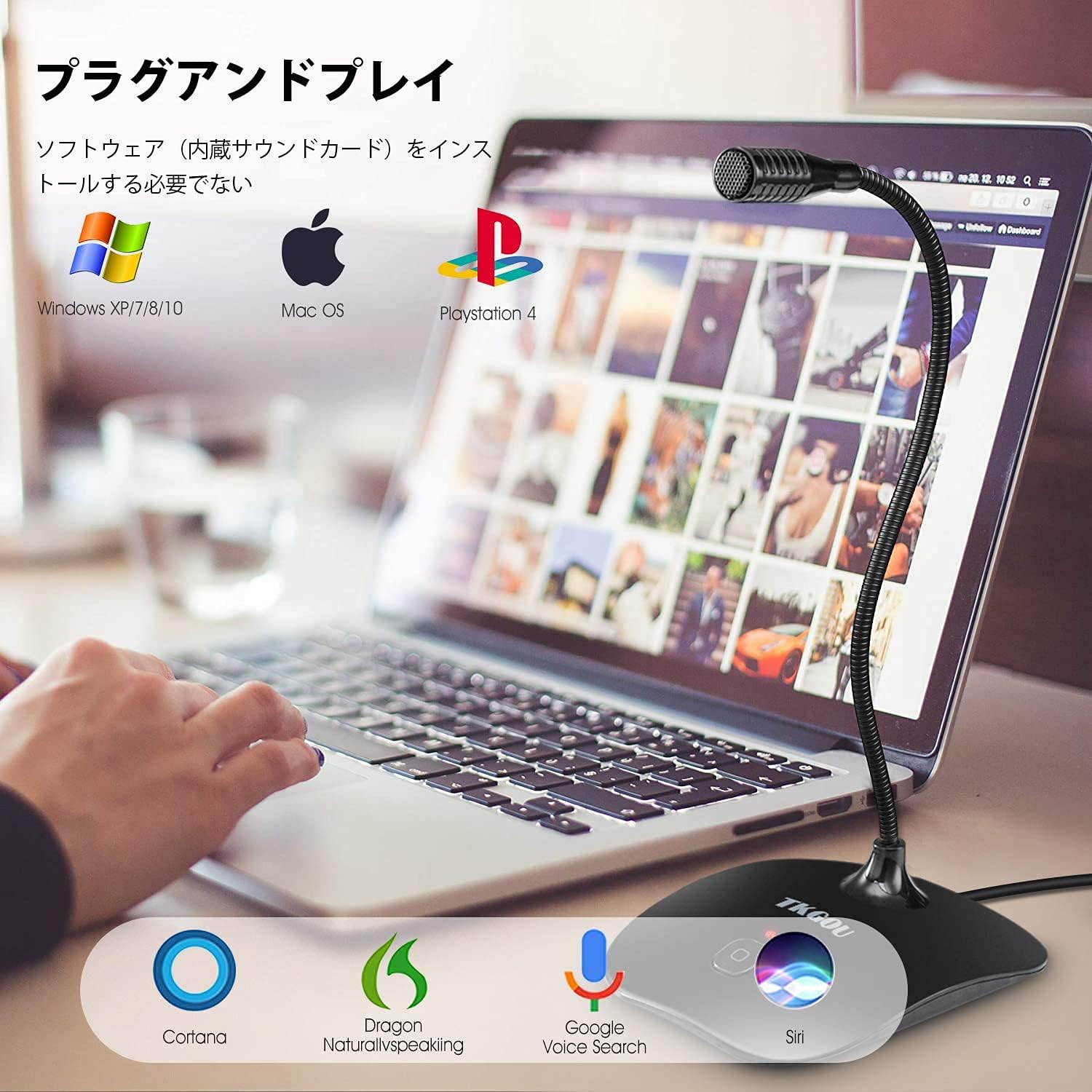
Image: The TKGOU UM6 microphone connected to a laptop, illustrating its plug-and-play functionality. Icons for Windows XP/7/8/10, Mac OS, and PlayStation 4 confirm broad compatibility. The image also shows compatibility with voice assistants like Cortana, Dragon NaturallySpeaking, Google Voice Search, and Siri.
Operating Instructions
Once connected and configured, the TKGOU UM6 microphone is ready for use.
Using the Microphone:
- Positioning: Adjust the flexible gooseneck to position the microphone head optimally for your voice. For best results, place the microphone approximately 15-30 cm (6-12 inches) from your mouth.
- Omnidirectional Pickup: The microphone features an omnidirectional pickup pattern, meaning it captures sound equally from all directions. This is suitable for group discussions or when you need to capture ambient sound.
- Mute Function: The microphone base includes a mute button. Press the button to mute the microphone input. The indicator light will change (e.g., turn off or change color) to show the mute status. Press it again to unmute.
- Noise Reduction: The integrated audio filter helps reduce background noise, providing clearer audio for your listeners.

Image: A close-up of the TKGOU UM6 microphone base, highlighting the mute button. The button allows users to quickly toggle microphone input on and off.

Image: A detailed view of the TKGOU UM6 microphone head, alongside a diagram illustrating its omnidirectional pickup pattern. This pattern indicates that the microphone captures sound from all directions around it.
Maintenance
To ensure the longevity and optimal performance of your TKGOU UM6 microphone, follow these simple maintenance guidelines:
- Cleaning: Use a soft, dry cloth to wipe the microphone and its base. Avoid using liquid cleaners, solvents, or abrasive materials, as these can damage the device.
- Storage: When not in use, store the microphone in a clean, dry place away from direct sunlight and extreme temperatures.
- Handling: Handle the microphone with care. Avoid dropping it or subjecting it to strong impacts, which can damage internal components.
- Cable Care: Do not pull on the USB cable forcefully. Always grasp the plug when disconnecting the microphone from your device.
Troubleshooting
If you encounter issues with your TKGOU UM6 microphone, please refer to the following common problems and solutions:
| Problem | Possible Cause | Solution |
|---|---|---|
| No sound input from the microphone. |
|
|
| Sound is distorted or unclear. |
|
|
| Microphone not recognized by the computer. |
|
|
Specifications
Detailed technical specifications for the TKGOU UM6 USB PC Microphone:
| Feature | Detail |
|---|---|
| Brand | TKGOU |
| Model Number | UM6 |
| Connectivity Technology | USB |
| Connector Type | USB Terminal |
| Special Feature | Stand |
| Compatible Devices | PC (Windows, Mac, Linux), PlayStation 4 |
| Color | UM6 (Black) |
| Included Components | Instruction Manual |
| Polar Pattern | Omnidirectional |
| Item Weight | 200 grams |
| Power Type | Plug & Play (USB Powered) |
| Hardware Platform | Desktop PC |
| Frequency Response | 10 KHz |
| UPC | 758232150825 |
| ASIN | B08DD66Q9R |
Warranty and Support
TKGOU provides a 1-year warranty for the UM6 USB PC Microphone, demonstrating our confidence in the product's quality and reliability. This warranty covers manufacturing defects and ensures a risk-free purchase.
For technical support, warranty claims, or any questions regarding your TKGOU UM6 microphone, please contact our customer service. Refer to the contact information provided on the product packaging or the official TKGOU website.
Please retain your proof of purchase for warranty service.