1. Introduction
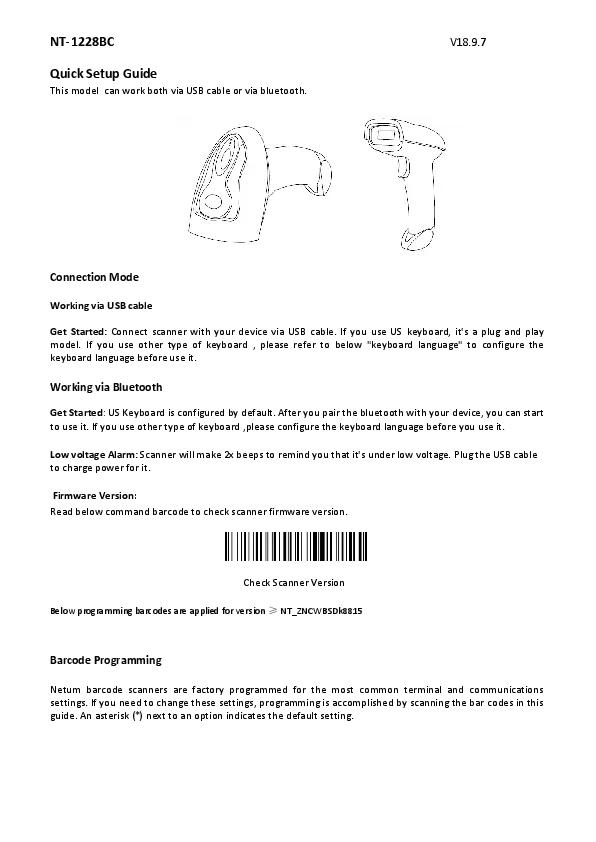
Thank you for choosing the NETUM NT-1228BC Bluetooth Barcode Scanner. This manual provides detailed instructions for setting up, operating, and maintaining your device to ensure optimal performance. This scanner is designed for efficient and reliable barcode data capture across various platforms.
2. Package Contents
Please verify that all items listed below are present in your package:
- NETUM NT-1228BC Bluetooth Barcode Scanner
- Flexible Gooseneck Stand
- USB Charging Cable
- USB Wireless Dongle

Image: The NETUM NT-1228BC Bluetooth Barcode Scanner, shown with its flexible stand, USB charging cable, and USB wireless dongle, illustrating the complete package contents.
3. Product Features
- Bluetooth Connectivity: Seamlessly connects with iPhone, iPad, Android tablets, and PCs.
- Wide Compatibility: Supports Mac OS X, Android, Windows 10, and iOS 9 and above.
- CCD Sensor Engine: Capable of reading linear barcodes directly from computer screens and mobile phones.
- Multiple Modes: Supports both HID (Human Interface Device) and SPP (Serial Port Profile) modes for versatile connectivity.
- Long Battery Life: Equipped with a 2000mAh battery, providing up to 30 hours of continuous scanning.
- Quick Recharge: Fully recharges in approximately 2 hours using the included USB charging cable.
- Versatile Use: Works with computers, smartphones, tablets, and mobile PDAs.
4. Setup Guide
4.1 Charging the Scanner
Before first use, fully charge the scanner. Connect the smaller end of the USB charging cable to the scanner's charging port and the larger end to a USB power adapter (not included) or a computer's USB port. The indicator light will show charging status (refer to the scanner's LED indicators for specific behavior, typically red for charging and off/green for full charge).
4.2 Assembling the Stand
The flexible gooseneck stand provides a stable base for hands-free scanning. Insert the bottom of the gooseneck into the base and secure it. Then, attach the scanner holder to the top of the gooseneck. Adjust the gooseneck to your desired angle for optimal scanning.

Image: The flexible gooseneck stand, designed to hold the barcode scanner for hands-free operation.
4.3 Connecting the Scanner
The scanner offers two primary connection methods:
4.3.1 Bluetooth Pairing (HID Mode - Default)
- Ensure the scanner is charged and powered on.
- Press and hold the trigger button on the scanner for a few seconds until it enters pairing mode (usually indicated by a flashing blue light).
- On your device (smartphone, tablet, PC), go to Bluetooth settings and search for available devices.
- Select "NETUM Barcode Scanner" or a similar name from the list.
- Once paired, the scanner's indicator light will typically turn solid blue, indicating a successful connection.
4.3.2 USB Wireless Dongle Connection
- Plug the USB wireless dongle into an available USB port on your computer.
- Power on the barcode scanner. The scanner should automatically connect to the dongle.
- A successful connection is usually indicated by a solid blue light on the scanner.
Note: The scanner supports HID and SPP modes. HID mode is generally plug-and-play for most applications, acting as a keyboard input. SPP mode requires specific software development for data reception. Refer to the full programming manual (if available from manufacturer) for switching modes.
5. Operating Instructions
5.1 Scanning Barcodes
To scan a barcode:
- Ensure the scanner is connected to your device.
- Open an application where you want the scanned data to appear (e.g., a text editor, spreadsheet, or POS software).
- Point the scanner's window at the barcode you wish to scan.
- Press the trigger button. A red scan line will emit from the scanner.
- Position the scanner so the red line crosses the entire barcode. A successful scan is typically indicated by a beep and the data appearing in your application.

Image: The NETUM NT-1228BC Barcode Scanner in handheld mode, demonstrating the red scan beam emitted during operation.
The CCD sensor allows for efficient scanning of barcodes from various surfaces, including printed labels, computer screens, and mobile phone displays.
6. Maintenance
- Cleaning: Use a soft, dry, lint-free cloth to clean the scanner's exterior and scan window. Do not use abrasive cleaners, solvents, or excessive moisture.
- Storage: Store the scanner in a cool, dry place away from direct sunlight and extreme temperatures.
- Battery Care: To prolong battery life, avoid fully discharging the battery frequently. If storing for an extended period, charge the battery to about 50% and recharge every few months.
- Cable Care: Handle the USB cable gently. Avoid bending or twisting it excessively, which can damage the internal wires.
7. Troubleshooting
| Problem | Possible Cause | Solution |
|---|---|---|
| Scanner does not power on. | Low battery. | Charge the scanner using the provided USB cable. |
| Scanner does not connect via Bluetooth. | Not in pairing mode; Bluetooth off on host device; interference. | Ensure scanner is in pairing mode (flashing blue light). Check Bluetooth settings on your device. Move closer to the device. Try re-pairing. |
| Scanner does not scan barcodes. | Barcode damaged/unreadable; scanner not aimed correctly; scanner not connected. | Ensure barcode is clear and flat. Aim the red line across the entire barcode. Verify connection status. |
| Scanned data does not appear in application. | Application not in focus; incorrect input mode. | Click into the text field of your application. Ensure scanner is in HID mode (default). |
| Does not work with Square POS stand. | Incompatibility with specific Square POS hardware. | This model is noted to not work with Square POS stands. Consider alternative POS systems or contact Square support for compatible devices. |
8. Specifications
| Feature | Detail |
|---|---|
| Model | NT-1228BC |
| ASIN | B08DCL5JKV |
| Brand | NETUM |
| Connectivity Technology | Bluetooth, USB Cable |
| Compatible Devices | Desktop, Laptop, Smartphone, Tablet |
| Power Source | Battery Powered, Corded Electric |
| Battery Capacity | 2000mAh (approx. 30 hours continuous scanning) |
| Date First Available | March 15, 2021 |
9. Warranty and Support
Specific warranty terms and detailed support contact information are not available in the provided product data. For warranty claims, technical support, or further inquiries, please refer to the documentation included with your product or visit the official NETUM website.
You may also contact the seller directly through the platform where the product was purchased for assistance.