Introduction
This manual provides instructions for the Mars Gaming MCPTKLES RGB Combo, which includes a gaming keyboard and mouse. This combo is designed for optimal desktop space utilization and is compatible with multiple platforms, including Windows, Mac, PlayStation 4, Xbox One, and Nintendo Switch. The keyboard features RGB Breathing and RGB Flow lighting, H-Mech technology, and anti-ghosting capabilities. The mouse is equipped with a 3200 DPI optical sensor, RGB Flow lighting, and durable HUANO mechanical buttons.
Package Contents
- Mars Gaming MCPTKLES TKL RGB Keyboard
- Mars Gaming MCPTKLES RGB Mouse
- User Manual (this document)
Setup
Connecting the Combo
The Mars Gaming MCPTKLES combo uses a standard USB connection for both the keyboard and mouse. No additional drivers are typically required for basic functionality on supported operating systems.
- Locate an available USB port on your computer or gaming console.
- Plug the USB connector from the keyboard into the USB port.
- Plug the USB connector from the mouse into another available USB port.
- Your operating system should automatically detect and install the necessary drivers.
- The RGB lighting on both devices should illuminate upon successful connection.
Multi-Platform Compatibility
This combo is designed to work with:
- Windows operating systems
- Mac operating systems
- PlayStation 4
- Xbox One
- Nintendo Switch
Note: Specific game or console settings may be required for full functionality on gaming consoles. Refer to your console's user manual for peripheral setup.
Operating Instructions
Keyboard Functions (TKL Design)
The TKL (Tenkeyless) design of the keyboard omits the numeric keypad, offering a more compact form factor. It features H-Mech technology for a smooth and precise typing experience.
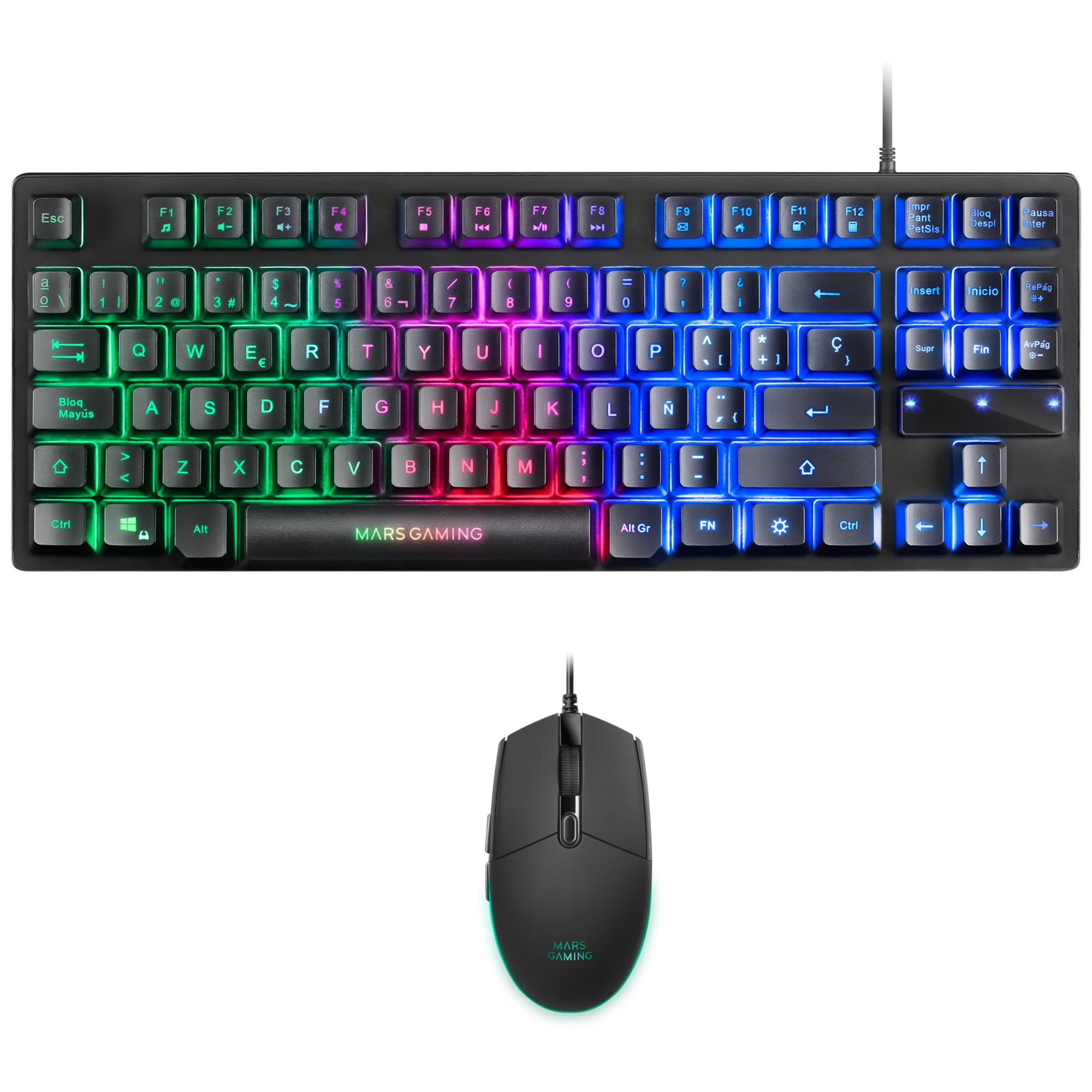
Image: Mars Gaming MCPTKLES TKL RGB Keyboard. This image shows the compact tenkeyless design of the keyboard with its RGB backlighting.
RGB Lighting Control
The keyboard features RGB Control lighting. Specific key combinations allow you to cycle through different lighting modes and effects. Refer to the keyboard's function keys (Fn) combined with other keys for lighting adjustments. Common controls include:
- Fn + [Key]: To change lighting modes (e.g., static, breathing, wave).
- Fn + [Arrow Keys]: To adjust brightness or speed of effects.

Image: Close-up of Mars Gaming MCPTKLES Keyboard RGB Keys. This image highlights the individual keys and their vibrant RGB backlighting.
Anti-Ghosting
The keyboard is equipped with anti-ghosting technology, which ensures that multiple key presses are registered simultaneously without conflict, crucial for fast-paced gaming.
Mouse Functions
The lightweight mouse features an optical sensor with adjustable sensitivity up to 3200 DPI, RGB Flow lighting, and 6 programmable buttons with high-quality HUANO mechanical switches.

Image: Mars Gaming MCPTKLES RGB Mouse Top View. This image displays the top of the mouse, showing the scroll wheel and main buttons.
DPI Adjustment (On-the-fly)
Use the dedicated DPI button (often located near the scroll wheel) to cycle through different sensitivity levels (DPI - Dots Per Inch). This allows for quick adjustments to mouse speed without interrupting gameplay.

Image: Mars Gaming MCPTKLES RGB Mouse Side View. This image shows the ergonomic shape and side buttons of the mouse.
Programmable Buttons
The mouse features 6 buttons. While basic functionality is plug-and-play, advanced customization and macro programming may require specific software from Mars Gaming, if available. Visit the official Mars Gaming website for software downloads.

Image: Mars Gaming MCPTKLES RGB Mouse with RGB Flow Lighting. This image illustrates the dynamic RGB lighting effects on the mouse.
Maintenance
Cleaning
- Disconnect the keyboard and mouse from your computer before cleaning.
- Use a soft, dry, lint-free cloth to wipe down the surfaces.
- For stubborn dirt, slightly dampen the cloth with water or a mild cleaning solution. Avoid excessive moisture.
- Do not use harsh chemicals, abrasive cleaners, or solvents.
- For the keyboard, use compressed air to remove dust and debris from between the keys.
Storage
Store the devices in a cool, dry place away from direct sunlight and extreme temperatures when not in use for extended periods.
Troubleshooting
Keyboard or Mouse Not Responding
- Ensure both USB cables are securely plugged into the computer or console.
- Try plugging the devices into different USB ports.
- Restart your computer or console.
- Test the devices on another computer to determine if the issue is with the combo or your system.
RGB Lighting Not Working
- Verify the devices are properly connected and powered.
- Check if the lighting has been turned off via keyboard shortcuts (Fn + lighting control keys).
- Ensure no software conflicts are present if you are using third-party lighting control applications.
Mouse Cursor Jumps or is Inaccurate
- Clean the mouse sensor area on the underside of the mouse.
- Ensure you are using the mouse on a clean, uniform surface (a mouse pad is recommended).
- Adjust the DPI settings using the mouse's DPI button.
Specifications
| Feature | Detail |
|---|---|
| Brand | Mars Gaming |
| Model Number | MCPTKLES |
| Connectivity Technology | USB (Wired) |
| Keyboard Layout | Spanish (TKL - Tenkeyless) |
| Keyboard Features | H-Mech Technology, RGB Control Lighting, Anti-Ghosting |
| Mouse Sensor | Optical |
| Mouse DPI | Up to 3200 DPI (On-the-fly adjustable) |
| Mouse Buttons | 6 (with HUANO mechanical switches) |
| Mouse Lighting | RGB Flow |
| Compatible Devices | Linux, Mac, PS4, Windows, XBOX ONE |
| Product Dimensions | 44 x 15.9 x 4.4 cm (Keyboard) |
| Item Weight | 400 g |
| Color | Black |
Warranty and Support
For warranty information and technical support, please refer to the official Mars Gaming website or contact their customer service. Keep your proof of purchase for warranty claims.
Official Mars Gaming Website: www.marsgaming.eu


