
1. Introduction
This instruction manual provides essential information for the proper installation, operation, and maintenance of your Lenovo 04W3091 Turkish Keyboard. Please read this manual thoroughly before proceeding with installation or use to ensure optimal performance and longevity of the product. This keyboard is designed for compatible Lenovo ThinkPad T530 series laptops.
2. Product Overview
The Lenovo 04W3091 is a genuine replacement keyboard featuring a Turkish layout. It includes a full set of keys, function keys, and the integrated TrackPoint pointing device for precise cursor control without removing hands from the keyboard.
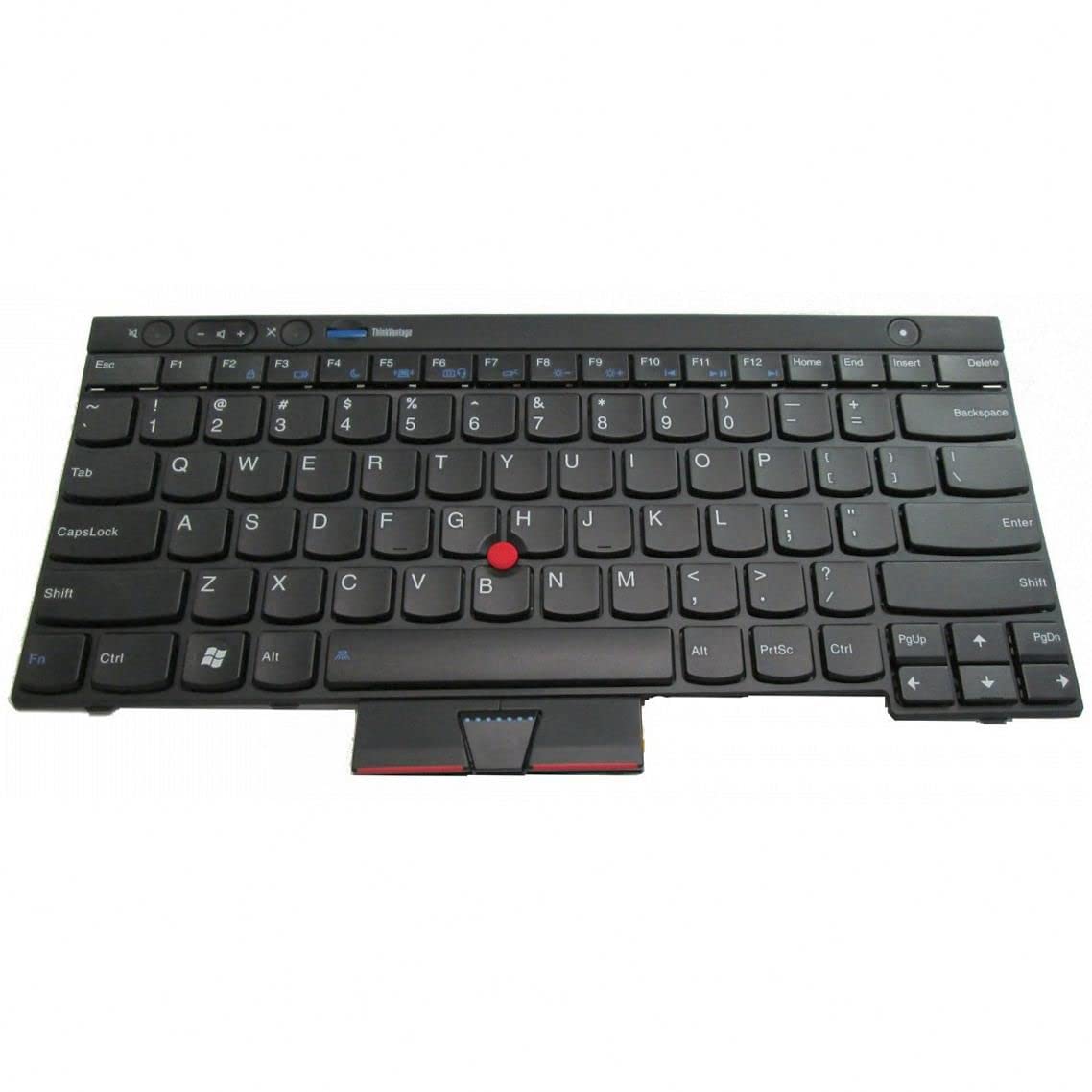
Figure 1: An overhead view of the black Lenovo 04W3091 Turkish Keyboard, featuring a full QWERTY layout with Turkish characters, a red TrackPoint pointing stick in the center, and a TrackPoint button assembly below the spacebar.
Key Features:
- Turkish Layout: Specifically designed for Turkish language input with appropriate character keys.
- Integrated TrackPoint: Provides an alternative pointing device for enhanced usability.
- FRU Part: Field Replaceable Unit (FRU) 04W3091, ensuring compatibility and ease of replacement for specified Lenovo ThinkPad models.
- Durable Construction: Engineered to meet Lenovo's quality standards for reliability and longevity.
3. Setup and Installation
This section outlines the general steps for replacing a keyboard in a compatible Lenovo ThinkPad laptop. Specific steps may vary slightly depending on the exact laptop model. It is recommended to consult your laptop's service manual for detailed instructions.
- Power Off: Ensure your laptop is completely powered off and disconnected from the power adapter. Remove the battery if possible.
- Disassembly: Carefully follow the instructions in your laptop's service manual to remove any necessary covers or components to access the existing keyboard. This typically involves removing screws from the bottom of the laptop and/or releasing latches around the keyboard bezel.
- Disconnect Old Keyboard: Gently disconnect the ribbon cable(s) connecting the old keyboard to the motherboard. Note the orientation of the cables.
- Remove Old Keyboard: Lift out the old keyboard.
- Install New Keyboard: Position the new Lenovo 04W3091 Turkish Keyboard into the keyboard tray. Ensure it sits flush.
- Connect New Keyboard: Carefully connect the ribbon cable(s) of the new keyboard to the motherboard, ensuring they are securely seated and latched.
- Reassembly: Reassemble any removed components and secure all screws. Reinstall the battery and connect the power adapter.
- Power On and Test: Power on your laptop and test all keyboard functions, including standard keys, function keys, and the TrackPoint.
Note: If you are uncomfortable performing this procedure, it is recommended to seek assistance from a qualified technician.
4. Operating Instructions
Standard Key Usage:
The keyboard functions as a standard input device. Press keys to type characters, numbers, and symbols. The Turkish layout includes specific characters such as ğ, ı, ş, ö, ü, ç which are accessible directly or via Shift/AltGr combinations.
Function Keys (Fn):
The Fn key, located in the lower-left corner, is used in combination with the function keys (F1-F12) to activate special features such as adjusting screen brightness, volume, wireless settings, and external display options. Refer to your laptop's user guide for specific Fn key combinations.
TrackPoint Usage:
The red TrackPoint pointing stick, located between the G, H, and B keys, allows for precise cursor control. Apply gentle pressure in the desired direction to move the cursor. The three buttons located below the spacebar are used with the TrackPoint:
- Left Button: Functions as a left-click.
- Middle Button: Used for scrolling (press and hold, then move TrackPoint) or middle-click functions.
- Right Button: Functions as a right-click.
5. Maintenance and Care
Proper care will extend the life of your keyboard.
- Cleaning: Use a soft, lint-free cloth slightly dampened with water or a mild, non-abrasive cleaning solution to wipe the keycaps and keyboard surface. Avoid excessive moisture. Do not spray cleaners directly onto the keyboard.
- Dust Removal: Use compressed air to remove dust and debris from between the keys. Hold the can upright and spray in short bursts.
- Avoid Spills: Keep liquids away from the keyboard to prevent damage. In case of a spill, immediately power off your laptop and disconnect it from power.
- Storage: When not in use, store the keyboard in a clean, dry environment away from extreme temperatures and direct sunlight.
6. Troubleshooting
If you encounter issues with your keyboard, try the following troubleshooting steps:
- Keyboard Not Responding:
- Ensure the keyboard ribbon cable(s) are securely connected to the motherboard.
- Restart your laptop.
- Check your operating system's device manager for any keyboard driver issues. Reinstall or update drivers if necessary.
- Specific Keys Not Working:
- Check for any physical obstructions or debris under the keycap.
- If multiple keys in a row or section are not working, it might indicate a cable connection issue or a fault with the keyboard itself.
- TrackPoint Not Working:
- Ensure TrackPoint drivers are installed and up to date.
- Check TrackPoint settings in your operating system.
If problems persist after attempting these steps, contact Lenovo support or a qualified service technician.
7. Specifications
| Brand | Lenovo |
| Model Number | 04W3091 |
| FRU Part Number | FRU04W3091 |
| Keyboard Layout | Turkish |
| Compatibility | Lenovo ThinkPad T530 (and potentially other compatible models) |
| Pointing Device | Integrated TrackPoint |
8. Warranty and Support
For warranty information and technical support, please refer to the documentation provided with your original laptop or visit the official Lenovo support website. Warranty terms and conditions may vary by region and product.
Lenovo Support Website: support.lenovo.com