
Introduction
The Bose Smart Soundbar 300 is designed to enhance your audio experience for television, movies, music, and games. It features five full-range drivers for clear and spacious sound, along with proprietary QuietPort technology for deep bass without distortion. This soundbar integrates Amazon Alexa and Google Assistant for voice control and offers versatile connectivity options including Wi-Fi, Bluetooth, Apple AirPlay 2, and Spotify Connect. It is also part of the Bose Smart Family, allowing for multiroom listening and pairing with other Bose devices.

Image: The Bose Smart Soundbar 300 in black, showcasing its sleek design and front grille.
Safety Information
Please read and follow all safety instructions before operating this product. Keep these instructions for future reference. Adhere to all warnings on the product and in the operating instructions. Do not use this apparatus near water or moisture. Clean only with a dry cloth. Do not block any ventilation openings. Install in accordance with the manufacturer's instructions. Do not install near any heat sources such as radiators, heat registers, stoves, or other apparatus (including amplifiers) that produce heat. Protect the power cord from being walked on or pinched, particularly at plugs, convenience receptacles, and the point where they exit from the apparatus. Only use attachments/accessories specified by the manufacturer. Unplug this apparatus during lightning storms or when unused for long periods of time. Refer all servicing to qualified service personnel. Servicing is required when the apparatus has been damaged in any way, such as power-supply cord or plug is damaged, liquid has been spilled or objects have fallen into the apparatus, the apparatus has been exposed to rain or moisture, does not operate normally, or has been dropped.
What's in the Box
- Bose Smart Soundbar 300
- Power cord
- Optical cable
- Remote control with batteries (1 CR2032 battery included)
Setup
Placement
The Bose Smart Soundbar 300 is designed to sit low in front of your TV, measuring just over 2 inches tall. It can also be wall-mounted using wall brackets (sold separately). Ensure the soundbar is placed on a stable surface or securely mounted.

Image: The soundbar positioned on a TV cabinet, demonstrating its low-profile design.
Connections
Connect the soundbar to your television using either the included optical audio cable or an HDMI ARC cable (sold separately). For optimal functionality and control, an HDMI ARC connection is recommended as it allows your TV remote to control the soundbar's volume.
- Optical Connection: Connect one end of the optical cable to the OPTICAL IN port on the soundbar and the other end to the optical audio output on your TV.
- HDMI ARC Connection: Connect one end of an HDMI ARC cable to the HDMI (ARC) port on the soundbar and the other end to the HDMI ARC port on your TV.

Image: The rear panel of the soundbar, highlighting the power, IR, Bass, Optical In, Service, and HDMI (ARC) ports.
Power and Initial Setup
After connecting the soundbar to your TV, connect the power cord to the soundbar and then to a power outlet. Once powered on, download the Bose Music app to your smartphone or tablet. The app will guide you through the remaining setup steps, including connecting to your home Wi-Fi network and configuring voice assistants.
Important Note: During initial setup, ensure your network firewall settings are not overly restrictive, as this may prevent the soundbar from connecting to Bose servers for activation and firmware updates. If you encounter issues, temporarily adjust your router's firewall to a medium or less restrictive setting, then revert after setup is complete.
Operating the Soundbar
Voice Control (Alexa & Google Assistant)
The Bose Smart Soundbar 300 has built-in Amazon Alexa and Google Assistant. Once configured through the Bose Music app, you can use voice commands for various functions, such as playing music, checking the weather, or controlling smart home devices. Bose Voice4Video technology allows for advanced TV control with a single voice command, for example, "Alexa, watch channel 23" to turn on your TV and soundbar and switch to the desired channel.
Connectivity Options
- Bluetooth: Pair your mobile device to the soundbar via Bluetooth to stream audio wirelessly.
- Wi-Fi: Connect to your home Wi-Fi network for access to online music services, firmware updates, and multiroom audio capabilities.
- Apple AirPlay 2: Stream audio directly from your Apple devices.
- Spotify Connect: Control music playback directly from the Spotify app.
Bose Music App Features
The Bose Music app provides comprehensive control over your soundbar. Use it to:
- Complete initial setup and network configuration.
- Adjust audio settings, including dialogue mode for enhanced voice clarity.
- Manage connected devices and music services.
- Expand your system by adding compatible Bose Bass Modules (500 or 700) or Surround Speakers (700) for a more immersive experience.
- Utilize Bose SimpleSync technology to pair with Bose Headphones 700 or select Bose Bluetooth speakers for synchronized audio.
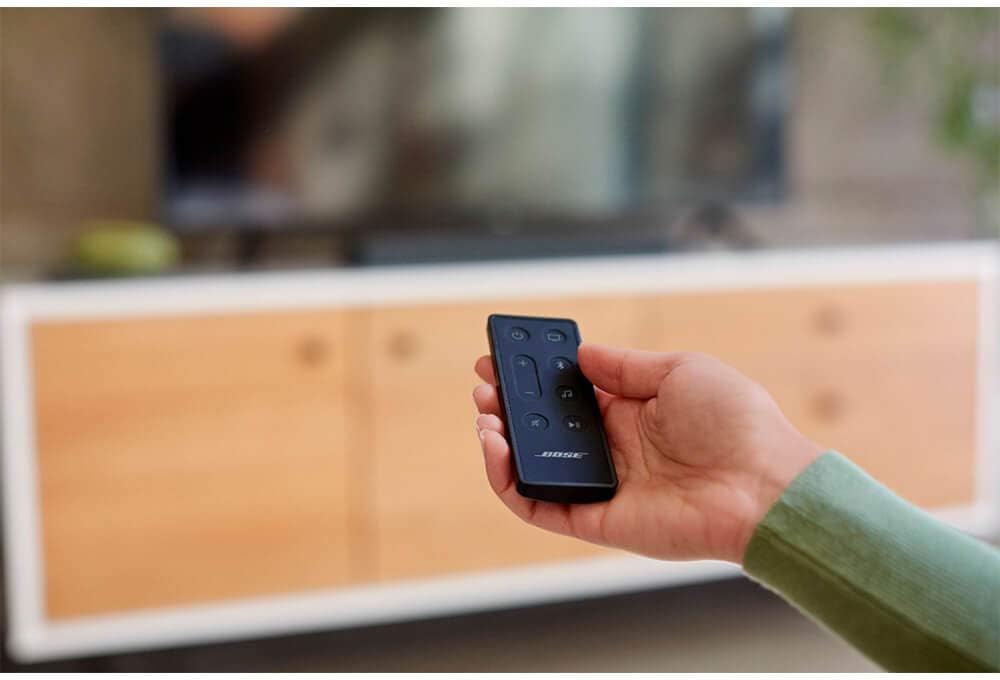
Image: A hand holding the compact remote control for the Bose Smart Soundbar 300.
Maintenance
To maintain the performance and appearance of your Bose Smart Soundbar 300, follow these guidelines:
- Cleaning: Use a soft, dry cloth to clean the surface of the soundbar. Do not use liquid cleaners or sprays.
- Ventilation: Ensure that the ventilation openings are not blocked to prevent overheating.
- Storage: If storing the soundbar for an extended period, disconnect it from power and store it in a cool, dry place.
Troubleshooting
If you encounter issues with your Bose Smart Soundbar 300, refer to the following common troubleshooting tips:
- No Sound from Soundbar:
- Verify that the soundbar is powered on and the volume is not muted.
- Check the connection cable (optical or HDMI ARC) between the soundbar and your TV. Ensure it is securely plugged into the correct ports on both devices. For HDMI ARC, confirm your TV's HDMI port supports ARC and is enabled in your TV settings.
- Ensure your TV's audio output is set to the correct external speaker option (e.g., PCM or Bitstream for optical, or HDMI ARC for HDMI).
- Bose Music App Connection Issues:
- Ensure your smartphone/tablet and the soundbar are connected to the same Wi-Fi network.
- Temporarily disable any VPNs or strict firewall settings on your router that might be blocking the soundbar's communication with Bose servers.
- Restart the Bose Music app, your soundbar (by unplugging and replugging the power cord), and your Wi-Fi router.
- Voice Assistant Not Responding:
- Confirm that Alexa or Google Assistant is properly configured and enabled in the Bose Music app.
- Ensure the soundbar's microphone is not muted.
- Check your internet connection.
- Remote Control Not Working:
- Replace the CR2032 battery in the remote control.
- Ensure there are no obstructions between the remote and the soundbar.
For more detailed troubleshooting, refer to the official Bose support website.
Specifications
| Feature | Detail |
|---|---|
| Brand | Bose |
| Model Name | Soundbar 300 |
| Speaker Type | Soundbar |
| Special Feature | Multi Room Audio |
| Recommended Uses | For Televisions |
| Compatible Devices | Smartphone, Television |
| Controller Type | Amazon Alexa, Google Assistant |
| Color | Bose Black |
| Included Components | Bose Smart Soundbar 300, power cord, optical cable, remote control with batteries |
| Product Dimensions | 4.02"D x 26.58"W x 2.21"H |
| Item Weight | 8.09 pounds |
| Control Method | Remote, Voice |
| Wireless Communication Technology | Bluetooth |
| Connectivity Protocol | Bluetooth, Wi-Fi |
| Batteries Required | 1 CR2032 (included) |
| Mounting Type | Wall Mount (brackets sold separately) |
| Audio Output Mode | Surround |
| UPC | 017817815253 |
Warranty and Support
The Bose Smart Soundbar 300 comes with a limited warranty. For specific warranty terms and conditions, please refer to the documentation included with your product or visit the official Bose website.
For additional support, frequently asked questions, and detailed guides, please visit the official Bose support page for this product:


