
1. Introduction
Thank you for purchasing the KONKA 43U55A 43-inch U5 Series 4K UHD Android Smart TV. This manual provides essential information for setting up, operating, and maintaining your new television. Please read these instructions carefully before using the product and retain them for future reference.
The KONKA 43U55A features a 4K Ultra HD display, Android TV operating system, and an integrated Google Assistant with voice remote control, offering a comprehensive entertainment experience.
2. Safety Information
Always follow basic safety precautions when using this television to reduce the risk of fire, electric shock, and injury.
- Power Source: Ensure the TV is connected to an AC 100-240V, 50/60Hz power supply.
- Ventilation: Do not block ventilation openings. Allow adequate space around the TV for proper airflow.
- Water and Moisture: Do not expose the TV to rain or moisture. Do not place objects filled with liquids, such as vases, on the TV.
- Heat: Keep the TV away from heat sources such as radiators, heat registers, stoves, or other apparatus that produce heat.
- Cleaning: Unplug the TV from the wall outlet before cleaning. Use a soft, dry cloth. Do not use liquid cleaners or aerosol cleaners.
- Children: Do not allow children to climb on the TV or stand.
- Wall Mounting: If wall-mounting, ensure the mount is suitable for the TV's weight and installed by qualified personnel.
- Lightning: Unplug the TV during lightning storms or when unused for long periods.
3. Package Contents
Verify that all items are present in the package:
- KONKA 43U55A 43-inch Smart TV
- Remote Control with Voice Function
- TV Stands (2 pcs)
- Screws for TV Stands
- Power Cord
- Quick Start Guide
- User Manual (this document)
4. Setup
4.1 Stand Installation
To install the TV stands:
- Carefully place the TV face-down on a soft, flat surface to prevent screen damage.
- Align each stand with the corresponding screw holes on the bottom of the TV.
- Secure each stand with the provided screws. Ensure they are tightened firmly.
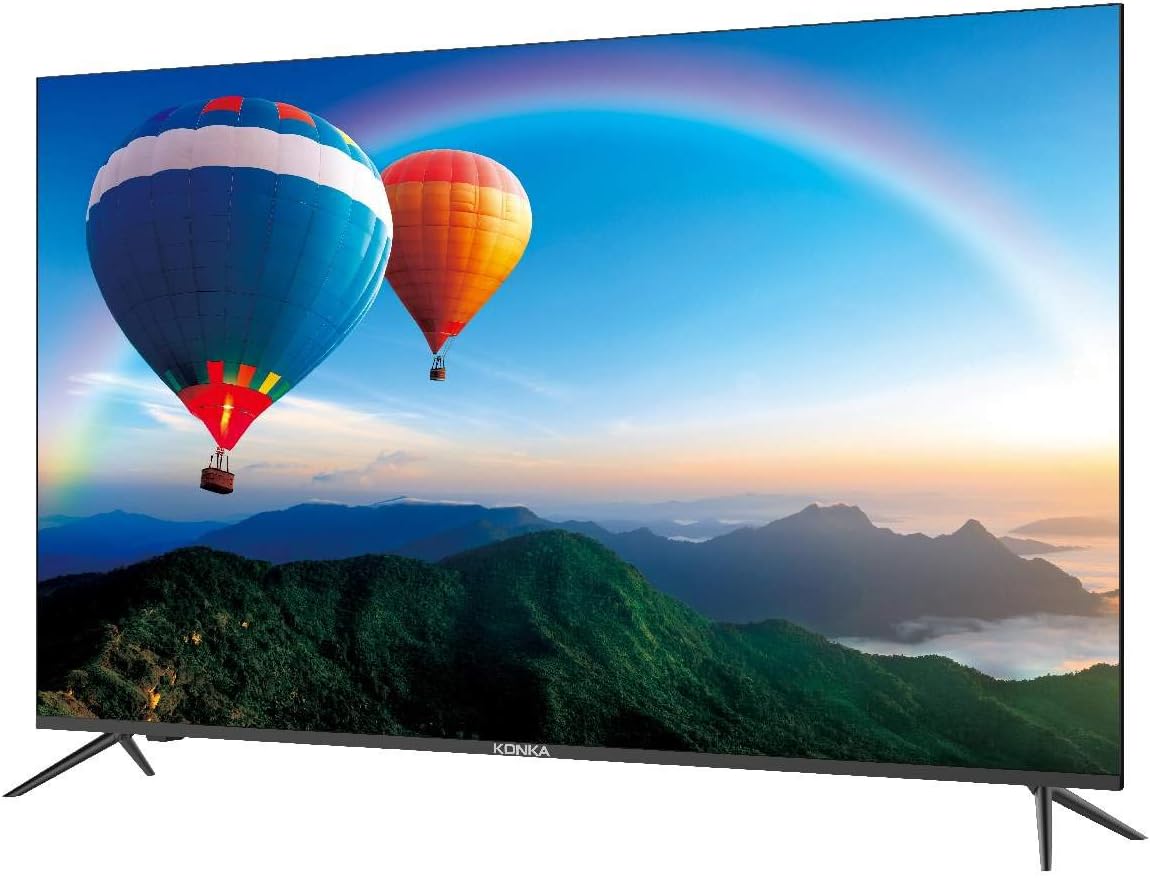
This image shows the front of the KONKA 43U55A Smart TV, highlighting its ZeroBezel design and the included stand. The screen displays a colorful landscape with hot air balloons.
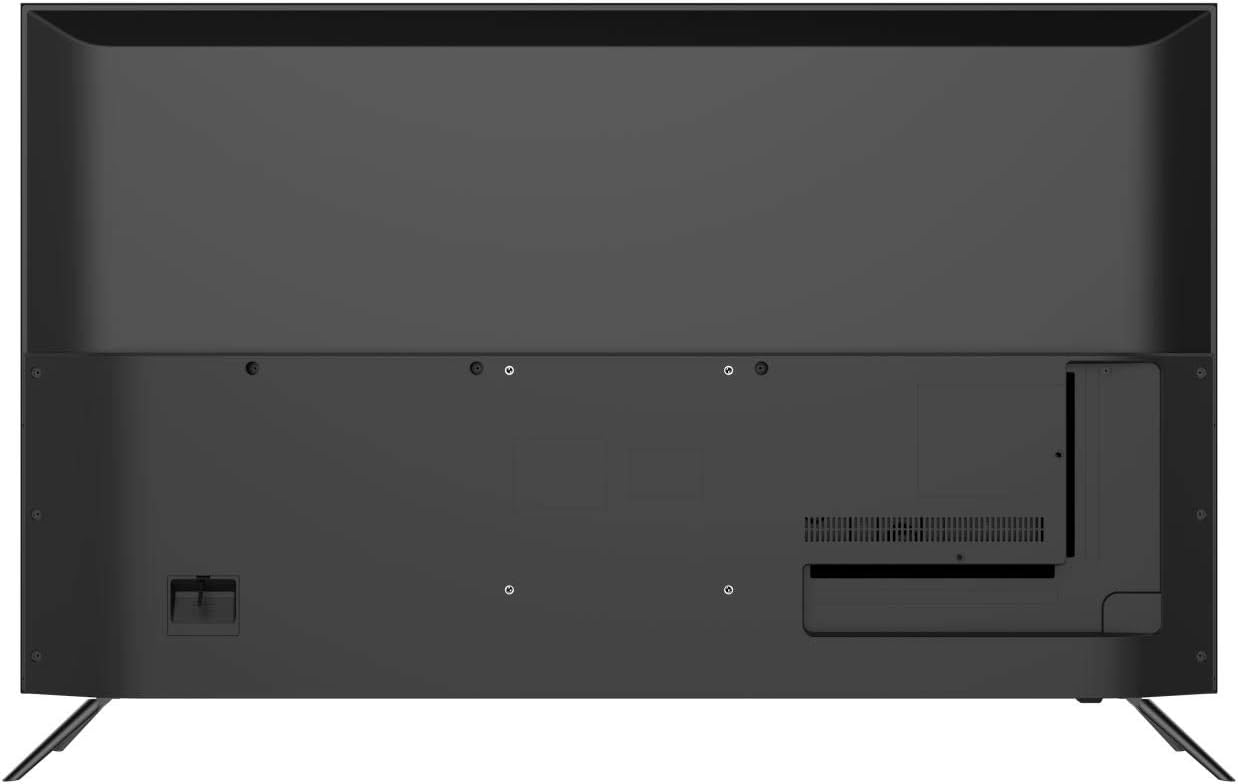
This image displays the back panel of the KONKA 43U55A Smart TV, indicating the VESA mounting holes and the general layout of the rear casing.
4.2 Wall Mounting (Optional)
If you choose to wall-mount your TV, you will need a VESA-compatible wall mount kit (sold separately). Refer to the wall mount kit's instructions for proper installation. Ensure the wall can support the weight of the TV and the mount.
4.3 Connecting Devices
Your KONKA 43U55A TV offers various ports for connecting external devices.

This diagram illustrates the various connectivity ports available on the KONKA 43U55A Smart TV, detailing the locations for USB, HDMI (including ARC), Headphone, LAN, Optical, AV In, and RF connections.
- HDMI (High-Definition Multimedia Interface): Connect Blu-ray players, game consoles, cable/satellite boxes, and other HDMI-enabled devices. The TV has 4 HDMI inputs, with HDMI1 supporting ARC (Audio Return Channel).
- USB: Connect USB storage devices to play media files. The TV has 2 USB ports.
- LAN (Ethernet): Connect an Ethernet cable for a wired internet connection.
- OPTICAL (Digital Audio Out): Connect to a soundbar or audio receiver for digital audio output.
- AV IN (Composite Video/Audio): Connect older devices using composite video and stereo audio cables.
- RF (Antenna/Cable In): Connect an antenna or cable TV coaxial cable.
- HEADPHONE: Connect headphones for private listening.
4.4 Initial Power On and Android TV Setup
After connecting all desired devices and the power cord:
- Press the Power button on the remote control or the TV.
- Follow the on-screen instructions to complete the initial setup, including language selection, network connection (Wi-Fi or Ethernet), and Google account sign-in.
- Pair the voice remote control as prompted to enable Google Assistant functionality.
5. Operating Your TV
5.1 Remote Control
The included remote control allows you to navigate the TV's features. It includes dedicated buttons for common functions and a microphone button for voice commands.
- Power: Turns the TV on or off.
- Input: Selects the input source (HDMI, AV, etc.).
- Navigation Buttons: Up, Down, Left, Right to move through menus.
- OK/Enter: Confirms selections.
- Back: Returns to the previous screen.
- Home: Accesses the Android TV home screen.
- Volume +/-: Adjusts the volume.
- Channel +/-: Changes TV channels.
- Microphone Button: Activates Google Assistant for voice commands.
5.2 Android TV Features
Your KONKA Smart TV runs on Android TV, providing access to a wide range of content and smart features:
- Google Play Store: Download and install your favorite streaming apps, games, and utilities.
- Google Assistant: Use voice commands via the remote to search for content, get information, control smart home devices, and more. Press the microphone button on your remote and speak your command.
- Chromecast Built-in: Cast content from your compatible smartphone, tablet, or computer directly to the TV screen.
5.3 Picture and Sound Settings
Access the TV's settings menu to customize picture and sound to your preference.
- Picture Settings: Adjust brightness, contrast, color, sharpness, and picture modes. The TV features Konka's XC3 Quad Core+ Ultra HD engine, HiBright Pro LED backlight, and ColorWave Wide Color Gamut technology for enhanced visual quality.
- Sound Settings: Adjust bass, treble, balance, and select sound modes. If the built-in speakers do not meet your audio preferences, consider connecting an external soundbar or home theater system via HDMI ARC or Optical output.
6. Maintenance
6.1 Cleaning the TV
To ensure the longevity and optimal performance of your TV, follow these cleaning guidelines:
- Screen: Gently wipe the screen with a soft, lint-free cloth. For stubborn marks, slightly dampen the cloth with water or a specialized screen cleaner (do not spray directly onto the screen).
- Cabinet: Wipe the TV cabinet with a soft, dry cloth.
- Do Not Use: Avoid using abrasive cleaners, waxes, or solvents as they can damage the TV's finish.
6.2 General Care
- Avoid placing heavy objects on the TV.
- Do not expose the TV to direct sunlight or extreme temperatures.
- Unplug the TV from the power outlet during electrical storms or if it will be left unattended for an extended period.
7. Troubleshooting
If you encounter issues with your TV, refer to the following common solutions:
| Problem | Possible Solution |
|---|---|
| No power / TV does not turn on | Check if the power cord is securely plugged into the TV and the wall outlet. Try a different outlet. Ensure the remote control batteries are not depleted. |
| No picture / Poor picture quality | Check input source selection. Ensure all cables (HDMI, AV, Antenna) are securely connected. Adjust picture settings in the TV menu. For external devices, check their output settings. |
| No sound / Poor sound quality | Check volume level and mute status. Ensure external audio devices are properly connected and powered on. Adjust sound settings in the TV menu. |
| Remote control not working | Replace batteries. Ensure there are no obstructions between the remote and the TV's IR sensor. Re-pair the voice remote if necessary (refer to Android TV setup). |
| Android TV apps crashing or freezing | Ensure the TV's software is up to date. Clear the cache for the problematic app (Settings > Apps > [App Name] > Clear Cache). Reinstall the app if the issue persists. Restart the TV. |
| TV turns on randomly | This can sometimes occur if connected devices (e.g., Roku) update or send signals. To fully power off the TV, press and hold the Power button on the remote for approximately 3 seconds until a power-off prompt appears, then confirm. This puts the TV into a deeper sleep state. |
| Wi-Fi connection issues | Restart your router and modem. Check TV network settings. Ensure the TV is within range of your Wi-Fi router. Try a wired LAN connection if possible. |
8. Specifications
| Feature | Specification |
|---|---|
| Brand | KONKA |
| Model Name | 43U55A |
| Screen Size | 43 Inches |
| Display Technology | LED |
| Resolution | 4K (3840 x 2160 pixels) |
| Refresh Rate | 120 Hertz |
| Operating System | Android TV |
| Special Features | HDMI Input, Noise Reduction, Smart TV, Ultra High Definition |
| Connectivity Technology | HDMI |
| Aspect Ratio | 16:9 |
| Hardware Interface | HDMI |
| Mounting Type | Table Mount |
| Product Dimensions | 106.5 x 14 x 65 cm (with stand) |
| Product Weight | 9.98 kg |
| Model Year | 2020 |
9. Warranty and Support
For warranty information and technical support, please refer to the documentation included with your purchase or visit the official KONKA website. Keep your proof of purchase for warranty claims.


