
Alcatel MW41NF
Alcatel LINKZONE Mobile 4G LTE WiFi Hotspot
User Manual
Introduction
This user manual provides comprehensive instructions for the setup, operation, maintenance, and troubleshooting of your Alcatel LINKZONE Mobile 4G LTE WiFi Hotspot. Designed for connectivity, portability, and performance, the LINKZONE allows you to stay connected at high speeds wherever you go, providing a private Wi-Fi network for up to 15 devices simultaneously.
Product Overview
The Alcatel LINKZONE is a compact and powerful mobile hotspot. Key features include:
- Network: 4G LTE for fast internet access.
- Battery: 1800 mAh, providing up to 6 hours of working time and 300 hours of standby time.
- Memory: 256MB NANO Flash + 128MB LPDDR2, with microSD support up to 32GB.
- Connectivity: GSM, UMTS, and LTE bands (B1/2/3/4/5/8/12/13/17/20/28 Full CAT 4).
- Device Support: Connects up to 15 devices simultaneously.
- Management: Managed via WebUI and dedicated apps for Android & iOS.

Figure 1: Front view of the Alcatel LINKZONE Mobile Hotspot, showing the status indicator panel.

Figure 2: Angled view of the Alcatel LINKZONE, emphasizing its compact design and portability.
Setup
Follow these steps to set up your Alcatel LINKZONE:
- Charge the Device: Before initial use, fully charge the LINKZONE using the provided USB cable and charger. The battery indicator will show charging status.
- Remove the Back Cover: Gently pry open the back cover of the device.
- Insert SIM Card: Locate the SIM card slot. Insert your activated 4G LTE SIM card into the slot. Ensure the SIM card is correctly oriented as indicated on the device. (SIM CARD IS NOT INCLUDED)
- Insert Battery: Place the 1800mAh battery into its compartment, aligning the contacts.
- Replace Back Cover: Securely snap the back cover into place.
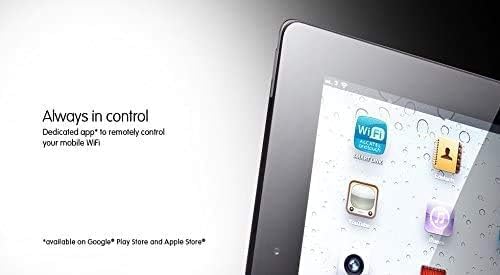
Figure 3: Internal view of the LINKZONE, illustrating the SIM card and battery placement.
Operating Instructions
Powering On/Off
- To Power On: Press and hold the Power button (located on the side) until the indicators light up.
- To Power Off: Press and hold the Power button until the indicators turn off.

Figure 4: Side view of the LINKZONE, highlighting the power and WPS buttons.
Connecting Devices
Once powered on, the LINKZONE will broadcast a Wi-Fi network. To connect your devices:
- On your device (smartphone, tablet, laptop), open your Wi-Fi settings.
- Select the Wi-Fi network name (SSID) corresponding to your LINKZONE. The default SSID and password are usually found on a sticker inside the battery compartment or on the device packaging.
- Enter the Wi-Fi password when prompted.
- Your device should now be connected to the internet via the LINKZONE.
Managing Settings (WebUI & App)
You can manage your LINKZONE settings, monitor connected devices, and track data usage through the WebUI or the dedicated Alcatel Web app.
- WebUI: Connect a device to the LINKZONE's Wi-Fi. Open a web browser and enter the default IP address (usually 192.168.1.1 or similar, check your device's documentation). Log in with the default username and password.
- Alcatel Web App: Download the official Alcatel Web app from the Google Play Store (for Android) or Apple App Store (for iOS). Install and open the app, then follow the on-screen instructions to connect to your LINKZONE.

Figure 5: Example of the Alcatel mobile WiFi app interface on a tablet, allowing remote control of the hotspot.
Maintenance
- Battery Care: To prolong battery life, avoid exposing the device to extreme temperatures. If the device will not be used for an extended period, store it with a partial charge (around 50%).
- Cleaning: Use a soft, dry cloth to clean the exterior of the device. Avoid using liquid cleaners or aerosols.
- Software Updates: Periodically check for firmware updates through the WebUI or the dedicated app to ensure optimal performance and security.
Troubleshooting
| Problem | Possible Cause / Solution |
|---|---|
| No Internet Connection / Slow Speed |
|
| Device Not Powering On |
|
| Cannot Connect to Wi-Fi Network |
|
| Factory Reset | If issues persist, a factory reset may be necessary. This will erase all custom settings and restore the device to its original factory state. To perform a factory reset, press and hold the Power and WPS buttons simultaneously until all LEDs flash four times. This process requires patience. |
Specifications
| Feature | Detail |
|---|---|
| Model Name | MW41NF |
| Wireless Type | 802.11ac |
| Network | 4G LTE (Full CAT 4) |
| Connectivity Bands | GSM: 850/900/1800/1900MHz, UMTS: B1/2/4/5/8, LTE: B1/2/3/4/5/8/12/13/17/20/28 |
| Battery Capacity | 1800 mAh Lithium Polymer |
| Working Time | Up to 6 hours |
| Standby Time | Up to 300 hours |
| Memory | 256MB NANO Flash + 128MB LPDDR2 |
| MicroSD Support | Up to 32GB |
| Simultaneous Devices | Up to 15 |
| Operating System Compatibility | Android, iOS |
| Item Weight | 7.8 ounces |
| Product Dimensions (LxWxH) | 4.61 x 3.27 x 2.05 inches |
| Included Components | LinkZone, Battery, USB Cable, Quick Start Guide, Charger |
Warranty and Support
The Alcatel LINKZONE Mobile 4G LTE WiFi Hotspot comes with a 1 YEAR US WARRANTY from the manufacturer date.
For technical assistance, warranty claims, or additional support, please contact Alcatel customer service. Refer to the official Alcatel website or the Quick Start Guide included in your package for specific contact information.
Related Documents - MW41NF
 |
Alcatel LINKZONE 2 Mobile Hotspot: User Guide and Setup Comprehensive guide for the Alcatel LINKZONE 2 mobile hotspot, covering setup, features, safety, and troubleshooting. Learn how to connect, manage settings, and understand device indicators. |
 |
Alcatel LINKZONE Mobile Hotspot User Manual Comprehensive user manual for the Alcatel LINKZONE mobile hotspot, covering setup, connection, management, and advanced features. |
 |
Alcatel One Touch Link Y855 Quick Start Guide: Setup, Usage, and Safety Information This guide provides essential information for setting up and using the Alcatel One Touch Link Y855 portable wireless router, including device overview, Wi-Fi connection, charging instructions, safety guidelines, and regulatory compliance. |
 |
Alcatel Mobile WiFi MW45AN User Manual User manual for the Alcatel Mobile WiFi MW45AN (B132) device, covering setup, connection, usage, settings, troubleshooting, and safety precautions. |
 |
Alcatel LINK KEY IK41VE1 User Manual User manual for the Alcatel LINK KEY IK41VE1, providing instructions on configuration, connection, usage, SMS, settings, software updates, warranty, and troubleshooting. |
 |
Alcatel LinkZone Portable Wireless Router Quick Start Guide This guide provides essential information for setting up and using your Alcatel LinkZone portable wireless router, including safety precautions, package contents, device features, connection instructions, and warranty details. |