
Moultrie Mobile 6000 Cellular Trail Camera User Manual
Model: MCG-13478
Introduction
This manual provides essential information for the proper setup, operation, and maintenance of your Moultrie Mobile 6000 Cellular Trail Camera. Please read these instructions thoroughly before using the device to ensure optimal performance and longevity.
Package Contents
Verify that all items listed below are included in your package:
- One (1) Moultrie Mobile XV-6000 Cellular Game Camera
- One (1) Heavy-duty camera strap (8-foot long by 1-inch wide)
- One (1) Moultrie Window Decal
Setup
1. Battery Installation
The Moultrie Mobile 6000 requires 12 AA batteries (not included) for operation. Ensure batteries are inserted with correct polarity as indicated inside the battery compartment.
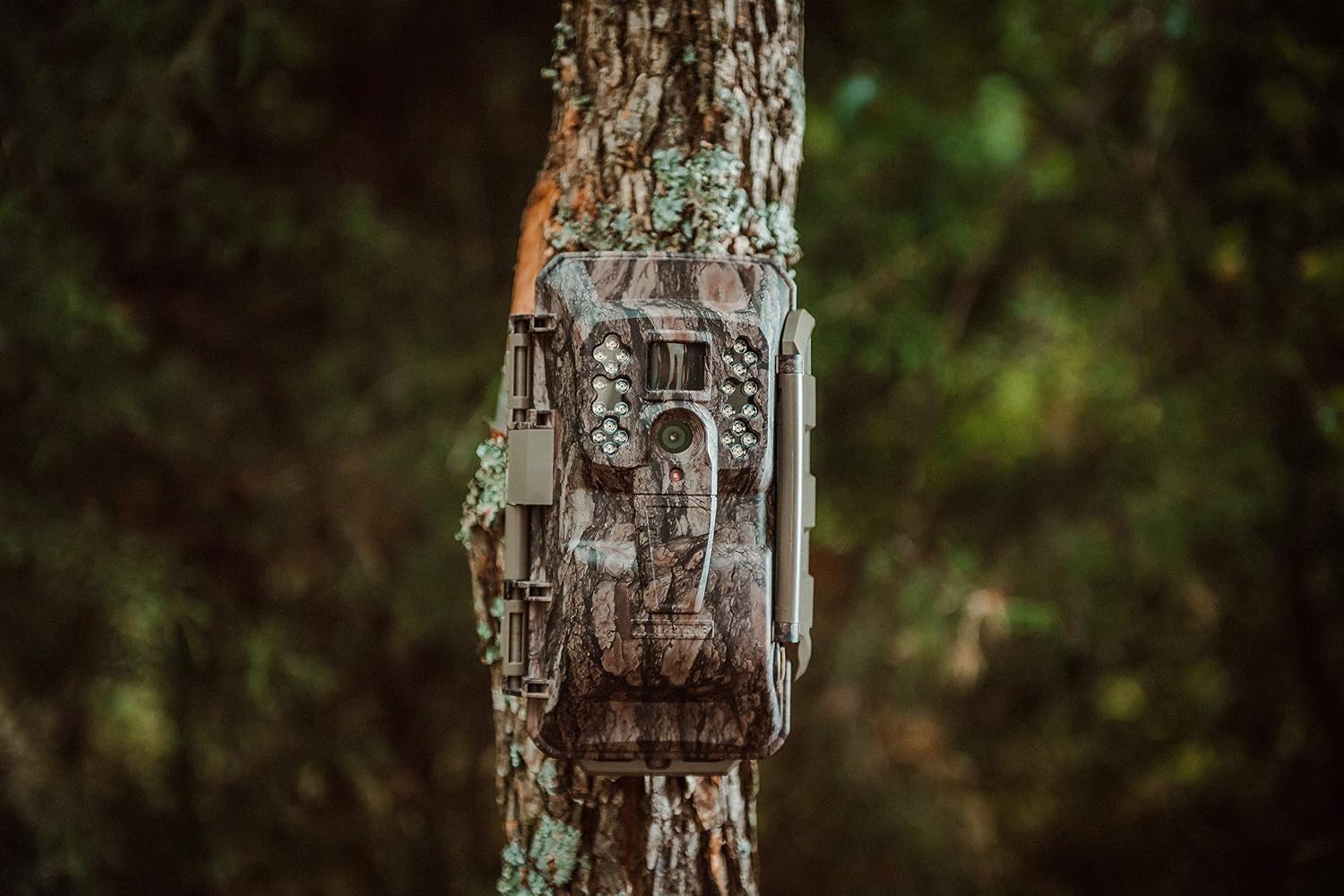
Image: Open camera showing the battery compartment.
2. SD Card Installation
Insert a compatible SD card (up to 32GB, Class 10 or higher recommended) into the designated SD card slot. The camera stores images and videos on this card. Ensure the card is formatted before first use.
3. Mounting the Camera
Use the provided heavy-duty strap to securely mount the camera to a tree or post. Position the camera at an appropriate height and angle to capture the desired area. Ensure the camera is stable and not prone to movement from wind or wildlife.

Image: Moultrie Mobile 6000 mounted on a tree.
4. App Setup and Activation
Download the Moultrie Mobile app on your smartphone. Follow the in-app instructions to create an account, add your camera, and activate its cellular service plan. This process links your camera to your mobile device for remote management and image viewing.

Image: Smartphone displaying the Moultrie Mobile app.
Operating Instructions
1. Powering On/Off
Locate the power switch inside the camera's housing. Slide the switch to the 'ON' position to power on the camera. To power off, slide the switch to 'OFF'.

Image: Internal controls of the Moultrie Mobile 6000 camera.
2. Image and Video Capture
The camera features a 0.9-second trigger speed to capture motion. It records 16MP still images and HD 720p video. Still images are transmitted to your Moultrie Mobile account via the Verizon 4G network. Video recordings are stored on the installed SD card and are not transmitted wirelessly.
3. Cellular Transmission
Once activated, the camera will automatically transmit captured images to your Moultrie Mobile account. You can view these images through the Moultrie Mobile app on your smartphone or via the web portal on a computer. Ensure the camera has adequate cellular signal for reliable transmission.
4. Adjusting Settings
All camera settings, including capture mode (photo/video), detection delay, and transmission frequency, can be adjusted remotely through the Moultrie Mobile app. Changes made in the app will be applied to the camera during its next communication cycle.
Maintenance
1. Battery Replacement
Regularly check the battery level via the Moultrie Mobile app. Replace all batteries simultaneously with fresh, high-quality AA batteries to ensure consistent performance. Avoid mixing old and new batteries or different battery types.
2. SD Card Management
Periodically check the remaining storage on your SD card. Format the SD card every few months or when changing cards to prevent data corruption and ensure optimal recording performance. Back up any desired images or videos before formatting.
3. Cleaning
Gently clean the camera lens and PIR sensor window with a soft, lint-free cloth. Avoid abrasive materials or harsh chemicals. Ensure the camera housing is free of dirt, debris, and moisture, especially around seals and openings.
4. Storage
When not in use for extended periods, remove batteries and the SD card. Store the camera in a cool, dry place away from direct sunlight and extreme temperatures.
Troubleshooting
- No Power: Ensure batteries are correctly installed and fully charged. Check for corrosion in the battery compartment.
- No Images Transmitting: Verify cellular signal strength in the camera's location via the app. Confirm your Moultrie Mobile plan is active and not exceeding data limits. Check SD card for proper installation and sufficient space.
- Poor Image Quality: Clean the camera lens. Ensure the camera is mounted securely to prevent movement. Check for obstructions in front of the lens or PIR sensor.
- Camera Not Triggering: Adjust the PIR sensitivity settings in the app. Ensure the camera is positioned to cover the desired area.
- Excessive Battery Drain: This can be caused by low signal strength, frequent transmissions, or extreme temperatures. Consider using an external power source or high-capacity batteries in challenging conditions.
Specifications
| Model Name | MCG-13478 |
| Effective Still Resolution | 16 MP |
| Video Capture Resolution | 720p |
| Trigger Speed | 0.9 seconds |
| Connectivity Technology | Wireless (Cellular, Wi-Fi) |
| Wireless Technology | Cellular (Verizon 4G) |
| Control Method | App |
| Power Source | AC/DC, 12 Volts (requires 12 AA batteries) |
| Battery Power | 6000 Milliampere Hour (mAh) |
| Night Vision | Night Color, 24 IR LEDs |
| Flash Memory Type | SD |
| Waterproof Rating | IP65 |
| Indoor/Outdoor Usage | Outdoor |
| Item Dimensions | 10.5 x 6.45 x 4.55 inches |
Warranty and Support
Manufacturer Warranty
The Moultrie Mobile 6000 Cellular Trail Camera is covered by a 2-year manufacturer's warranty from the date of purchase. This warranty covers defects in materials and workmanship under normal use. Please retain your proof of purchase for warranty claims.
Customer Support
For technical assistance, troubleshooting, or warranty inquiries, please refer to the official Moultrie Mobile website or contact their customer support directly. Contact information can typically be found on the product packaging or the official brand website.


