
AEEZO PF107
AEEZO Digital Picture Frame User Manual
Model: PF107 | Brand: AEEZO
Introduction
This manual provides detailed instructions for setting up, operating, maintaining, and troubleshooting your AEEZO 10.1 Inch WiFi Smart Digital Picture Frame. Please read this manual thoroughly to ensure proper use and to maximize your enjoyment of the product.
What's in the Box
Upon unpacking, please verify that all the following items are included:
- AEEZO 10.1 Inch Digital Picture Frame
- Power Adapter
- Detachable Stand
- Wiping Cloth
- User Manual (this document)
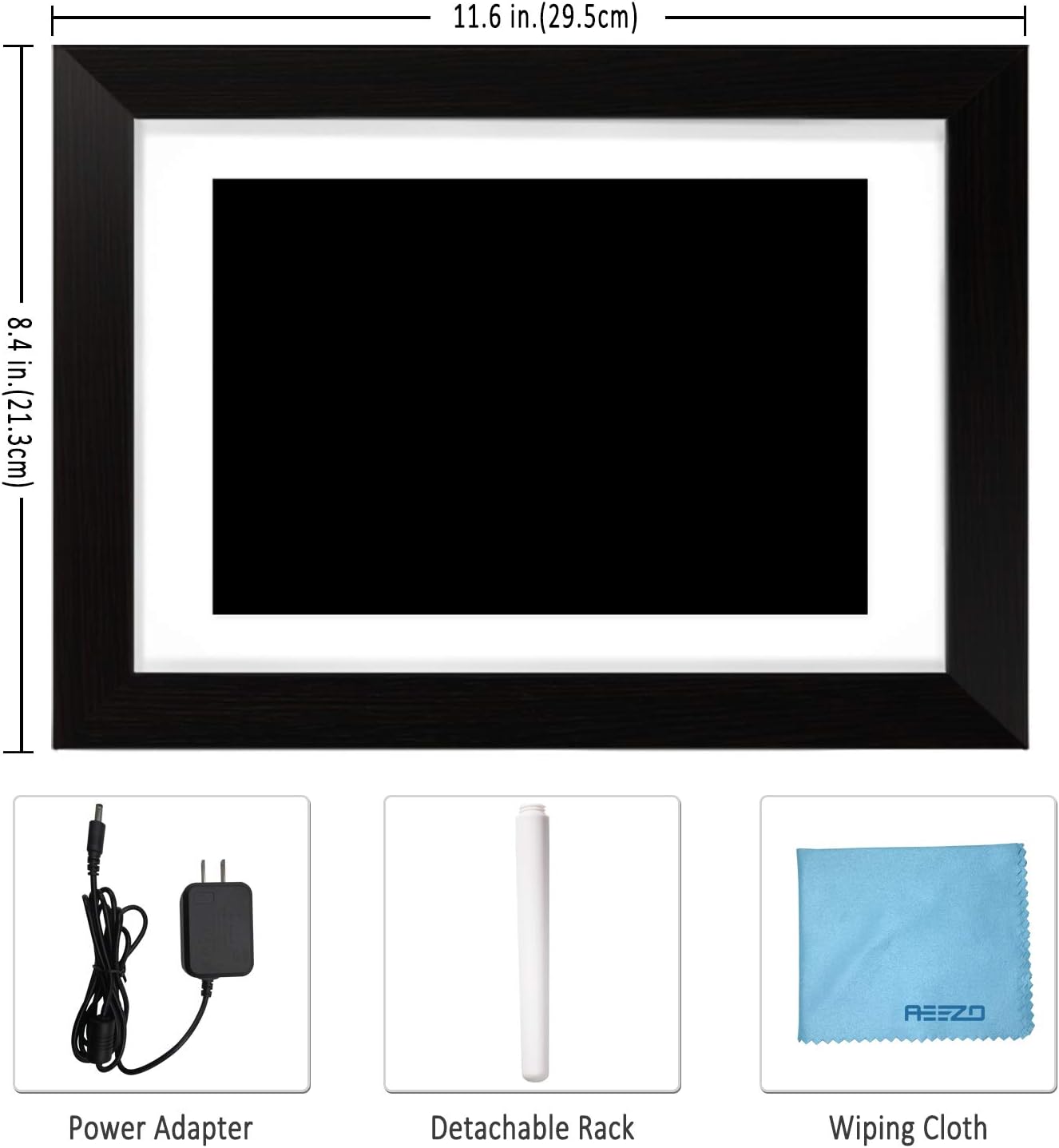
Product Overview
The AEEZO Digital Picture Frame is designed for easy display and sharing of your cherished photos and videos. It features a high-definition IPS touch screen and Wi-Fi connectivity for seamless content management.

Key Features:
- 10.1 Inch 1280x800 IPS Touch Screen: Provides wide viewing angles and ultra-clear photo browsing.
- Wi-Fi Connectivity: Enables instant wireless sharing of photos and videos.
- 16GB Internal Storage: Ample space for a large collection of memories.
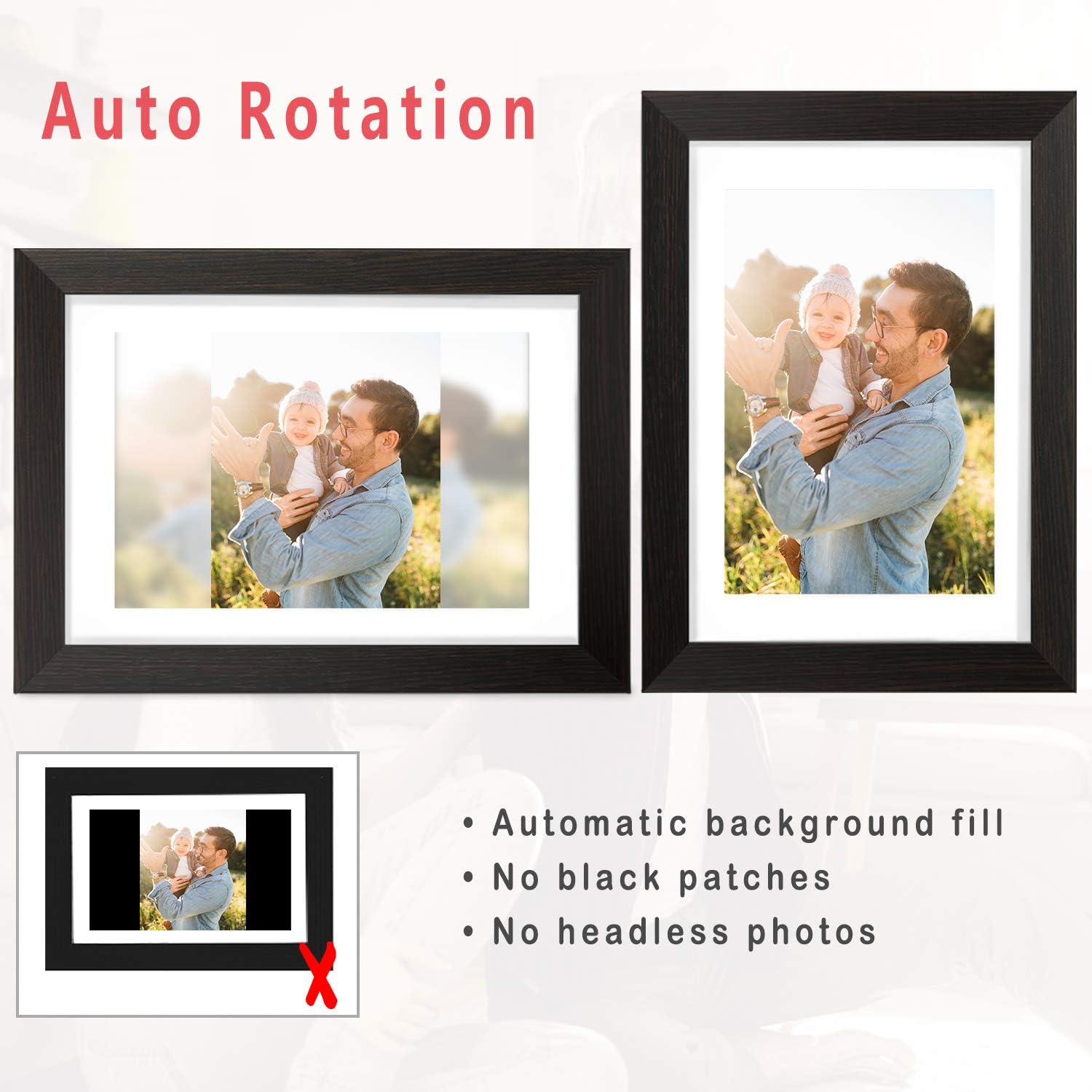
- Auto-Rotate Function: Automatically adjusts photo orientation for vertical or horizontal display.
- AiMOR APP Compatibility: Share content easily from Android and iOS devices.
- USB Port & SD Card Slot: Additional options for file storage and management.
Setup Guide
Follow these steps to set up your digital picture frame for the first time.
- Power Connection: Connect the power adapter to the frame and plug it into a wall outlet. The frame will automatically power on.
- Initial Setup: Follow the on-screen prompts to select your language, time zone, and connect to your Wi-Fi network. Ensure a stable internet connection for optimal performance.
- Download AiMOR App: On your smartphone (Android or iOS), download the "AiMOR" application from your respective app store. This app is essential for sharing photos and videos to your frame.
- Pairing the Frame:
- Open the AiMOR app on your phone.
- On the digital picture frame, navigate to the "Add Friend" or "Connect Device" section to generate a unique code.
- Enter this code into the AiMOR app on your smartphone to pair the devices.

Figure 3: Illustration of the AiMOR app on smartphones (Google Play and App Store logos visible) and its connection to the digital picture frame for sharing. - Adjust Stand: Attach the detachable stand to the back of the frame. The frame supports both vertical and horizontal orientations, and the auto-rotate feature will adjust the display accordingly.
Operating the Frame
Learn how to manage and display your media on the AEEZO Digital Picture Frame.
Sharing Photos and Videos:
- Via AiMOR App: Once paired, you can instantly share photos and short videos (up to 15 seconds) from your smartphone to the frame using the AiMOR app. There is no limit to the quantity of photos you can upload.
- Via USB/SD Card: Insert a USB drive or SD card into the respective slot on the frame. You can then import photos and videos directly to the frame's internal storage.

Touch Screen Navigation:
The IPS HD touch screen allows for intuitive control:
- Swipe left/right to browse through photos.
- Tap the screen to access settings, delete media, or pause the slideshow.
Customized Settings:
The frame offers various customizable options to enhance your viewing experience:
- Play Order: Adjust the sequence of photos in the slideshow.
- Image Zooming: Zoom in or out on photos to fit the screen or highlight details.
- Hide/Publish Images: Selectively hide or display specific images.
- Display Caption: Enable or disable captions for your photos.
- Adjustable Brightness: Control the screen brightness to suit your environment.
- Sleep Mode: Schedule the frame to automatically turn off and on at set times.

Maintenance
Proper maintenance ensures the longevity and optimal performance of your AEEZO Digital Picture Frame.
- Cleaning the Screen: Use the provided wiping cloth or a soft, lint-free cloth to gently clean the screen. Avoid using abrasive cleaners or sprays directly on the screen.
- Software Updates: Periodically check for software updates through the frame's settings menu to ensure you have the latest features and improvements.
- Storage Management: While the frame has 16GB of storage, regularly review your stored media. You can delete unwanted photos/videos directly from the frame or via the AiMOR app to free up space.
Troubleshooting
If you encounter any issues with your AEEZO Digital Picture Frame, refer to the common problems and solutions below.
| Problem | Possible Cause | Solution |
|---|---|---|
| Frame does not power on. | Power adapter not connected or faulty outlet. | Ensure the power adapter is securely connected to the frame and a working power outlet. Try a different outlet. |
| Cannot connect to Wi-Fi. | Incorrect Wi-Fi password, weak signal, or network issue. | Double-check your Wi-Fi password. Move the frame closer to your router. Restart your router and the frame. |
| Photos/Videos not appearing on frame. | Not properly uploaded via AiMOR app or incorrect file format. | Ensure content was successfully sent via the AiMOR app. Check if the file format is supported (JPEG for photos, MP4 for videos). Verify sufficient storage space. |
| Sleep timer not working correctly. | Incorrect time zone or sleep mode settings. | Verify the correct time zone and ensure sleep mode start/end times are set accurately in the frame's settings. A restart of the frame may also resolve this. |
| Frame loses Wi-Fi connection intermittently. | Weak Wi-Fi signal or network interference. | Relocate the frame closer to the Wi-Fi router. Restart the frame and router. Consider updating router firmware if available. |
Specifications
| Feature | Detail |
|---|---|
| Screen Size | 10.1 Inches |
| Resolution | 1280x800 IPS HD Display |
| Internal Storage | 16GB |
| Connectivity | Wi-Fi |
| Compatible Devices | Smartphone (Android & iOS via AiMOR App) |
| Dimensions | 11.46 x 8.3 x 0.99 inches |
| Item Weight | 2.94 pounds |
| Model Number | PF107 (AEEZO Memory 01 Black) |
| Manufacturer | AEEZO |
Warranty and Support
AEEZO products come with a standard manufacturer's warranty. For specific warranty details, please refer to the warranty card included with your product or visit the official AEEZO website.
Customer Support:
If you require further assistance, have questions not covered in this manual, or need technical support, please contact AEEZO customer service through their official channels. You can often find contact information on the manufacturer's website or on the product packaging.
For more information, you may visit the AEEZO Store on Amazon.
Related documentsPF107


Ask a question about this manual
Ask about setup, troubleshooting, compatibility, parts, safety, or missing instructions. Manuals+ will review the question and use this page’s manual context to help answer it.