1. Introduction
This manual provides detailed instructions for the setup, operation, and maintenance of your COOLPO AI Huddle Pana 4K 360-Degree Video Conference Camera System. Please read this manual thoroughly before using the device to ensure optimal performance and to prevent damage.
The COOLPO AI Huddle Pana is an all-in-one video conferencing solution designed to enhance remote meetings with its 360-degree camera, 4K resolution, AI-driven speaker tracking, and advanced audio capabilities.
2. Package Contents
Verify that all items are present in the package:
- COOLPO AI Huddle Pana Device
- USB-A Cable
- Power Cable
- Warranty Information

Image 1: The COOLPO AI Huddle Pana device shown with its USB-A and power cables.
3. Product Overview
3.1 Key Features
- 360° View and 4K Resolution: Provides a panoramic view of the meeting room without stitching, ensuring all participants are visible.
- AI-Driven Speaker Tracking: Automatically focuses on the active speaker and adjusts the display frame.
- 8 Omnidirectional Microphones: Captures clear audio within a 15ft radius with smart noise filtering.
- Integrated Speaker: Promotes collaboration with clear audio output.
- Secure USB Plug and Play: Simple connection without driver installation, ensuring data security through physical link.
- Stand-alone AI: Algorithms and firmware are stored locally on the device, processing data without external transfers for enhanced privacy.
3.2 Components
The COOLPO AI Huddle Pana integrates several components into a single unit:
- Top Camera Module: Houses the 360-degree 4K camera lens.
- Microphone Array: Eight omnidirectional microphones located around the top section.
- Control Buttons: Power, volume up/down, and mute buttons on the device body.
- Integrated Speaker: Located at the base of the device.
- USB Port: For connecting to a computer.
- Power Port: For connecting the power adapter.
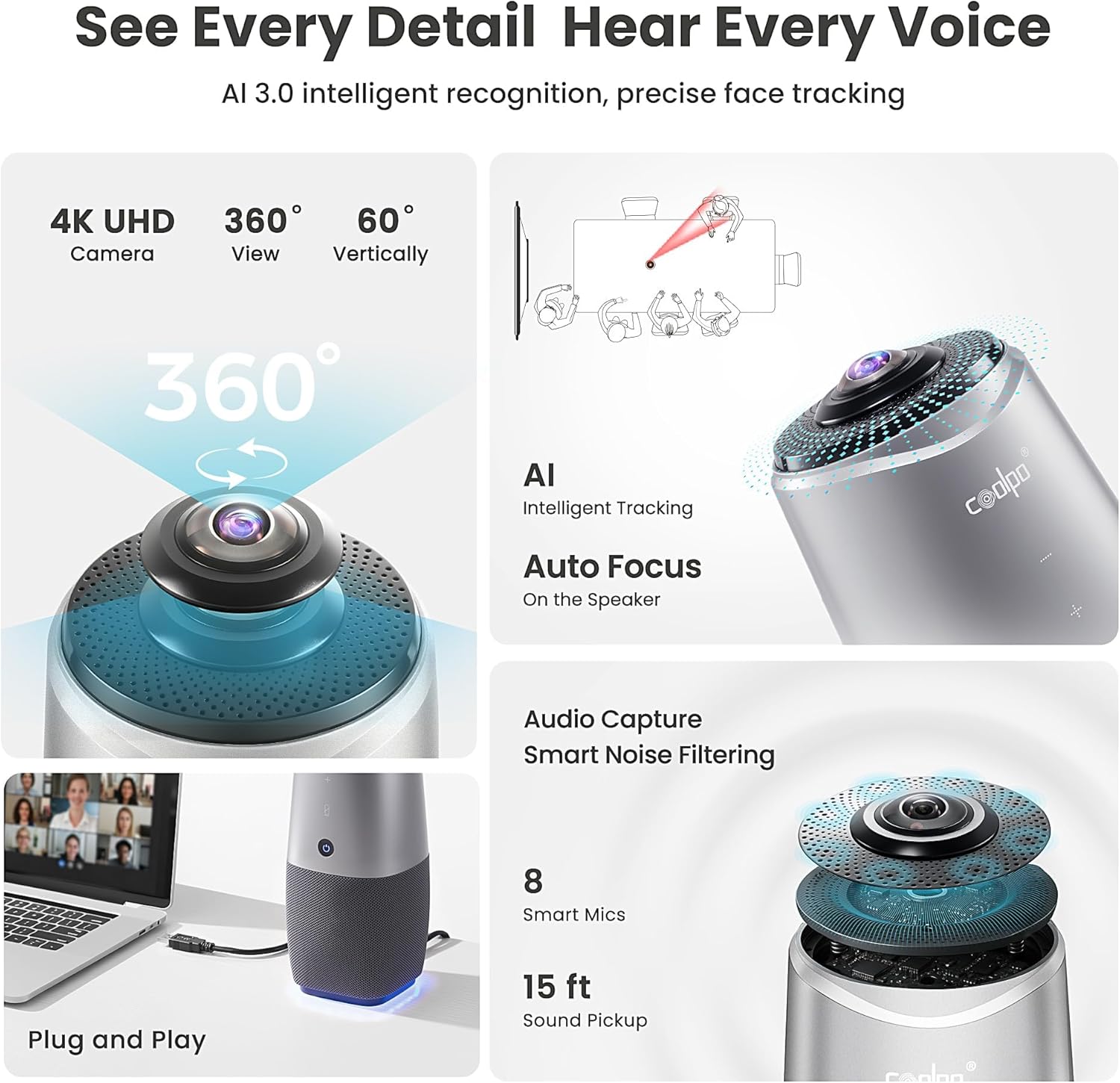
Image 2: Overview of the COOLPO AI Huddle Pana's core features, including its 4K camera, 360-degree view, AI intelligent tracking, auto-focus, 8 smart microphones, 15 ft sound pickup, and plug-and-play functionality.
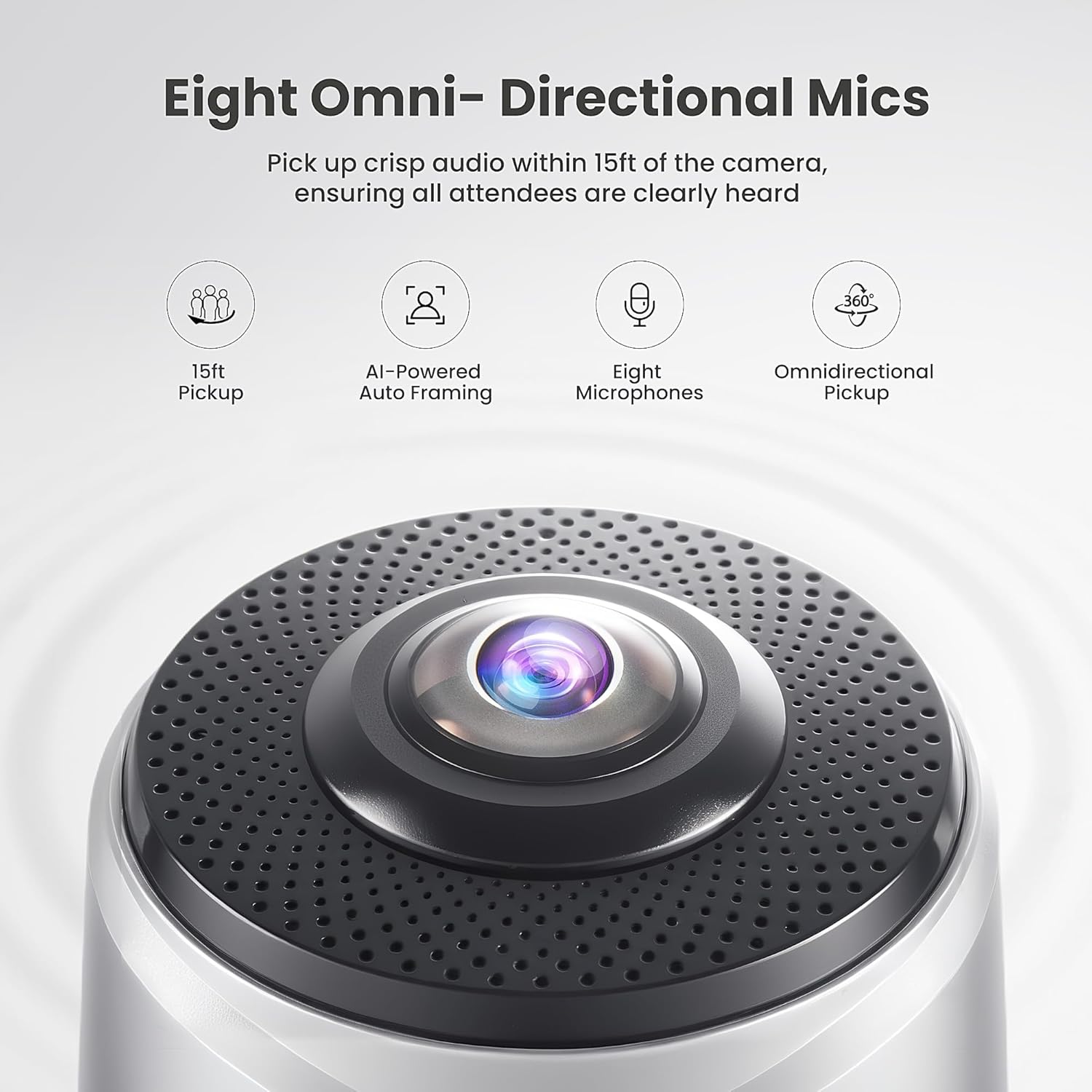
Image 3: A detailed view of the top of the COOLPO AI Huddle Pana, emphasizing the eight omnidirectional microphones designed for 15ft audio pickup and AI-powered auto framing.
4. Setup Guide
Follow these steps to set up your COOLPO AI Huddle Pana:
- Placement: Place the COOLPO AI Huddle Pana in the center of your meeting table or desired location to ensure optimal 360-degree coverage and audio pickup.
- Power Connection: Connect the power cable to the device's power port and then plug it into a power outlet. The device will power on automatically.
- USB Connection: Connect the provided USB-A cable from the device's USB port to an available USB port on your computer.
- Software Recognition: Your computer should automatically recognize the device. No additional drivers are typically required.
- Select Device in Meeting Software: Open your preferred video conferencing application (e.g., Zoom, Google Meet, Microsoft Teams). Navigate to the audio and video settings and select "COOLPO AI Huddle Pana" as your camera, microphone, and speaker device.

Image 4: The COOLPO AI Huddle Pana connected to a laptop, illustrating its plug-and-play setup and compatibility with popular video conferencing platforms like Zoom, Webex, Microsoft Teams, Discord, Google Meet, Slack, Jitsi.org, and GoTo.
5. Operating Instructions
5.1 Basic Controls
- Power Button: Press to turn the device on or off.
- Volume Up/Down: Adjust the speaker volume.
- Mute Button: Mute or unmute the microphone. An indicator light will typically show the microphone status.
5.2 AI Speaker Tracking
The COOLPO AI Huddle Pana features intelligent AI speaker tracking. When a participant speaks, the camera will automatically adjust its focus and framing to highlight the active speaker. This creates a dynamic and engaging meeting experience for remote participants.

Image 5: The COOLPO AI Huddle Pana positioned in the center of a conference table, illustrating its 360-degree panoramic auto-tracking capability to follow active speakers with a 60-degree tilt up/down and 360-degree pan view.
5.3 Video Modes
The device typically operates in a 360-degree panoramic view, with AI intelligently framing individual speakers. Specific video mode adjustments may be available through your video conferencing software's settings.
6. Maintenance
- Cleaning: Use a soft, dry cloth to clean the device's exterior. Do not use liquid cleaners or aerosols.
- Lens Care: Gently wipe the camera lens with a microfiber cloth designed for optics. Avoid touching the lens with bare fingers.
- Storage: When not in use, store the device in a cool, dry place away from direct sunlight and extreme temperatures.
- Firmware Updates: Periodically check the official COOLPO website for any available firmware updates to ensure optimal performance and access to new features.
7. Troubleshooting
| Problem | Possible Cause | Solution |
|---|---|---|
| Device not powering on. | Power cable not connected or faulty outlet. | Ensure the power cable is securely connected and the outlet is functional. Try a different outlet. |
| No video or audio in meeting software. | Device not selected as input/output in software; USB connection issue. | Verify "COOLPO AI Huddle Pana" is selected for camera, microphone, and speaker in your meeting application's settings. Reconnect the USB cable. Try a different USB port. |
| AI tracking is not working correctly. | Obstructions; poor lighting; multiple loud speakers simultaneously. | Ensure the device has a clear view of participants. Improve room lighting. Speak clearly and one at a time for optimal tracking. |
| Audio quality is poor or distorted. | Microphone/speaker too far from participants; environmental noise. | Ensure the device is centrally located. Reduce background noise. Check volume settings. |
8. Specifications
| Feature | Detail |
|---|---|
| Model Number | DF-HCAM-360 |
| Video Capture Resolution | 4K |
| Photo Sensor Technology | CMOS |
| Microphone Pickup Range | 15 ft |
| Number of Microphones | 8 |
| Connectivity Technology | USB |
| Product Dimensions | 11.42 x 4.33 x 11.42 inches |
| Item Weight | 4.28 pounds |
| Manufacturer | Shanghai LiwCV CO., Ltd |
9. Warranty and Support
COOLPO provides professional customer service. For any additional information or assistance, please contact the COOLPO customer service team. They are available to answer questions in the shortest possible time.
Refer to the included warranty information in your package for details regarding warranty coverage and terms.
10. Official Product Videos
No official product videos from the seller were found in the provided data to embed in this manual.


