
TOMZON D25
Tomzon D25 Drone User Manual
Model: D25
Introduction
This manual provides comprehensive instructions for the safe operation, setup, and maintenance of your Tomzon D25 Drone. Please read this manual thoroughly before operating the drone to ensure proper function and to avoid damage or injury. The Tomzon D25 is a foldable FPV quadcopter equipped with a 4K UHD camera, designed for both beginners and experienced users, featuring optical flow positioning, headless mode, hand gesture photographing, and 3D flips.

Figure 1: Tomzon D25 Drone, remote control, batteries, and carrying case.
Package Contents
Verify that all items are present in the package:
- Tomzon D25 Drone
- Remote Controller
- 2 x Lithium Ion Batteries
- Carrying Case
- USB Charging Cable
- Spare Propellers
- Screwdriver
- User Manual (this document)
Setup
1. Charging the Batteries
Before first use, fully charge both drone batteries. Connect the USB charging cable to the battery and a compatible USB power source (e.g., computer USB port, USB wall adapter). The charging indicator light will change when charging is complete. A full charge typically takes approximately 90 minutes and provides up to 12 minutes of flight time per battery.
2. Installing Drone Batteries
Insert the charged battery into the battery compartment on the rear of the drone until it clicks securely into place.
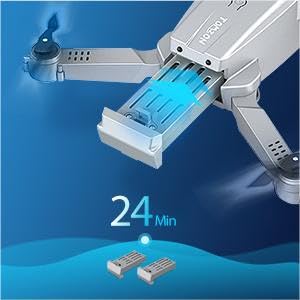
Figure 2: Battery installation and typical flight time.
3. Unfolding the Drone Arms
Gently unfold the four propeller arms of the drone until they are fully extended and locked into position. Ensure all arms are securely locked before flight.
4. Remote Controller Setup
Install 3 x AAA batteries (not included) into the remote controller. Extend the phone holder on the controller and securely place your smartphone (if using for FPV or app control).
5. App Installation (Optional but Recommended)
Download and install the official Tomzon D25 app from your smartphone's app store. This app enables FPV viewing, advanced flight modes, and media capture features.
Operating Instructions
1. Power On and Pairing
- Place the drone on a flat, level surface.
- Press and hold the power button on the drone until the indicator lights turn on.
- Turn on the remote controller.
- Push the left joystick up and then down to pair the drone with the controller. The drone lights will stop flashing and become solid once paired.
- If using the app, connect your smartphone to the drone's Wi-Fi network (usually named "Tomzon-D25-XXXX").
2. Take-off and Landing
- One-Key Take-off: Press the one-key take-off button on the controller (or in the app) to automatically launch the drone to a stable hovering height.
- Manual Take-off: Push both joysticks outwards and downwards simultaneously to start the propellers. Then, slowly push the left joystick up to ascend.
- One-Key Landing: Press the one-key landing button to automatically land the drone.
- Manual Landing: Slowly pull the left joystick down to descend. Once landed, push both joysticks outwards and downwards again to stop the propellers.
3. Flight Controls
| Control Stick | Action | Drone Movement |
|---|---|---|
| Left Joystick Up/Down | Throttle | Ascend/Descend |
| Left Joystick Left/Right | Yaw | Rotate Left/Right |
| Right Joystick Up/Down | Pitch | Forward/Backward |
| Right Joystick Left/Right | Roll | Left/Right Sideways |
4. Special Features
- 4K UHD Camera: The drone is equipped with a 4K camera for high-resolution aerial photography and video recording. The camera angle can be manually adjusted by 90 degrees.

Figure 3: 4K Camera with 90° Manual Adjustment.
- Optical Flow Positioning: This feature uses a bottom-mounted sensor to maintain stable hovering, especially useful for beginners and indoor flight.

Figure 4: Optical Flow Positioning for stable flight.
- Headless Mode: In headless mode, the drone's orientation is relative to the pilot, making it easier to control without worrying about the drone's front direction. Activate via the controller or app.
- 360° Flips: Press the 3D flip button on the controller and move the right joystick in any direction to perform an aerial flip.

Figure 5: Performing 360° Flips.
- Hand Gesture Photographing/Video: Use specific hand gestures in front of the drone's camera to trigger photo or video recording. A "Victory" sign for photos and an open palm for video.
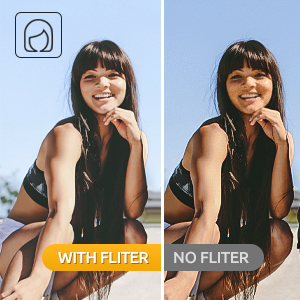
Figure 6: Hand Gesture for Photo.
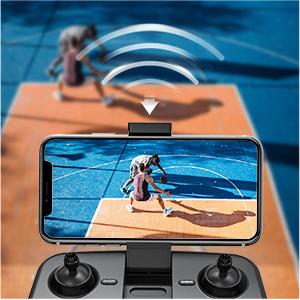
Figure 7: Hand Gesture for Video.
- Route Planning Mode: Draw a flight path on the app's map screen, and the drone will automatically follow the designated route.

Figure 8: Route Planning via the app.
- Speed Adjustment: Switch between low and high speeds to match your flying proficiency and environmental conditions.
Maintenance
- Cleaning: Use a soft, dry cloth to clean the drone and remote controller. Avoid using harsh chemicals or solvents.
- Propeller Inspection: Regularly inspect propellers for any damage (cracks, bends). Replace damaged propellers immediately using the provided spare parts and screwdriver.
- Battery Care:
- Do not overcharge or over-discharge batteries.
- Store batteries in a cool, dry place away from direct sunlight.
- If storing for extended periods, charge batteries to approximately 50% capacity.
- Storage: When not in use, fold the drone arms and store the drone and all accessories in the provided carrying case to protect them from dust and physical damage.

Figure 9: Convenient carrying case for storage and transport.
Troubleshooting
| Problem | Possible Cause | Solution |
|---|---|---|
| Drone does not respond to controller. | Not paired; low battery (drone or controller). | Re-pair drone and controller; charge batteries. |
| Drone drifts during flight. | Not calibrated; strong wind. | Perform gyroscope calibration (refer to app instructions); fly in calm conditions. |
| Poor camera image quality/no image. | Weak Wi-Fi signal; camera lens dirty; app not connected. | Ensure strong Wi-Fi connection; clean lens; reconnect app. |
| Short flight time. | Battery not fully charged; old battery. | Ensure full charge; consider replacing old batteries. |
| Drone crashes easily. | Beginner pilot; strong wind; damaged propellers. | Practice in open areas; avoid windy conditions; replace damaged propellers. |
Specifications
- Brand: TOMZON
- Model Name: D25
- Color: Black
- Material: Drone-grade composite
- Age Range (Description): Adult (Recommended 14 years and up)
- Video Capture Resolution: 4K UHD
- Effective Still Resolution: 4000 Pixels
- Connectivity Technology: USB (for charging), Wi-Fi (for FPV/app control)
- Control Type: Remote Control, Gesture Control
- Skill Level: Beginner
- Batteries: 2 x Lithium Ion batteries (included)
- Flight Time: Approximately 12 minutes per battery (24 minutes total with both)
- Item Weight: 1.12 pounds
- Package Dimensions: 8.78 x 7.09 x 2.64 inches
- Optical Sensor Technology: Optical Flow, CMOS
Warranty and Support
For detailed warranty information, technical support, or further assistance, please refer to the official user manual PDF or contact Tomzon customer service. The full user manual can be accessed via this link: Tomzon D25 User Manual PDF.
You can also visit the official TOMZON store for more product information and support: TOMZON Store on Amazon.
Related documentsD25


Ask a question about this manual
Ask about setup, troubleshooting, compatibility, parts, safety, or missing instructions. Manuals+ will review the question and use this page’s manual context to help answer it.