
waveshare SIM7600G-H 4G DONGLE Adapter
Waveshare SIM7600G-H 4G DONGLE User Manual
LTE USB Adapter for Industrial Grade 4G Communication and GNSS Positioning
1. Introduction
The Waveshare SIM7600G-H 4G DONGLE is an industrial-grade 4G communication module designed for global band support. It offers high-speed data transfer with up to 150Mbps downlink and 50Mbps uplink rates. This versatile adapter supports various operating systems including Windows, Linux, and Android, making it suitable for a wide range of applications such as laptops, PCs, Raspberry Pi, drones, and industrial computers. Beyond 4G communication, it also integrates GNSS positioning capabilities, supporting GPS, BeiDou, Glonass, and LBS base station positioning.

Figure 1: The SIM7600G-H 4G DONGLE with its antenna, USB extension cable, 6PIN jumper wire, and screws tool kit.
2. Key Features
- Global Band Support: Compatible with 2G/3G/4G networks worldwide.
- High-Speed Data: Up to 150Mbps downlink and 50Mbps uplink rates.
- Multi-Host Compatibility: Works seamlessly with laptops, Raspberry Pi, industrial computers, and other IoT host devices.
- Multi-System Support: Drivers available for Windows, Linux, and Android operating systems.
- Communication Interfaces: Supports USB and UART communication interfaces.
- Protocol Support: Compatible with TCP/UDP/FTP/FTPS/HTTP/HTTPS communication protocols.
- GNSS Positioning: Integrated support for GPS, BeiDou, Glonass, and LBS base station positioning.
- Industrial Grade Design: Features the SIM7600G-H module for stable and durable performance.
- Flexible Antenna: Multidimensional rotation for optimized signal reception.
- Nano SIM Card Slot: Easy-to-use onboard slot with sliding cover.
- LED Indicators: Three indicators (NET, STA, PWR) for monitoring operating status.

Figure 2: Visual representation of the dongle's core functionalities including 4G communication, USB/UART interface, multi-system support, and GNSS positioning.
3. Package Contents
Please verify that all items listed below are included in your package:
- SIM7600G-H 4G DONGLE x1
- LTE Antenna x1
- USB extension cable x1
- 6PIN jumper wire x1
- Screws tool kit x1
4. Setup Guide
4.1 Hardware Connection
- Insert SIM Card: Locate the Nano SIM card slot on the dongle. Gently slide the cover to open, insert your Nano SIM card with the gold contacts facing down and the notched corner oriented correctly, then close the cover. Ensure the SIM card is fully seated.
- Attach LTE Antenna: Screw the provided LTE antenna onto the antenna connector on the dongle. Ensure it is securely fastened but do not overtighten. The flexible design allows for multidimensional rotation for optimal signal.
- Connect to Host Device: Plug the SIM7600G-H 4G DONGLE directly into a USB port on your laptop, PC, Raspberry Pi, or other compatible host device. For better signal or to avoid interference, you may use the provided USB extension cable.
- (Optional) UART Connection: If using the UART interface, connect the 6PIN jumper wire to the UART port on the dongle and to your host board (e.g., Arduino, STM32) according to the pinout diagram in the Specifications section.
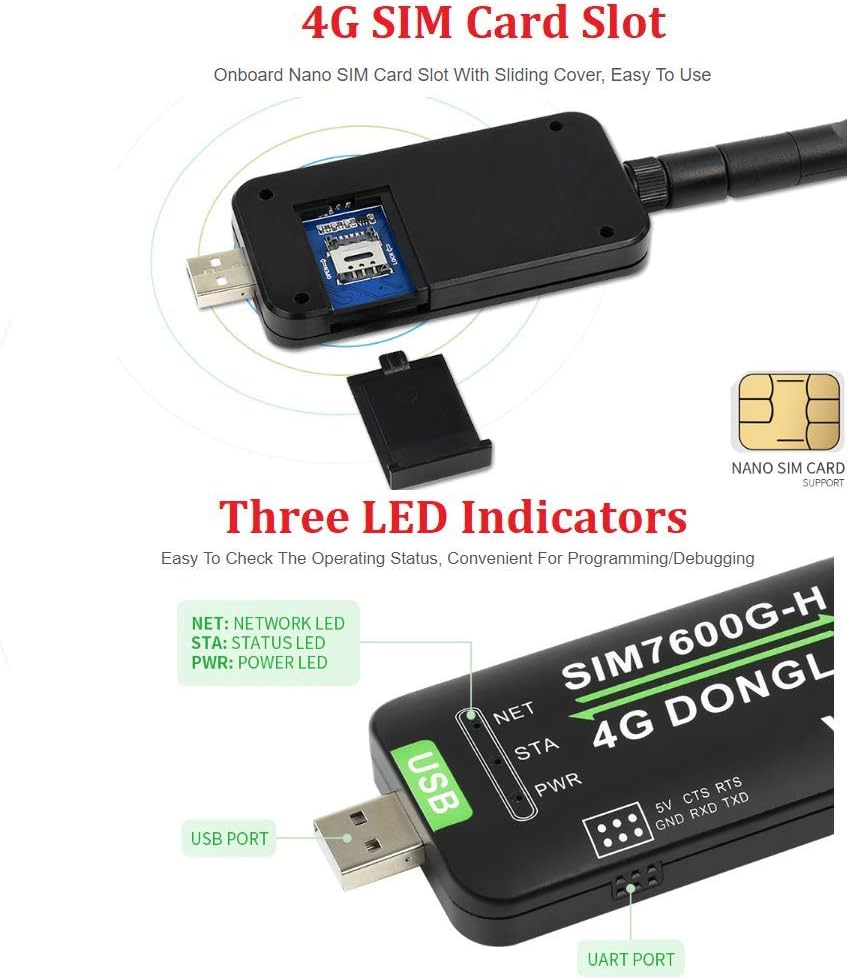
Figure 3: Detail of the Nano SIM card slot and the three LED indicators (NET, STA, PWR) on the SIM7600G-H 4G DONGLE.
4.2 Driver Installation and Initial Configuration
Upon connecting the dongle, your operating system may attempt to install drivers automatically. If not, or for specific configurations, manual driver installation and setup are required. Development resources and drivers are provided by Waveshare. Please refer to the official Waveshare documentation or contact their support for detailed instructions specific to your operating system (Windows, Linux, Android).
- Windows: Drivers typically include NDIS and PPP modes. After installation, the device will appear as a network adapter or COM ports for AT commands.
- Linux: Drivers are often integrated into the kernel or can be compiled. Configuration usually involves setting up network interfaces (e.g., using qmi_wwan or cdc_ether drivers) and AT command communication.
- Android: Specific drivers or configurations may be needed depending on the Android device and version.
After successful driver installation, a simple configuration step is usually required to establish the 4G network connection, which may involve setting up an APN (Access Point Name) provided by your mobile network operator.

Figure 4: The dongle supports various operating systems like Windows, Linux, and Android, and facilitates cloud communication via USB/UART interfaces and standard protocols.
5. Operation
5.1 Network Connection
Once the drivers are installed and the SIM card is active, the dongle will attempt to connect to the 4G network. The NET LED indicator will provide feedback on the network status (see Section 6 for details). You can then use the high-speed 4G connection for internet access on your host device.

Figure 5: The SIM7600G-H 4G DONGLE in use with a laptop and a Raspberry Pi, demonstrating its multi-host support.
5.2 GNSS Positioning
The SIM7600G-H supports various global navigation satellite systems (GNSS) including GPS, BeiDou, Glonass, and LBS base station positioning. To utilize GNSS features, an additional GNSS antenna (not included in the standard package) is required. Connect the GNSS antenna to the dedicated connector on the dongle. Positioning data can then be accessed via AT commands through the UART or USB interface.
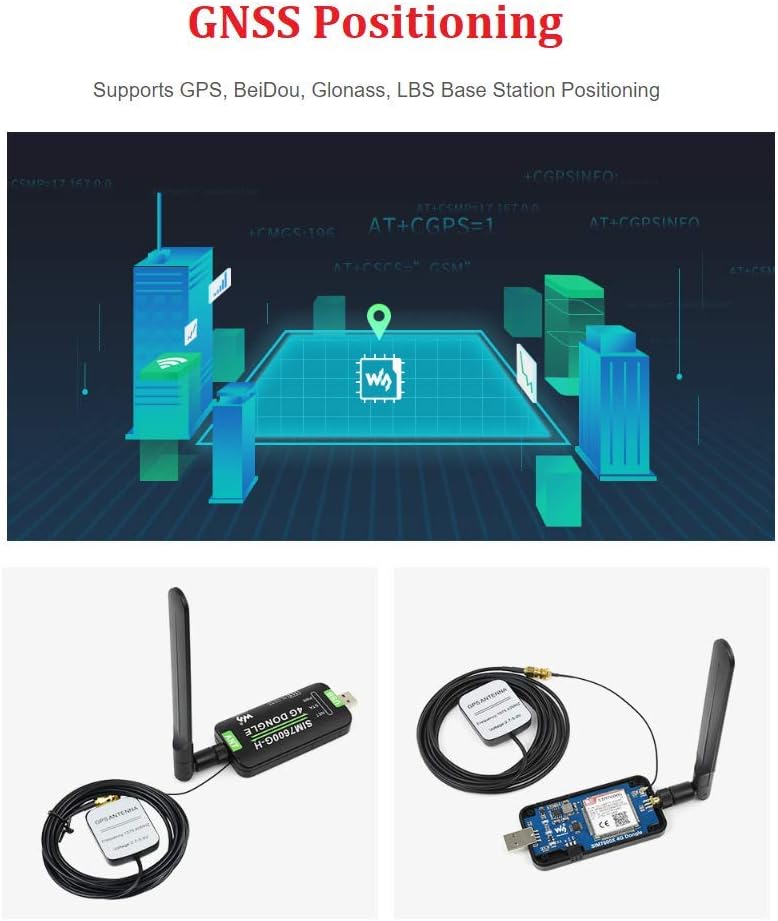
Figure 6: The dongle's GNSS capabilities, showing its use with an external GNSS antenna for accurate positioning.
5.3 Communication Protocols
The module supports a range of communication protocols for various applications:
- TCP/UDP: For general data transmission over IP networks.
- FTP/FTPS: For file transfer operations.
- HTTP/HTTPS: For web-based communication.
- SMS: Supports sending and receiving SMS messages.
These protocols can be controlled via AT commands sent through the USB or UART interface, allowing for flexible integration into custom applications.
6. LED Indicators
The SIM7600G-H 4G DONGLE features three LED indicators to provide visual feedback on its operating status:
- NET (Network LED): Indicates network activity and connection status.
- STA (Status LED): Indicates the module's operational status.
- PWR (Power LED): Indicates that the device is powered on.
Refer to the detailed product documentation for specific blinking patterns and their meanings.
7. Specifications
Below are the technical specifications for the Waveshare SIM7600G-H 4G DONGLE:
| Feature | Description |
|---|---|
| Model | SIM7600G-H 4G DONGLE Adapter |
| Communication Module | SIM7600G-H |
| Supported Networks | Global 2G/3G/4G |
| LTE Cat-4 Downlink Rate | Up to 150Mbps |
| LTE Cat-4 Uplink Rate | Up to 50Mbps |
| Supported OS | Windows, Linux, Android |
| Communication Interfaces | USB, UART |
| Supported Protocols | TCP/UDP/FTP/FTPS/HTTP/HTTPS/DNS |
| GNSS Support | GPS, BeiDou, Glonass, LBS Base Station Positioning |
| SIM Card Type | Nano SIM (1.8V / 3V) |
| Antenna Connector | LTE |
| Power Supply | 5V (via USB) |
| Logic Level | 3.3V |
| Baudrate Support | 300bps ~ 4Mbps (115200bps by default) |
| Dimensions (L x W x H) | 89.20 x 45.26 x 14.62 mm (approx.) |
| Item Weight | 3.52 ounces (approx. 0.1 kg) |
| Manufacturer | Waveshare |
| Country of Origin | China |

Figure 7: Detailed comparison of specifications between SIM7600CE-CNSE and SIM7600G-H modules, highlighting global band support for the SIM7600G-H.

Figure 8: Technical diagram showing the UART pinout definitions (5V, GND, TXD, RXD, CTS, RTS) and the precise outline dimensions of the dongle in millimeters.
Note: The P/N, SN, IMEI, and SW details found on the internal module (P/N:S2-108T7-Z1W9T; SN:MP062010238DC2A; IMEI:868822040092791; SW:LE20B02SIM7600M22) are for internal identification and firmware versioning.
8. Troubleshooting
- No SIM Card Detected:
Ensure the Nano SIM card is correctly inserted into the slot and the cover is closed. Verify that the SIM card is active and provisioned for data services by your mobile network operator. Try re-inserting the SIM card.
- No Network Connection (NET LED off or blinking irregularly):
Check if the LTE antenna is securely attached. Ensure you are in an area with 2G/3G/4G network coverage. Verify that drivers are correctly installed and the APN settings are configured for your mobile network operator. Restart your host device and the dongle.
- Unstable USB Communication:
If experiencing instability, especially with Raspberry Pi or other sensitive devices, try using a longer, high-quality USB extension cable to distance the dongle from the host device. This can help mitigate potential RF interference.
- Driver Installation Issues:
For driver-related problems, consult the official Waveshare documentation or support forums for specific installation guides for your operating system version. Ensure you have administrative privileges during installation.
- GNSS Not Working:
Confirm that an external GNSS antenna is connected to the dongle. Ensure you have a clear view of the sky for satellite reception. Verify that the GNSS function is enabled and configured via AT commands if necessary.
9. Maintenance
- Keep the device clean and free from dust and moisture.
- Avoid exposing the dongle to extreme temperatures or direct sunlight.
- Do not attempt to disassemble the device beyond accessing the SIM card slot, as this may void the warranty.
- Ensure the antenna is not bent or damaged, as this can affect signal reception.
10. Warranty and Support
For detailed warranty information, technical support, and access to the latest drivers and development resources, please visit the official Waveshare website or contact their customer support. Development resources are typically provided to assist with integration and advanced usage.
Contact Information: Please refer to the Waveshare official website for the most up-to-date support channels.
Ask a question about this manual
Ask about setup, troubleshooting, compatibility, parts, safety, or missing instructions. Manuals+ will review the question and use this page’s manual context to help answer it.