
1. Introduction
This manual provides essential information for setting up, operating, and maintaining your VIZIO 32-inch D-Series Full HD 1080p Smart TV (Model D32f). Please read this manual thoroughly before using your television to ensure proper and safe operation. Keep this manual for future reference.
2. Safety Information
Always follow basic safety precautions when using this television to reduce the risk of fire, electric shock, and injury.
- Power Source: Connect the TV only to the power supply indicated on the label.
- Ventilation: Ensure proper ventilation. Do not block ventilation openings.
- Liquids: Do not expose the TV to dripping or splashing liquids. Do not place objects filled with liquids, such as vases, on the TV.
- Cleaning: Unplug the TV before cleaning. Use a soft, dry cloth. Do not use liquid cleaners or aerosol cleaners.
- Placement: Place the TV on a stable, level surface. Avoid placing it in direct sunlight or near heat sources.
- Cables: Route all cables safely to prevent tripping hazards.
3. What's in the Box
Carefully unpack the box and ensure all items are present:
- VIZIO 32-inch D-Series Full HD 1080p Smart TV (D32f)
- XRT140 Remote Control
- TV Stand (2 pieces)
- Power Cable
- User Manual (this document)
- Mophead Cable Ties (bundle item)
- Microfiber Cleaning Cloth (bundle item)

Image: The VIZIO D-Series Smart TV, its remote control, stand components, and the bundled Mophead cable ties and microfiber cleaning cloth.
4. Setup
4.1. Attaching the Stand
- Place the TV screen-down on a soft, clean surface to prevent scratches.
- Align each stand piece with the corresponding slots on the bottom of the TV.
- Secure the stands using the provided screws. Ensure they are firmly attached.
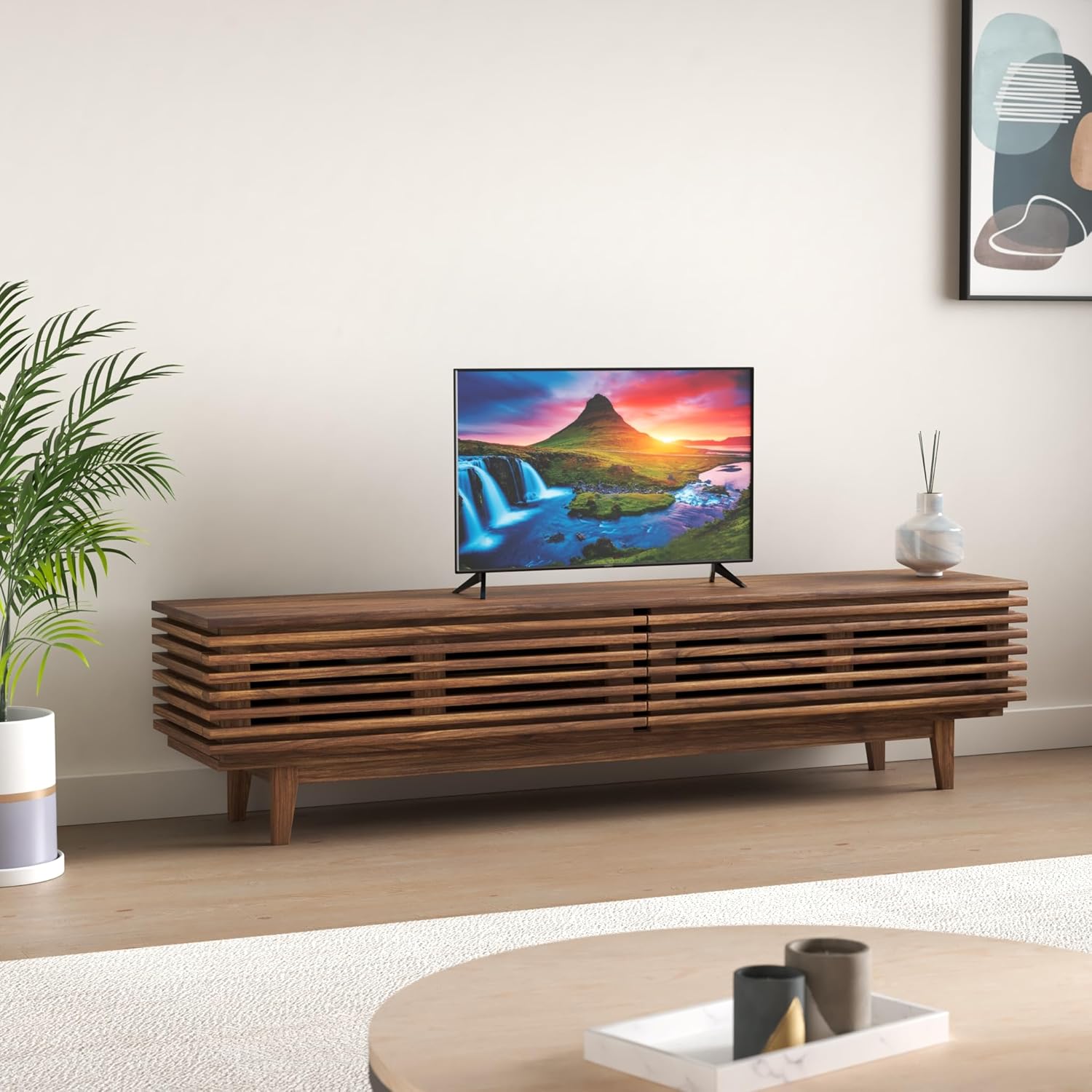
Image: The VIZIO D-Series Smart TV positioned on a media console, demonstrating its appearance with the stand attached in a typical home environment.
4.2. Wall Mounting (Optional)
If you choose to wall mount your TV, ensure you use a VESA-compatible wall mount kit (sold separately) that supports the TV's weight and size. Follow the instructions provided with your wall mount kit. Always consult a professional for wall mounting if you are unsure.
4.3. Connecting Power
Plug the power cable into the TV's power input, then plug the other end into a working electrical outlet. Do not plug the TV into an outlet controlled by a wall switch.
4.4. Connecting External Devices
Your VIZIO D-Series TV offers various ports for connecting external devices:
- HDMI: For high-definition devices like Blu-ray players, game consoles, and cable/satellite boxes. Your TV has multiple HDMI ports.
- Composite Input (AV): For older devices using red, white, and yellow RCA cables.
- USB 2.0: For connecting USB storage devices to view photos or play media.
- Antenna/Cable In: For connecting an antenna for over-the-air broadcasts or a cable TV connection.
- Digital Audio Out (SPDIF): For connecting to a soundbar or audio receiver using an optical cable.

Image: Detailed view of the rear input panel on the VIZIO D-Series TV, showing various connectivity options.

Image: Side profile of the VIZIO D-Series TV, highlighting the accessible side input ports for convenience.
5. Operating Instructions
5.1. Initial Setup and First Use
- After connecting power, press the Power button on the remote or TV.
- Follow the on-screen prompts to select your language, connect to your Wi-Fi network, and complete the initial setup.
- The TV will guide you through channel scanning if you have an antenna connected.
5.2. SmartCast Mobile™
The VIZIO SmartCast Mobile app transforms your smartphone into a powerful remote control for your TV. Download it from the App Store (iOS) or Google Play Store (Android).
- Browse: Discover and launch content directly from your phone.
- Remote: Control TV functions like volume, input, and settings.
- Voice: Use voice commands to search for content or control your TV.

Image: Screenshots of the VIZIO SmartCast Mobile app, illustrating its capabilities for content browsing, remote control, and voice interaction.

Image: A smartphone screen showing the VIZIO SmartCast remote control layout, providing touch-based control over the television.
5.3. Voice Control Integration
Your VIZIO D-Series TV is compatible with popular voice assistants, allowing you to control your TV and connected smart home devices using voice commands.
- Works with Alexa: Connect your Amazon Alexa-enabled devices.
- Works with Apple HomeKit: Integrate with your Apple ecosystem.
- Works with Hey Google: Use Google Assistant for control.

Image: The VIZIO Smart TV shown with smart speakers, illustrating its compatibility with Amazon Alexa, Apple HomeKit, and Google Assistant for voice control.
5.4. Streaming Channels with WatchFree+
Access over 150 free streaming channels with VIZIO WatchFree+. This feature provides a wide range of movies, TV shows, news, sports, and more, available on demand and completely free.

Image: The VIZIO Smart TV screen showing the WatchFree+ interface, highlighting the variety of free streaming content available.
5.5. Gaming Features
The D-Series TV is equipped with features to enhance your gaming experience:
- IQ Processor: Provides enhanced picture processing for vibrant visuals.
- V-Gaming Engine: Optimizes settings for responsive gameplay.
- Auto Game Mode: Automatically detects when a game console is connected and switches to low-latency mode.
- HDMI: Supports high-definition gaming connections.

Image: The VIZIO Smart TV displaying a high-quality video game, showcasing its gaming engine and processor capabilities.

Image: A graphic promoting 'NEXT-GEN GAMING with AMD FreeSync', indicating advanced gaming capabilities of the TV.
5.6. AirPlay and Chromecast Built-in
Easily stream content from your mobile devices or computer directly to your VIZIO TV:
- Apple AirPlay: Mirror content from your Apple devices (iPhone, iPad, Mac) or stream videos, photos, and music directly to the TV.
- Chromecast Built-in: Cast your favorite entertainment apps from your phone, tablet, or laptop directly to the TV.
5.7. Remote Control
The included XRT140 remote control provides full functionality for your VIZIO TV. Familiarize yourself with the button layout for power, volume, channel, input selection, and smart TV navigation.
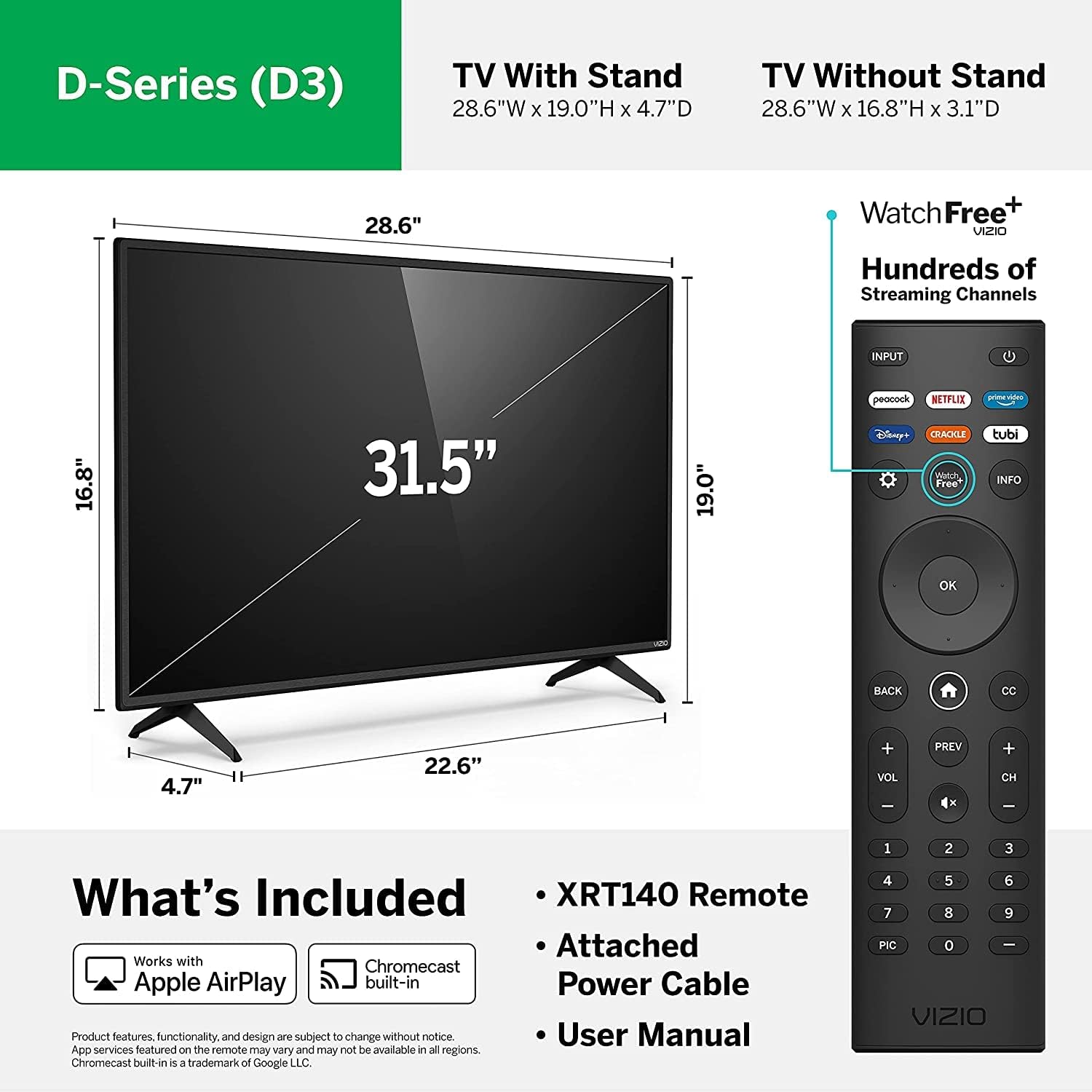
Image: A visual guide detailing the physical dimensions of the VIZIO D-Series TV and the button layout of the XRT140 remote control.
6. Maintenance
6.1. Cleaning the TV
- Screen: Gently wipe the screen with the provided microfiber cleaning cloth. For stubborn marks, lightly dampen the cloth with water (do not spray directly on the screen).
- TV Body: Use a soft, dry cloth to wipe the frame and back of the TV.
- Avoid using harsh chemicals, abrasive cleaners, or solvents.

Image: Demonstrations of using the microfiber cleaning cloth for screen maintenance and Mophead cable ties for organizing TV cables.
6.2. Cable Management
Use the included Mophead cable ties to organize and secure cables behind your TV. This helps prevent tangles, improves airflow, and creates a neater setup.
7. Troubleshooting
If you encounter issues with your VIZIO D-Series TV, try the following common troubleshooting steps:
| Problem | Possible Solution |
|---|---|
| No Power | Ensure the power cable is securely plugged into the TV and a working electrical outlet. Try a different outlet. |
| No Picture, But Has Sound | Check the input source. Press the INPUT button on your remote to cycle through inputs. Ensure external devices are powered on. |
| No Sound | Check the volume level. Ensure Mute is not activated. If using external audio, check connections and settings on your sound system. |
| Remote Not Working | Replace the batteries in the remote. Ensure there are no obstructions between the remote and the TV's IR sensor. |
| Network Connection Issues | Restart your Wi-Fi router and modem. Re-enter your Wi-Fi password on the TV. Ensure the TV is within range of your router. |
| Picture Quality Issues | Adjust picture settings (brightness, contrast, color) in the TV menu. Ensure the source content is high quality. |
If problems persist, perform a factory reset (refer to the TV's on-screen menu for instructions) or contact VIZIO customer support.
8. Specifications
Key specifications for the VIZIO 32-inch D-Series Full HD 1080p Smart TV (D32f):
| Feature | Detail |
|---|---|
| Model Name | D Series (D32f) |
| Screen Size | 32 Inches (31.5" diagonal) |
| Resolution | 1080p Full HD |
| Display Technology | LED |
| Aspect Ratio | 16:9 |
| Product Dimensions (with stand) | 28.64 x 2.46 x 16.98 inches (W x D x H) |
| Item Weight | 13.14 pounds |
| Connectivity Technology | HDMI, USB, Composite, Antenna |
| Supported Internet Services | Amazon Instant Video, Netflix, Vudu, YouTube, and more via SmartCast |
| Special Features | Flat Panel, SmartCast, AirPlay, Chromecast Built-in, Voice Control Compatibility |
9. Warranty and Support
Your VIZIO D-Series TV comes with a limited warranty. For detailed warranty information, including terms and conditions, please refer to the warranty card included with your product or visit the official VIZIO support website.
For technical support, troubleshooting assistance, or to register your product, please visit support.vizio.com or contact VIZIO customer service directly.