
Introduction
This user manual provides comprehensive instructions for the MOKiN USB C Hub Dual HDMI Adapter. This versatile 6-in-1 docking station is designed to expand the connectivity of your USB-C enabled laptop, converting a single USB-C port into multiple essential ports, including dual HDMI outputs, USB 3.1, and USB 2.0 ports, along with Power Delivery (PD) capabilities. It aims to enhance your productivity by facilitating multi-monitor setups and efficient data transfer.
Product Overview
The MOKiN USB C Hub is a compact and powerful accessory that provides the following ports:
- 2 x HDMI Ports: Supports up to 4K@30Hz resolution for dual monitor setups.
- 1 x USB 3.1 Port: For high-speed data transfer up to 10Gbps.
- 2 x USB 2.0 Ports: Ideal for connecting peripherals like keyboards and mice without lag.
- 1 x USB-C Power Delivery (PD) Port: Supports up to 100W power pass-through charging for your laptop.

Figure 1: Overview of the MOKiN USB C Hub with its 6-in-1 port configuration. The image highlights the USB-C input, two HDMI outputs, one USB 3.1 port, and two USB 2.0 ports.
Setup
- Verify Laptop Compatibility: Ensure your laptop's USB-C port supports video output (DisplayPort Alt Mode) and Power Delivery if you intend to use these features. Not all USB-C ports are identical. Look for symbols like a lightning bolt (Thunderbolt), a 'D' inside a square (DisplayPort), or a battery icon next to the USB-C port.
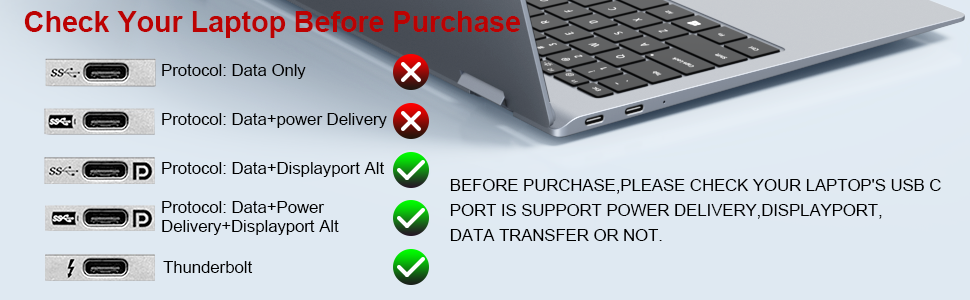
Figure 2: Guide to checking your laptop's USB-C port for compatibility with data, power delivery, and DisplayPort Alt Mode. Ports supporting Data+Displayport Alt, Data+Power Delivery+Displayport Alt, or Thunderbolt are compatible.
- Connect the Hub to your Laptop: Plug the USB-C connector of the MOKiN hub into an available USB-C port on your laptop.
- Connect External Displays: Use HDMI cables to connect your monitors to the HDMI ports on the MOKiN hub.
- Connect Peripherals: Plug in your USB devices (e.g., keyboard, mouse, external hard drive) into the USB 3.1 and USB 2.0 ports on the hub.
- Power Delivery (Optional): If you wish to charge your laptop through the hub, connect your laptop's original USB-C power adapter to the PD port on the MOKiN hub.

Figure 3: The MOKiN USB C Hub connected to a laptop, demonstrating the Power Delivery feature with a 100W fast charging capability.
The hub is plug-and-play, requiring no additional drivers or software installation for most operating systems.
Operating Instructions
Display Modes (Windows Laptops)
For Windows laptops, the MOKiN USB C Hub supports both Mirror (SST) and Extend (MST) display modes, allowing for triple display setups (laptop screen + two external monitors).
- Mirror Mode: Duplicates your laptop's screen onto the connected external monitors.
- Extend Mode: Extends your desktop across multiple screens, providing more workspace. Each external monitor can display different content.

Figure 4: Illustration of multiple display modes for Windows systems. It shows both Mirror Mode (duplicating the laptop screen) and Extend Mode (extending the desktop across two external monitors).
To configure display settings on Windows, right-click on your desktop, select "Display settings," and arrange your monitors as desired.
Display Modes (Mac OS Laptops)
Important Note for Mac OS Users: Due to Mac OS limitations, this hub only supports Mirror Mode (SST) for external displays. It does not support extended triple display functionality where each external monitor shows different content. All connected external monitors will mirror the primary display.

Figure 5: Visual representation indicating that MacBooks connected to this hub will only support Mirror Mode for external displays.
Data Transfer
The hub provides high-speed data transfer capabilities:
- USB 3.1 Port: Offers data transfer speeds up to 10Gbps, suitable for external hard drives and high-bandwidth devices.
- USB 2.0 Ports: Provides 480Mbps transfer speed, ideal for connecting standard USB devices like flash drives, keyboards, and mice.
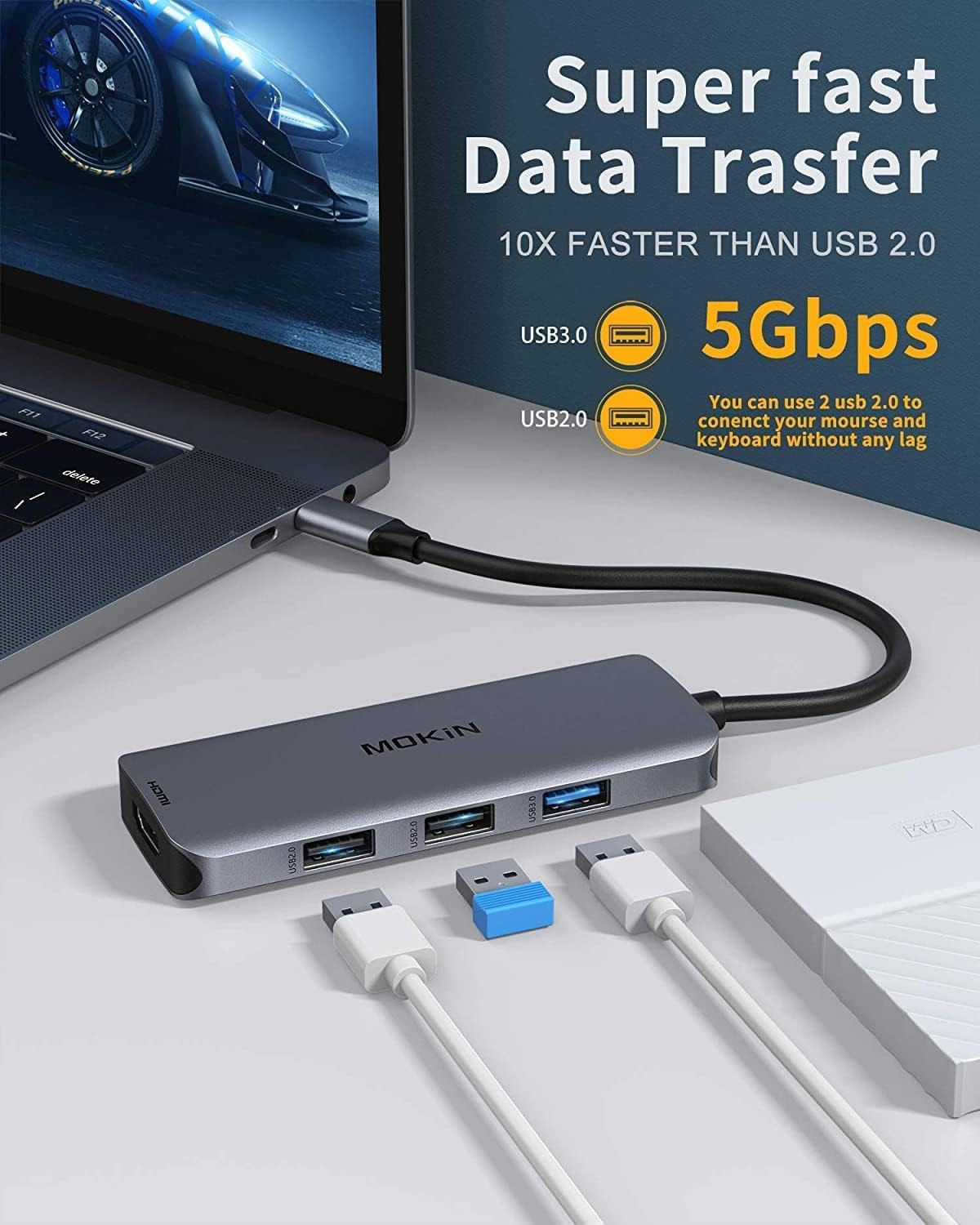
Figure 6: Depiction of the data transfer capabilities, highlighting the 10Gbps speed of the USB 3.1 port and the 480Mbps speed of the USB 2.0 ports.
Compatibility
This MOKiN USB C Hub is broadly compatible with a range of devices and operating systems that support USB-C with DisplayPort Alt Mode and Power Delivery. Below is a list of commonly compatible and incompatible devices. This list is not exhaustive.
Compatible Devices (Partial List):
- Lenovo: Yoga 900/910, X1 Yoga (2nd Gen), 13' Lenovo 720, c740-14il, Yoga C740, Legion Y740, Ideapad 5, Ideapad Slim 7, 2020 IdeaPad 5 15 mit Ryzen 4800u, Thinkpad T590, T480, Thinkbook 14s, L590, E15, X1 Carbon.
- HP: Spectre X2, X360, Elite×2 1012, Elitebook Folio G1, ZBook 15 G3, Elitebook 840 g6, Chromebook, Notebook 15-dy1036nr, ENVY x360 13-ay0000, Pavilion Intel Core 13, Envy x360 model m6-aq105dx, Envy 17t (2020).
- Dell: XPS 15 (9550, 9560), XPS 13 (9350, 9360, 9370, 9380), XPS 12 2-in-1 9250, Precision 5510, Latitude 5290 2-in-1/5285/5480/7280, Latitude E7470, Precision, Latitude 5590, Latitude 5510.
- Acer: Spin 7, New Switch Alpha 12, Chromebook R13, Aspire V Nitro 15, model SB230.
- Apple: MacBook Pro 2020/2019/2018/2017/2016, MacBook Air 2020/2019/2018/2017, iPad Pro 2018/2020, Macbook Retina 12" Laptop 2015/2016, iMac, iMac Pro 2019/2018/2017 (Note: Mac OS supports mirror mode only).
- Microsoft: Surfacebook 2, Surface Pro 7, Surface GO 2, Surface 3.
- Asus: Zenbook S13 UX392, X571GD.
- Google: Chromebook Pixel.
Incompatible Devices (Partial List):
- HP: 14s-be102TX, Probook 650 G2, Probook 455 G4, Pavilion-14 bf116tx, 14-ce1004TX 14, Elitebook 820 G3, Pavilion 15 ck009, EliteBook 745 G4, Pavilion Power Laptop 15-cb, Probook 430 G5, EliteBook 828 G4, Pavilion 15-cs3000, Pavillion Laptop Model 15-cs1014-ng, Probook g3, bs049dx.
- Lenovo: IdeaPad 3 (17") Intel, Flex 5 14 (AMD), IdeaPad Flex 5 15 (Intel) 2-in-1, ThinkPad 11e Yoga Gen 6 (11") 2-in-1.
- Dell: Inspiron 15 3000, Inspiron 11 3000 2-in-1, Inspiron 17 3000.
- Samsung: Galaxy A20/A20E/A50/A70/A80/S6/S7/J6/J7/M20/M30; Galaxy Tab A/10.1/10.5/S3.
- Apple: MacBook Air 7.2, MacBook Pro 2015, iMac 2021.
- LG: Google Nexus 5X/6P, Stylist/G6, V30, K10/K20.
- Other: Oneplus 2/3/3T/5T/6T; All Motorola phones; GoPro; Amazon Fire Tablet; Surface Dock 2; Acer Aspire A717-72G, A515-44-R1DM, A515-54 model; Predator Helios 300 PH315-52-754M; Microsoft Surface Pro 6; Huawei MediaPad M5 Lite.
If your device is not listed, please check its USB-C port specifications to confirm support for DisplayPort Alt Mode and Power Delivery.
Troubleshooting
- No Display Output:
- Ensure your laptop's USB-C port supports DisplayPort Alt Mode.
- Check all cable connections (USB-C to hub, HDMI to monitors) are secure.
- Try restarting your laptop and reconnecting the hub.
- Test with different HDMI cables or monitors if possible.
- Update your laptop's graphics drivers.
- Flickering or Unstable Display:
- Ensure the resolution and refresh rate settings are within the supported range (e.g., 4K@30Hz for dual HDMI).
- Reduce the resolution of the external monitors to see if stability improves.
- Ensure adequate power supply to the hub and laptop, especially when using multiple high-power devices.
- USB Devices Not Recognized:
- Ensure the hub is securely connected to the laptop.
- Try connecting the USB device directly to the laptop to confirm it functions independently.
- Avoid connecting high-power consumption USB devices simultaneously without external power to the hub.
- Charging Issues (PD Port):
- Ensure your laptop's original USB-C power adapter is connected to the hub's PD port.
- Verify that your laptop supports charging via its USB-C port.
- Check the wattage of your power adapter; it should be sufficient for your laptop and the hub.
- Hub Overheating:
- It is normal for the hub to become warm during heavy use, especially with multiple displays and devices connected.
- Ensure proper ventilation around the hub. Avoid placing it in enclosed spaces.
- If it becomes excessively hot, disconnect some peripherals or displays to reduce load.
Specifications
| Feature | Specification |
|---|---|
| Model Number | MOUC0412 |
| Product Dimensions | 5.3 x 3.4 x 0.68 inches |
| Item Weight | 2.88 ounces |
| HDMI Output | 2 x HDMI (up to 4K@30Hz for dual display, 4K@60Hz for single display) |
| USB Ports | 1 x USB 3.1 (10Gbps), 2 x USB 2.0 (480Mbps) |
| Power Delivery (PD) | Up to 100W |
| Hardware Interface | USB Type-C |
| Special Feature | Plug and Play |
| Compatible Operating Systems | Windows 10, 8, 7, Vista, XP, Mac OS X 10.6 or later, Linux 2.6.14 or Later |
Maintenance
To ensure the longevity and optimal performance of your MOKiN USB C Hub:
- Keep the device clean and free from dust. Use a soft, dry cloth for cleaning.
- Avoid exposing the hub to extreme temperatures, humidity, or direct sunlight.
- Do not drop or subject the hub to strong impacts.
- Disconnect the hub from your laptop when not in use for extended periods.
- Handle cables and connectors gently to prevent damage.
Warranty and Support
For specific warranty information and technical support, please refer to the official MOKiN website or contact MOKiN customer service directly. Contact details are typically provided with your product packaging or on the manufacturer's official support pages.
MOKiN is committed to providing support for their products. If you encounter any issues not covered in this manual, please reach out to their support team for assistance.


