1. Introduction
This manual provides essential information for setting up, operating, and maintaining your Acer Predator Triton 500 PT515-52-73L3 Gaming Laptop. Please read it thoroughly to ensure optimal performance and longevity of your device.
The Acer Predator Triton 500 PT515-52-73L3 is a high-performance gaming laptop designed for demanding tasks and immersive gaming experiences. It features a 10th Generation Intel Core i7-10750H processor, NVIDIA GeForce RTX 2070 SUPER graphics, a 15.6-inch Full HD display with a 300Hz refresh rate and NVIDIA G-SYNC technology, 16GB of DDR4 RAM, and a 512GB NVMe SSD.
2. Safety Information
- Do not expose the laptop to extreme temperatures, direct sunlight, or high humidity.
- Avoid placing heavy objects on the laptop.
- Use only the provided AC adapter and power cord.
- Keep liquids away from the device. In case of spills, immediately power off and disconnect the adapter.
- Do not attempt to disassemble or repair the laptop yourself. Refer to qualified service personnel.
- Ensure proper ventilation to prevent overheating, especially during intensive use.
3. Package Contents
Verify that all items are present in the package:
- Acer Predator Triton 500 PT515-52-73L3 Gaming Laptop
- AC Adapter
- Power Cord
4. Physical Overview
4.1. Front View
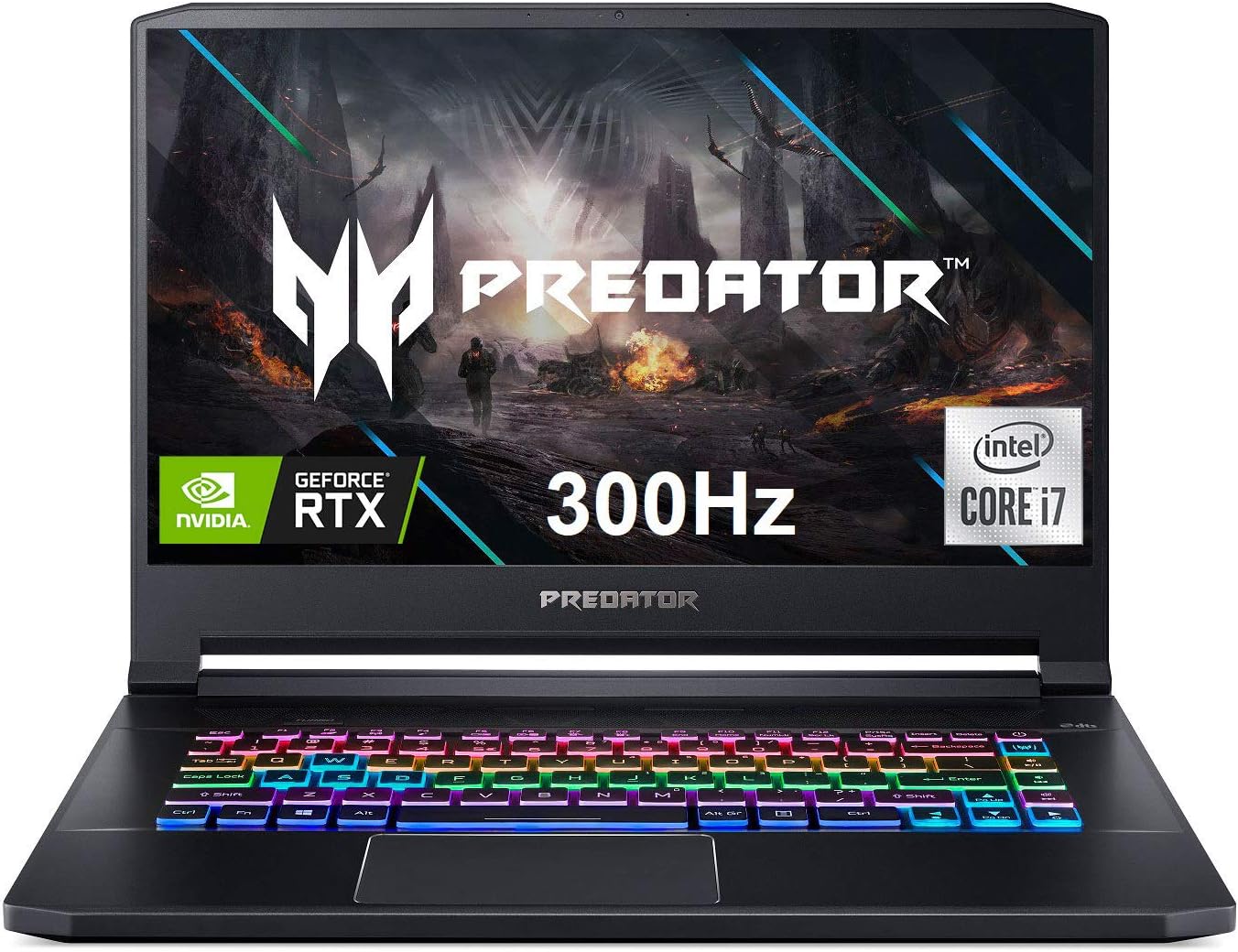
Figure 4.1: Front view of the Acer Predator Triton 500, showcasing the display with Predator branding, RGB backlit keyboard, and thin bezels.
4.2. Display Features

Figure 4.2: The 15.6-inch Full HD (1920 x 1080) display features a 300Hz refresh rate and 3ms Overdrive Response Time, enhanced by NVIDIA G-SYNC technology for tear-free gameplay.
4.3. Keyboard and Touchpad

Figure 4.3: The laptop features a per-key RGB backlit keyboard with customizable lighting and a dedicated 'Turbo' key for instant overclocking. The touchpad is located below the keyboard.
4.4. Ports and Connectors

Figure 4.4: The laptop is equipped with a comprehensive selection of ports, including Power (DC-In), Ethernet (RJ-45), multiple USB 3.2 Gen 2 ports, HDMI, Mic-in, Headset/speaker, Thunderbolt 3 / USB Type-C, Mini DisplayPort, and a Kensington lock slot.
5. Setup
5.1. Initial Power-On
- Connect the AC adapter to the laptop's power port and then to a power outlet.
- Open the laptop lid.
- Press the power button, typically located above the keyboard or on the side.
- Follow the on-screen instructions to complete the initial Windows 10 Home setup.
5.2. Connecting Peripherals
Connect your mouse, external keyboard, or other USB devices to the available USB 3.2 Gen 2 ports. For external displays, use the HDMI or Mini DisplayPort 1.4. The Thunderbolt 3 port supports full USB 3.1 Type-C functionality.
6. Operating
6.1. Power On/Off
- Power On: Press the power button.
- Power Off: Click the Start button, then Power > Shut down.
- Sleep Mode: Close the lid or click the Start button, then Power > Sleep.
6.2. Display Features
The 15.6-inch Full HD (1920 x 1080) IPS display offers a 300Hz refresh rate and 3ms Overdrive Response Time. NVIDIA G-SYNC technology synchronizes the display's refresh rate with the GPU, eliminating screen tearing and minimizing display stutter and input lag.
6.3. Keyboard Features
The per-key RGB backlit keyboard allows for customizable lighting effects. Use the PredatorSense software to personalize the lighting zones and effects. The 'Turbo' key can be used for instant CPU/GPU overclocking.
6.4. Performance Management with PredatorSense

Figure 6.4: The PredatorSense software provides comprehensive control over your laptop's performance, including fan speed adjustments (Auto, Max, Custom), monitoring CPU and GPU temperatures, and managing RGB lighting.
PredatorSense allows you to monitor system performance, adjust fan speeds, customize RGB lighting, and manage overclocking settings for optimal gaming and productivity. You can switch between different performance modes (e.g., Quiet, Default, Extreme) based on your needs.
6.5. Connectivity
- Wireless: Killer Double Shot Pro Wireless-AX 1650i 802.11ax Wi-Fi 6 for high-speed wireless internet.
- Wired: Killer Gaming Network E3100G 10/100/1000 Gigabit Ethernet LAN for stable wired connections.
- Bluetooth: Integrated Bluetooth for connecting wireless peripherals.
6.6. Audio
The laptop features DTS X: Ultra-Audio with optimized Bass, Loudness, and Speaker Protection, along with Acer True Harmony Technology and two built-in stereo speakers. Acer Purified.Voice technology with two built-in microphones enhances voice clarity for communication.
7. Maintenance
7.1. Cleaning
- Use a soft, lint-free cloth to clean the screen and exterior.
- For stubborn smudges, slightly dampen the cloth with water or a screen cleaner.
- Use compressed air to clear dust from keyboard keys and ventilation grilles.
7.2. Software Updates
Regularly update your operating system (Windows 10 Home), graphics drivers (NVIDIA), and Acer-specific software (PredatorSense) to ensure optimal performance and security.
7.3. Storage Management
The laptop comes with a 512GB PCIe NVMe SSD. It includes two PCIe M.2 slots, with one slot available for easy storage upgrades. Regularly back up important data and manage disk space to maintain performance.
7.4. Battery Care
To prolong battery life, avoid fully discharging the battery frequently. It is recommended to keep the laptop plugged in during intensive gaming sessions to ensure consistent power delivery and prevent performance throttling.
8. Troubleshooting
- Laptop not powering on: Ensure the AC adapter is securely connected and the power outlet is functional. Try a different outlet.
- Overheating: Ensure ventilation grilles are clear of obstructions. Use PredatorSense to increase fan speeds. Consider using a cooling pad for extended heavy use.
- Display issues (tearing/stuttering): Verify NVIDIA G-SYNC is enabled in NVIDIA Control Panel and PredatorSense. Ensure graphics drivers are up to date.
- Poor battery life: Adjust power settings in Windows to a more power-efficient mode. Reduce screen brightness. Close unnecessary background applications.
- No sound: Check volume levels in Windows and ensure speakers/headphones are properly connected. Update audio drivers.
9. Specifications
| Feature | Detail |
|---|---|
| Processor | 10th Generation Intel Core i7-10750H 6-Core (Up to 5.0GHz) |
| Graphics | Overclockable NVIDIA GeForce RTX 2070 SUPER with Max-Q Design & 8GB GDDR6 VRAM |
| Display | 15.6" Full HD (1920 x 1080) IPS, 300Hz Refresh Rate, 3ms Overdrive, NVIDIA G-SYNC, 300nit Brightness, 100% sRGB |
| RAM | 16GB DDR4 2933MHz |
| Storage | 512GB PCIe NVMe SSD (2 x PCIe M.2 Slots, 1 Slot Available) |
| Operating System | Windows 10 Home |
| Keyboard | Per-key RGB Backlit Keyboard with Customizable Lighting |
| Wireless Connectivity | Killer Double Shot Pro Wireless-AX 1650i 802.11ax Wi-Fi 6 |
| Wired Connectivity | Killer Gaming Network E3100G 10/100/1000 Gigabit Ethernet LAN |
| Ports | 1x Thunderbolt 3 (Full USB 3.1 Type C), 3x USB 3.2 Gen 2 (1 with Power-off Charging), 1x HDMI 2.0, 1x Mini Display Port 1.4 |
| Audio | DTS X: Ultra-Audio, Acer True Harmony Technology, Dual Stereo Speakers, Acer Purified.Voice |
| Battery Life | Up to 5.5 hours (average) |
| Weight | 4.63 lbs (2.1 kg) |
| Dimensions (LxWxH) | 14.11 x 10.04 x 0.7 inches |
10. Official Product Videos
10.1. Predator Triton 500 PT515-52 360 Degree View
This video provides a brief 360-degree view of the Acer Predator Triton 500 PT515-52, showcasing its design and various angles.
10.2. Full-Featured Gaming Laptop with RGB Keyboard
This video highlights the full features of the Acer Predator Triton 500, emphasizing its RGB keyboard and overall gaming capabilities.
11. Warranty Information
Your Acer Predator Triton 500 PT515-52-73L3 Gaming Laptop is covered by a manufacturer's warranty. Please refer to the warranty card included in your package or visit the official Acer support website for detailed terms and conditions.
- 2-Year Protection Plan (Optional)
- 4-Year Protection Plan (Optional)
12. Support
For further assistance, technical support, or to download the latest drivers and manuals, please visit the official Acer support website:
You can also find additional resources and contact information on the Acer brand store:


