
1. Introduction
The THINKCAR Thinkdiag Mini is a compact and portable Bluetooth OBD2 scanner designed for comprehensive vehicle diagnostics. It offers full system scanning capabilities, allowing users to read and clear fault codes, view live data streams, and access various vehicle information across all major electronic control units (ECUs). This device also provides 15 commonly used maintenance and reset services, making it a versatile tool for both professional technicians and automotive enthusiasts.
The Thinkdiag Mini connects wirelessly to your smartphone or tablet via Bluetooth, utilizing a dedicated application for operation. Its intelligent design includes automatic vehicle identification (Auto VIN Scan) for quick and efficient diagnosis. This manual provides detailed instructions on setting up, operating, maintaining, and troubleshooting your Thinkdiag Mini device.

Figure 1.1: The THINKCAR Thinkdiag Mini device and its retail packaging, highlighting its 2022 new version, 15 reset services, and full system diagnosis capabilities.
2. Setup Guide
Follow these steps to set up your THINKCAR Thinkdiag Mini and begin diagnostics:
- Download the ThinkDiag App: Search for "ThinkDiag" in your device's app store (available for both iOS and Android). Download and install the application.
- Register/Log In: Open the ThinkDiag app and create a new account or log in with an existing one.
- Connect the Device: Locate your vehicle's OBD2 port, typically found under the dashboard on the driver's side. Plug the Thinkdiag Mini device firmly into the OBD2 port. The device will power on automatically.
- Pair via Bluetooth: Ensure Bluetooth is enabled on your smartphone or tablet. Within the ThinkDiag app, follow the prompts to connect to your Thinkdiag Mini device via Bluetooth. The app will guide you through the pairing process.
- Activate Software: New users typically receive free access to 5 car models' full system diagnoses and 15 reset functions for the first year. Activate the necessary vehicle software within the app. Additional car model software can be purchased annually.
- Start Diagnosis: Once connected and software is activated, the app will attempt to automatically identify your vehicle via Auto VIN Scan. If automatic identification is not supported for your vehicle, you may manually select the vehicle model software to proceed with diagnosis.

Figure 2.1: The Thinkdiag Mini device demonstrating its easy pairing capability with both iOS and Android mobile devices, showing the app interface on a smartphone and a tablet.

Figure 2.2: The Thinkdiag Mini device plugged into a vehicle's OBD port, with a smartphone displaying diagnostic information, illustrating the setup for vehicle health reporting.
3. Operating Instructions
The Thinkdiag Mini provides extensive diagnostic and maintenance functionalities through its intuitive mobile application. Below are the primary operating modes:
3.1 Full System Diagnostics
This function allows for a comprehensive scan of all available electronic control units (ECUs) in your vehicle. It can read and clear diagnostic trouble codes (DTCs), display live data streams, and provide vehicle information for systems such as Engine, Transmission, ABS, SRS (Airbag), SAS (Steering Angle Sensor), BMS (Battery Management System), TPMS (Tire Pressure Monitoring System), and A/C (Air Conditioning).
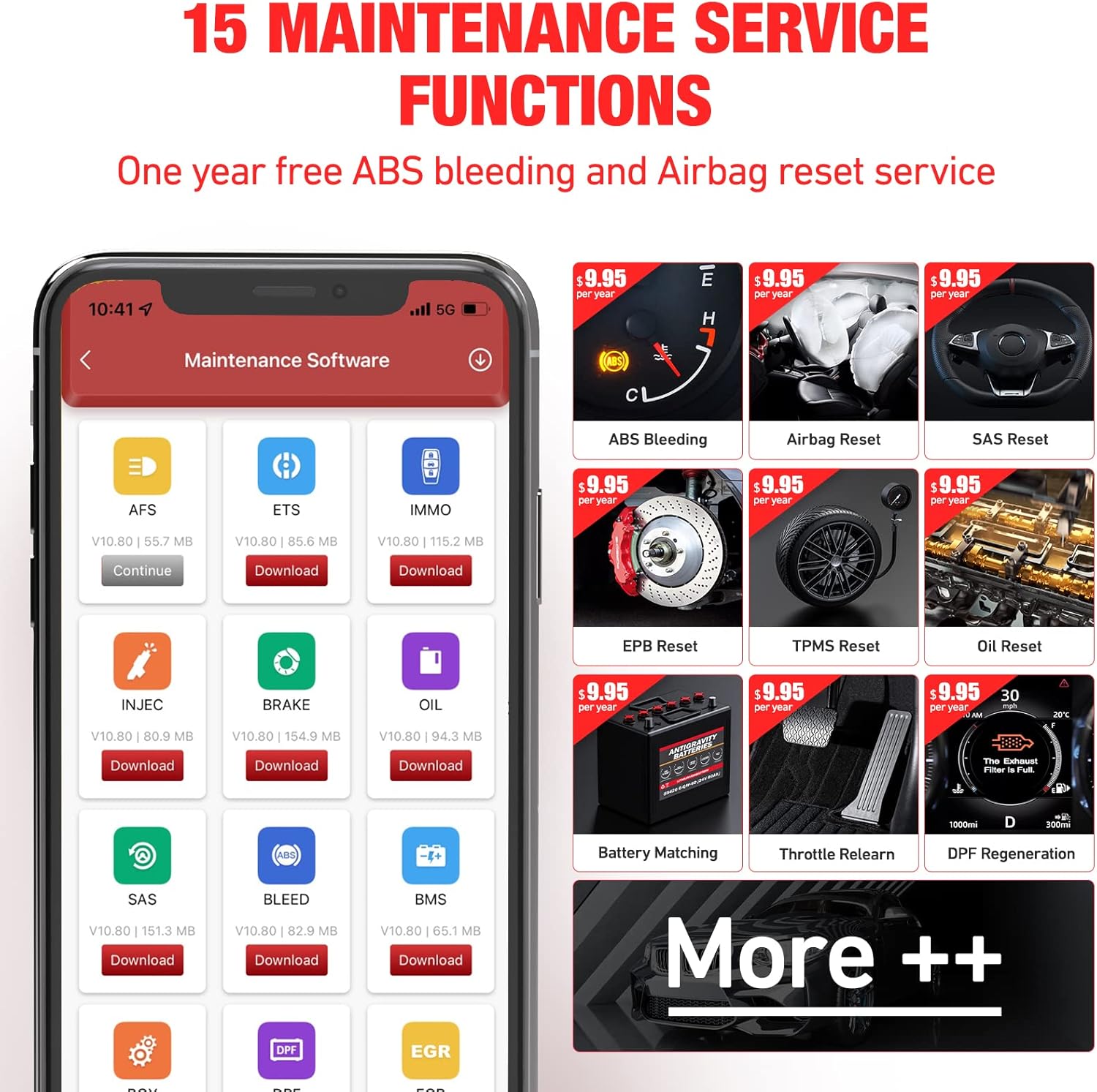
Figure 3.1: Visual representation of manufacturer-level diagnostic capabilities, including Engine, Transmission, ABS, Airbag, SAS, BMS, TPMS, and A/C systems.
3.2 OBD-Level Diagnostics
For standard OBD2 functions, the Thinkdiag Mini supports all OBD2 modes, including:
- Read Engine Codes
- Erase Codes
- Live Data Stream
- Freeze Frame Data
- Smog Check (I/M Readiness)
- On-Board Monitor Test
- O2 Sensor Test
- Evap System Test
- Vehicle Information
- DTC Lookup

Figure 3.2: A smartphone screen displaying the comprehensive menu for full OBD-level diagnostics, including options like Read I/M Readiness, Read Data Stream, Read Fault Code, and more.
3.3 Maintenance Reset Services
The device offers 15 essential maintenance and reset functions. These services help in performing common vehicle maintenance tasks and resetting warning lights after repairs. Refer to Section 4 for detailed descriptions of these services.

Figure 3.3: The ThinkDiag app interface showcasing the 15 maintenance service functions available, such as ABS Bleeding, Airbag Reset, Oil Reset, and more, with options to download specific software.
3.4 Software Mall and Point Reward System
The ThinkDiag app includes a "ThinkStore" where users can purchase additional car model software. A point reward function is available, where 1 point equals $1, allowing users to save money on software purchases. This system enables customization of the diagnostic device based on specific vehicle needs and quantities.

Figure 3.4: Multiple screenshots of the ThinkDiag app, illustrating the ThinkStore for purchasing software, the main diagnosis interface, and the reports section, highlighting the comprehensive services offered.
3.5 Vehicle Compatibility
The Thinkdiag Mini is compatible with over 115 vehicle brands supporting OBD II protocols. For vehicles made in or before 1996 (USA cars), 2000 (EUR cars), or 2006 (ASIA cars), it is recommended to verify compatibility with the manufacturer.

Figure 3.5: A visual representation of the extensive list of vehicle brands compatible with the Thinkdiag Mini, categorized by region and year of manufacture, alongside an app screen showing purchased software for specific car brands.
4. Maintenance Functions
The Thinkdiag Mini provides 15 commonly used maintenance and reset services to assist with various vehicle upkeep tasks:
- Oil Reset Service: Resets the engine oil life system after an oil change.
- Headlight Matching: Adjusts the adaptive headlight system settings.
- Throttle Adaptation: Resets the throttle actuator and ECU learning values to their initial status for accurate air intake control.
- Anti-theft Matching (IMMO): Matches new keys to the vehicle's immobilizer system.
- Fuel Injector Coding: Codes new injector information into the ECU to correct or control injection volume for each cylinder.
- Brake Pad Zeroing (EPB Reset): Resets the electronic parking brake system after brake pad replacement.
- Maintenance Light Zeroing: Turns off the maintenance reminder light.
- Steering Angle Reset (SAS Reset): Resets the steering angle sensor after steering system repairs.
- ABS Exhaust (ABS Bleeding): Performs bleeding procedures for the Anti-lock Braking System.
- Battery Matching: Resets the vehicle's battery monitoring unit after battery replacement, clearing old fault information.
- Gearbox Matching: Adapts the transmission control unit after repairs or replacement.
- DPF Regeneration: Initiates the regeneration process to clear particulate matter from the Diesel Particulate Filter.
- Tire Pressure Reset (TPMS Reset): Resets the Tire Pressure Monitoring System after tire rotation or sensor replacement.
- Sunroof Initialization: Sets memory functions for sunroof operation, including locking/closing and sliding/tilting.
- Suspension Matching: Adjusts the vehicle's suspension system settings.
5. Troubleshooting
If you encounter issues while using your Thinkdiag Mini, consider the following common problems and solutions:
5.1 Device Not Connecting/Pairing
- Check OBD2 Port: Ensure the Thinkdiag Mini is firmly plugged into the vehicle's OBD2 port.
- Vehicle Ignition: Make sure the vehicle's ignition is in the ON position (engine can be off).
- Bluetooth: Verify that Bluetooth is enabled on your smartphone/tablet and that the ThinkDiag app has Bluetooth permissions.
- Restart: Try restarting both the ThinkDiag app and your mobile device. Unplug and re-plug the Thinkdiag Mini.
5.2 Inability to Scan Certain Car Models/Years
- Compatibility: While the Thinkdiag Mini supports over 115 brands, some older or specific vehicle models may not be fully compatible with all advanced functions. Refer to the manufacturer's compatibility list or contact support for specific vehicle inquiries.
- Software Download: Ensure you have downloaded and activated the specific car model software required for your vehicle within the ThinkDiag app.
5.3 App Requires Internet Connection
- Initial Setup/Updates: An internet connection is required for initial software activation, downloading car model software, and receiving updates.
- Online Features: Some features, such as generating diagnostic reports or accessing the software mall, require an active internet connection. Basic OBD2 code reading may function offline once software is downloaded.
5.4 Subscription/Fee Related Questions
- First Year Free: New users receive 5 car models' full system diagnoses and 15 reset functions free for the first year.
- Annual Fees: After the first year, an annual fee (e.g., $39.95/year per car model) applies for continued access to full system diagnosis and reset features for chosen car models. OBD2 features remain lifetime free.
- Software Mall: Additional car model software can be purchased through the in-app software mall.
6. Product Specifications
| Feature | Specification |
|---|---|
| Brand | thinkcar |
| Model Number | THINKDIAG_MINI (SOC-Diag Mini-S01-FBA) |
| Item Weight | 4.2 ounces |
| Product Dimensions | 4.7 x 3 x 1.5 inches |
| UPC | 768297861802 |
| Connectivity | Bluetooth |
| Supported Systems | Full System (Engine, Transmission, ABS, SRS, TPMS, BMS, A/C, etc.) |
| Reset Services | 15 Maintenance Reset Functions |
| OBD2 Protocols | Compatible with OBD II protocols after 1996 (USA), 2000 (EUR), 2006 (ASIA) |
7. Warranty and Support
The THINKCAR Thinkdiag Mini comes with a specific software subscription model. New users are granted free access to 5 car models' full system diagnoses and 15 reset functions for the first year from activation. After this initial period, continued access to these features for specific car models requires an annual subscription fee (e.g., $39.95 per car model per year). Basic OBD2 functions are available for lifetime free use.
For technical support, warranty claims, or further inquiries regarding product functionality and software subscriptions, please contact THINKCAR customer service through their official website or the support section within the ThinkDiag application. Always refer to the latest information provided by THINKCAR for the most accurate and up-to-date support details.


