
1. Introduction
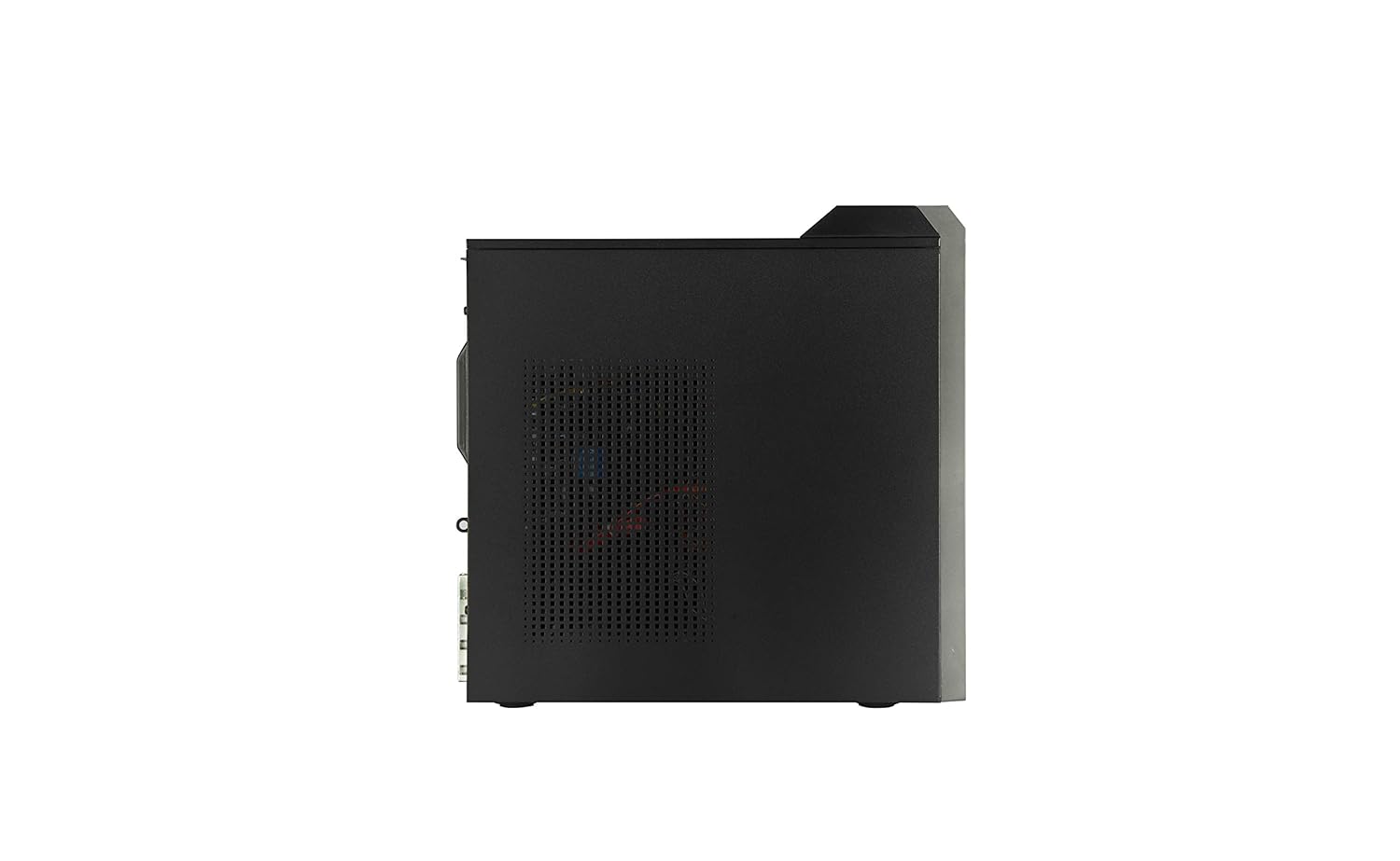
Welcome to the user manual for your new Acer Veriton M200 Desktop. This guide provides essential information for setting up, operating, maintaining, and troubleshooting your computer. The Acer Veriton M200 is designed for small office and home office environments, featuring an Intel Pentium Gold G5420 processor, 4GB DDR4 RAM, and a 1TB HDD, pre-installed with Windows 10 Home (64-bit).
2. What's in the Box
Please verify that all components are present in the packaging:
- Acer Veriton M200 Desktop Tower
- USB Keyboard
- USB Mouse
- Power Cord
3. Setup Guide
Follow these steps to set up your Acer Veriton M200 Desktop:
- Unpack the Components: Carefully remove the desktop tower, keyboard, mouse, and power cord from their packaging.
- Connect the Monitor: Connect your monitor to the desktop using either the HDMI or VGA port located on the rear panel. Ensure the monitor's power cable is also connected to a power outlet.
- Connect the Keyboard and Mouse: Plug the USB keyboard and mouse into any available USB ports on the front or rear of the desktop.
- Connect to Power: Insert the power cord into the power input on the rear of the desktop, then plug the other end into a grounded electrical outlet.
- Network Connection (Optional): For a wired internet connection, connect an Ethernet cable from your router or modem to the Ethernet port on the rear of the desktop. For Wi-Fi, configuration will be done during the initial Windows setup.


4. Operating Instructions
4.1 Powering On/Off
- To Power On: Press the power button located on the front panel of the desktop tower. The system will boot up and load Windows 10 Home.
- To Power Off: Click the Start button in Windows, then select Power > Shut down. Do not unplug the power cord directly without shutting down the operating system first, as this can lead to data loss or system corruption.
- Restart: Click the Start button, then select Power > Restart.
4.2 Using Ports
Your desktop is equipped with various ports for connectivity:
- Front Ports: 2 x USB 2.0, 2 x USB 3.1, 1 x Microphone Port, 1 x Speaker Port. These are ideal for frequently connected devices like USB drives, headphones, or external microphones.
- Rear Ports: 2 x USB 2.0, 2 x USB 3.1 Gen 1, HDMI, VGA, Serial Port, Ethernet, Audio-out. Use these for peripherals that remain connected, such as printers, external hard drives, or monitors.
5. Maintenance
Regular maintenance helps ensure the longevity and optimal performance of your desktop:
- Cleaning: Use a soft, dry cloth to clean the exterior of the desktop. For dust accumulation in vents, use compressed air. Ensure the desktop is powered off and unplugged before cleaning.
- Software Updates: Regularly check for and install Windows updates and driver updates for your hardware. This improves security and performance.
- Data Backup: Periodically back up important files to an external hard drive or cloud storage to prevent data loss.
- Ventilation: Ensure the desktop is placed in a well-ventilated area, away from direct sunlight or heat sources, to prevent overheating.
6. Troubleshooting
This section addresses common issues you might encounter:
- No Power:
- Check if the power cord is securely connected to both the desktop and the electrical outlet.
- Verify the power outlet is functional by plugging in another device.
- No Display:
- Ensure the monitor is powered on and its video cable (HDMI/VGA) is securely connected to both the desktop and the monitor.
- Try connecting the monitor to a different video port if available, or test with another monitor.
- Slow Performance:
- Close unnecessary applications running in the background.
- Run a disk cleanup and defragmentation (for HDD).
- Check for malware or viruses using antivirus software.
- Ensure Windows and drivers are up to date.
- Peripheral Not Working:
- Try plugging the peripheral into a different USB port.
- Restart the desktop.
- Check the manufacturer's website for updated drivers for the peripheral.
7. Specifications
| Feature | Specification |
|---|---|
| Processor | Intel Pentium Gold G5420 (3.8 GHz) |
| RAM | 4 GB DDR4 (Expandable up to 32 GB) |
| Storage | 1 TB HDD 7200 RPM |
| Operating System | Windows 10 Home (64 Bit) |
| Graphics | Integrated Graphics (Intel) |
| Front Ports | 2 x USB 2.0, 2 x USB 3.1, 1 x Mic Port, 1 x Speaker Port |
| Rear Ports | 2 x USB 2.0, 2 x USB 3.1 Gen 1, HDMI, VGA, Serial Port, Ethernet, 3 x Audio-out |
| Connectivity | Wi-Fi, Ethernet |
| Dimensions (LxWxH) | 40 x 17.5 x 40 cm |
| Weight | 7 kg |
| Included Components | Tower, mouse, and keyboard |
8. Warranty and Support
Your Acer Veriton M200 Desktop comes with a 3-year on-site warranty, providing peace of mind for your investment. For technical assistance, warranty claims, or further support, please contact Acer customer service.
Manufacturer/Importer: ACER INDIA PRIVATE LIMITED Embassy Heights, 6th Floor, No. 13 Magrath Road, Next to HOSMAT Hospital, Bangalore, INDIA – 560025.
Please refer to the official Acer website or your purchase documentation for the most current support contact information and detailed warranty terms and conditions.