
Dpofirs Dpofirsoihtgswr3f-11
Contents
SD Memory Card User Manual
Model: Dpofirsoihtgswr3f-11
1. Introduction
This user manual provides essential information for the Dpofirs High-Speed Portable SD Memory Card. It covers product features, setup, operation, maintenance, troubleshooting, and specifications to ensure optimal performance and longevity of your memory card.
The Dpofirs SD Memory Card is designed for high-speed data transfer, making it ideal for storing photos, music, and various files across a wide range of compatible devices.
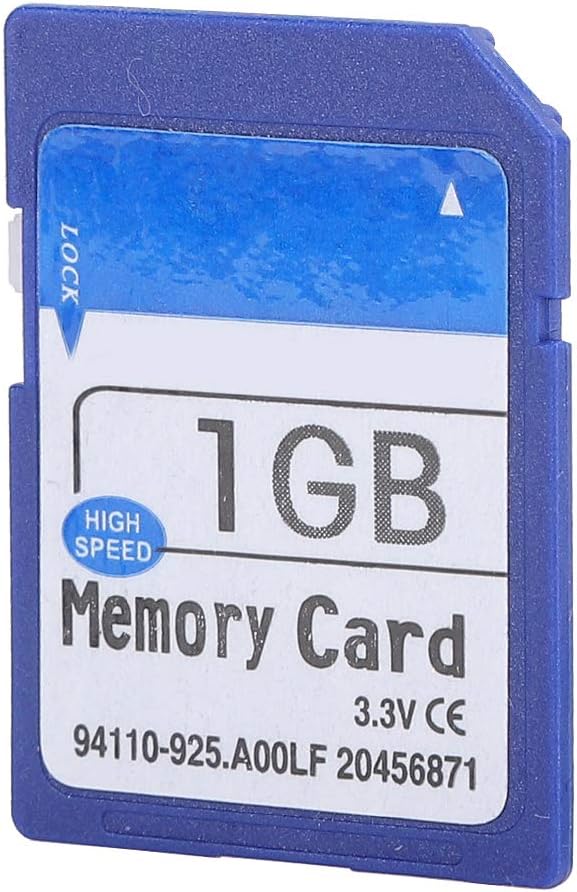
Figure 1.1: A clear front view of the Dpofirs SD Memory Card, highlighting its compact design.
2. Key Features
- High-Speed Performance: Read speeds up to 80-100 MB/s and write speeds up to 10-20 MB/s for efficient data handling.
- Ample Storage: Capable of storing thousands of photos, music tracks, and various files.
- Wide Compatibility: Suitable for a broad range of devices including MP3 players, MP4 players, digital cameras, SLR cameras, PSP game consoles, and plug-in card speakers.
- Enhanced Workflow: Facilitates faster editing, saving, and sharing of your media files.
- Durable Design: Constructed from plastic for reliable use.

Figure 2.1: The SD Memory Card is capable of storing thousands of photos, music, and various files, indicated by the icons for video, documents, music, and compressed files.

Figure 2.2: The memory card offers high-speed performance with read speeds up to 80-100 MB/s and write speeds up to 10-20 MB/s.

Figure 2.3: High-speed transmission allows for faster editing, saving, and sharing of photos and other media.
3. Setup and Installation
Follow these steps to properly set up and install your SD Memory Card:
- Identify the SD Card Slot: Locate the SD card slot on your device (e.g., camera, computer, game console). This slot is typically labeled with an SD card icon.
- Insert the Card: Gently insert the SD card into the slot with the gold contacts facing down (or as indicated by your device's manual). Push until it clicks into place. Do not force the card.
- Initial Formatting (Optional but Recommended): For first-time use or if experiencing issues, it is recommended to format the card using your device's internal formatting function.
- Navigate to the settings or menu of your device.
- Find the "Format" or "Memory Card Tools" option.
- Select the SD card and confirm formatting. Warning: Formatting will erase all data on the card.
- Verify Recognition: After insertion, your device should recognize the memory card. Check your device's display or file manager to confirm the card is detected and its capacity is shown.

Figure 3.1: The SD Memory Card is compatible with a wide range of devices, including digital cameras, smartphones, and car DVRs.
4. Operating Instructions
Once installed, the SD Memory Card functions as an external storage medium for your compatible device.
4.1. Data Storage and Management
- Saving Files: When using the card with a camera, photos and videos will automatically save to the card once it's set as the default storage. For other devices, you may need to select the SD card as the save location.
- Transferring Files: To transfer files from your computer to the SD card, insert the card into a card reader connected to your computer. Drag and drop files to the card's directory.
- Accessing Files: Files stored on the SD card can be accessed directly through your device's file browser or by connecting the device (or card via reader) to a computer.

Figure 4.1: The memory card allows for organized storage of various file types within folders.
4.2. Write Protection Switch
The SD card features a small "LOCK" switch on its left side. This switch protects data from accidental deletion or modification.
- Lock Position (Down): When the switch is slid down towards the "LOCK" label, the card is write-protected. You can read files, but cannot write new files or delete existing ones.
- Unlock Position (Up): When the switch is slid up away from the "LOCK" label, the card is unlocked. You can read, write, and delete files.

Figure 4.2: The front view of the SD Memory Card, highlighting the "LOCK" switch on the left side.
5. Care and Maintenance
Proper care ensures the longevity and reliability of your SD Memory Card:
- Handle with Care: Avoid bending, dropping, or applying excessive force to the card.
- Protect Contacts: Keep the gold contacts clean and free from dust, dirt, or moisture. Do not touch the contacts directly.
- Safe Removal: Always safely eject the SD card from your device or computer before physically removing it to prevent data corruption.
- Storage: Store the card in a protective case when not in use to prevent physical damage and exposure to extreme temperatures or humidity.
- Avoid Static Electricity: Discharge any static electricity from your body before handling the card.

Figure 5.1: The back view of the SD Memory Card, showing the gold contacts that should be kept clean and protected.
6. Troubleshooting
If you encounter issues with your SD Memory Card, refer to the following common problems and solutions:
| Problem | Possible Cause | Solution |
|---|---|---|
| Card not recognized by device. | Incorrect insertion, dirty contacts, incompatible format, or faulty card/slot. | Re-insert the card correctly. Clean contacts gently with a soft, dry cloth. Try the card in another device. Format the card (if data recovery is not needed). |
| Cannot write or delete files. | Write protection switch is engaged. | Slide the "LOCK" switch on the side of the card to the unlocked (up) position. |
| Slow read/write speeds. | Card fragmentation, device limitations, or card nearing end of life. | Back up data and reformat the card. Ensure your device supports high-speed SD cards. |
| Data corruption or errors. | Improper removal, power loss during transfer, or physical damage. | Always safely eject the card. If issues persist, back up data and reformat. Consider professional data recovery if critical. |
7. Product Specifications
| Attribute | Detail |
|---|---|
| Brand | Dpofirs |
| Model Number | Dpofirsoihtgswr3f-11 |
| Item Type | Memory Card |
| Material | Plastic |
| Color | White/Blue (depending on capacity) |
| Optional Capacities | 1GB, 2GB, 8GB, 16GB, 32GB, 64GB |
| Current Product Capacity | 1GB |
| Read Speed | Up to 80-100 MB/s |
| Write Speed | Up to 10-20 MB/s |
| Applicable Devices | MP3, MP4, Camera, SLR, PSP Game Consoles, Plug-in Card Speakers |
| Product Size | Approx. 3.2 x 2.3 x 0.3 cm (1.3 x 0.9 x 0.1 inches) |
| Item Weight | Approx. 10 grams |
| Hardware Interface | Secure Digital Card |
| Batteries Included | No |
| First Available Date | February 26, 2021 |
8. Warranty and Support
8.1. Return Policy
This product is subject to a return policy allowing for refund or replacement within 30 days of purchase, as per standard retail terms. Please refer to your point of purchase for specific return procedures and conditions.
8.2. Customer Support
For further assistance, technical support, or inquiries regarding your Dpofirs SD Memory Card, please contact the seller or manufacturer through the platform where the product was purchased. Ensure you have your purchase details and product model number (Dpofirsoihtgswr3f-11) ready when contacting support.
Documents and downloads
Ask a question about this manual
Ask about setup, troubleshooting, compatibility, parts, safety, or missing instructions. Manuals+ will review the question and use this page’s manual context to help answer it.