
1. Introduction
The LASUNEY 12-in-1 USB C Docking Station is designed to expand your laptop's connectivity and display capabilities. This versatile hub provides multiple ports including HDMI, VGA, USB, Ethernet, SD/TF card readers, and an audio jack, allowing for enhanced productivity and convenience across various operating systems.
2. Key Features
- Triple Display Output: Supports up to three external displays via 2 HDMI ports and 1 VGA port.
- Power Delivery 3.0: USB-C PD port for charging your laptop.
- Gigabit Ethernet: RJ45 port provides stable 1000Mbps wired network connection.
- High-Speed USB Ports: Includes 2 USB 3.0 ports (up to 5Gbps) and 2 USB 2.0 ports (up to 480Mbps) for data transfer and peripheral connection.
- SD & TF Card Reader: Supports simultaneous reading of SD and Micro SD memory cards.
- Audio/Mic 2-in-1 Port: 3.5mm CTIA Standard port for audio input and output.

3. Compatibility
This docking station is designed for broad compatibility with various devices and operating systems that feature a full-featured USB-C port (supporting data, video output, and power delivery).
3.1. Supported Operating Systems
- Windows
- Mac OS X 10.6 or later
- Chrome OS
- Linux 2.6.14 or later
3.2. Compatible Devices (Examples)
- Apple: MacBook/Pro (2016-2021), MacBook Air/Mac mini (2018-2020), iMac (2020)/iMac Pro (2017-2019), iPad/Pro (2018-Newest)
- Dell: Latitude (3500/5290...), XPS (13/15/5590...), Precision (5530, 5540, 5550...), Inspiron (5590, 7373, 7573...)
- HP: Spectre (13/X360-13T/15T...), Elitebook (X360/1030 G3...), Envy (17T/X360/13-AQ1...), Zbook (15U G3/17 G4...)
- Lenovo: Yoga (370/720/730...), ThinkPad (P50/P52/P70...), IdeaPad (Flex 14/330s...)
- Others: Asus Zenbook, Huawei MateBook, Samsung Galaxy

3.3. Important Compatibility Notes
- Mac OS MST Limitation: Mac OS itself does not support MST (extended) mode for multiple independent displays. It can extend your laptop screen and mirror each other on external monitors.
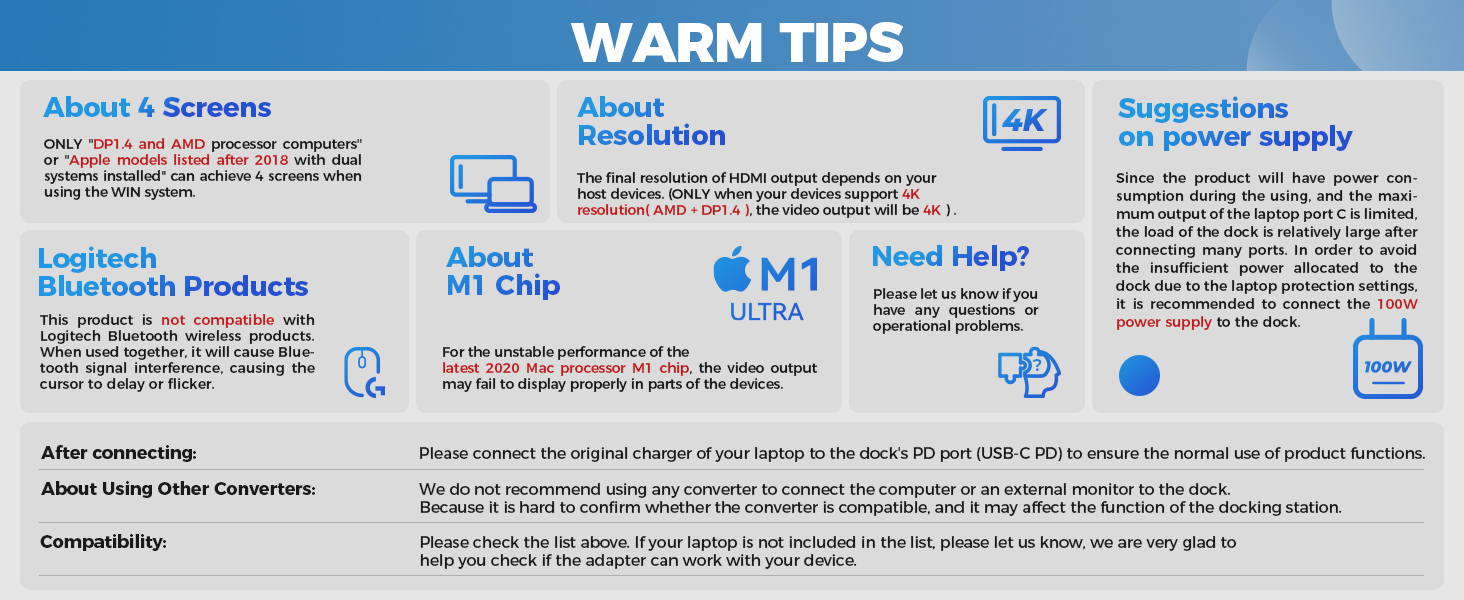
- M1 Chip: For the unstable performance of the latest 2020 Mac processor M1 chip, the video output may fail to display properly in parts of the devices.
- Logitech Bluetooth Products: This product is not compatible with Logitech Bluetooth wireless products. When used together, it may cause Bluetooth signal interference, leading to cursor delay or flicker.
- USB-C Port Requirement: Ensure your laptop's USB-C port is a full-featured port that supports data transfer, video output (DisplayPort Alt Mode), and power delivery. Ports that only support data transfer or charging may not provide full functionality.

4. Setup Instructions
4.1. Connecting the Docking Station
- Connect the integrated USB-C cable from the docking station to a full-featured USB-C port on your laptop.
- For optimal performance and to ensure sufficient power, connect your laptop's original charger to the PD (Power Delivery) USB-C port on the docking station.
4.2. Display Connection
- Connect your external monitors to the HDMI 1, HDMI 2, and/or VGA ports on the docking station using appropriate cables.
- For Windows systems, you can configure displays for SST (Single Stream Transport) or MST (Multi-Stream Transport) mode.
- For Mac OS, displays will typically mirror each other or extend the laptop screen, but independent extended displays (MST) are not natively supported. To achieve extended mode on Mac, go to Settings > Display > Arrangement > Cancel Mirror Display. Drag the setting box to the external screen to configure.

5. Operating Instructions
5.1. Multiple Display Modes
- Windows System: Supports both SST (mirror) and MST (extended) modes. You can achieve up to triple displays (2 HDMI + 1 VGA) by shutting down the laptop screen.
- Mac System: Can extend 1 to 3 external monitors, which will mirror each other or extend the laptop screen.

5.2. USB Ports
Utilize the 2 USB 3.0 ports for high-speed data transfer (up to 5Gbps) with compatible devices. The 2 USB 2.0 ports are suitable for connecting peripherals like keyboards, mice, and other standard USB devices.
5.3. SD/TF Card Reader
Insert your SD and Micro SD (TF) memory cards into the dedicated slots to easily access files. The docking station supports reading both card types simultaneously.
5.4. Ethernet Port
Connect an Ethernet cable to the RJ45 Gigabit Ethernet port for a stable and fast wired network connection (up to 1000Mbps), especially useful for laptops without a built-in Ethernet port.
5.5. Audio/Mic Port
Plug in your headphones or microphone into the 3.5mm Audio/Mic 2-in-1 port for complete and true sound quality, meeting your audio requirements.


6. Power Supply
Since the product will have power consumption during use, and the maximum output of the laptop's Type-C port is limited, the load on the dock is relatively large after connecting many ports. To avoid insufficient power allocated to the dock due to laptop protection settings, it is recommended to connect a 100W power supply to the dock's PD (Power Delivery) USB-C port to ensure normal use of product functions.
Always use the original charger of your laptop to the dock's PD (USB-C PD) port to ensure the normal use of product functions.
7. Troubleshooting
- Display Issues on Mac OS: If you experience issues with extended display on Mac, ensure you have followed the steps: Settings > Display > Arrangement > Cancel Mirror Display, and drag the setting box to the external screen.
- M1 Chip Performance: Users with the latest 2020 Mac processor M1 chip may experience unstable video output. This is a known limitation.
- Logitech Bluetooth Interference: If using Logitech Bluetooth wireless products, you may encounter signal interference. This product is not compatible with such devices.
- Power-Related Issues: Ensure the docking station is receiving adequate power by connecting your laptop's original charger to the PD port. Insufficient power can lead to unstable performance or connected devices not working.
- General Connectivity: Avoid using other converters to connect your computer or an external monitor to the dock, as compatibility cannot be guaranteed and may affect functionality.
8. Specifications
| Attribute | Value |
|---|---|
| Brand | LASUNEY |
| Model | B08CHC7TKZ |
| Color | Grey |
| Hardware Interface | USB Type C |
| Total USB Ports | 4 (2x USB 3.0, 2x USB 2.0) |
| Video Output | 2x HDMI (up to 4K/60Hz), 1x VGA (up to 1080P/60Hz) |
| Ethernet | RJ45 Gigabit Ethernet (1000Mbps) |
| Card Reader | SD, TF (Micro SD) |
| Audio Port | 3.5mm Audio/Mic 2-in-1 |
| Power Delivery | PD3.0 (up to 100W recommended input) |
| Package Dimensions | 6.65 x 3.9 x 1.02 inches |
| Item Weight | 5.9 ounces |
9. Warranty & Support
The product includes a 3-year warranty. For any questions, operational problems, or to activate your warranty, please contact LASUNEY support.
Contact Support: support@lasuney.net

