
1. Introduction
This manual provides essential information for setting up, operating, maintaining, and troubleshooting your Acer Nitro 5 15.6-inch laptop, model AN515-55-53AG. Please read this guide thoroughly to ensure proper use and to maximize the performance and longevity of your device.
2. Package Contents
Verify that all items are present in your product packaging:
- Acer Nitro 5 15.6" Laptop (Model AN515-55-53AG)
- AC Power Adapter and Power Cord
- Quick Start Guide and Warranty Information (may vary by region)
3. Physical Overview
3.1. Front and Angled Views
The Acer Nitro 5 features a 15.6-inch Full HD Widescreen IPS LED-backlit display. The overall design is sleek with an Obsidian Black finish.

Image: Angled view of the Acer Nitro 5 laptop, showcasing the display and keyboard.
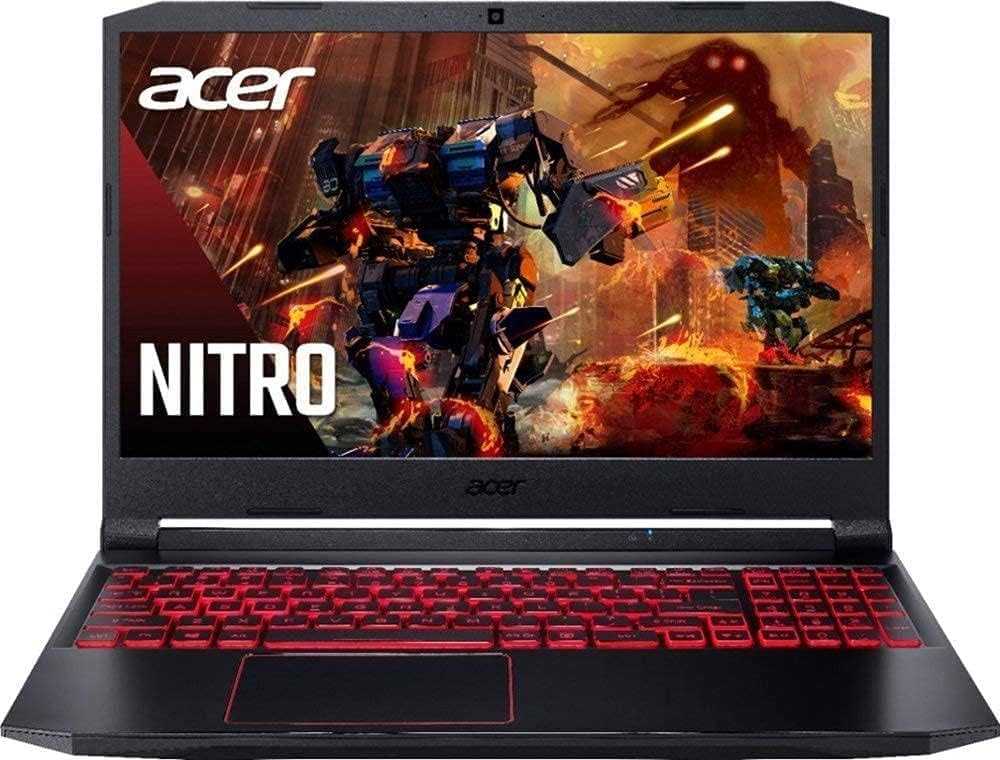
Image: Front view of the Acer Nitro 5 laptop, highlighting the screen and overall aesthetic.
3.2. Keyboard and Touchpad
The laptop is equipped with a full-size backlit keyboard, providing enhanced visibility in low-light conditions. The precision touchpad supports multi-gesture input for intuitive navigation.

Image: Top-down view of the Acer Nitro 5 keyboard with red backlighting and the integrated touchpad.
3.3. Side Ports and Connectivity
The Acer Nitro 5 offers various ports for connecting peripherals and external displays.

Image: Left side of the laptop, typically featuring power input, Ethernet (RJ-45), HDMI, and USB ports.

Image: Right side of the laptop, typically featuring additional USB ports and an audio jack.
4. Setup
4.1. Initial Power-On
- Unpack your laptop and place it on a stable, flat surface.
- Connect the AC power adapter to the laptop's power input port and then plug the power cord into an electrical outlet.
- Open the laptop lid. The power indicator light may illuminate.
- Press the power button to turn on the laptop.
4.2. Windows 10 Setup
Upon first boot, you will be guided through the Windows 10 setup process. Follow the on-screen instructions to configure your language, region, network settings, and user account.
- Network Connection: Connect to a Wi-Fi network or use an Ethernet cable for internet access during setup.
- Microsoft Account: You will be prompted to sign in with or create a Microsoft account.
- Privacy Settings: Review and adjust privacy settings as desired.
5. Operating Your Laptop
5.1. Keyboard Functions
The keyboard includes a numeric keypad and function keys (F1-F12) that can be used in combination with the Fn key for various shortcuts, such as adjusting brightness, volume, or enabling/disabling Wi-Fi.
- Backlit Keyboard: Use the dedicated function key combination (e.g., Fn + F9 or F10, refer to keyboard icons) to adjust the keyboard backlight intensity or turn it off.
5.2. Touchpad Usage
The touchpad supports standard Windows gestures:
- Tap: Single tap to click, double tap to open.
- Two-finger scroll: Drag two fingers up or down to scroll.
- Pinch-to-zoom: Pinch two fingers together or spread them apart to zoom in or out.
5.3. Connecting Peripherals
Utilize the available ports to connect external devices:
- USB Ports: Connect USB devices such as mice, keyboards, or external storage. The laptop features USB 2.0 and USB 3.0 ports.
- HDMI Port: Connect an external monitor or TV for extended display.
- Audio Jack: Connect headphones or external speakers.
- Ethernet (RJ-45): For wired network connectivity.
5.4. Wireless Connectivity
The laptop supports Intel Wireless Wi-Fi 6 AX200 (802.11ax) and Bluetooth for wireless communication.
- Wi-Fi: Access network settings in Windows to connect to available Wi-Fi networks.
- Bluetooth: Pair with Bluetooth-enabled devices like headphones, speakers, or game controllers.
6. Maintenance
6.1. Cleaning Your Laptop
- Use a soft, lint-free cloth to clean the screen and exterior surfaces.
- For stubborn marks, dampen the cloth with a small amount of water or a mild, non-abrasive cleaner.
- Avoid spraying liquids directly onto the laptop.
- Use compressed air to clear dust from keyboard keys and ventilation grilles.
6.2. Battery Care
- To prolong battery life, avoid fully discharging the battery frequently.
- Store the laptop in a cool, dry place when not in use for extended periods.
- If storing for a long time, ensure the battery is charged to approximately 50%.
6.3. Storage Upgrades
The Acer Nitro 5 is designed with upgradeability in mind. It includes two PCIe M.2 slots (one of which is open for easy upgrades) and one available hard drive bay, allowing for expansion of storage capacity.
- Consult a qualified technician or refer to Acer's official service documentation before attempting any internal upgrades to avoid voiding your warranty.
7. Troubleshooting
7.1. Power Issues
- Laptop does not turn on: Ensure the AC adapter is securely connected to both the laptop and a working power outlet. Check if the power outlet is functional.
- Battery not charging: Verify the power adapter is correctly connected. Try a different power outlet.
7.2. Display Issues
- No display on screen: Connect an external monitor to check if the issue is with the laptop's internal display. Press Fn + F5 (or the corresponding display toggle key) to cycle through display modes.
- Dim display: Adjust screen brightness using Fn + F3 (decrease) or Fn + F4 (increase) or through Windows display settings.
7.3. Connectivity Issues
- Wi-Fi not connecting: Ensure Wi-Fi is enabled (check function keys or Windows settings). Restart your router and laptop.
- Bluetooth device not pairing: Ensure Bluetooth is enabled on both devices. Make sure the device is in pairing mode and within range.
8. Specifications
| Feature | Detail |
|---|---|
| Model Name | AN515-55-53AG |
| Operating System | Windows 10 Home |
| Processor | Intel Core i5-10300H (2.8 GHz) |
| Display | 15.6 Inches Full HD (1920 x 1080) IPS LED-backlit |
| Graphics | NVIDIA GeForce GTX 1650 with 4 GB GDDR5 VRAM |
| RAM | 8 GB DDR4 2666MHz |
| Storage | 256 GB PCIe NVMe SSD (2 x PCIe M.2 slots, 1 open; 1 available hard drive bay) |
| Wireless Connectivity | Intel Wireless Wi-Fi 6 AX200 (802.11ax), Bluetooth |
| LAN | 10/100/1000 Gigabit Ethernet (RJ-45) |
| USB Ports | 2 x USB 2.0, 1 x USB 3.0 |
| Battery Life | Approximately 8 Hours |
| Weight | 5.06 pounds |
| Dimensions (LxWxH) | 14.3 x 10 x 0.9 inches |
| Color | Obsidian Black |
9. Warranty and Support
Your Acer Nitro 5 laptop comes with a standard manufacturer's warranty. The specific terms and duration of the warranty may vary by region and retailer. Please refer to the warranty card included in your product packaging or visit the official Acer support website for detailed information.
9.1. Technical Support
For technical assistance, driver downloads, or service inquiries, please visit the official Acer support website. You will typically need your product's serial number (located on a sticker on the bottom of the laptop) to register your product and access support resources.
Online Support: www.acer.com/support