
1. Introduction
The Autopilot APCET2 is a versatile temperature controller designed for both cooling and heating applications. It features automatic day and night set points, detected by a built-in photocell, allowing for precise temperature management. Easy-to-use knobs facilitate setting adjustments, and a Memory-lock feature ensures consistent performance by preventing accidental changes to set points.
Key Features:
- Controls heating or cooling equipment with both day/night set points.
- Includes a 20-foot remote precision temperature sensor.
- Temperature control differential of +/- 3°F.
- Built-in photocell for automatic day/night detection.
- Temperature control range: 50°F–100°F (10°C–38°C).
- Electric power source.
2. Safety Information
Please read and understand all safety instructions before operating this device. Failure to follow these instructions may result in electric shock, fire, or serious injury.
- Indoor Use Only: This device is intended for indoor use in dry locations. Do not expose to water or high humidity.
- Electrical Rating: Ensure the connected device's electrical rating does not exceed the thermostat's maximum load (1800 watts, 15 amps at 120V AC).
- Proper Grounding: Always plug the thermostat into a properly grounded 3-prong outlet.
- Avoid Overloading: Do not plug multiple high-power devices into the thermostat using a power strip or adapter.
- Sensor Placement: Position the temperature sensor away from direct heat sources, cold drafts, or direct sunlight to ensure accurate readings.
- Cleaning: Disconnect power before cleaning. Use a dry cloth; do not use liquid cleaners.
- Children and Pets: Keep the device out of reach of children and pets.
3. Product Overview
The Autopilot APCET2 thermostat features a user-friendly design with clearly labeled controls and indicators.
Front View:
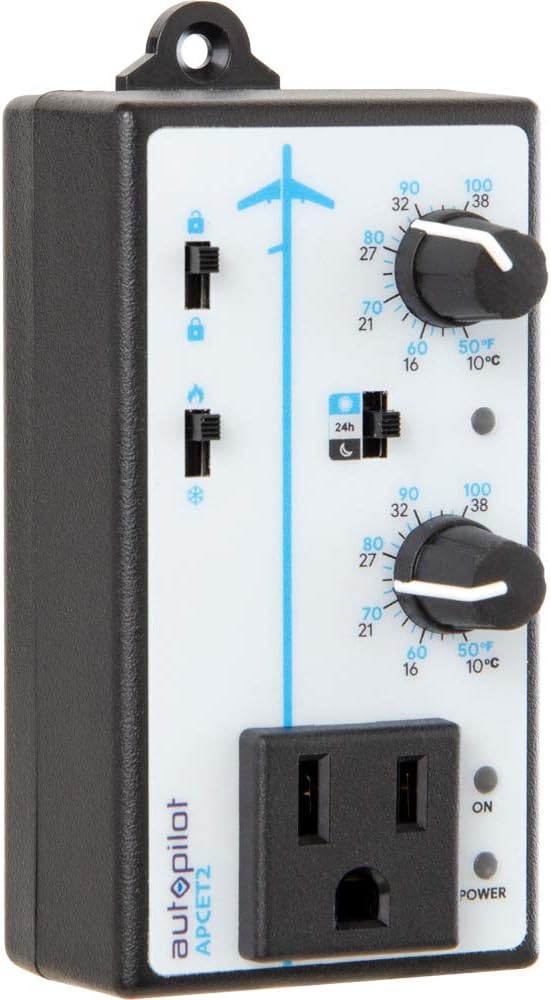
Figure 3.1: Front view of the Autopilot APCET2 thermostat. This image displays the main control panel, including the two temperature setting knobs, the day/night mode switch, the heating/cooling mode switch, and the integrated power outlet for connecting your device. The "ON" and "POWER" indicator lights are also visible.
- Day/Night Temperature Knobs: Two separate knobs for setting desired temperatures for day and night cycles.
- Day/Night Mode Switch: Toggles between 24-hour operation or automatic day/night detection via photocell.
- Heating/Cooling Mode Switch: Selects whether the thermostat controls a heating or cooling device.
- Integrated Power Outlet: Where the controlled device is plugged in.
- Power Indicator Light: Illuminates when the unit is receiving power.
- Output Indicator Light: Illuminates when power is being supplied to the connected device.
Back View:

Figure 3.2: Back view of the Autopilot APCET2 thermostat. This image shows the standard 3-prong power plug for connecting the thermostat to a wall outlet, along with the screws for potential wall mounting.
- Power Plug: Standard 3-prong plug for connecting to a 120V AC wall outlet.
- Mounting Holes: For optional wall mounting.
Dimensions:
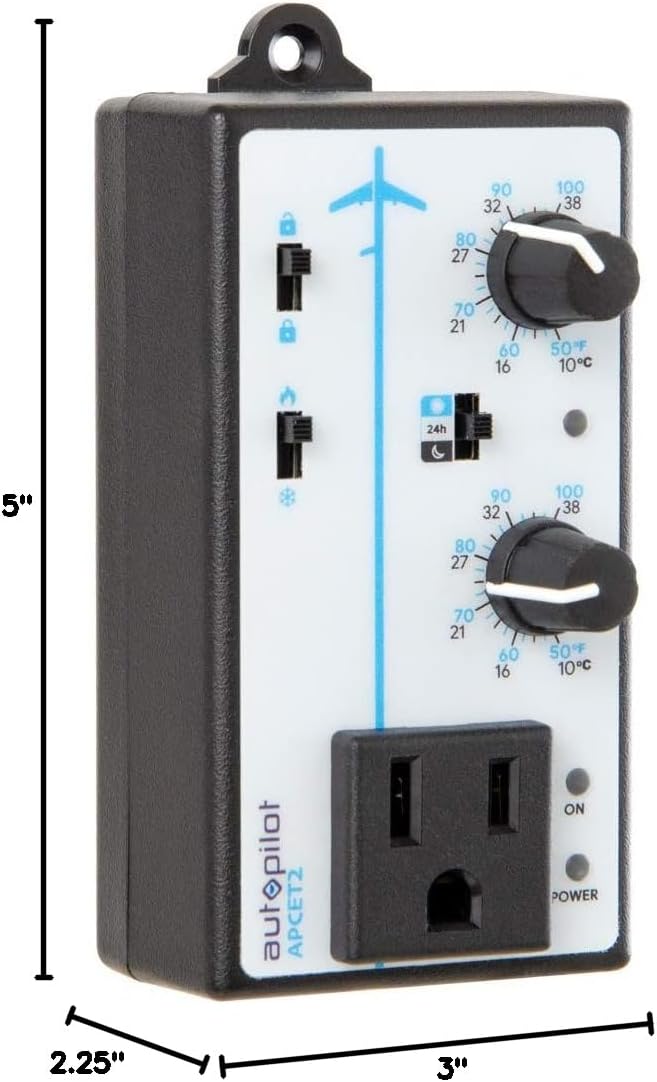
Figure 3.3: Dimensions of the Autopilot APCET2 thermostat. The image indicates the device measures approximately 3 inches deep, 2.25 inches wide, and 5 inches high.
4. Setup Instructions
- Unpack the Device: Carefully remove the Autopilot APCET2 thermostat and its components from the packaging.
- Connect the Temperature Sensor: Plug the 20-foot remote precision temperature sensor into the designated port on the side of the thermostat. Ensure a secure connection.
- Position the Sensor: Place the temperature sensor in the area where you want to monitor and control the temperature. Avoid placing it in direct sunlight, near heat sources, or in drafts, as this can affect accuracy.
- Plug in the Thermostat: Insert the 3-prong plug of the Autopilot APCET2 thermostat into a standard 120V AC grounded wall outlet. The Power indicator light should illuminate.
- Connect Your Device: Plug the heating or cooling device you wish to control into the integrated power outlet on the front of the thermostat.
- Initial Check: Ensure all connections are secure before proceeding to operation.
5. Operating Instructions
The Autopilot APCET2 offers flexible temperature control with day and night settings and heating/cooling modes.
5.1 Selecting Operating Mode (Heating or Cooling)
- Locate the Heating/Cooling Mode Switch on the front panel (typically marked with flame and snowflake icons).
- Slide the switch to the flame icon for Heating Mode. In this mode, the connected device will turn ON when the temperature drops below the set point and turn OFF when it rises above the set point (considering the +/- 3°F differential).
- Slide the switch to the snowflake icon for Cooling Mode. In this mode, the connected device will turn ON when the temperature rises above the set point and turn OFF when it drops below the set point (considering the +/- 3°F differential).
5.2 Setting Day and Night Temperatures
The thermostat allows for distinct day and night temperature settings.
- Day Temperature Setting: Use the upper knob (associated with the sun icon) to set your desired daytime temperature. Rotate the knob clockwise to increase the temperature and counter-clockwise to decrease it. The range is 50°F–100°F (10°C–38°C).
- Night Temperature Setting: Use the lower knob (associated with the moon icon) to set your desired nighttime temperature. Rotate the knob clockwise to increase the temperature and counter-clockwise to decrease it. The range is 50°F–100°F (10°C–38°C).
5.3 Day/Night Detection Mode
The thermostat can automatically switch between day and night settings using its built-in photocell.
- Locate the Day/Night Mode Switch (typically marked with a 24h icon and sun/moon icons).
- Slide the switch to the sun/moon icon for Automatic Day/Night Detection. The built-in photocell will detect ambient light levels and automatically switch between your set day and night temperatures.
- Slide the switch to the 24h icon for 24-Hour Operation. In this mode, the thermostat will continuously use the Day Temperature Setting, regardless of light conditions.
5.4 Memory-Lock Feature
The Memory-lock feature prevents accidental changes to your set points.
- To lock the settings, slide the small switch next to the padlock icon to the locked position. This will prevent the temperature knobs from being accidentally adjusted.
- To unlock the settings, slide the switch to the unlocked position.
6. Maintenance
Regular maintenance ensures optimal performance and longevity of your Autopilot APCET2 thermostat.
- Cleaning: Disconnect the thermostat from the power outlet before cleaning. Use a soft, dry cloth to wipe the exterior. Do not use abrasive cleaners, solvents, or immerse the unit in water.
- Sensor Care: Keep the temperature sensor clean and free from dust or debris. Ensure the sensor cable is not pinched or damaged.
- Storage: If storing the device for an extended period, disconnect it from power, clean it, and store it in a cool, dry place.
7. Troubleshooting
If you encounter issues with your Autopilot APCET2 thermostat, refer to the following common problems and solutions:
| Problem | Possible Cause | Solution |
|---|---|---|
| Device not turning ON/OFF at set temperature. | Incorrect mode selected (Heating/Cooling). Temperature differential not met. Thermostat not receiving power. Connected device is faulty or not powered. | Verify the Heating/Cooling switch is in the correct position. Allow for the +/- 3°F temperature differential. Check if the thermostat is securely plugged into a live outlet and the Power indicator is ON. Test the connected device by plugging it directly into a wall outlet. |
| Temperature settings cannot be adjusted. | Memory-lock feature is engaged. | Slide the Memory-lock switch to the unlocked position. |
| Day/Night mode not switching automatically. | Photocell mode not selected. Photocell is obstructed or in constant light/darkness. | Ensure the Day/Night Mode switch is set to the sun/moon icon. Check that the photocell (small sensor on the front) is not covered and is exposed to natural light changes. |
| Inaccurate temperature readings. | Temperature sensor improperly placed or damaged. | Relocate the sensor away from direct heat, cold drafts, or sunlight. Inspect the sensor and cable for damage. |
If the problem persists after attempting these solutions, please contact customer support.
8. Specifications
| Brand | Autopilot |
| Model Name | Advanced Day & Night Cooling or Heating |
| Model Number | APCET2 |
| Product Dimensions | 3"D x 2.25"W x 5"H |
| Controller Type | Knob & Push Button |
| Special Feature | Lockable (Memory-lock) |
| Color | Black |
| Specific Uses | Temperature Control in Grow Rooms, Controlling Heating and Cooling Equipment |
| Temperature Control Type | Programmable |
| Included Components | 20' remote precision temperature sensor |
| Power Source | Electric |
| Voltage | 120 Volts |
| Wattage | 1800 watts |
| Item Weight | 8.1 ounces |
| Temperature Control Range | 50°F–100°F (10°C–38°C) |
| Temperature Differential | +/- 3°F |
| Display Type | LCD |
| Backlight | Yes |
| Mounting Type | Wall Mount |
9. Warranty and Customer Support
For warranty information or technical assistance, please contact Autopilot customer support. Refer to the product packaging or the official Autopilot website for the most current contact details.
When contacting support, please have your product model number (APCET2) and purchase information readily available.
