1. Introduction
This manual provides detailed instructions for the setup, operation, maintenance, and troubleshooting of your MYPIN Infrared Remote Control. This remote is specifically designed to work with MYPIN 4K Media Players, including models B07WPY8VKL and B07PGFCPTV.
Please read this manual thoroughly before using the remote control to ensure proper functionality and to maximize your user experience.
2. Package Contents
- 1 x MYPIN Infrared Remote Control
Note: AAA batteries are not included and must be purchased separately.
3. Setup
3.1 Battery Installation
- Locate the battery compartment on the back of the remote control.
- Slide the battery compartment cover downwards to open it.
- Insert two (2) AAA batteries, ensuring the positive (+) and negative (-) terminals align correctly with the markings inside the compartment.
- Slide the battery compartment cover back into place until it clicks securely.
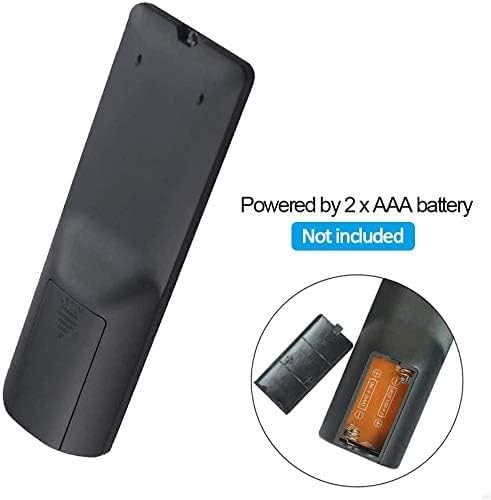
Figure 3.1: Battery installation for the MYPIN Infrared Remote Control. Ensure correct polarity when inserting two AAA batteries.
3.2 Compatibility
This remote control is designed exclusively for MYPIN 4K Media Players. It is compatible with models such as B07WPY8VKL and B07PGFCPTV. It may not function correctly with other brands or models of media players.
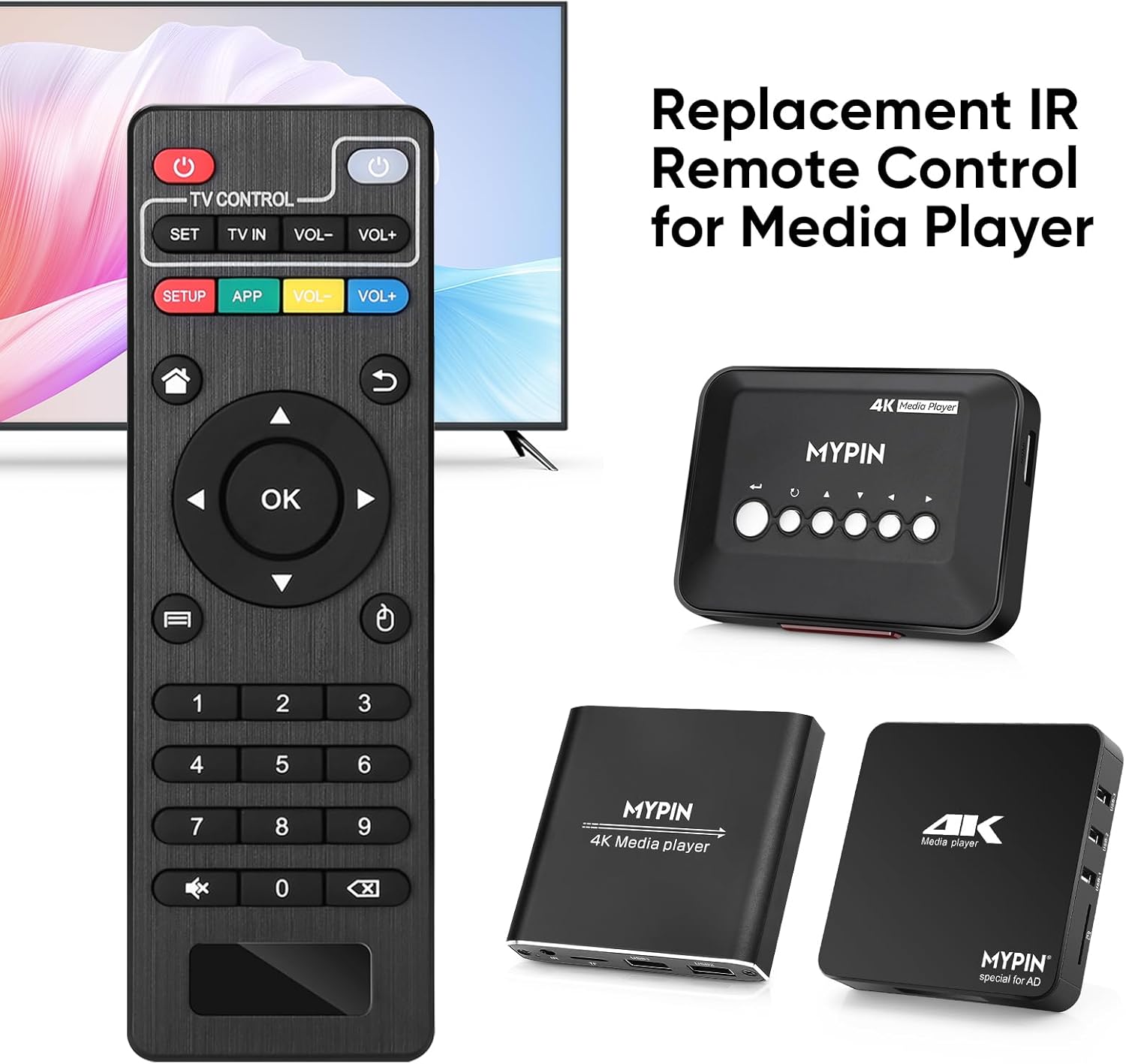
Figure 3.2: The MYPIN remote control shown with compatible MYPIN 4K Media Players.
3.3 Initial Connection
The MYPIN Infrared Remote Control operates via infrared (IR) signals. No pairing process is required. Simply point the remote control directly at the IR receiver of your MYPIN 4K Media Player. Ensure there are no obstructions between the remote and the media player.

Figure 3.3: Using the MYPIN remote control with an optional IR cable for discreet placement of the media player.
4. Operating Instructions
The MYPIN Infrared Remote Control features a standard layout for intuitive control of your media player. Below is a guide to its primary functions:

Figure 4.1: Key functional areas of the MYPIN Remote Control.
4.1 Button Functions
- Power Button (Red, Top Left): Turns the media player on or off.
- TV Control Section (Top Row):
- TV Learning Button (1): Used to program basic TV functions (e.g., TV Power, Volume). Refer to your TV's manual for learning remote functions.
- SET: Used for TV learning mode.
- TV IN: Switches TV input source.
- VOL- / VOL+: Adjusts TV volume.
- SETUP / APP / VOL- / VOL+ (Colored Buttons): These buttons provide quick access to specific media player functions or applications. Their exact function may vary depending on the media player's software.
- Home Button (House Icon): Returns to the main menu or home screen of the media player.
- Return/Back Button (Arrow Icon): Navigates back to the previous screen or menu.
- Direction Keys (2 - Up, Down, Left, Right): Navigates through menus and content. When playing videos or music, Up/Down typically selects previous/next track, and Left/Right performs fast backward/forward.
- OK Button (Center): Confirms selections or plays content.
- Menu Key (3 - Three Horizontal Lines Icon): Accesses context-sensitive menus or playback options.
- Number Pad (0-9): Used for direct input of numbers, such as channel selection or specific menu options.
- Mute Button (Crossed Speaker Icon): Mutes or unmutes the media player's audio.
- Context Menu Button (Box with Arrow Icon): Opens additional options or settings.

Figure 4.2: Accessing playback options using the Menu key on the MYPIN remote control.
5. Maintenance
5.1 Battery Replacement
When the remote control's performance degrades (e.g., reduced range, unresponsive buttons), it is likely time to replace the batteries. Follow the battery installation steps in Section 3.1 to replace the two AAA batteries.
5.2 Cleaning
To clean the remote control, gently wipe its surface with a soft, dry cloth. For stubborn dirt, slightly dampen the cloth with water or a mild, non-abrasive cleaner. Avoid using harsh chemicals or excessive moisture, as these can damage the remote's electronics.
5.3 Storage
Store the remote control in a cool, dry place away from direct sunlight and extreme temperatures. If the remote will not be used for an extended period, it is recommended to remove the batteries to prevent leakage and potential damage.
6. Troubleshooting
- Remote is unresponsive:
- Ensure fresh AAA batteries are correctly installed.
- Point the remote directly at the media player's IR receiver.
- Remove any obstructions between the remote and the media player.
- Check the operating distance; the remote has an infrared range of approximately 7 meters.
- If the remote initially seems unresponsive after battery installation, allow a short period for it to initialize, as some users have reported spontaneous functionality after a delay.
- Buttons not performing expected functions:
- Verify that the remote is compatible with your specific MYPIN media player model.
- Some buttons (e.g., SETUP, APP) may have functions determined by the media player's software and may not be universally assigned.
- TV Control buttons not working:
- Ensure you have successfully programmed the TV Learning Button functions according to your TV's instructions.
7. Specifications
| Feature | Detail |
|---|---|
| Connectivity Technology | Infrared (IR) |
| Compatible Devices | MYPIN media players (e.g., B07WPY8VKL, B07PGFCPTV) |
| Max Number of Supported Devices | 1 (for media player control) |
| Special Feature | Ergonomic design |
| Power Source | 2 x AAA batteries (not included) |
| Infrared Distance | Up to 7 meters |
| Infrared Angle | 30 degrees |
| Item Weight | 1.13 ounces |
| Package Dimensions | 5.43 x 1.81 x 0.71 inches |
| Model Number | B08CDNZMJG |
8. Warranty Information
MYPIN products are manufactured to high-quality standards. For specific warranty details regarding your remote control, please refer to the documentation included with your MYPIN 4K Media Player or visit the official MYPIN website. Keep your purchase receipt as proof of purchase for any warranty claims.
9. Support
If you encounter any issues not covered in this manual or require further assistance, please contact MYPIN customer support through the retailer where you purchased the product or visit the official MYPIN support website for contact information.


