
1. Introduction
The NetumScan NSR2 Mini Bluetooth Ring Barcode Scanner is a compact and portable device designed for efficient barcode scanning. Its ring-style design allows for hands-free operation, enhancing productivity in various environments such as warehouses, distribution centers, and retail stores. This scanner supports a wide range of barcode types and offers flexible connectivity options.
Key Features:
- Portable Ring Design: Wearable on the finger for comfortable, hands-free scanning.
- Wide Barcode Support: Reads 1D, 2D, QR, PDF417, and DataMatrix barcodes from both screens and paper.
- Versatile Connectivity: Connects to smartphones, tablets, and PCs via Bluetooth or USB.
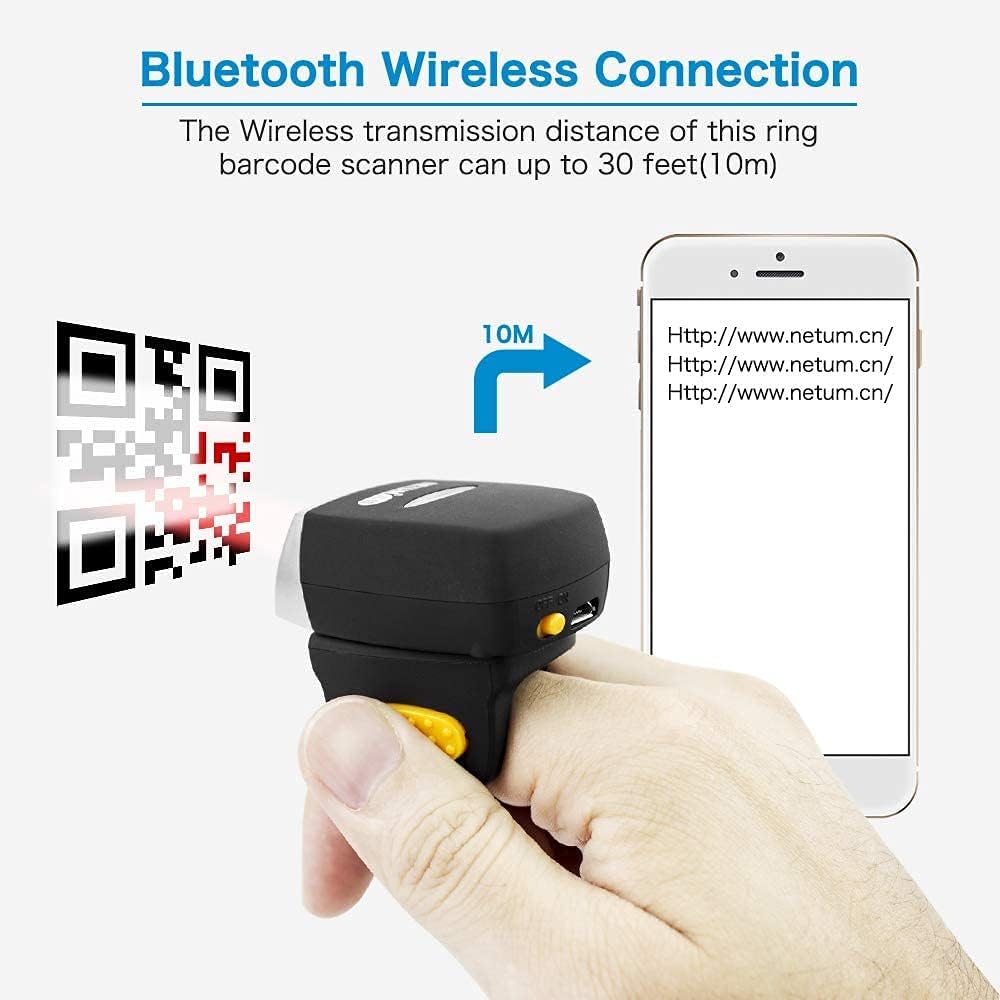
- Wireless Freedom: Bluetooth transmission distance up to 10 meters (30 feet).
- Long Battery Life: Up to 15 days of continuous work on a full charge.
- Two Upload Modes: Supports instant upload and storage mode with built-in flash memory for over 5,000 barcodes.

2. Product Components
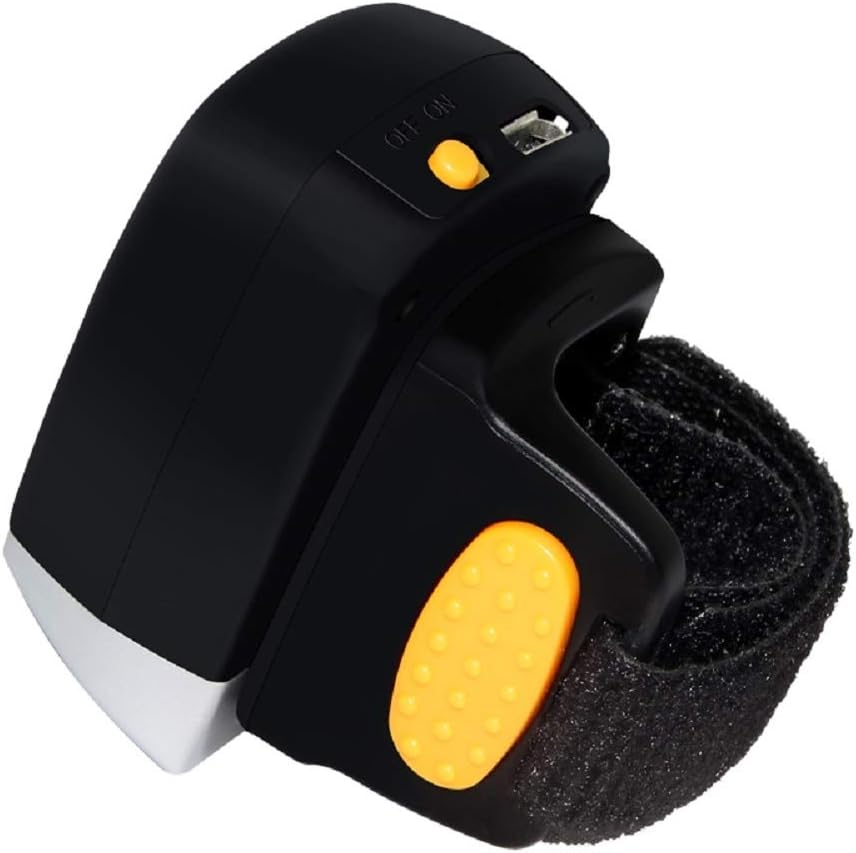
Familiarize yourself with the main parts of your NetumScan NSR2 scanner:
- Scan Window: Emits the scanning beam.
- Scan Button: Activates the scanning function.
- Power Switch (ON/OFF): Turns the device on or off.
- Micro USB Port: For charging and wired data connection.
- Indicator Lights: Provide status feedback (e.g., power, battery, connection).
- Adjustable Finger Strap: Secures the scanner to your finger.
3. Setup Guide
3.1 Charging the Scanner
- Connect the provided Micro USB cable to the scanner's Micro USB port.
- Connect the other end of the USB cable to a power source (e.g., computer USB port, USB wall adapter).
- The indicator light will show charging status. A full charge typically takes a few hours.
3.2 Powering On/Off
- To power on, slide the ON/OFF switch to the "ON" position. The scanner will emit a beep and the indicator light will turn on.
- To power off, slide the ON/OFF switch to the "OFF" position.
3.3 Bluetooth Pairing
The NSR2 scanner can connect wirelessly via Bluetooth to various devices.
- Ensure the scanner is powered on.
- On your host device (smartphone, tablet, PC), enable Bluetooth and search for available devices.
- Select "RT CCD Scanner" or a similar name from the list of found devices to pair.
- Once paired, the scanner will beep, and the Bluetooth indicator light will stabilize.

3.4 USB Wired Connection
For a direct connection, use the provided USB cable:
- Connect the scanner to your computer using the Micro USB cable.
- The scanner will be recognized as a HID keyboard device. No special drivers are usually required.
4. Operating Instructions
4.1 Wearing the Scanner
The adjustable finger strap allows you to wear the scanner comfortably on your finger, freeing your hands for other tasks. The scanner head can be rotated to suit left or right-hand use.

4.2 Scanning Barcodes
- Point the scan window towards the barcode you wish to scan.
- Press the scan button. A red laser line will appear.
- Ensure the laser line crosses the entire barcode. A successful scan will be indicated by a beep and the data being transmitted to your connected device.
The NSR2 supports various barcode types including 1D (e.g., UPC/EAN, Code 128), 2D (e.g., QR Code, Data Matrix), and PDF417.

4.3 Data Upload Modes
The scanner offers two primary data upload modes:
- Instant Upload Mode: Barcode data is transmitted immediately to the connected device after each successful scan. This is the default mode.
- Storage Mode: Barcode data is stored in the scanner's internal memory. You can upload the stored data to your device later when needed. The scanner can store over 5,000 barcodes.
To switch between modes, refer to the specific barcode commands in the full user manual provided with your product or available on the NetumScan website. Scan the appropriate configuration barcode to change the mode.
4.4 Advanced Settings
The scanner's behavior can be customized by scanning special configuration barcodes. These settings include:
- Enabling/disabling the beep sound.
- Adjusting volume.
- Setting keyboard language/layout.
- Adding prefixes or suffixes to scanned data.
Refer to the detailed configuration guide (usually a separate booklet or PDF) for a complete list of settings and their corresponding barcodes.
5. Maintenance
5.1 Cleaning
- Use a soft, dry cloth to clean the exterior of the scanner.
- For the scan window, use a clean, lint-free cloth lightly dampened with water or a mild glass cleaner. Avoid abrasive materials or harsh chemicals.
- Ensure no liquid enters the device.
5.2 Battery Care
- Charge the scanner regularly, even if not in frequent use, to maintain battery health.
- Avoid fully discharging the battery frequently.
- Store the scanner in a cool, dry place when not in use for extended periods.
6. Troubleshooting
| Problem | Possible Cause | Solution |
|---|---|---|
| Scanner does not power on. | Low battery or power switch is off. | Charge the scanner. Ensure the power switch is in the "ON" position. |
| Cannot connect via Bluetooth. | Bluetooth not enabled on host device, scanner not in pairing mode, or out of range. | Ensure Bluetooth is enabled on your device. Restart the scanner. Move closer to the host device. Re-initiate pairing process. |
| Scanner does not read barcodes. | Barcode damaged, incorrect barcode type enabled, or scan window is dirty. | Ensure the barcode is clear and undamaged. Verify the scanner supports the barcode type. Clean the scan window. |
| Scanned data is incorrect or garbled. | Incorrect keyboard layout setting. | Scan the appropriate configuration barcode from the manual to set the correct keyboard layout for your region/device. |
| Data not transmitting in Instant Upload Mode. | Scanner is in Storage Mode or not properly connected. | Scan the configuration barcode to switch to Instant Upload Mode. Verify Bluetooth or USB connection. |
7. Specifications
| Feature | Detail |
|---|---|
| Brand | NetumScan |
| Model Number | NSR2 |
| Connectivity Technology | Bluetooth, USB (Wired/Wireless) |
| Compatible Devices | Computer, Laptop, Smartphone, Tablet |
| Operating System Compatibility | Windows, Mac OS, Android 4.0+, iOS |
| Barcode Types Supported | 1D, 2D, QR, PDF417, DataMatrix |
| Scan Rate | 100 Scans/Minute |
| Battery Type | Lithium-ion |
| Power Source | Battery Powered |
| Wireless Transmission Distance | Up to 10 meters (30 feet) |
| Internal Storage | Supports storage of over 5,000 barcodes |
8. Warranty and Support
8.1 Warranty Information
NetumScan products are manufactured to high-quality standards. For specific warranty terms and conditions, please refer to the warranty card included with your product or visit the official NetumScan website. Keep your proof of purchase for warranty claims.
8.2 Customer Support
If you encounter any issues or have questions regarding your NetumScan NSR2 scanner, please contact NetumScan customer support. Contact details can typically be found on the official NetumScan website or in the product packaging.
For the most up-to-date information and detailed guides, please visit the official NetumScan website: www.netum.cn


