
1. Introduction
Thank you for choosing the LAMPAOUS Smart Under Cabinet Lighting System. This product is designed to provide versatile and intelligent illumination for your home, offering both functional white light and vibrant RGB colors. With smart control features, you can easily manage your lighting experience via a smartphone application or voice commands through compatible smart assistants.
2. Product Overview & Components
The LAMPAOUS Smart Under Cabinet Lighting System (6 Lights Bar Kit) includes the following components:
- 6 x LED Light Bars (12"L x 1.5"W x 0.35"H each)
- 1 x Power Adapter
- 1 x Smart Control Box
- Extension Cords (various lengths)
- Mounting Hardware (adhesive tape and screws/clips)
3. Setup
3.1 Initial Connection
- Connect the LED light bars to the Smart Control Box using the provided cables. Ensure all connections are secure.
- Connect the Power Adapter to the Smart Control Box.
- Plug the Power Adapter into a standard electrical outlet. The lights should illuminate.
3.2 App Installation and Pairing
- Download the 'Smart Life' application from your smartphone's app store (available on iOS and Android).
- Register or log in to your Smart Life account.
- In the app, tap '+' to add a new device. Follow the on-screen instructions to put the lighting system into pairing mode (usually by cycling power or pressing a button on the control box).
- Select the lighting device from the app's discovery list and complete the pairing process. Ensure your Wi-Fi network is 2.4GHz, as the device may not support 5GHz networks.
4. Operating Instructions
4.1 App Control
The Smart Life app allows comprehensive control over your lighting system from anywhere. You can manage individual lights or group them for synchronized control.
- On/Off: Toggle the power for the lights.
- Brightness Adjustment: Adjust the light intensity from 0% to 100%.
- Color Selection: Choose from over 16 million RGB colors.
- Color Temperature: Adjust white light from 2700K (warm white) to 6500K (cool white).
- Scene Modes: Select pre-set lighting scenes or create custom ones.
- Scheduling: Set timers for lights to turn on/off at specific times.

4.2 Voice Control
The lighting system is compatible with Amazon Alexa and Google Assistant, allowing for hands-free control.
- Linking: Link your Smart Life account to your Alexa or Google Home app.
- Commands: Use voice commands such as "Alexa, turn on kitchen lights" or "Hey Google, set cabinet lights to blue."

4.3 Color and Brightness Adjustment
The RGBCW design allows for both rich colored lighting and high-quality white light. The white light is produced by dedicated white LEDs (CRI > 85), not a mix of RGB colors, ensuring accurate and bright illumination.

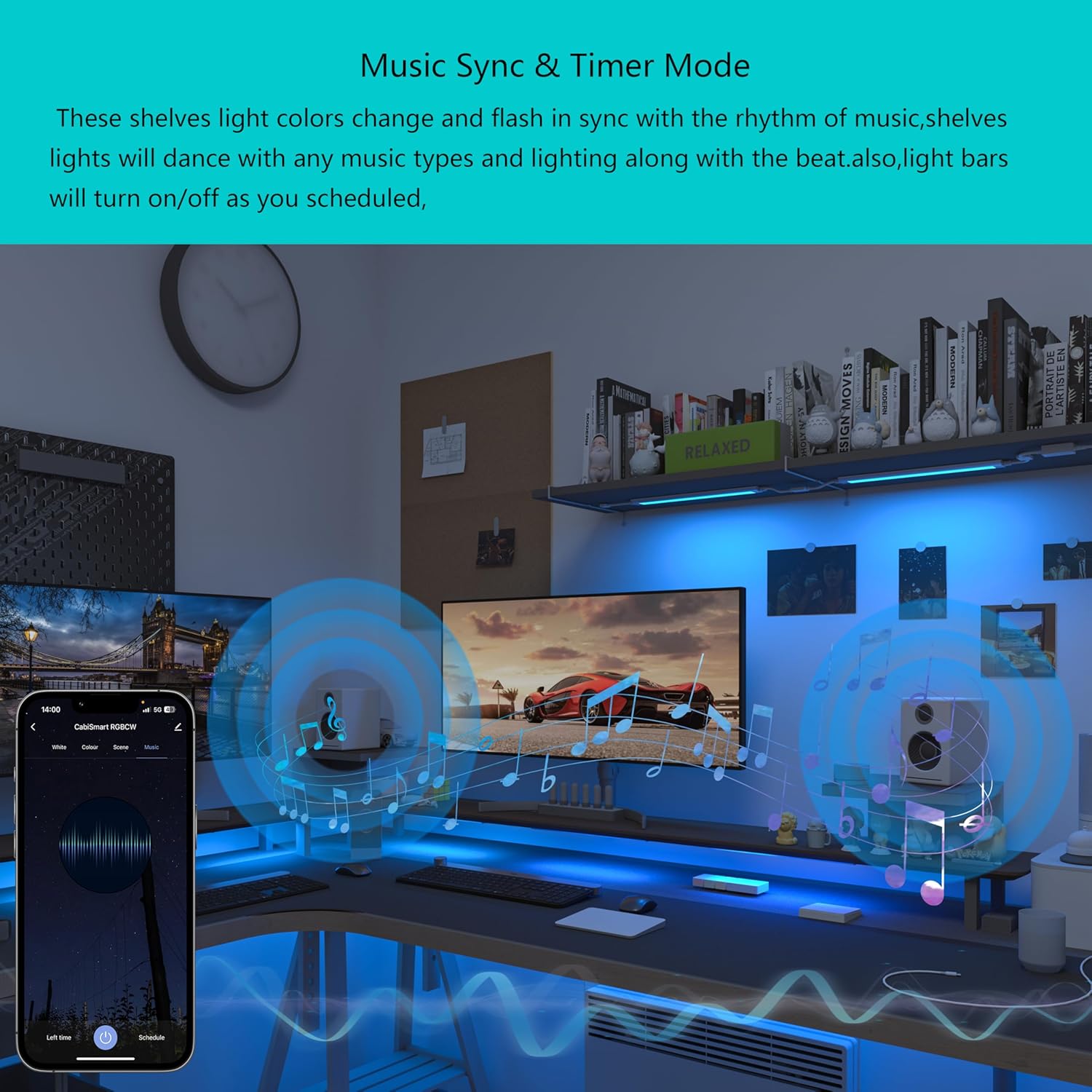
4.4 Music Sync & Timer Mode
Enhance your environment with dynamic lighting effects that respond to music or automate your lighting schedule.
- Music Sync: The lights can change color and flash in sync with the rhythm of music played nearby or through the app.
- Timer Mode: Program your lights to turn on or off at specific times, providing convenience and energy savings.

5. Installation
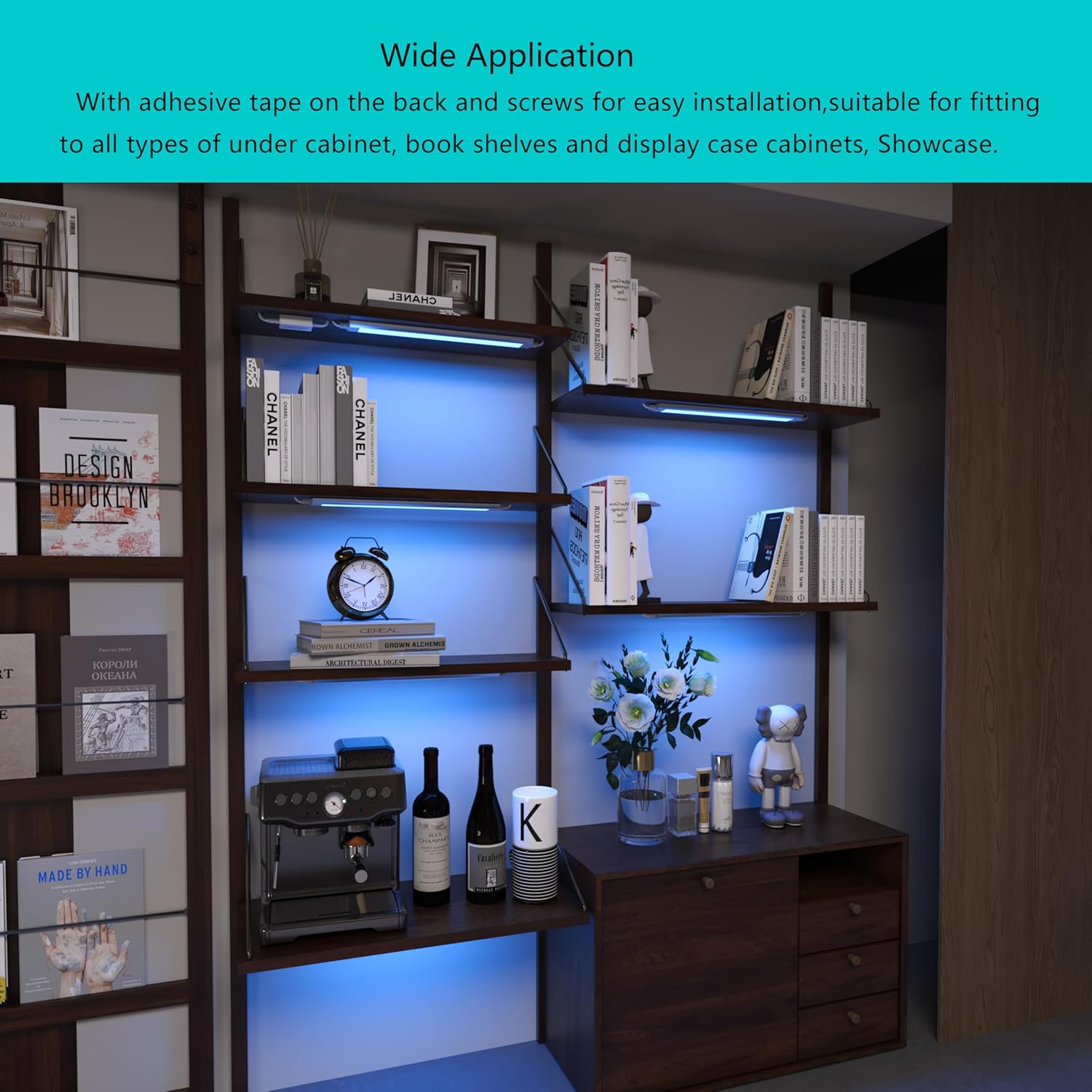
The lighting bars can be installed using either adhesive tape or screws and clips, offering flexibility for various surfaces.
5.1 Mounting Options
- Adhesive Tape: For smooth, clean surfaces, use the pre-applied adhesive tape on the back of each light bar. Ensure the surface is dry and free of dust or grease before application for optimal adhesion.
- Screws and Clips: For a more permanent installation or uneven surfaces, use the provided screws and clips. Mark the desired positions, drill pilot holes if necessary, and secure the clips before snapping the light bars into place.
5.2 Placement and Expansion
The LED light bars are linkable and expandable, allowing for flexible layouts to suit your specific needs, whether for cabinets, bookshelves, or display cases.

6. Maintenance
To ensure the longevity and optimal performance of your LAMPAOUS Smart Under Cabinet Lighting System, follow these simple maintenance guidelines:
- Cleaning: Gently wipe the light bars with a soft, dry cloth to remove dust. For stubborn marks, a slightly damp cloth can be used, but ensure the lights are unplugged and completely dry before reconnecting power.
- Avoid Harsh Chemicals: Do not use abrasive cleaners, solvents, or harsh chemicals, as these can damage the finish or electronic components.
- Inspect Connections: Periodically check all cable connections to ensure they remain secure and free from damage.
- Environmental Conditions: This product is designed for indoor use only and is not water resistant. Avoid exposure to excessive moisture or extreme temperatures.
7. Troubleshooting
If you encounter issues with your lighting system, please refer to the following common troubleshooting steps:
- Lights Not Turning On:
- Check if the power adapter is securely plugged into both the control box and the wall outlet.
- Ensure all light bar connections to the control box are firm.
- Verify the wall outlet is functional by plugging in another device.
- Lights Not Responding to App/Voice Control:
- Confirm your smartphone or smart assistant device is connected to the internet.
- Check if the lighting system is still connected to your Wi-Fi network (2.4GHz recommended).
- Restart the Smart Life app.
- Unplug the lighting system from power for 10 seconds, then plug it back in to reset.
- If the issue persists, try re-pairing the device with the Smart Life app.
- Incorrect Colors or Flickering:
- Ensure the app is updated to the latest version.
- Check for any loose connections between the light bars and the control box.
- Perform a power cycle (unplug and replug) to reset the system.
- Difficulty with Voice Assistant Integration:
- Verify that the Smart Life skill/service is enabled in your Alexa or Google Home app.
- Ensure the device names in Smart Life match those recognized by your voice assistant.
- Try re-discovering devices through your voice assistant app.
If these steps do not resolve the issue, please contact LAMPAOUS customer support for further assistance.
8. Specifications
| Feature | Specification |
|---|---|
| Brand | LAMPAOUS |
| Model Number | YF-P-CA-06 |
| Product Dimensions | 12"L x 1.5"W x 0.35"H (each light bar) |
| Item Weight | 2.49 Pounds (total kit) |
| Material | Aluminum |
| Light Source Type | LED |
| Number of Light Sources | 6 |
| Color | White (2700-6500K adjustable) and Multi Color (Over 16 million colors) |
| Brightness | 2000 Lumens |
| Color Rendering Index (CRI) | 85.00 |
| Voltage | 12 Volts |
| Wattage | 12 Watts |
| Control Method | App, Voice |
| Connectivity Protocol | Wi-Fi |
| Installation Type | Flush Mount, Under Cabinet |
| Indoor/Outdoor Usage | Indoor |
| Water Resistance Level | Not Water Resistant |

9. Warranty & Support
LAMPAOUS products are manufactured to high-quality standards. For information regarding warranty coverage, technical support, or replacement parts, please refer to the contact information provided with your product packaging or visit the official LAMPAOUS website. Please have your model number (YF-P-CA-06) and purchase details ready when contacting support.


