
1. Product Overview
The Airties Air 4921 Smart AT&T Wi-Fi Extender is designed to expand your home Wi-Fi coverage, reducing signal weak spots and dead zones. It utilizes mesh technology to ensure a strong and stable wireless connection throughout your home.
Key Features:
- Enhanced Coverage: Extends Wi-Fi signal to cover larger areas.
- High Performance: Supports up to 1600Mbps dual-band 802.11ac wireless speeds.
- Mesh Technology: Creates a seamless Wi-Fi network for uninterrupted connectivity.
- Intelligent Client and Band Steering: Automatically connects devices to the optimal band and extender for best performance.
- Easy Setup: Quick configuration via the Smart Home Manager app.
- Gigabit Ethernet Port: Provides a wired connection option for devices requiring higher speeds.
Compatibility:
This extender requires an AT&T Internet subscription and is compatible with the following AT&T Wi-Fi gateway models: 5268AC, BGW210, BGW320, or NVG599. It is not compatible with AT&T Fixed Wireless Internet.
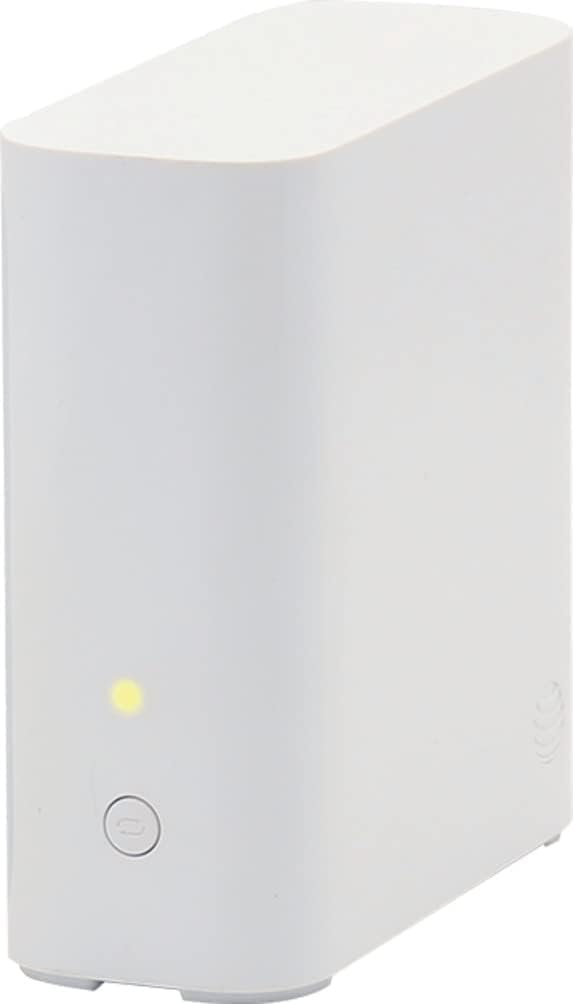
Figure 1: Front view of the Airties Air 4921 Smart AT&T Wi-Fi Extender, showing its compact white design and a single indicator light.
2. Product Components
The Airties Air 4921 Smart AT&T Wi-Fi Extender package typically includes:
- Airties Air 4921 Wi-Fi Extender Unit
- Power Adapter
- Ethernet Cable (Yellow)
- Quick Start Guide
Extender Ports and Indicators:

Figure 2: Rear view of the Airties Air 4921 Smart AT&T Wi-Fi Extender, highlighting the Ethernet ports, power input, and reset button.
- Ethernet Ports (1 & 2): For wired connections to devices or your gateway.
- Power Input: Connects to the power adapter.
- Power Button: To turn the device on/off.
- Reset Button: Used to restore factory default settings (requires a paperclip or similar tool).
- Indicator Light (Front): Displays the status of the extender (e.g., connection strength, power).
3. Setup
Follow these steps to set up your Airties Air 4921 Wi-Fi Extender:
Initial Placement:
Place the extender in a central location within your home, ideally halfway between your AT&T Wi-Fi gateway and the area with weak signal. Ensure it is within range of your gateway for optimal performance.

Figure 3: An illustration demonstrating recommended placement of the Wi-Fi Extender relative to the existing Wi-Fi Gateway to expand coverage.
Power On:
- Plug the power adapter into the extender's power input and then into a wall outlet.
- Press the Power button. The front indicator light will illuminate.
Connection via WPS (Recommended):
The easiest way to connect your extender is using the WPS (Wi-Fi Protected Setup) button:
- Ensure your AT&T Wi-Fi gateway is powered on and its Wi-Fi is active.
- Press the WPS button on your AT&T Wi-Fi gateway.
- Within two minutes, press the WPS button on your Airties Air 4921 extender.
- The indicator light on the extender will change to solid green, indicating a successful connection.
Connection via Smart Home Manager App:
Alternatively, you can use the AT&T Smart Home Manager app for guided setup:
- Download and open the AT&T Smart Home Manager app on your smartphone or tablet.
- Log in with your AT&T Internet credentials.
- Follow the in-app instructions to add and configure your Smart Wi-Fi Extender. The app will guide you through placement and connection.
Video 1: A step-by-step guide on how to set up the Airties AT&T Wi-Fi Extender, demonstrating the connection process.
4. Operating
Once set up, your Airties Air 4921 Extender will seamlessly integrate with your existing AT&T Wi-Fi network.
Mesh Network Functionality:
The extender creates a single, unified Wi-Fi network with your AT&T gateway. Your devices will automatically connect to the strongest signal, whether from the gateway or the extender, as you move around your home. This ensures uninterrupted streaming and browsing.
Managing Your Network:
Use the AT&T Smart Home Manager app to:
- View connected devices.
- Monitor network performance.
- Personalize Wi-Fi settings.
- Locate and fix weak Wi-Fi areas.
5. Maintenance
To ensure optimal performance and longevity of your Airties Air 4921 Extender:
- Keep Clean: Regularly dust the device to prevent overheating.
- Ventilation: Ensure the extender is placed in a well-ventilated area, away from obstructions that could block airflow.
- Firmware Updates: The device typically receives automatic firmware updates. Ensure it remains connected to the internet to receive these updates, which improve performance and security.
- Power Cycle: If you experience minor connectivity issues, try unplugging the extender from the power outlet for 10 seconds and then plugging it back in.
6. Troubleshooting
If you encounter issues with your Airties Air 4921 Extender, try the following:
No Connection / Weak Signal:
- Relocate Extender: Use the Smart Home Manager app to identify areas with weak Wi-Fi and reposition the extender closer to your AT&T gateway or in a more central location.
- Check Gateway: Ensure your AT&T Wi-Fi gateway is functioning correctly and its Wi-Fi is enabled.
- WPS Re-sync: If the extender loses connection after a power outage, try pressing the WPS button on both the gateway and the extender again to re-establish the connection.
Device Not Connecting:
- Compatibility: Verify that your AT&T Wi-Fi gateway model is listed as compatible (5268AC, BGW210, BGW320, NVG599).
- Restart Devices: Restart both your AT&T gateway and the Airties extender.
- Factory Reset: If all else fails, perform a factory reset on the extender by pressing and holding the Reset button for 10-15 seconds until the indicator light changes. Then, repeat the setup process.
7. Specifications
| Feature | Detail |
|---|---|
| Model Name | Airties 4921 |
| Wireless Communication Standard | 802.11ac |
| Frequency Band Class | Dual-Band |
| Connectivity Technology | Wireless |
| Antenna Type | Internal |
| Color | White |
| Item Weight | 1.06 pounds |
| Package Dimensions | 10.75 x 7.28 x 2.24 inches |
| Security Protocol | WPA2-PSK |
| Operating System | RouterOS |
8. Warranty and Support
This product is listed as an "Amazon Renewed" item. Amazon Renewed products are tested and certified to look and work like new. The refurbishing process typically includes functionality testing, cleaning, inspection, and repackaging. The product ships with all relevant accessories.
For specific warranty details and support, please refer to the documentation provided with your renewed product or contact Amazon Renewed customer service. For technical support related to AT&T services or the Smart Home Manager app, please contact AT&T customer support.
Video 2: A brief product overview video from Amazon Product Imaging, showcasing the Airties Air 4921 Smart AT&T Wi-Fi Extender.


