
1. Introduction
This manual provides comprehensive instructions for the installation, operation, and maintenance of the VIVOTEK IB9371-EHT 3MP Outdoor Network Bullet Camera. Please read this manual thoroughly before installation and retain it for future reference.
The VIVOTEK IB9371-EHT is a professional H.265 high-efficiency outdoor bullet network camera designed for robust surveillance in challenging environments. It offers 3-Megapixel resolution at 30 frames per second, incorporating advanced features such as WDR Pro, SNV, and Smart Stream II technology for optimized image quality and bandwidth efficiency.
2. Key Features
- High Resolution: 3-Megapixel sensor (2048x1536) at 30 frames per second.
- Advanced Compression: H.265 technology for efficient video compression.
- Smart Stream II: Optimizes bandwidth usage by focusing on regions of interest.
- WDR Pro: Ensures clear image visibility in high-contrast lighting conditions.
- SNV (Supreme Night Visibility): Enhances low-light performance.
- Extreme Weather Protection: IP66-rated housing for dust and water resistance.
- Vandal Resistance: IK10-rated housing for protection against impacts.
- PoE Support: Power over Ethernet for simplified installation.
- Wide Operating Temperature: Reliable performance in extreme cold and warm weather.
- Corridor View: Video rotation feature for optimized vertical surveillance areas.
3. Package Contents
Please verify that all items are present and in good condition upon unpacking.
- VIVOTEK IB9371-EHT Network Camera
- Installation Guide
- Accessory Pack (screws, wall plugs, waterproof connectors)
- Alignment Sticker

Figure 1: VIVOTEK IB9371-EHT Network Camera. This image displays the main unit of the VIVOTEK IB9371-EHT bullet camera, showing its cylindrical body, lens, and integrated cable harness for power and network connections.
4. Setup and Installation
4.1 Safety Precautions
- Ensure power is disconnected before installation or maintenance.
- Installation should be performed by qualified personnel in accordance with local codes.
- Do not expose the camera to extreme temperatures outside its operating range.
- Use only VIVOTEK-approved accessories.
4.2 Mounting the Camera
- Select Location: Choose a suitable outdoor location that provides the desired surveillance coverage and is within reach of network cabling.
- Prepare Surface: Use the provided alignment sticker to mark drilling points on the mounting surface.
- Drill Holes: Drill pilot holes and insert wall plugs if necessary.
- Secure Camera: Attach the camera's mounting bracket to the surface using the supplied screws. Ensure it is securely fastened.
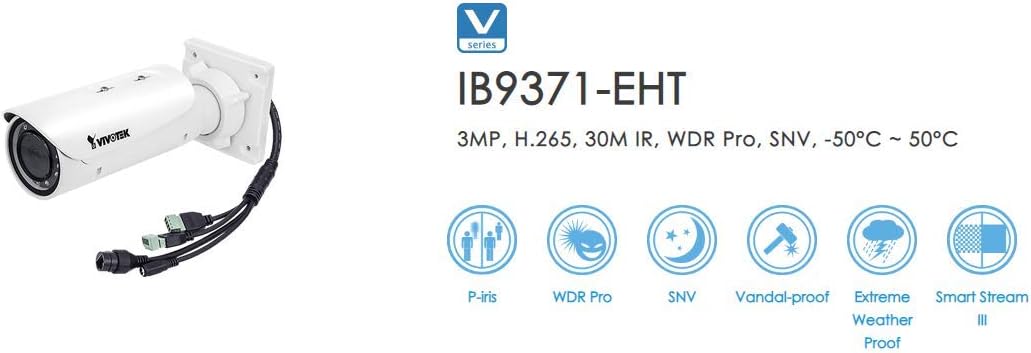
Figure 2: VIVOTEK IB9371-EHT with Feature Icons. This image illustrates the VIVOTEK IB9371-EHT camera alongside graphical icons representing its key features, such as P-iris, WDR Pro, SNV, Vandal-proof (IK10), Extreme Weather Proof (IP66), and Smart Stream III.
4.3 Network and Power Connection
The IB9371-EHT supports Power over Ethernet (PoE) for simplified installation, allowing both power and data to be transmitted over a single Ethernet cable.
- Connect Ethernet Cable: Connect a standard RJ45 Ethernet cable from your PoE-enabled network switch or PoE injector to the camera's RJ45 port. Use the provided waterproof connector for outdoor installations to ensure IP66 integrity.
- Alternative Power (if not using PoE): If PoE is not available, connect a 12V DC power adapter (sold separately) to the camera's power input.
- Verify Connection: Once connected, the camera's status indicator LED should illuminate, indicating power and network activity.
4.4 Initial Configuration
- Discover Camera: Use VIVOTEK's IP Search utility or a network scanner to find the camera's IP address on your network.
- Access Web Interface: Open a web browser and enter the camera's IP address.
- Login: Enter the default username and password (refer to the camera's quick installation guide for default credentials, typically "admin" / "password"). Change default credentials immediately for security.
- Basic Settings: Follow the on-screen wizard to configure basic settings such as network parameters, date/time, and video resolution.
5. Operation
5.1 Live View
After logging into the web interface, navigate to the "Live View" section to see the real-time video feed from the camera. You can adjust various display settings here.
5.2 Video Recording
The camera supports various recording options:
- Continuous Recording: Records video constantly.
- Event-Triggered Recording: Records when motion is detected or an alarm input is triggered.
- Scheduled Recording: Records during specified time periods.
Configure recording settings, including storage location (e.g., network attached storage, local SD card if supported), frame rate, and quality, in the "Recording" or "Storage" section of the web interface.
5.3 Advanced Settings
Explore the web interface for advanced configurations:
- Image Settings: Adjust brightness, contrast, saturation, sharpness, WDR Pro, and SNV.
- Network Settings: Configure IP address, DNS, port forwarding, and other network parameters.
- Event Management: Set up motion detection zones, tamper detection, and alarm actions (e.g., email notifications, FTP upload).
- User Management: Create and manage user accounts with different access privileges.
6. Maintenance
6.1 Cleaning
- Regularly clean the camera lens and housing with a soft, damp cloth to remove dust, dirt, or water spots.
- Do not use harsh chemicals or abrasive cleaners, as they may damage the lens coating or housing.
6.2 Firmware Updates
Periodically check the VIVOTEK official website for firmware updates. Keeping your camera's firmware up-to-date ensures optimal performance, security enhancements, and access to new features.
- Download the latest firmware from the VIVOTEK support page.
- Access the camera's web interface and navigate to the "System" or "Maintenance" section.
- Follow the instructions to upload and install the firmware. Do not power off the camera during the update process.
6.3 System Checks
- Verify network connectivity and video stream quality regularly.
- Check recording storage capacity and ensure recordings are being saved correctly.
- Inspect physical connections and cabling for any signs of wear or damage.
7. Troubleshooting
| Problem | Possible Cause | Solution |
|---|---|---|
| No video feed | No power; Network issue; Incorrect IP address | Check power connection (PoE or DC adapter); Verify Ethernet cable connection; Ensure camera is on the same network subnet; Use IP Search utility. |
| Poor image quality | Dirty lens; Incorrect focus; Low bandwidth; Lighting issues | Clean the lens; Adjust focus via web interface; Check network bandwidth; Enable WDR Pro/SNV in challenging lighting. |
| Cannot access web interface | Incorrect IP address; Network firewall; Browser compatibility | Verify IP address; Check firewall settings on PC and network; Try a different web browser; Reset camera to factory defaults if necessary. |
| Recording not working | Storage full; Incorrect recording settings; Network storage inaccessible | Check available storage space; Review recording schedules and event triggers; Verify network storage (NAS) connectivity and permissions. |
8. Specifications
| Feature | Detail |
|---|---|
| Model Number | IB9371-EHT |
| Image Sensor | 1/2.8" Progressive CMOS Sensor |
| Video Resolution | 3 MP (2048x1536) |
| Frame Rate | 30 fps @ 2048x1536 |
| Video Compression | H.265, H.264, MJPEG |
| WDR Technology | WDR Pro |
| Low Light Technology | SNV (Supreme Night Visibility), Day/Night functionality |
| Weather Resistance | IP66-rated (Dust and Water Proof) |
| Vandal Resistance | IK10-rated (Vandal-proof) |
| Power Source | PoE (Power over Ethernet) or AC/DC (12V DC) |
| Connectivity | RJ45 Ethernet, Wi-Fi |
| Operating Temperature | Wide operating temperature range |
| UPC | 738714004464 |
9. Warranty Information
VIVOTEK products are covered by a limited warranty. For detailed warranty terms and conditions, please refer to the official VIVOTEK website or the warranty card included with your product. Keep your proof of purchase for warranty claims.
10. Technical Support
For technical assistance, troubleshooting, or further inquiries, please contact VIVOTEK customer support through their official website. You can find FAQs, downloads, and contact information on the support section of www.vivotek.com.