
1. Introduction
The Mirabox HSV3217 Game Capture Card is a versatile device designed for capturing 1080P 60FPS HD audio and video. It facilitates live streaming, online video conferencing, and video recording across various platforms like Twitch, YouTube, and OBS. This device is compatible with a wide range of HDMI sources and computer operating systems.
2. What's in the Box
- Mirabox HSV3217 Capture Card
- USB3.1 Type-C to USB-A Cable
- USB3.1 Type-C to USB-C Cable
- User Manual
The package includes the capture card, necessary USB cables for connectivity, and this user manual to guide you through the setup and operation.
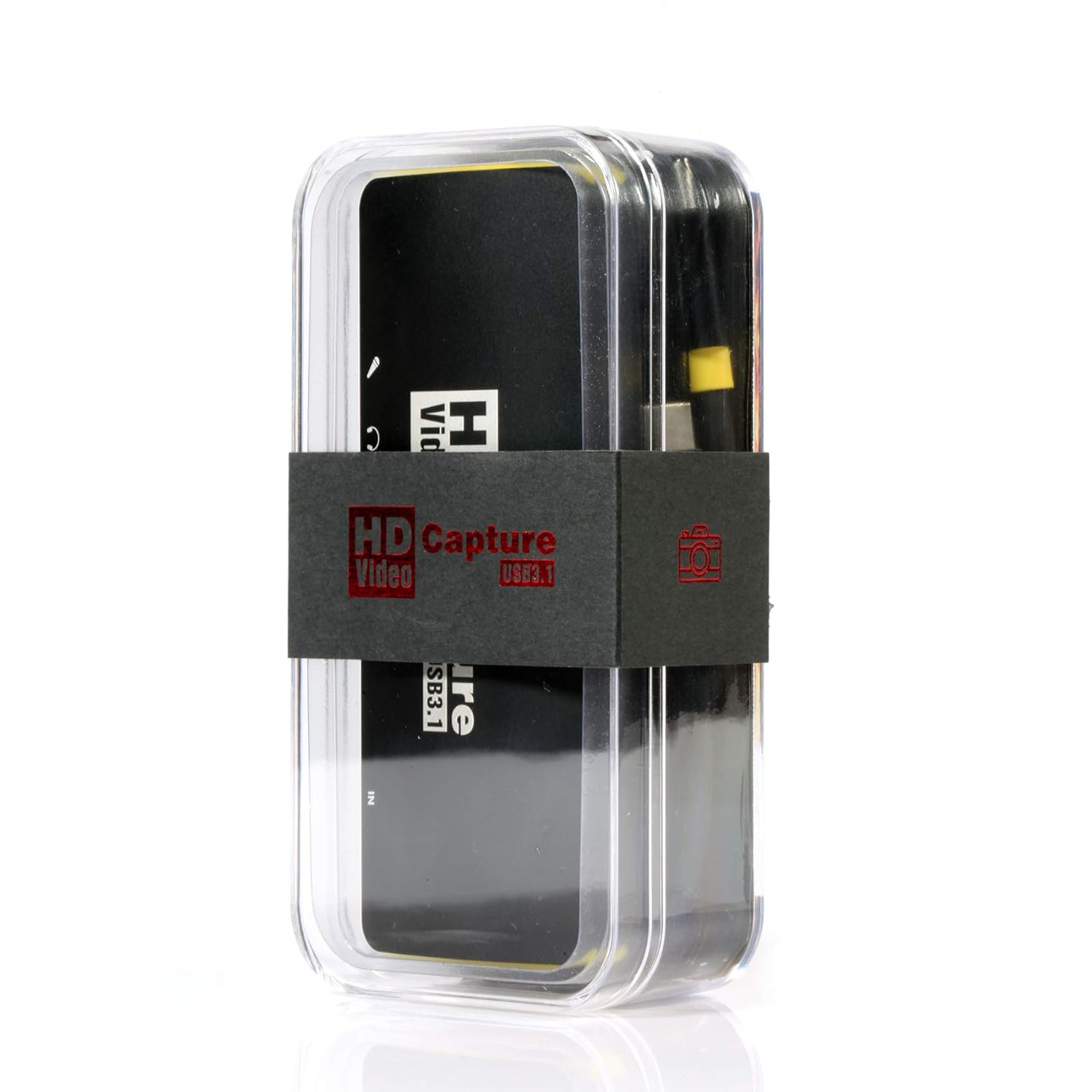
Image: Mirabox HSV3217 Capture Card and included accessories.
3. Device Overview
The Mirabox HSV3217 features multiple ports for seamless integration with your devices. Understanding each port is crucial for proper setup.

Image: Top-down view of the Mirabox HSV3217 Capture Card, highlighting its input and output ports.
Port Descriptions:
- HDMI In: Connect your video source (e.g., game console, camera) here.
- HDMI Out (Loop-out): Connect to a monitor or TV for zero-latency passthrough viewing.
- 3.5mm Microphone Input: Connect an external microphone to record your voice during streaming or recording.
- 3.5mm Audio Output: Connect headphones or speakers to monitor audio from the HDMI source.
- USB3.1 Type-C Output: Connect to your computer for data transfer and power.
4. Setup Guide
Follow these steps to set up your Mirabox HSV3217 Game Capture Card.
4.1 Connecting to Your Devices
- Connect HDMI Source: Use an HDMI cable to connect your game console (PS4, Xbox, Switch), camera, or other HDMI output device to the HDMI In port on the capture card.
- Connect Display (Optional): For zero-latency monitoring, connect an HDMI cable from the HDMI Out port on the capture card to your TV or monitor.
- Connect to Computer: Use the provided USB3.1 Type-C to USB-A or USB-C to USB-C cable to connect the capture card's USB3.1 Type-C Output port to an available USB3.0/3.1 port on your computer.
- Connect Audio Devices (Optional):
- For microphone input, connect your 3.5mm microphone to the 3.5mm Microphone Input port.
- For audio monitoring, connect your headphones or speakers to the 3.5mm Audio Output port.

Image: Connection diagram for the Mirabox HSV3217, illustrating how to connect it to a computer, display, and various input sources.
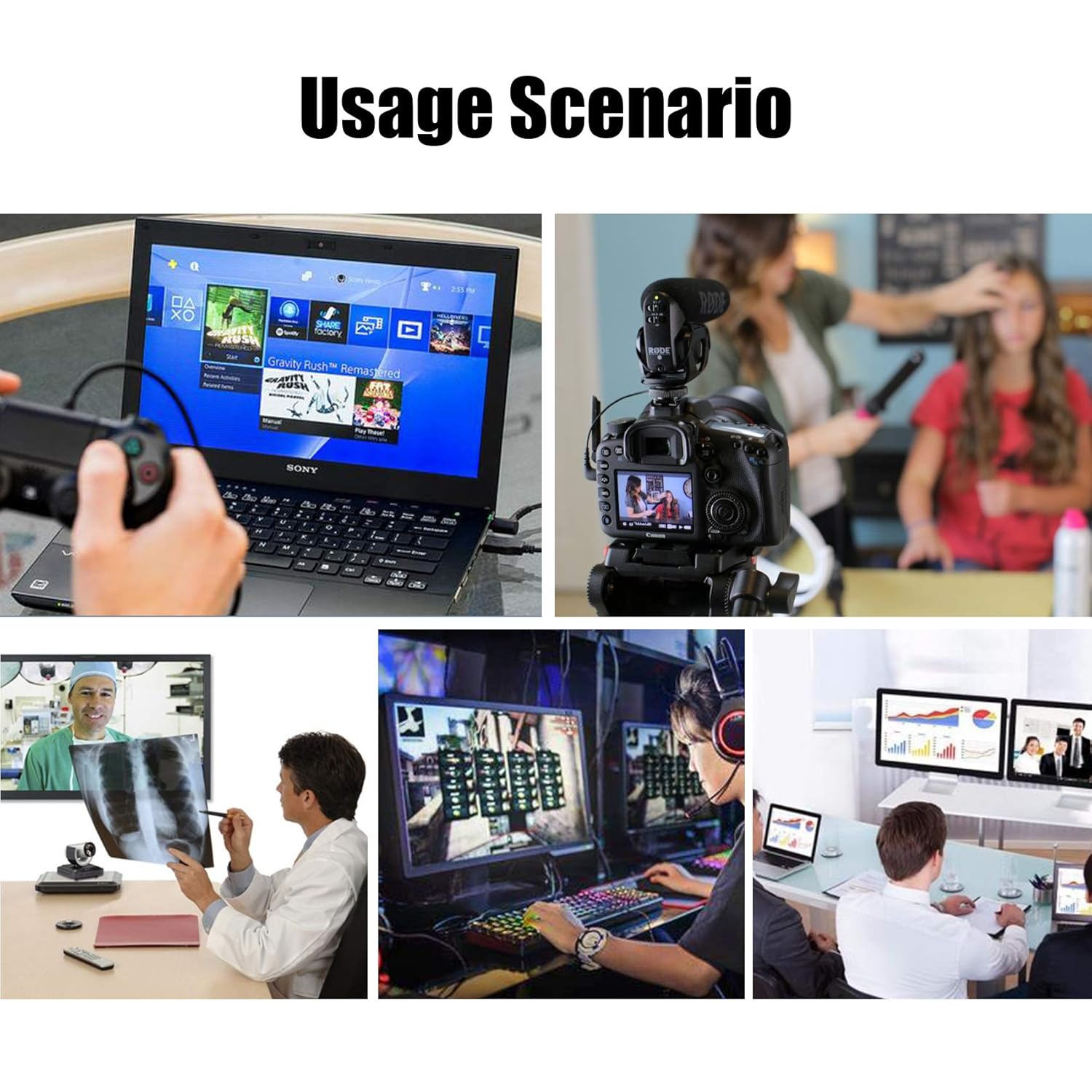
Image: Close-up of the Mirabox HSV3217 connected to a laptop via USB-C.

Image: The Mirabox HSV3217 with a microphone and headphones connected to its 3.5mm audio ports.
4.2 Driver Installation
The Mirabox HSV3217 is a plug-and-play device. No additional drivers are required for Windows 7/8/10, Mac OS, or Linux. Your computer should automatically recognize the device upon connection.
5. Operating Instructions
Once the hardware is connected, you can use various software applications to capture and stream your content.
5.1 Using with OBS Studio (Windows/Mac/Linux)
- Download and install OBS Studio if you haven't already.
- Open OBS Studio. In the "Sources" box, click the + icon.
- Select "Video Capture Device" for video input and "Audio Input Capture" for audio input.
- In the properties window for each, select "Mirabox Video Capture" from the device dropdown menu.
- Adjust video resolution, FPS, and audio settings as needed. Ensure 1080p 60fps is selected for optimal performance.
- Click "Start Recording" or "Start Streaming" to begin.
Video: Official Mirabox video demonstrating the USB3.1 USB C HDMI Game Capture Card. This video shows the product and its basic functionality, including connection to a computer and use with OBS Studio.
5.2 Using with QuickTime Player (Mac OS)
- Connect the capture card to your Mac.
- Open QuickTime Player. Go to File > New Movie Recording.
- Click the dropdown arrow next to the record button. Select "Mirabox Video Capture" for both Camera and Microphone inputs.
- Adjust quality settings if available. Click the record button to start capturing.
5.3 Using with Potplayer/VLC (Windows/Linux)
For direct viewing or basic recording, media players like Potplayer or VLC can be used:
- Open Potplayer or VLC.
- In Potplayer, go to Open > Open Device Settings. Select the capture card as your video and audio device.
- In VLC, go to Media > Open Capture Device. Select the capture card as your video and audio device.
- Click "Open" or "Play" to view the live feed. Recording options are available within these players.
6. Maintenance
To ensure the longevity and optimal performance of your Mirabox HSV3217 Game Capture Card, follow these maintenance guidelines:
- Cleaning: Use a soft, dry cloth to clean the device. Avoid liquid cleaners or solvents.
- Storage: Store the device in a cool, dry place away from direct sunlight and extreme temperatures.
- Handling: Handle the device with care. Avoid dropping it or subjecting it to strong impacts.
- Ventilation: Ensure the device has adequate ventilation during operation to prevent overheating.
7. Troubleshooting
If you encounter issues with your Mirabox HSV3217, refer to the following common troubleshooting tips:
- No Signal/Black Screen:
- Ensure all HDMI and USB cables are securely connected.
- Verify your HDMI source is powered on and outputting a signal.
- Check your software settings (OBS, QuickTime) to ensure the "Mirabox Video Capture" device is selected.
- Try a different HDMI cable or USB port on your computer.
- Audio Issues (No Sound/Static):
- Confirm the "Mirabox Video Capture" is selected as the audio input device in your software.
- Check volume levels in both your computer's sound settings and the capture software.
- If using an external microphone, ensure it is properly connected and selected.
- Some users report static with direct 3.5mm audio input; a ground loop noise isolator may be required.
- Device Overheating:
- It is normal for the device to get warm during extended use.
- Ensure adequate airflow around the device. Avoid placing it in enclosed spaces.
- If overheating causes performance issues, consider reducing the capture resolution or frame rate temporarily.
- 1080p 60fps Performance Issues:
- Ensure your computer meets the minimum system requirements for 1080p 60fps capture.
- Verify you are connected to a USB 3.0/3.1 port, as USB 2.0 may limit performance.
- Check software settings to confirm 1080p and 60fps are correctly selected.
- Close unnecessary applications to free up system resources.
8. Specifications
| Feature | Detail |
|---|---|
| Model Number | HSV3217 |
| Input Interface | HDMI In |
| Output Interface | USB3.1 Type-C, HDMI Out (Loop-out), 3.5mm Mic In, 3.5mm Audio Out |
| Max Capture Resolution | 1080P @ 60FPS |
| Compatibility | Windows 7/8/10, Mac OS, Linux |
| Supported Devices | Wii U, PS4, PS3, Xbox One, Xbox 360, Wii, Switch, DVD, Camera, ZOSI security camera, DSLR, Set-top box, etc. |
| Item Weight | 3.2 ounces |
| Dimensions | 5.98 x 3.86 x 0.87 inches |
9. Warranty and Support
Mirabox products are designed for reliability and performance. For specific warranty details and technical support, please refer to the official Mirabox website or contact their customer service directly.
- Warranty: Standard manufacturer's warranty applies. Please retain your proof of purchase.
- Technical Support: Visit the Mirabox Official Store on Amazon for support resources and contact information.
