
wansview 1201
Wansview W6 Outdoor Security Camera Instruction Manual
Model: 1201
Introduction
This manual provides detailed instructions for the installation, operation, and maintenance of your Wansview W6 1080P Wireless WiFi IP66 Waterproof Surveillance Home Camera. Please read this manual thoroughly before using the product to ensure proper functionality and safety.
The Wansview W6 camera is designed for outdoor surveillance, offering 1080P video resolution, motion detection, two-way audio, and compatibility with ONVIF, RTSP protocols, and Amazon Alexa. Its IP66 waterproof rating ensures reliable performance in various weather conditions.
Package Contents
Verify that all components are present in the package:
- Wansview W6 Outdoor Security Camera
- Power Adapter
- Mounting Screws and Wall Plugs
- Drill Template Sticker
- User Manual (this document)
- Ethernet Cable (optional, for wired connection)

Image: Wansview W6 Outdoor Security Camera, showing the main unit with antenna and mounting bracket.
Setup Guide
1. Download the Wansview Cloud App
Search for "Wansview Cloud" in your mobile device's app store (iOS or Android) and download the application. Create an account or log in if you already have one.
2. Power On the Camera
Connect the camera to a power outlet using the provided power adapter. The camera will power on and initiate its startup sequence.
3. Add Camera to App
Open the Wansview Cloud app. Tap the "+" icon to add a new device. Follow the on-screen prompts to select your camera model and connect it to your 2.4GHz Wi-Fi network. The app will generate a QR code; present this QR code to the camera lens for scanning. An audible voice from the camera will confirm successful connection.

Image: Close-up of the Wansview W6 camera showing the location of the micro SD card slot. The camera supports up to 128GB micro SD cards for local storage.
For local storage, insert a micro SD card (up to 128GB, not included) into the designated slot on the camera. Ensure the camera is powered off before inserting or removing the SD card.
Video: An official Wansview video demonstrating the features and setup of the Wansview 1080P IP66 Waterproof Outdoor Security WIFI Camera. This video highlights key functionalities such as two-way audio, local storage, and easy mounting.
4. Mounting the Camera
Select a suitable outdoor location for mounting. Use the provided drill template sticker to mark the drilling points. Drill holes, insert wall plugs, and secure the mounting bracket with screws. Attach the camera to the bracket and adjust its angle for optimal viewing. Ensure the power cable is routed safely and protected from the elements.
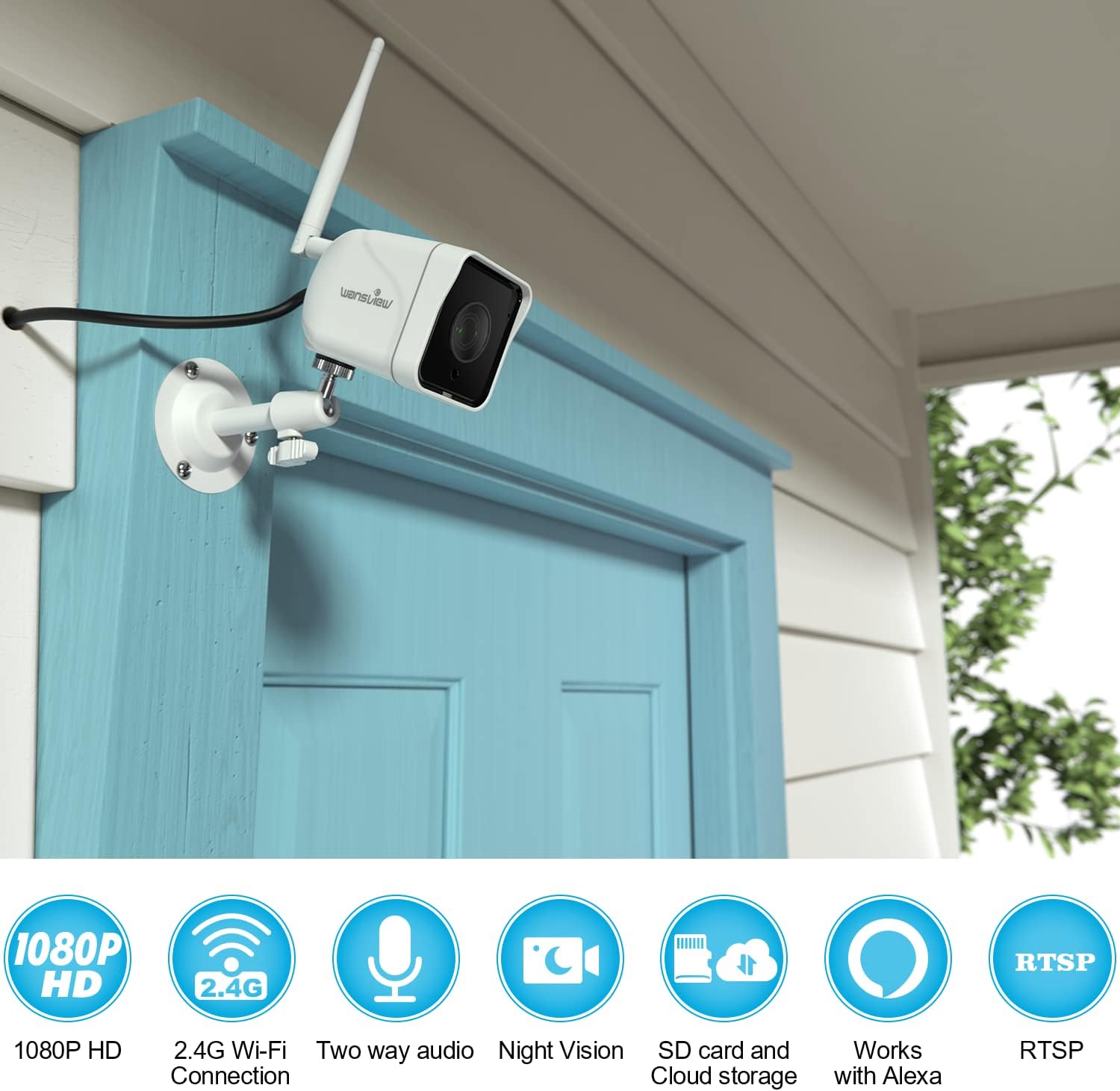
Image: The Wansview W6 camera installed on an exterior wall, demonstrating its outdoor placement and connectivity features like 1080P HD, 2.4G Wi-Fi, two-way audio, night vision, SD card and cloud storage, and RTSP compatibility.

Image: The Wansview W6 camera mounted on the exterior of a house, showcasing its IP66 waterproof rating and night vision capabilities, designed to guard your home 24/7 even in harsh weather conditions.
Operating Instructions
Live View and Recording
Access the live video feed through the Wansview Cloud app. You can manually record video or capture screenshots directly from the live view. Recordings can be stored on the inserted micro SD card or in the cloud (subscription may be required).
Motion Detection and Alerts
The camera features motion detection. Configure motion detection zones and sensitivity settings within the app. When motion is detected, the camera will automatically record and send real-time alert notifications to your mobile device.
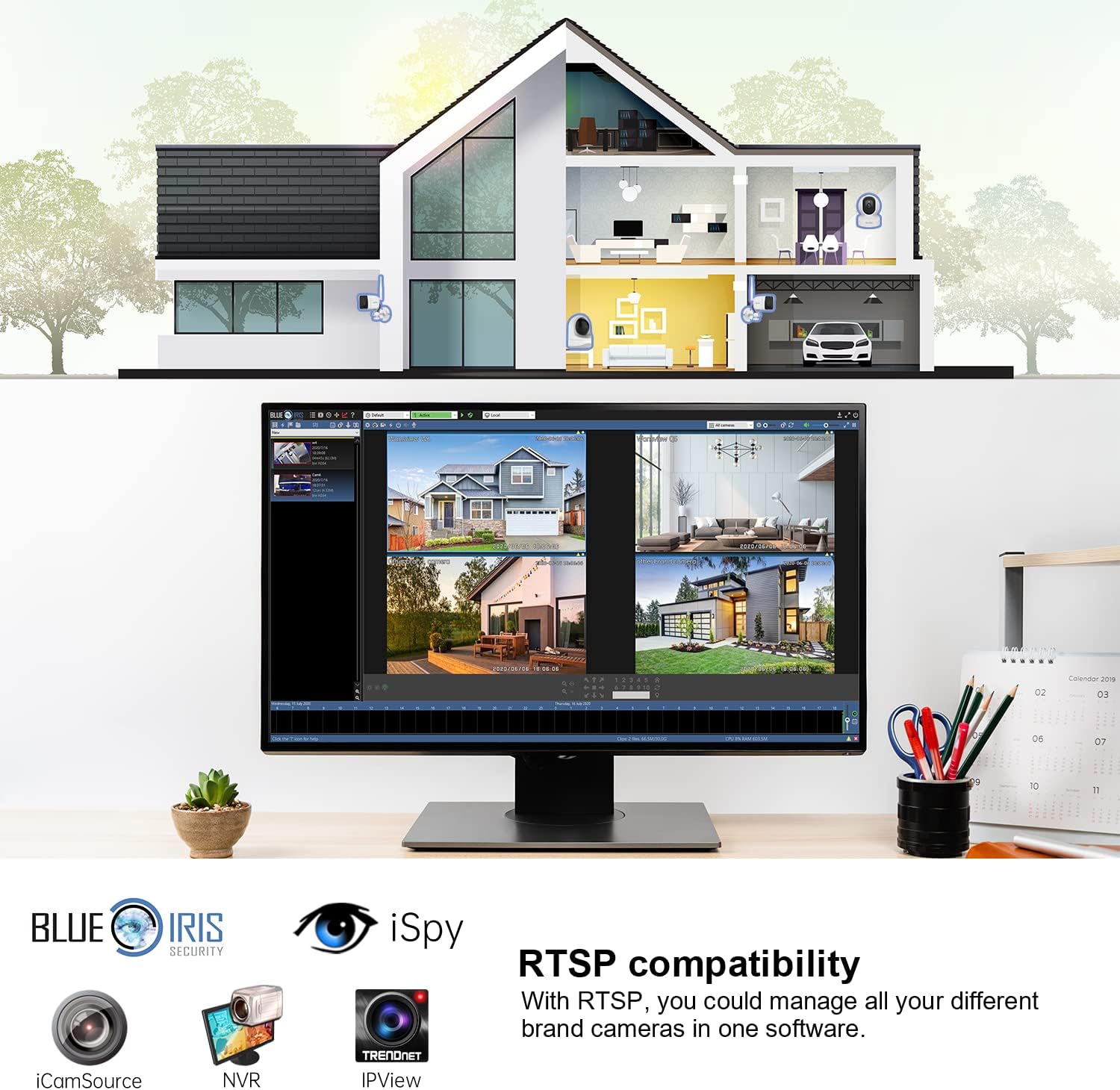
Image: The Wansview W6 camera capturing a motion event, demonstrating its two-way audio and real-time alert capabilities. Users can receive smart alerts and communicate through the camera to deter intruders.
Two-Way Audio
Utilize the built-in microphone and speaker for two-way communication. This allows you to hear what's happening near the camera and speak through the camera from your mobile device.
Night Vision
The camera automatically switches to infrared (IR) night vision in low-light conditions, providing clear black and white video up to a certain range. This ensures continuous surveillance day and night.

Image: A comparison of day mode and night mode views from the Wansview W6 camera, illustrating its effective infrared night vision for clear surveillance in darkness.
Multi-Screen Viewing and RTSP Compatibility
The Wansview Cloud app supports multi-screen viewing, allowing you to monitor multiple Wansview cameras simultaneously. The camera also supports ONVIF and RTSP protocols, enabling integration with third-party NVRs or surveillance software like Blue Iris Security, iCamSource, and iSpy for advanced management.
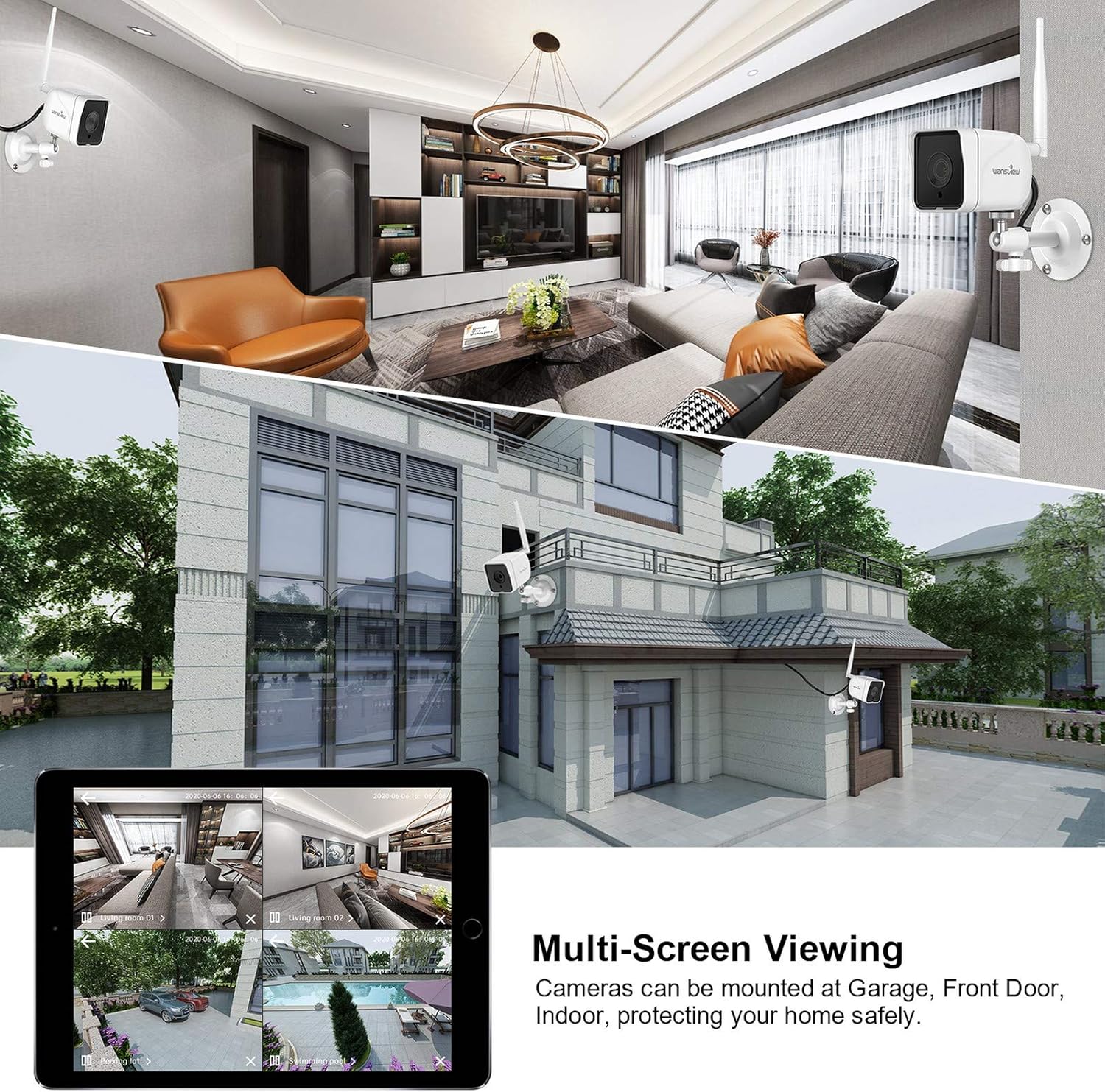
Image: A display showing multi-screen viewing from Wansview cameras, along with logos of compatible third-party software like Blue Iris Security, iCamSource, NVR, Trendnet, and IPView, highlighting its RTSP compatibility for centralized management.
Alexa Integration
The Wansview W6 camera is compatible with Amazon Alexa. You can use voice commands to view the camera feed on compatible Alexa-enabled devices with screens, such as an Echo Show.
Example command: "Alexa, show me the backyard camera."
Maintenance
- Cleaning: Regularly wipe the camera lens and body with a soft, damp cloth to remove dust and dirt. Do not use harsh chemicals or abrasive cleaners.
- Firmware Updates: Check the Wansview Cloud app periodically for firmware updates. Keeping the firmware updated ensures optimal performance and security.
- Cable Inspection: Periodically inspect the power cable and connections for any signs of wear, damage, or corrosion, especially in outdoor environments.
- SD Card Management: If using a micro SD card, regularly back up important recordings and format the card periodically to maintain performance and prevent data corruption.
Troubleshooting
| Problem | Possible Solution |
|---|---|
| Camera offline/Cannot connect to Wi-Fi |
|
| Poor video quality |
|
| Motion detection not working |
|
| Two-way audio issues |
|
Specifications
| Feature | Detail |
|---|---|
| Model | W6 (Item model number: 1201) |
| Video Capture Resolution | 1080p |
| Connectivity Technology | Wireless (Wi-Fi 2.4GHz) |
| Indoor/Outdoor Usage | Outdoor |
| International Protection Rating | IP66 (Waterproof) |
| Special Features | Motion Sensor, Night Vision, Two-Way Audio |
| Compatible Devices | Smartphone, Amazon Alexa-enabled devices |
| Storage Options | Micro SD Card (up to 128GB), Cloud Storage |
| Protocols Supported | ONVIF, RTSP |
| Power Source | Battery Powered |
| Item Weight | 1.04 pounds |
| Package Dimensions | 5.91 x 4.33 x 3.15 inches |
Warranty and Support
For warranty information and technical support, please refer to the official Wansview website or contact Wansview customer service directly. Contact details are typically available on the product packaging or the Wansview Cloud app's 'About Us' section.
Wansview is committed to providing reliable products and support. For frequently asked questions and further assistance, visit the Wansview Store on Amazon.
Related documents1201


Ask a question about this manual
Ask about setup, troubleshooting, compatibility, parts, safety, or missing instructions. Manuals+ will review the question and use this page’s manual context to help answer it.