
1. Introduction
The ANCEL BD310 is a versatile 2-in-1 diagnostic tool that functions as both an OBD2 code reader and an automotive trip computer. It offers the flexibility of a handheld device and wireless Bluetooth connectivity, transforming your iOS or Android device into a comprehensive diagnostic and performance monitoring system. This manual provides detailed instructions for its setup, operation, and maintenance.

Image 1.1: The ANCEL BD310 device, showing its display and control buttons, with the OBD2 connector cable.
2. What's Included
Upon unboxing your ANCEL BD310, verify that all components are present:
- 1 x ANCEL BD310 OBD2 Scanner
- 1 x EVA Protective Storage Bag
- 1 x USB Charging Cable (for device updates, not for operation)
- 1 x User Manual
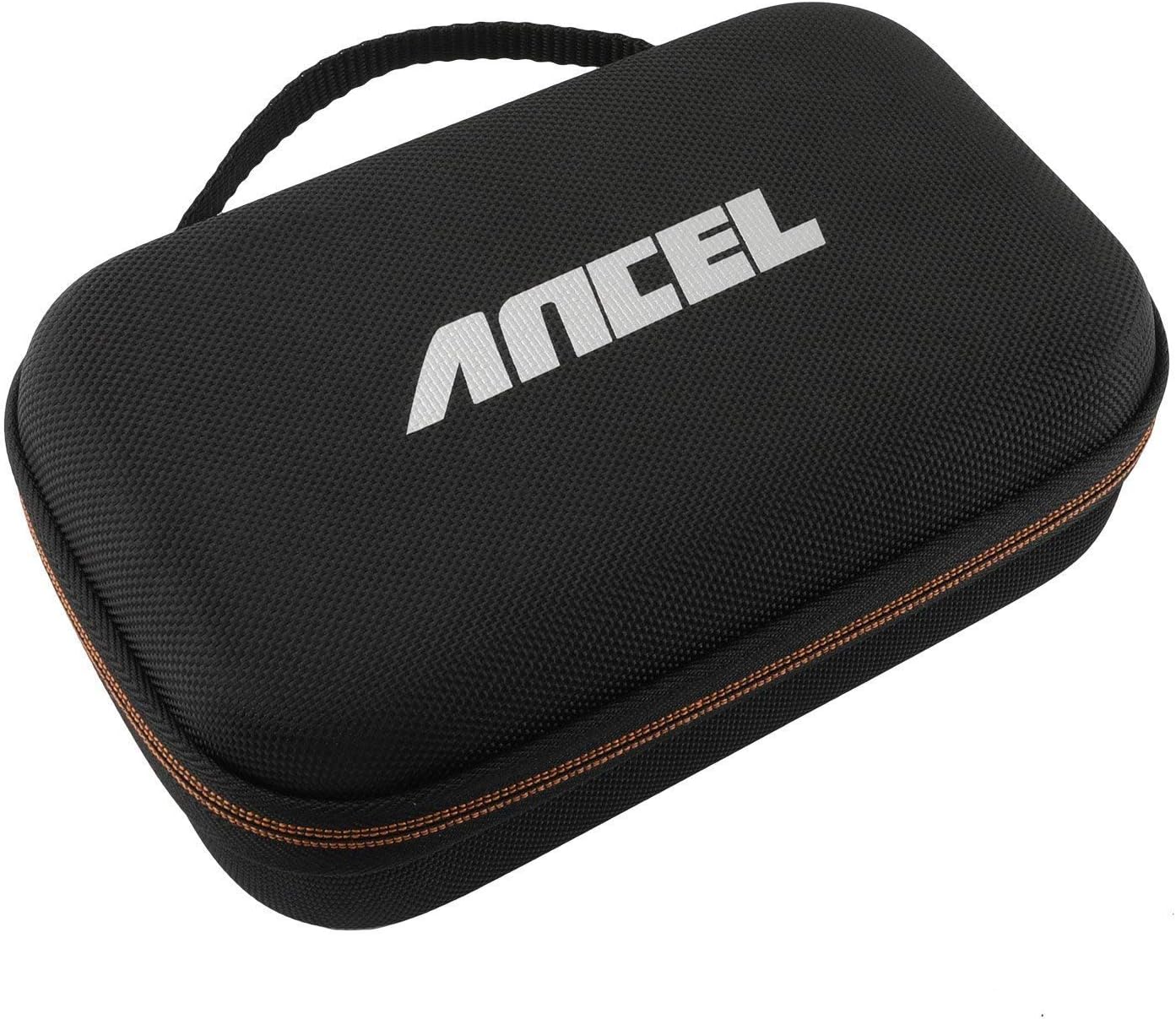
Image 2.1: The ANCEL protective EVA hard case, designed to store and protect the BD310 scanner and accessories.
3. Setup
3.1 Connecting the Device to Your Vehicle
- Locate the OBD2 port in your vehicle. This port is typically found under the dashboard on the driver's side, often near the steering column.
- Ensure the vehicle's ignition is in the "OFF" position.
- Plug the ANCEL BD310's OBD2 connector firmly into the vehicle's OBD2 port.
- Turn the vehicle's ignition to the "ON" position (engine can be off or running, depending on the desired diagnostic function). The BD310 device will power on automatically.
3.2 Bluetooth Connection (for App Functionality)
To utilize the advanced features of the ANCEL app, connect the BD310 via Bluetooth:
- Download the official ANCEL app from the Apple App Store (for iOS devices) or Google Play Store (for Android devices).
- Ensure Bluetooth is enabled on your mobile device.
- On the BD310 device, navigate to the Bluetooth mode or press the designated button to activate Bluetooth pairing.
- Open the ANCEL app on your mobile device and follow the on-screen instructions to connect to the BD310. The app will typically detect the device automatically.
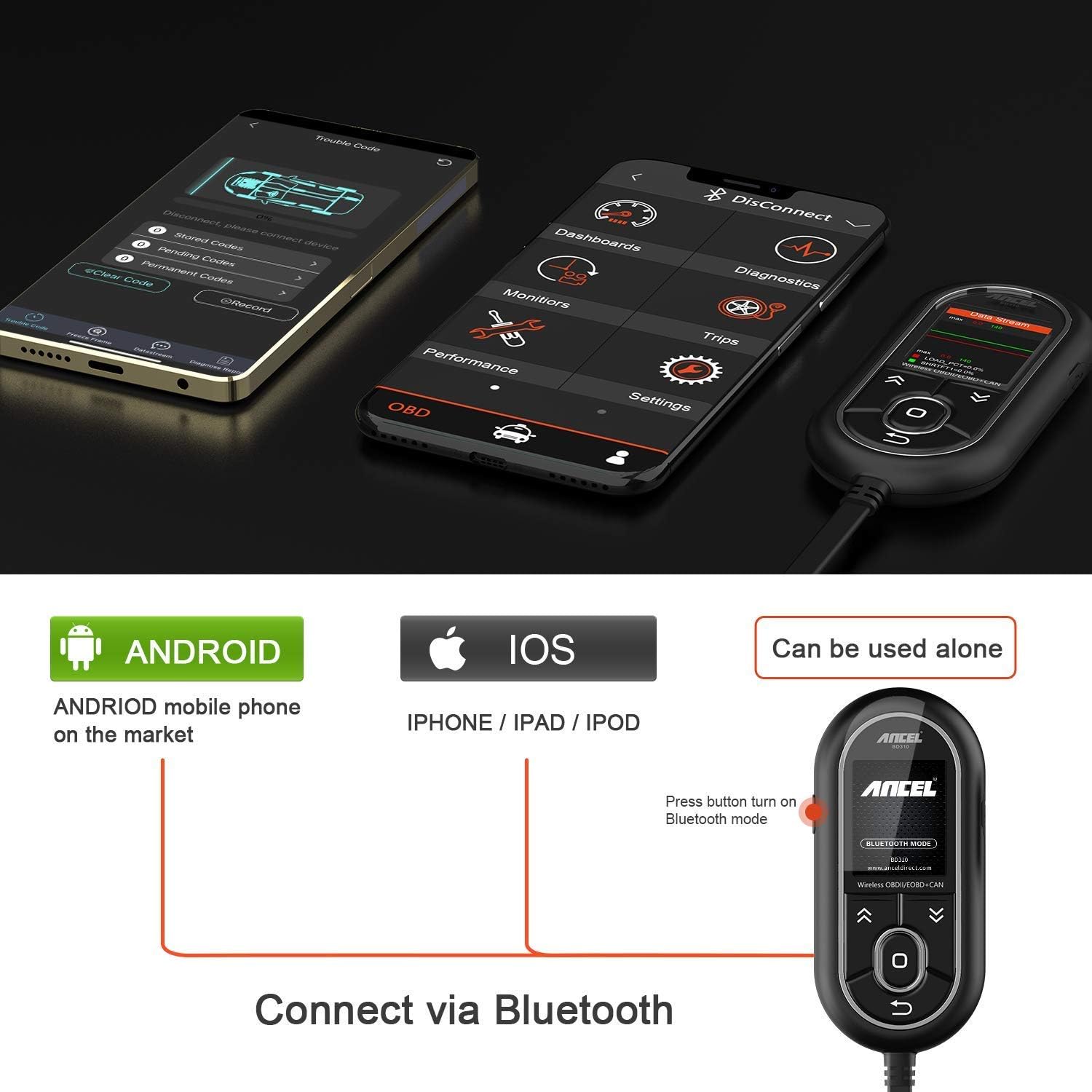
Image 3.1: A diagram illustrating how to connect the ANCEL BD310 to a mobile device via Bluetooth, showing compatibility with Android and iOS.
4. Operating Instructions
The ANCEL BD310 offers two primary operating modes: handheld and Bluetooth (via the ANCEL app).
4.1 Handheld Mode Operation
Use the physical buttons on the device to navigate menus and select functions. The main screen displays options such as OBDII, Meter, I/M, and Settings.
- Navigation Buttons: Use the up/down arrows to scroll through menu options.
- Enter Button (O): Press to select a highlighted option or confirm an action.
- Back Button (U-turn arrow): Press to return to the previous screen or exit a function.
4.1.1 Diagnostic Menu (Handheld)
From the main menu, select "OBDII" to access diagnostic functions:
- Read Codes: Displays current, pending, and permanent Diagnostic Trouble Codes (DTCs) stored in the vehicle's computer.
- Erase Codes: Clears DTCs and turns off the Malfunction Indicator Lamp (MIL). Caution: Only erase codes after addressing the underlying issue.
- I/M Readiness: Checks the status of emission-related monitoring systems to determine if they are ready for an inspection.
- Data Stream: Displays real-time data parameters from the vehicle's sensors, such as engine RPM, coolant temperature, vehicle speed, and more. Data can be viewed numerically or graphically.
- Freeze Frame: Records a snapshot of vehicle operating conditions at the moment an emission-related fault occurred.
- Evap System Test: Initiates a test of the Evaporative Emission Control System.
- Vehicle Information: Retrieves vehicle identification number (VIN), calibration ID (CALID), and calibration verification number (CVN).
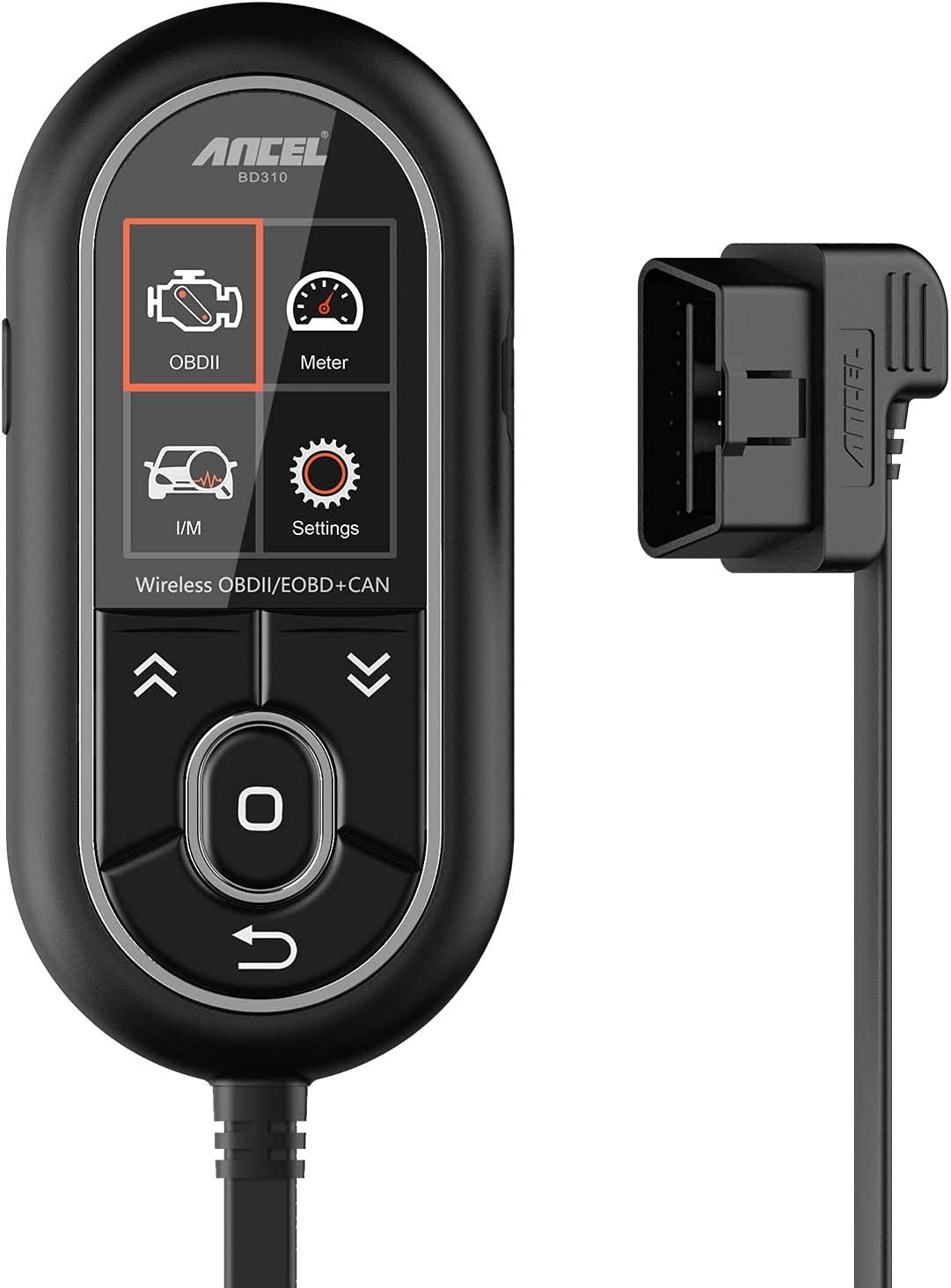
Image 4.1: The ANCEL BD310 handheld device displaying its diagnostic menu options, including Read Codes, Erase Codes, and Data Stream.
4.2 Bluetooth Mode Operation (ANCEL App)
The ANCEL app provides an enhanced user interface and additional features for diagnostics and monitoring.
4.2.1 App Features
- Vehicle Self-Check: Performs a comprehensive scan of the vehicle's systems.
- Trouble Code: Similar to handheld mode, allows reading and clearing of DTCs.
- Datastream: Provides detailed real-time data, often with graphical representations, for various sensors and parameters (e.g., engine RPM, coolant temperature, fuel consumption, intake air temperature, voltage).
- Dashboard: Customizable gauges to monitor real-time performance metrics.
- Freeze Frame: Accesses recorded vehicle conditions at the time of a fault.
- O2 Sensors: Monitors oxygen sensor readings.
- On-Board Monitoring Test: Checks the operation of emission control systems.
- Vehicle Information: Displays VIN and other vehicle details.
- Performance Test: Measures vehicle performance metrics like acceleration and braking.
- Trip Computer: Monitors trip-related data such as distance, average speed, and fuel consumption.
- BAT Check: Provides battery health status.

Image 4.2: Screenshots of the ANCEL app interface, demonstrating features like Dashboard, Trouble Code, Performance Test, and PID Chart, accessible via Bluetooth connection.
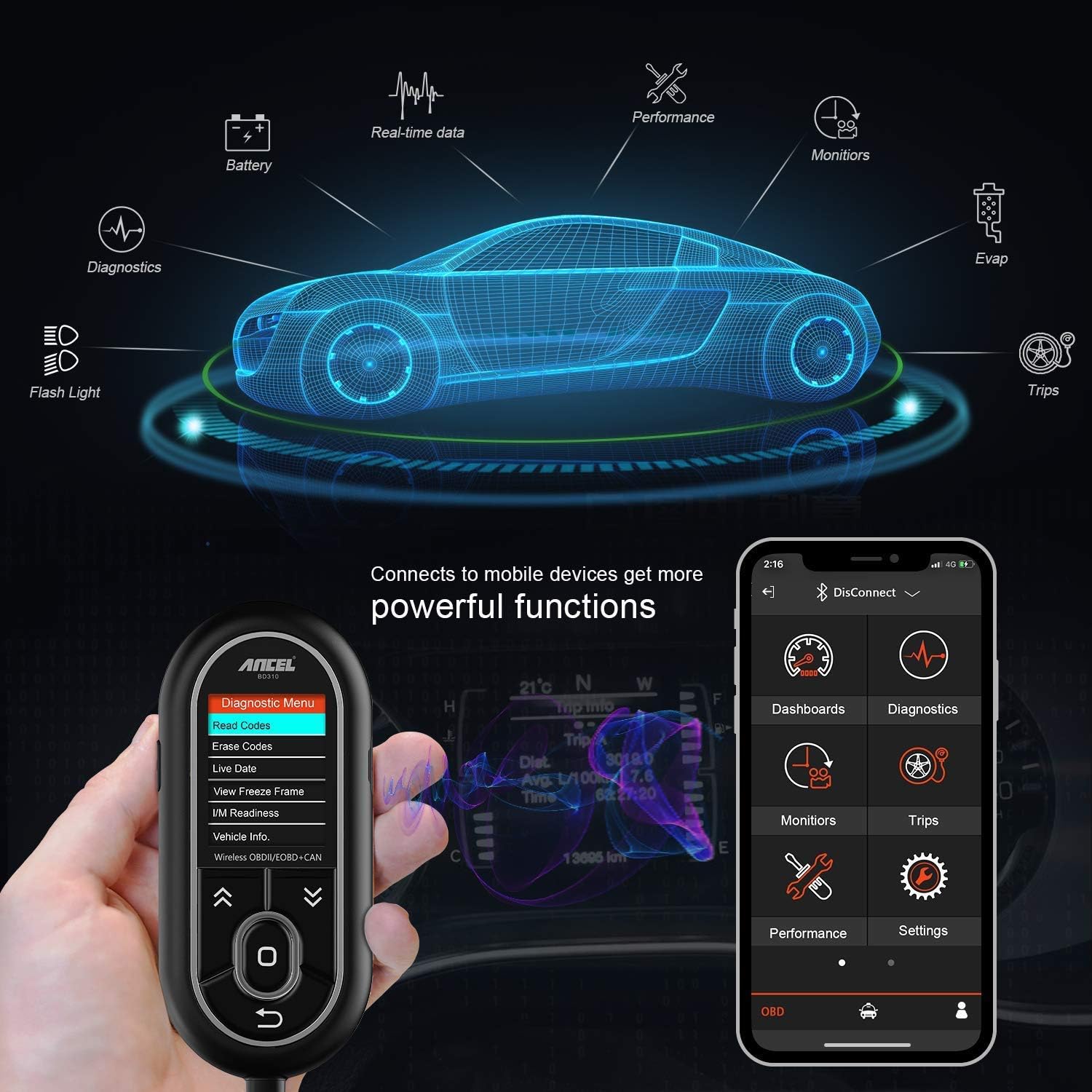
Image 4.3: A visual representation of the ANCEL BD310 connected to a mobile device, highlighting the expanded diagnostic and monitoring capabilities available through the app, such as real-time data, battery check, and trip information.
5. Maintenance
Proper maintenance ensures the longevity and reliable operation of your ANCEL BD310.
- Cleaning: Use a soft, dry cloth to clean the device. Avoid abrasive cleaners or solvents that could damage the screen or casing.
- Storage: When not in use, store the BD310 in its protective EVA case in a dry, cool environment, away from direct sunlight and extreme temperatures.
- Software Updates: Regularly check for and install software updates for both the BD310 device (via USB connection to a computer) and the ANCEL mobile app to ensure optimal performance and compatibility with new vehicle models.
- Cable Care: Inspect the OBD2 cable for any signs of damage (fraying, cuts) before each use. Do not use the device if the cable is damaged.
6. Troubleshooting
If you encounter issues with your ANCEL BD310, refer to the following common troubleshooting steps:
| Problem | Possible Cause | Solution |
|---|---|---|
| Device does not power on. | Loose OBD2 connection; vehicle ignition off; vehicle battery low. | Ensure the OBD2 connector is securely plugged in. Turn vehicle ignition to "ON". Check vehicle battery voltage. |
| Cannot connect via Bluetooth. | Bluetooth not enabled on mobile device; BD310 not in Bluetooth mode; app not updated. | Enable Bluetooth on your phone. Activate Bluetooth mode on BD310. Update the ANCEL app. Restart both devices. |
| No communication with vehicle. | Incorrect OBD2 port connection; vehicle not OBD2 compliant (pre-1996); faulty vehicle ECU. | Verify secure connection. Confirm vehicle is 1996 or newer. Consult a professional mechanic if ECU issues are suspected. |
| Error message "Link Error". | Communication protocol issue; loose connection. | Check OBD2 connection. Try on a different OBD2 compliant vehicle to rule out device fault. |
7. Specifications
Key technical specifications for the ANCEL BD310:
| Feature | Detail |
|---|---|
| Brand | ANCEL |
| Model | BD310 |
| Power Source | Vehicle OBD2 Port (Handheld) |
| Screen Size | 2 Inches |
| Connectivity | Wired (OBD2), Wireless (Bluetooth for iOS/Android App) |
| Supported Protocols | OBDII/EOBD+CAN (compatible with most 1996 and newer vehicles) |
| Operating Modes | Handheld Diagnostic, Bluetooth App Monitoring |
8. Warranty & Support
For specific warranty information and technical support, please refer to the warranty card included with your product or visit the official ANCEL website. Keep your purchase receipt as proof of purchase for warranty claims.
If you encounter any issues not covered in this manual, please contact ANCEL customer support for assistance.


