
TECLAST P20HD
TECLAST P20HD 10.1-inch Tablet User Manual
Model: P20HD
Introduction
Welcome to the user manual for your new TECLAST P20HD 10.1-inch Tablet. This guide provides comprehensive instructions on setting up, operating, and maintaining your device. The TECLAST P20HD is a high-performance tablet designed for versatile use, featuring a powerful octa-core processor, a vibrant Full HD display, and robust connectivity options including 4G LTE and dual-band WiFi.
Please read this manual carefully to ensure proper use and to maximize your tablet's capabilities. Keep this manual for future reference.
Product Overview
Familiarize yourself with the physical components of your TECLAST P20HD tablet.
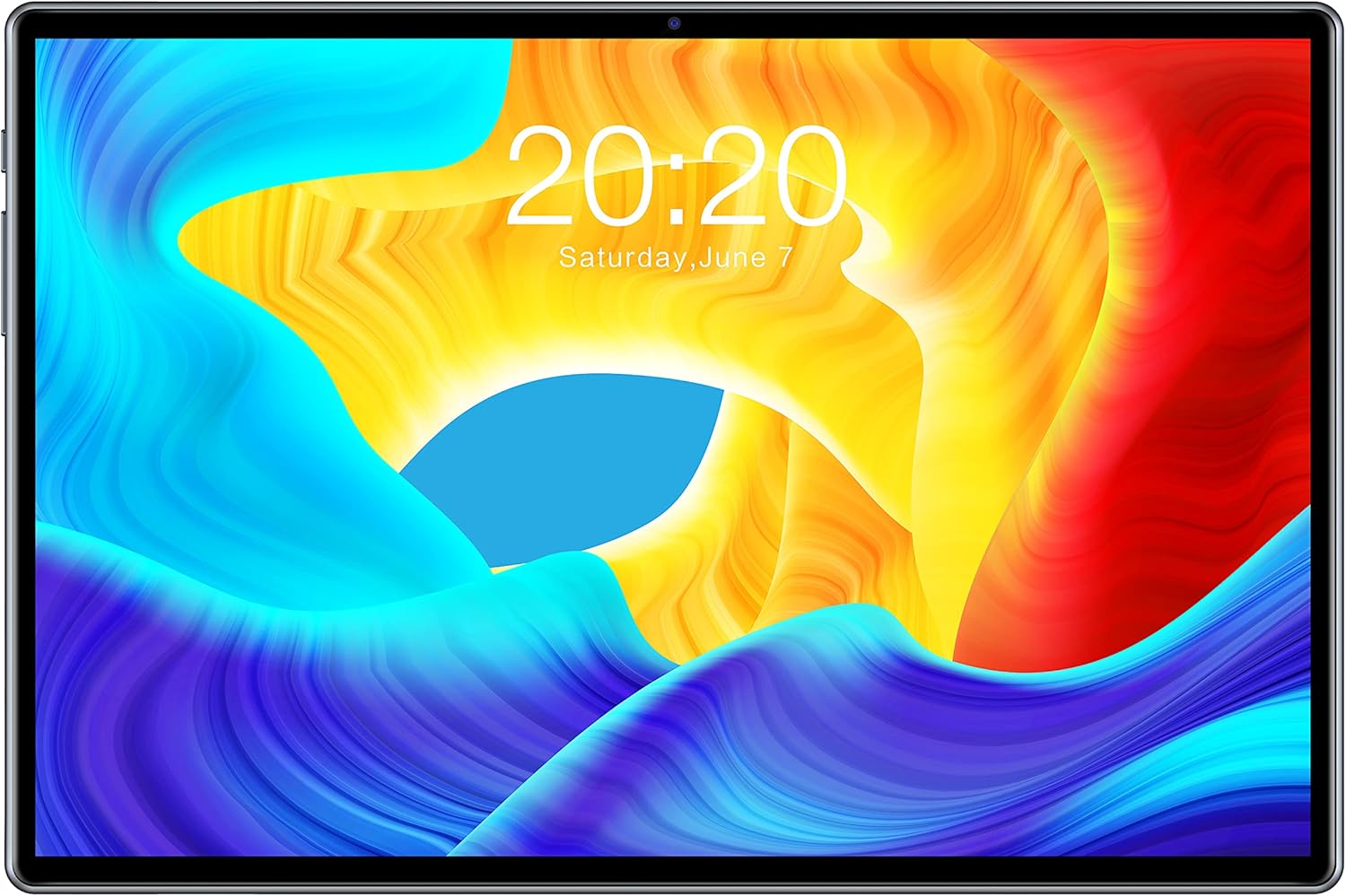
Figure 1: Front view of the TECLAST P20HD Tablet, displaying the screen with a colorful abstract wallpaper and the date "20:20 Saturday, June 7".

Figure 2: Diagram illustrating the various ports and buttons on the TECLAST P20HD Tablet. This includes the Power button, Volume buttons, RESET pinhole, Type-C port, Micro SD/SIM card slot, Earphone jack, Front Camera, Rear Camera, and Speakers.
Key Components:
- Display: 10.1-inch IPS Full HD screen with 1920x1200 resolution.
- Front Camera: 2MP for video calls and selfies.
- Rear Camera: 5MP for capturing photos and videos.
- Power Button: Located on the side, used to turn the device on/off or wake/sleep the screen.
- Volume Buttons: Adjust audio volume.
- Type-C Port: For charging and data transfer.
- Micro SD/SIM Card Slot: Supports expandable storage up to 128GB and 4G LTE SIM cards.
- Earphone Jack: Standard 3.5mm audio output.
- Speakers: Integrated for audio output.
- Microphone: For voice input.
Setup
1. Initial Charging:
Before first use, fully charge your tablet using the provided Type-C cable and power adapter. The battery indicator on the screen will show charging status. A full charge ensures optimal battery performance.
2. Powering On/Off:
- To Power On: Press and hold the Power button until the TECLAST logo appears.
- To Power Off: Press and hold the Power button until the power options menu appears, then select "Power off".
- To Sleep/Wake: Briefly press the Power button to put the tablet into sleep mode or wake it up.
3. Inserting SIM and Micro SD Cards:
Locate the SIM/Micro SD card tray on the side of the tablet. Use the provided SIM ejector tool to open the tray. Carefully place your Nano-SIM card(s) and/or Micro SD card into the designated slots, ensuring correct orientation. Gently push the tray back into the tablet until it clicks into place.

Figure 3: Image illustrating the TECLAST P20HD's memory specifications (4GB RAM + 64GB ROM) and its expandability up to 512GB via TF card, alongside examples of media and app storage.
4. Initial Setup Wizard:
Upon first power-on, the Android 10 setup wizard will guide you through essential configurations, including:
- Language selection
- Wi-Fi network connection
- Google account sign-in (optional but recommended for app downloads and services)
- Date and time settings
- Screen lock setup (PIN, pattern, password)
Operating
1. Android 10 Operating System:
Your TECLAST P20HD runs on Android 10, offering a user-friendly interface and enhanced features. Navigate using gestures or the traditional three-button navigation bar (configurable in settings).
2. Connectivity:
- Wi-Fi: Connect to wireless networks via Settings > Network & Internet > Wi-Fi. Supports dual-band 802.11ac for stable and fast connections.
- 4G LTE: With a compatible SIM card, access mobile data for internet browsing and calls.
- Bluetooth 5.0: Pair with Bluetooth devices like headphones, speakers, or keyboards via Settings > Connected devices > Bluetooth.
- GPS: Utilize the built-in GPS for navigation and location-based services. Supports BeiDou and other popular satellite navigation systems.

Figure 4: Image highlighting the TECLAST P20HD's high-speed internet capabilities, including Dual-band WiFi for stable connection and Dual 4G SIM support, enabling simultaneous internet surfing and video calls.
3. Camera Usage:
Open the Camera app to capture photos and videos. The tablet features a 2MP front camera and a 5MP rear camera.

Figure 5: Image detailing the TECLAST P20HD's camera specifications (2MP + 5MP), screen resolution (1920x1200), screen size (10.1"), battery capacity (6000mAh), Bluetooth 5.0, Android 10.0, and A-GPS capabilities.
4. Performance and Storage:
The tablet is equipped with an octa-core SC9863A processor, 4GB RAM, and 64GB internal storage, expandable up to 128GB (or 512GB as per some descriptions) via a TF card. This configuration ensures smooth multitasking and ample space for apps, media, and documents.

Figure 6: Visual representation of the high-performance Octa-Core SC9863A processor, highlighting its 1.6GHz frequency for faster booting and smooth software operation.

Figure 7: The TECLAST P20HD Tablet being used in various settings, including watching content, working, and taking photos, demonstrating its versatility.
Maintenance
- Cleaning: Use a soft, lint-free cloth to clean the screen and body. Avoid abrasive cleaners or solvents.
- Battery Care: To prolong battery life, avoid extreme temperatures. Do not let the battery completely drain frequently.
- Software Updates: Regularly check for system updates to ensure optimal performance and security. Updates can be found in Settings > System > System update.
- Storage Management: Periodically clear unnecessary files and apps to free up storage space and maintain performance.
- Protection: Consider using a protective case and screen protector to guard against drops and scratches.

Figure 8: Comparison image showing the TECLAST Tablet's thin and light design, metal body, and gold-plated interface, contrasting it with a generic "OTHER Tablet" that is heavy and inconvenient.
Troubleshooting
| Problem | Possible Solution |
|---|---|
| Tablet does not turn on. | Ensure the battery is charged. Connect the charger and wait a few minutes before attempting to power on again. If unresponsive, press and hold the Power button for 10-15 seconds. |
| Screen is unresponsive or frozen. | Perform a forced restart by pressing and holding the Power button for about 10 seconds until the device reboots. If this doesn't work, locate the RESET pinhole (refer to Product Overview) and gently press it with a thin object (like a paperclip). |
| Cannot connect to Wi-Fi. | Check if Wi-Fi is enabled in settings. Restart your Wi-Fi router. Forget the network and reconnect. Ensure you are entering the correct password. |
| Apps are running slowly or crashing. | Close background apps. Clear app cache (Settings > Apps & notifications > [App Name] > Storage & cache > Clear cache). Ensure sufficient free storage space. Restart the tablet. |
| SIM card not detected. | Ensure the SIM card is correctly inserted into the tray. Restart the tablet. Check if the SIM card is active with your carrier. |
Specifications
| Feature | Detail |
|---|---|
| Brand | TECLAST |
| Model | P20HD |
| Operating System | Android 10 |
| Processor | Unisoc SC9863A Octa-Core 1.6GHz |
| RAM | 4GB |
| Internal Storage (ROM) | 64GB |
| Expandable Storage | Micro SD/TF card up to 128GB (some sources indicate up to 512GB) |
| Display Size | 10.1 inches |
| Display Resolution | 1920 x 1200 Full HD IPS |
| Front Camera | 2MP |
| Rear Camera | 5MP |
| Battery Capacity | 6000mAh |
| Connectivity | 4G LTE (TDD+FDDD), Dual-band Wi-Fi (802.11bgn, 802.11ac), Bluetooth 5.0, GPS (BeiDou supported) |
| Ports | Type-C, 3.5mm Headphone Jack, SIM/Micro SD Slot |
| Dimensions (L x W x H) | 24.3 x 16.3 x 0.93 cm |
| Weight | 531 Grams |

Figure 9: Image emphasizing the TECLAST P20HD's 10.1-inch screen size and 1920x1200 resolution, shown with a vibrant landscape image.
Warranty and Support
TECLAST offers a 24-month warranty from the date of purchase for the P20HD tablet. This warranty covers manufacturing defects and ensures peace of mind for your purchase.
For Technical Support and Warranty Claims:
- Refer to the contact information provided on the TECLAST official website or the packaging.
- Have your purchase receipt and product serial number ready when contacting support.
- For common issues, refer to the Troubleshooting section of this manual or visit the TECLAST support page online.
TECLAST is committed to providing excellent customer service and support for its products.
Ask a question about this manual
Ask about setup, troubleshooting, compatibility, parts, safety, or missing instructions. Manuals+ will review the question and use this page’s manual context to help answer it.