
HUION GS2202-US
Contents
HUION Kamvas 22 Plus QLED Drawing Tablet User Manual
Model: GS2202-US | Brand: HUION
1. Introduction
The HUION Kamvas 22 Plus QLED Drawing Tablet is a professional pen display designed for artists and designers. It features a 21.5-inch Full HD display with Quantum Dots Technology for vibrant colors, a full-laminated etched glass screen for reduced glare and enhanced precision, and PenTech 3.0 for superior pen performance. This manual provides detailed instructions for setting up, operating, maintaining, and troubleshooting your Kamvas 22 Plus.
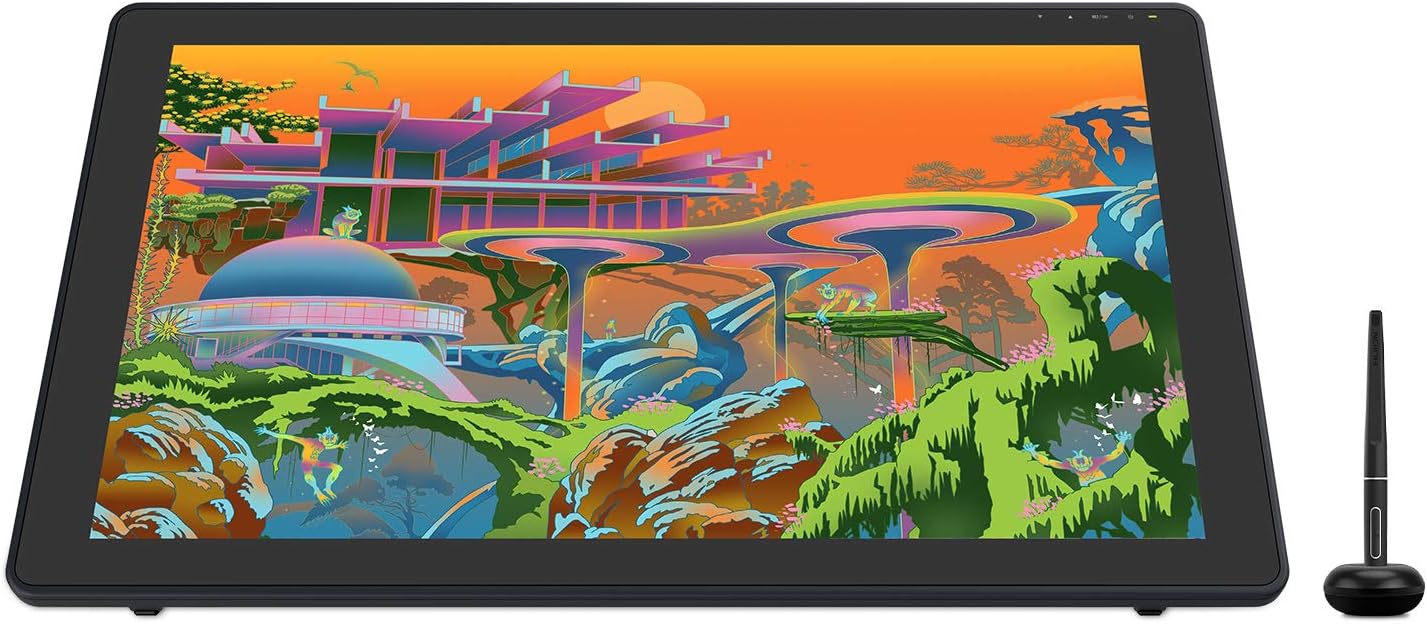
Image: The HUION Kamvas 22 Plus QLED Drawing Tablet with its digital pen and stand.
2. What's in the Box
Upon unboxing your HUION Kamvas 22 Plus, please verify that all the following components are included:
- Pen Display (Kamvas 22 Plus)
- Digital Pen (PW517)
- Full-featured USB-C Cable
- 3-in-1 HDMI Cable
- Adjustable Stand
- AC Adapter
- Power Cord
- Pen Holder (PH05A)
- Pen Nibs (x10)
- Pen Nib Clip
- Glove
- Cleaning Cloth
- Quick Start Guide

Image: All components included in the Kamvas 22 Plus package, laid out for inspection.
3. Setup
Follow these steps to set up your Kamvas 22 Plus drawing tablet:
- Connect the Stand: Attach the adjustable stand to the back of the Kamvas 22 Plus using the provided screws and tools. Ensure it is securely fastened. The stand allows for angle adjustments from 20 to 80 degrees for comfortable working positions.
- Power Connection: Connect the AC adapter to the power cord, then plug the power cord into a wall outlet. Connect the other end of the AC adapter to the 3-in-1 HDMI cable or the full-featured USB-C cable, depending on your connection method.
- Connect to Computer/Device:
- Using 3-in-1 HDMI Cable: Connect the HDMI connector to your computer's HDMI port, the USB-A connector to your computer's USB port, and the USB-C connector to one of the USB-C ports on the Kamvas 22 Plus.
- Using Full-featured USB-C to USB-C Cable: Connect one end of the USB-C to USB-C cable to your computer's USB-C port (which must support USB 3.1 and DP1.2 or later) and the other end to one of the USB-C ports on the Kamvas 22 Plus. Note: Extra power supply is needed when connected via a full-featured USB-C to USB-C cable, especially with Android devices.
- Driver Installation: Visit the official HUION website to download and install the latest driver for your operating system (Windows 7 or later, macOS 10.12 or later, Linux Ubuntu 20.04 LTS, or Android OS 6.0 or later). Follow the on-screen instructions for installation.
- Calibration: After driver installation, open the Huion Tablet application to calibrate the screen and pen. This ensures accurate cursor positioning and pressure sensitivity.

Image: Diagram showing the adjustable range of the tablet stand from 20 to 80 degrees.

Image: Illustrations demonstrating both 3-in-1 USB-C cable and full-featured USB-C to USB-C cable connections to a laptop and power source.
4. Operating Instructions
The Kamvas 22 Plus is designed for intuitive use with its advanced features:
4.1 Digital Pen (PW517)
The PW517 digital pen utilizes PenTech 3.0 technology, offering 8192 levels of pressure sensitivity and ±60° tilt support for precise and natural drawing. It is battery-free, eliminating the need for charging.

Image: Exploded view of the PW517 pen highlighting its capacitive pressure sensor, programmable buttons, battery-free EMR technology, and stable pen nib.
4.2 Screen Features
- Full Lamination: The fully laminated screen minimizes parallax, ensuring the cursor appears exactly where your pen tip is.
- Etched Anti-Glare Glass: Provides a paper-like texture for a natural drawing experience and reduces reflections from ambient light.
- Quantum Dots Technology: Delivers a wide 140% sRGB color gamut volume for brilliant and accurate color reproduction.

Image: Visual representation of the 21.5-inch active area and 1080p resolution of the Kamvas 22 Plus screen, emphasizing its full-laminated and anti-glare features.
4.3 Compatibility
The Kamvas 22 Plus is compatible with a variety of operating systems and creative software:
- Operating Systems: Windows 7 or later, macOS 10.12 or later, Linux (Ubuntu 20.04 LTS), and certain Android devices (OS version 6.0 or later with USB 3.1 DP1.2 or later support).
- Software: Supports popular creative applications such as Sketchbook, Medibang, Clip Studio, Photoshop, ibisPaint, Pen Up, and many more.

Image: Diagram illustrating the Kamvas 22 Plus's compatibility with Mac, PC, and Android devices, along with logos of supported creative software.
4.4 Usage Scenarios
Beyond digital art, the Kamvas 22 Plus can be effectively used for:
- Web Conferencing and Distance Learning: Ideal for annotating documents, taking notes, and illustrating concepts during online meetings or educational sessions.
- Gaming: Can be connected to certain gaming consoles for an immersive visual experience.
- Dual Monitor Setup: Extend your desktop for increased productivity, allowing you to work on the tablet while referencing content on a separate monitor.

Image: A Kamvas 22 Plus tablet displaying mathematical equations, connected to a laptop showing a virtual classroom, demonstrating its use for distance learning.
5. Maintenance
Proper maintenance ensures the longevity and optimal performance of your Kamvas 22 Plus:
- Screen Cleaning: Use the provided cleaning cloth or a soft, lint-free cloth to gently wipe the screen. For stubborn smudges, slightly dampen the cloth with water or a screen-safe cleaner. Avoid harsh chemicals or abrasive materials.
- Pen Nib Replacement: If the pen nib becomes worn, use the pen nib clip to carefully remove it and insert a new one from the included spare nibs.
- Storage: When not in use, store the tablet in a clean, dry place away from direct sunlight and extreme temperatures.
- Cable Management: Ensure cables are not kinked or strained to prevent damage.
6. Troubleshooting
This section addresses common issues you might encounter with your Kamvas 22 Plus:
| Problem | Possible Cause | Solution |
|---|---|---|
| No Signal / Display Not Detected | Incorrect cable connection, loose cable, driver issue, insufficient power (for USB-C connection). |
|
| Pen Not Responding / No Pressure Sensitivity | Driver not installed or corrupted, pen nib worn out, pen not properly recognized. |
|
| Cursor Parallax / Inaccurate Cursor | Calibration issue, screen protector interference. |
|
| Yellow Banding/Discoloration | Potential display issue. |
|
For further assistance, please refer to the official User Guide (PDF) or Troubleshooting Guide (PDF) available on the product page or HUION's support website.
7. Specifications
| Feature | Detail |
|---|---|
| Model Number | GS2202-US |
| Product Dimensions | 21.5 x 12.7 x 0.75 inches |
| Item Weight | 7.5 pounds |
| Screen Size | 21.5 inches (55 cm diagonal) |
| Resolution | Full HD (1920 x 1080) |
| Color Gamut | 140% sRGB |
| Panel Technology | QLED with Quantum Dots Technology |
| Screen Surface | Full-Laminated Etched Glass (Anti-Glare) |
| Pen Technology | PenTech 3.0, Battery-Free EMR |
| Digital Pen Model | PW517 |
| Pressure Sensitivity | 8192 Levels |
| Tilt Support | ±60° |
| Connectivity | USB-C (full-featured), 3-in-1 HDMI Cable |
| Operating System Compatibility | Windows 7 or later, macOS 10.12 or later, Linux (Ubuntu 20.04 LTS), Android (OS 6.0 or later, USB 3.1 DP1.2 or later) |
8. Warranty and Support
HUION provides comprehensive support for its products. For detailed warranty information, please refer to the warranty card included with your product or visit the official HUION website.
For technical support, driver downloads, FAQs, and other resources, please visit the HUION Store on Amazon or their official support portal.
Important Note: If you are experiencing compatibility issues with macOS, particularly with external USB devices, please contact HUION for immediate assistance. They are aware of recent system changes affecting connectivity and are committed to prompt resolution.
Ask a question about this manual
Ask about setup, troubleshooting, compatibility, parts, safety, or missing instructions. Manuals+ will review the question and use this page’s manual context to help answer it.