Introduction
This manual provides detailed instructions for the installation, operation, and maintenance of your AZDOME Mirror Dash Cam. Please read this manual thoroughly before using the product to ensure proper function and safety.
Safety Information
- Do not operate the device while driving.
- Ensure the device is securely mounted and does not obstruct your view.
- Use only the provided power cable. Using incompatible cables may cause malfunction or damage, including sudden power drops or abnormal speaker noise.
- Keep the device away from extreme temperatures and direct sunlight.
- Do not attempt to disassemble or repair the device yourself. Contact customer support for assistance.
Package Contents

The image displays the main AZDOME Mirror Dash Cam unit, a 32GB SD card, a GPS module, and the rear camera. These are the primary components included in the product package.
- AZDOME Mirror Dash Cam (Main Unit)
- Rear Camera with Cable
- GPS Module
- Car Charger (Cigarette Lighter Power Cord)
- 32GB AZDOME Class10 microSD Card
- Mounting Straps (x4)
- Wiring Tools/Pry Tool
- Cleaning Cloth
- User Manual (Japanese) - Note: This document serves as an English version.
- Anti-reflection Film
- Recording Sticker (Front/Rear Recording in Progress)

This diagram illustrates the various components included in the product package, such as the main unit, rear camera, GPS antenna, power cable, mounting accessories, and documentation.
Product Overview
The AZDOME Mirror Dash Cam features a 12-inch touch screen display, a right-side camera optimized for right-hand drive vehicles, and voice control functionality. It records in 1080P Full HD with a 170° wide-angle lens for the front camera and includes a waterproof rear camera.

This image highlights the right-side camera lens placement, specifically designed for right-hand drive vehicles to provide an optimal field of view and accurate recording from the driver's perspective.
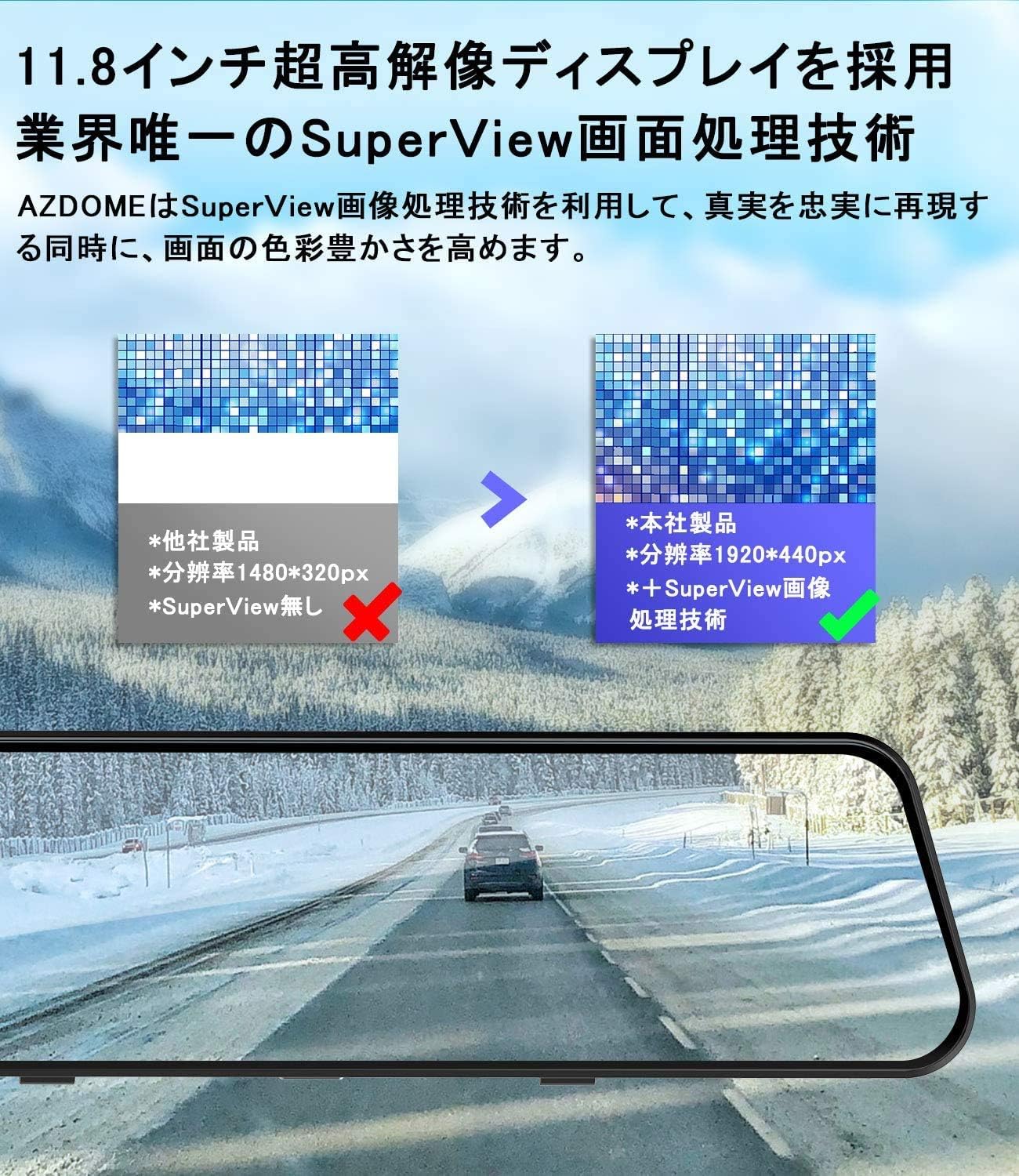
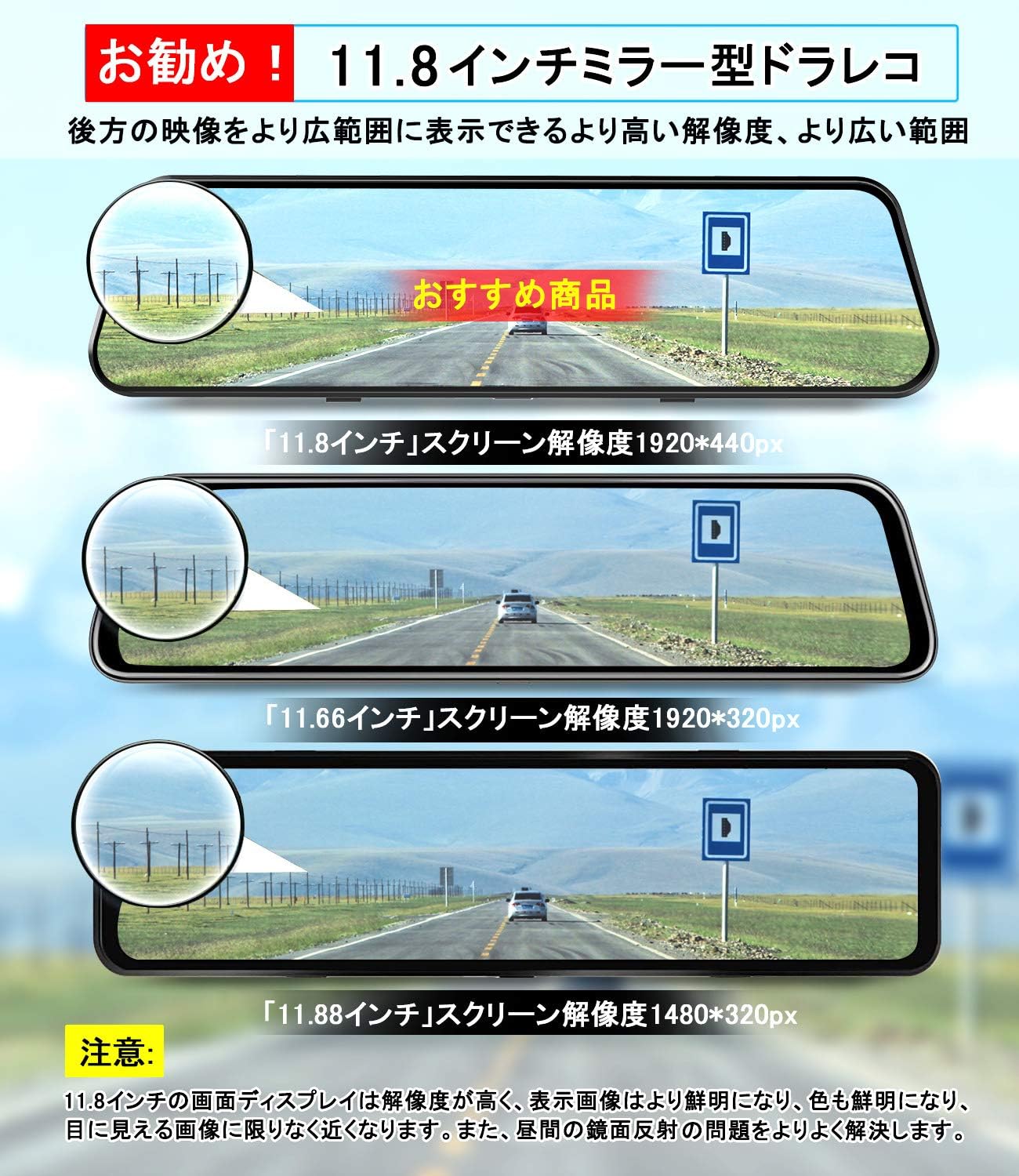
The image demonstrates the 11.8-inch SuperView display technology, showcasing its higher resolution (1920x440px) compared to other products, resulting in clearer and more vibrant images, and reducing glare from reflections.
This image illustrates the high-quality night vision feature, powered by the SONY-IMX415 sensor and an 8-layer glass lens, enabling bright and clear recordings even in low-light conditions.
Setup and Installation
Mounting the Dash Cam
- Attach the dash cam to your vehicle's rearview mirror using the provided rubber straps. Ensure it is securely fastened and does not obstruct your view.
- Adjust the camera lens angle for optimal recording. The camera lens is 360° adjustable.
Connecting Power
- Insert the included car charger into your vehicle's cigarette lighter socket.
- Connect the other end of the power cable to the dash cam's power input port.
- Route the power cable neatly along the windshield and dashboard using the provided wiring tools to avoid interference with driving.

This diagram illustrates the recommended wiring path for the dash cam's power cable and rear camera cable, ensuring a tidy and safe installation within the vehicle's interior.
Installing the Rear Camera
- Mount the rear camera at the back of your vehicle, typically above the license plate or inside the rear window. Ensure it has a clear view.
- Connect the rear camera cable to the designated port on the main dash cam unit.
- Route the rear camera cable carefully to the front of the vehicle, concealing it along the vehicle's trim.
GPS Module Installation
- Attach the external GPS module to the dash cam.
- Place the GPS module on the dashboard or windshield where it has a clear view of the sky for optimal signal reception.
Operating Instructions
Power On/Off
The dash cam will automatically power on and begin recording when the vehicle's ignition is turned on. It will power off automatically when the ignition is turned off.
Touch Screen Operation
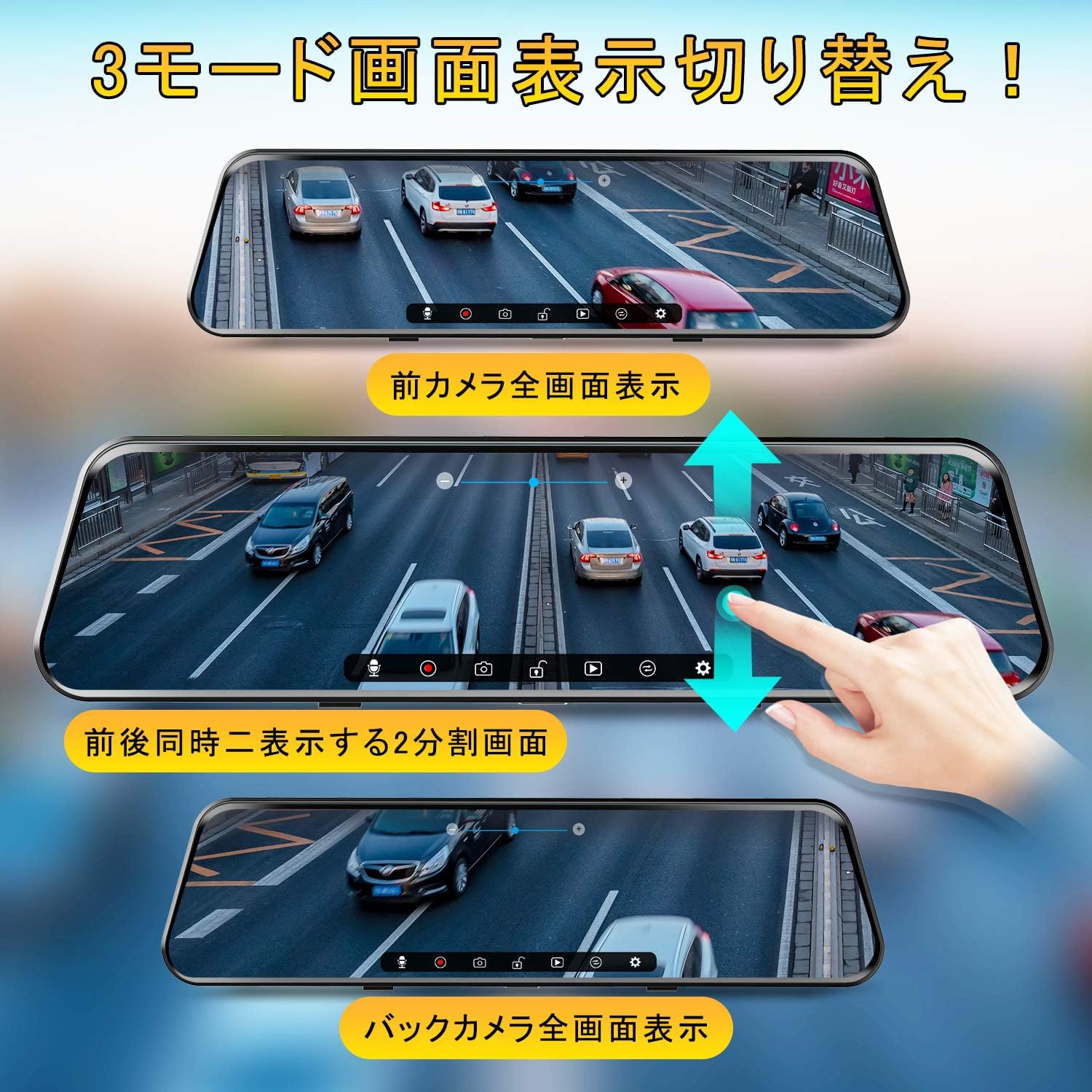
The 12-inch touch screen allows for intuitive control. Swipe left/right to switch between front and rear camera views, and swipe up/down to adjust the camera angle on the screen.

This image illustrates the three available display modes: full-screen front camera view, split-screen showing both front and rear cameras simultaneously, and full-screen rear camera view. Users can easily switch between these modes via touch gestures.
Voice Control Functions
The dash cam supports 8 voice commands for hands-free operation. Speak the commands clearly near the device:
- "Monitor On" / "Monitor Off"
- "Back Camera" / "Front Camera"
- "Start Recording" / "Stop Recording"
- "Take Photo"
- "Video Lock"

This image visually represents the voice control feature, listing commands such as "Monitor On," "Monitor Off," "Front Camera," "Back Camera," "Start Recording," "Stop Recording," "Take Photo," and "Video Lock," enabling hands-free operation for enhanced driving safety.
GPS Functionality
With the external GPS module connected, the dash cam records driving speed and location data along with video footage. This data can be viewed using a dedicated PC viewer software (compatible with Windows and Mac systems) which integrates with Google Maps to display your driving trajectory.
Note: Ensure your computer is connected to the internet before playing back recordings with GPS data.
Parking Monitoring (Requires Hardwire Kit)
The dash cam features a built-in battery for emergency recording. When the engine is off, if the device detects a collision, it will automatically start recording. These emergency recordings are automatically locked and will not be overwritten.
For continuous 24-hour parking surveillance, an optional AZDOME hardwire kit (ASIN: B08J7RYNBW) is required and sold separately.
Loop Recording and G-Sensor
The dash cam records video in seamless loops. When the memory card is full, the oldest unlocked footage will be overwritten. The built-in G-sensor detects sudden impacts or collisions and automatically locks the current video segment to prevent it from being overwritten, ensuring critical evidence is preserved.
Rear Camera Reverse Assist
When shifting into reverse, the dash cam automatically displays the rear camera view, and the angle adjusts downwards for better visibility. The adjusted angle will be saved for subsequent reverse maneuvers.
This image demonstrates the ability to toggle the rear camera view between a normal image and a mirror image, providing flexibility for different user preferences and installation types.
Maintenance
- Regularly format the microSD card (at least once a month) to ensure optimal performance and prevent data corruption.
- Clean the camera lenses and screen with the provided cleaning cloth or a soft, lint-free cloth. Do not use abrasive cleaners.
- Ensure all cables are securely connected and free from damage.
Troubleshooting
| Problem | Possible Cause / Solution |
|---|---|
| Device does not power on or shuts off unexpectedly. | Ensure you are using the original AZDOME car charger. Other USB cables or chargers may not provide sufficient power. Check the cigarette lighter socket for power. |
| Abnormal noise from speaker. | This can be caused by using an incompatible power cable. Use only the provided AZDOME car charger. |
| GPS signal is weak or not found. | Ensure the GPS module is connected and placed in an area with a clear view of the sky (e.g., dashboard, windshield). Avoid placing it under metal objects. |
| Video playback on PC does not show map. | Ensure your computer has an active internet connection when using the dedicated PC viewer software to display map data. |
| MicroSD card error. | Format the microSD card. If the issue persists, try a different Class 10 or higher microSD card (up to 128GB supported). |
Specifications
| Feature | Detail |
|---|---|
| Model Number | PG17-R |
| Display Size | 11.8 inches |
| Display Type | IPS Touch Panel |
| Video Capture Resolution | 1080P (Front & Rear) |
| Front Camera Sensor | Sony IMX335 |
| Lens Aperture | F2.0 (6-layer optical glass) |
| Wide Angle | 170° (Front) |
| GPS | Built-in GPS (External module included) |
| Parking Monitor | Yes (Requires optional hardwire kit for 24H) |
| G-Sensor | Yes |
| Loop Recording | Yes |
| Voice Control | Yes (Japanese commands) |
| Storage | Supports up to 128GB microSD card (32GB included) |
| Power Source | Car Charger (Cigarette Lighter) |
| Product Dimensions | 30 x 3.99 x 7.5 cm |
| Product Weight | 1.09 kg |
Warranty and Support
AZDOME products come with a standard warranty. For specific warranty details, technical support, or service inquiries, please refer to the warranty card included in your package or visit the official AZDOME website. You can also contact AZDOME customer service directly through their Amazon store page for assistance.
AZDOME Official Store: Visit AZDOME Store on Amazon.co.jp


