
Introduction
This manual provides essential information for setting up, operating, maintaining, and troubleshooting your Amazon Fire HD 10 Plus tablet. Please read these instructions carefully to ensure optimal performance and longevity of your device.
1. Setup
1.1 Unboxing and Package Contents
Verify that all items are present in the box:
- Fire HD 10 Plus tablet
- USB-C (2.0) cable
- 9W power adapter
- Quick Start Guide

Image: The Fire HD 10 Plus tablet shown with its included USB-C cable and power adapter.
1.2 Initial Charge
Before first use, fully charge your Fire HD 10 Plus tablet. Connect the USB-C cable to the tablet's USB-C port and the 9W power adapter to a wall outlet. A full charge from 0% to 100% takes approximately 4 hours when the device is in standby mode. For faster charging, a 15W wireless charging dock (sold separately) can fully charge the device in about 3.5 hours.
1.3 Powering On and Basic Configuration
Press and hold the power button until the Amazon logo appears. Follow the on-screen instructions to:
- Select your language.
- Connect to a Wi-Fi network (supports 2.4 GHz and 5.0 GHz networks).
- Register your device with an Amazon account.
- Set up time zone and other preferences.
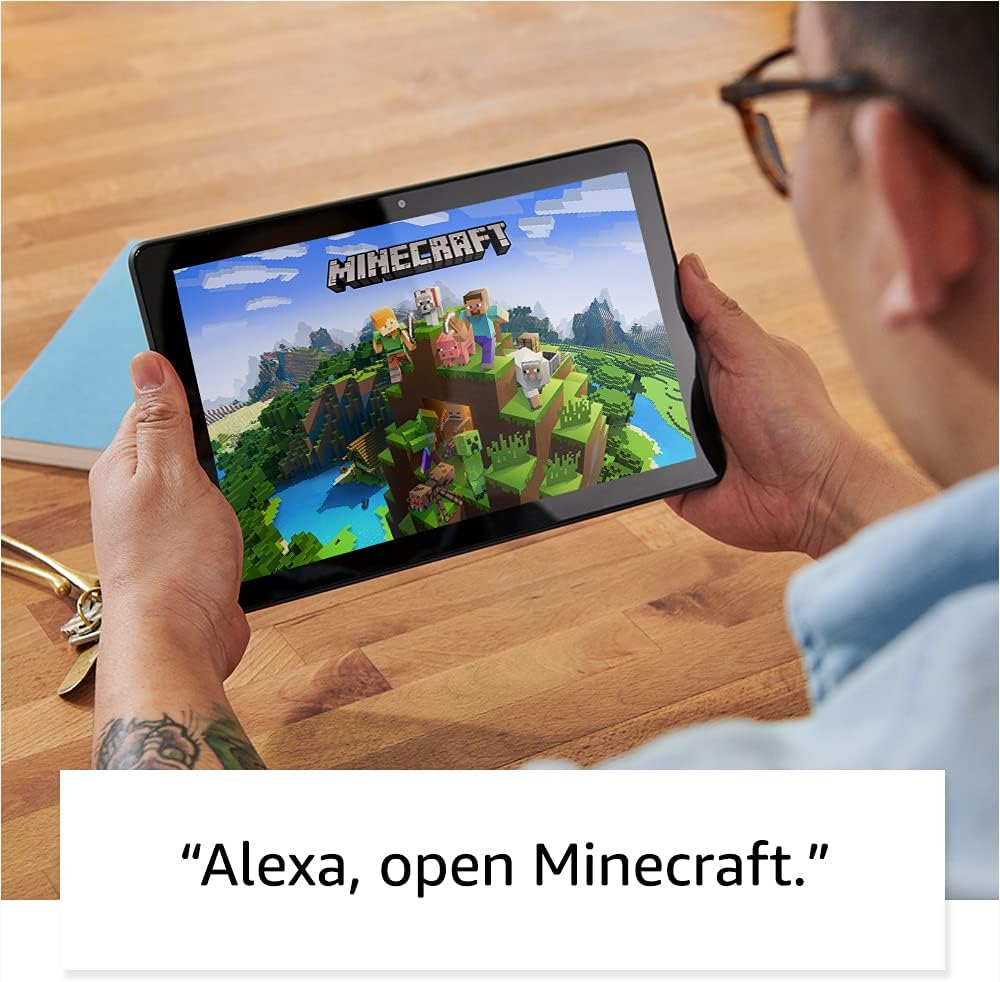
Image: A user holding the Fire HD 10 Plus tablet, showing the device's home screen with various app icons.
2. Operating Instructions
2.1 Display and Performance
The Fire HD 10 Plus features a 10.1-inch 1080p Full HD display (1920 x 1200 resolution, 224 ppi) for clear visuals. The screen is strengthened with aluminosilicate glass for durability. The tablet is powered by an octa-core 2.0 GHz processor and 4 GB of RAM, providing responsive performance for various applications.
2.2 Storage and Battery
Your tablet comes with either 32 GB or 64 GB of internal storage. You can expand storage up to 1 TB using a microSD card (sold separately). The device offers up to 12 hours of battery life for reading, browsing, watching videos, and listening to music. Battery life varies based on usage and settings.
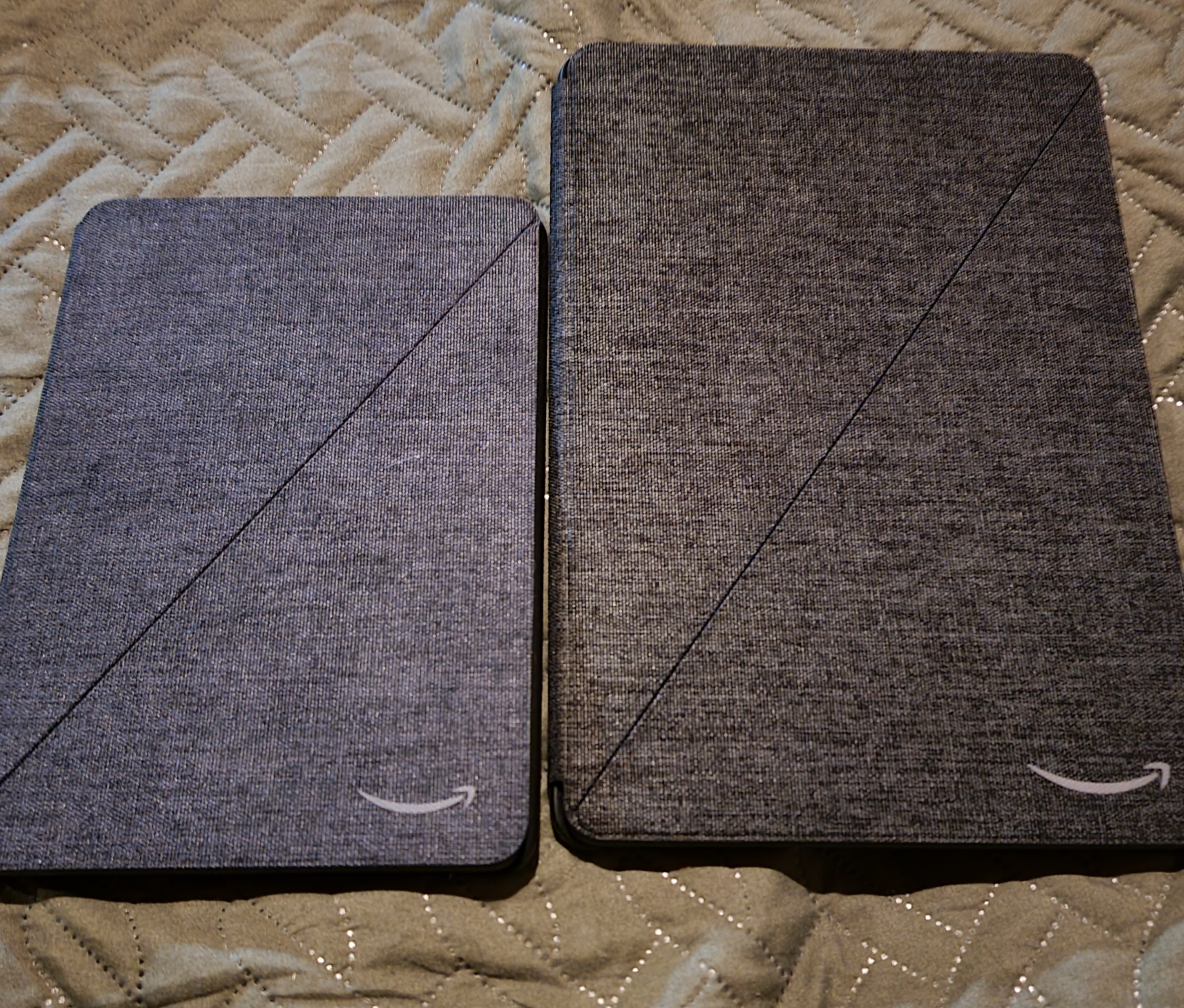
Image: The Fire HD 10 Plus tablet resting on a wireless charging dock, indicating its wireless charging capability.
2.3 Connectivity and Ports
The tablet supports 2.4 GHz and 5.0 GHz Wi-Fi networks and features Bluetooth 5.0 LE for connecting to headphones, speakers, microphones, and other accessories. It includes a USB-C (2.0) connector for charging and data transfer, a microSD slot for expandable storage, and a 3.5 mm stereo jack for audio output.
2.4 Cameras and Audio
The Fire HD 10 Plus is equipped with a 2 MP front-facing camera and a 5 MP rear-facing camera, both capable of 720p HD video recording. Dual integrated speakers and two built-in microphones provide audio input and output capabilities.
2.5 Alexa Integration
Utilize Alexa hands-free by saying "Alexa" followed by your command. You can ask Alexa to make video calls, check email, update lists, set reminders, and control smart home devices. A toggle is available to turn Alexa Hands-Free Mode on or off. Your privacy is protected; you can view and delete voice recordings at any time.
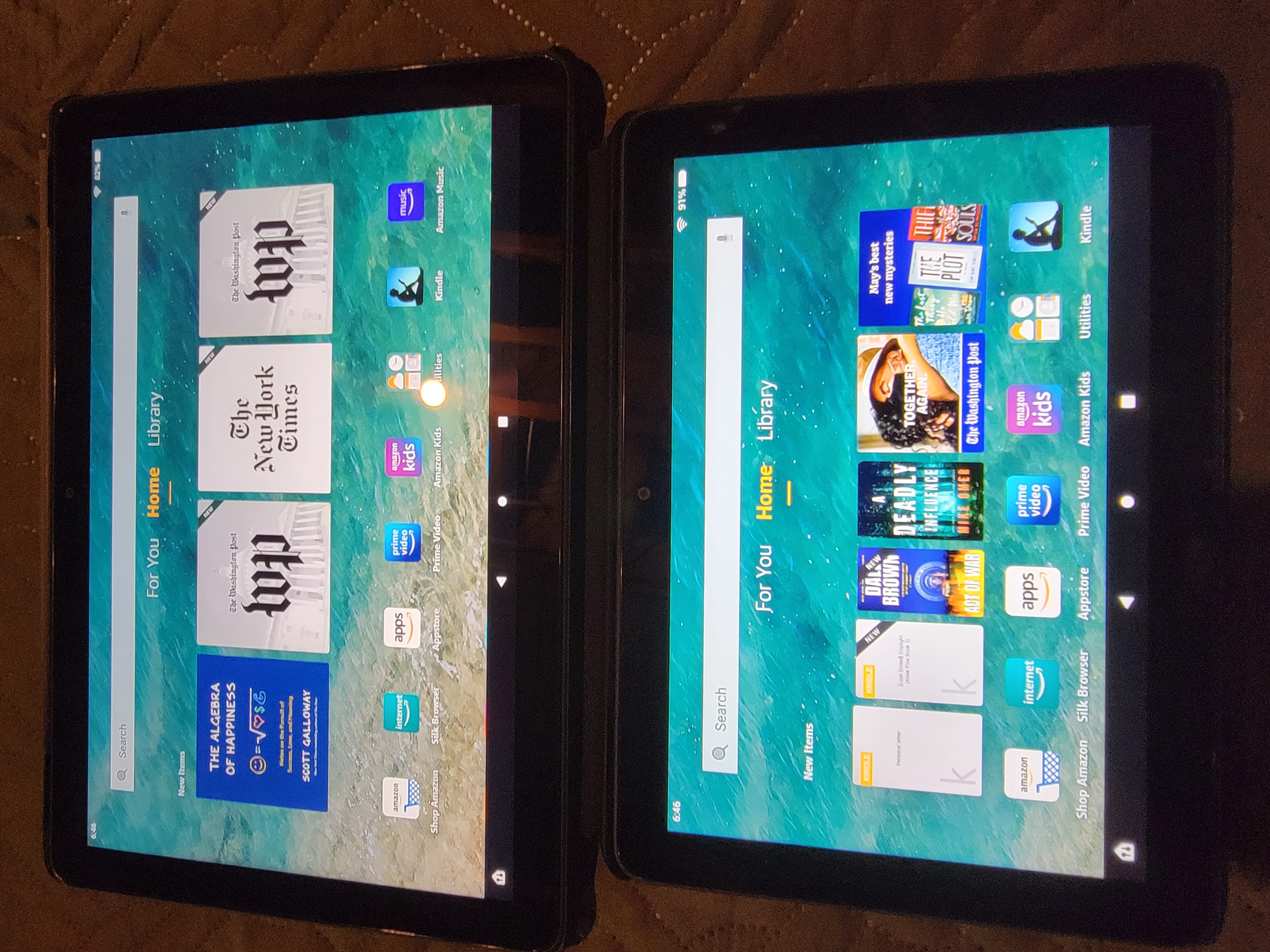
Image: A user interacting with the Fire HD 10 Plus tablet, which displays a smart home device dashboard.
2.6 Multitasking and Applications
The Fire HD 10 Plus supports a split-screen feature, allowing two compatible apps to be open side-by-side for enhanced multitasking. Access a wide range of applications including Netflix, Facebook, Hulu, Instagram, TikTok, Microsoft Office, and Dropbox through Amazon's Appstore.
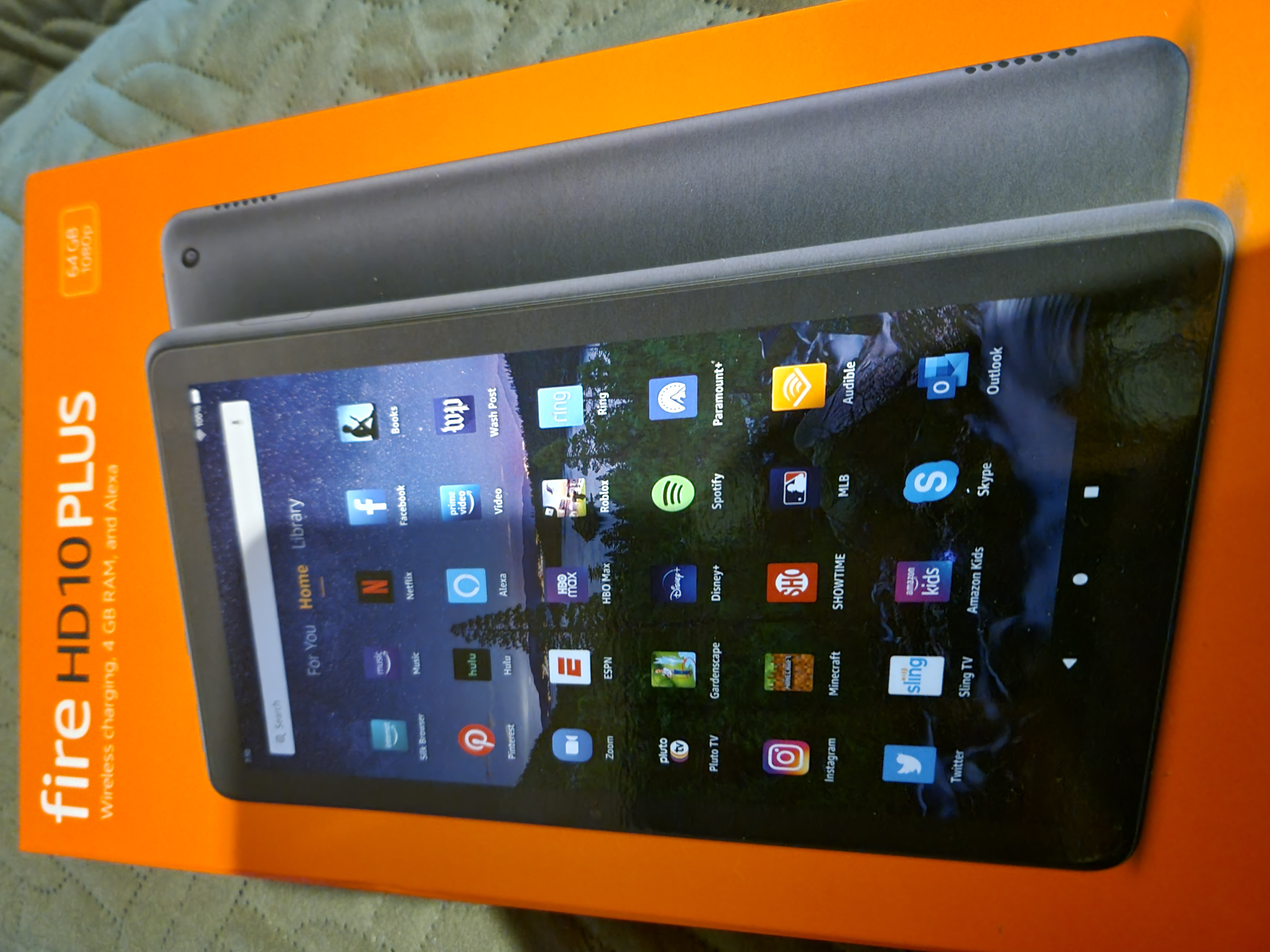
Image: The Fire HD 10 Plus tablet attached to a keyboard case, displaying a calendar and email application side-by-side, demonstrating productivity features.
2.7 Accessibility Features
The tablet includes various accessibility options. Navigate to Settings → Accessibility to enable features such as:
- VoiceView screen reader: For users who are blind or visually impaired.
- Screen Magnifier: To zoom in/out and pan the screen.
- Tap to Alexa: Access Alexa via touch with on-screen tiles or a keyboard.
- Switch Access: For users with motor impairments, using compatible Bluetooth devices.
- Kindle Read Aloud: Alexa reads Kindle books aloud.
- Other settings include Closed Captioning, Font Size, Display Size, High Contrast Text, Color Inversion, Color Correction, and Convert Stereo to Mono audio.
3. Maintenance
3.1 General Care
To maintain your tablet's condition:
- Keep the device clean using a soft, lint-free cloth. Avoid abrasive cleaners.
- Protect the screen from scratches. Consider a screen protector or case.
- Avoid exposing the tablet to extreme temperatures, direct sunlight, or moisture.
- Handle the device carefully to prevent drops or impacts.
3.2 Software Updates
Ensure your tablet's software is up to date for optimal performance and security. Updates are typically downloaded automatically when connected to Wi-Fi. You can manually check for updates in Settings → Device Options → System Updates.
For more information on software security updates, visit the Amazon support website.
3.3 Storage Management
Regularly manage your internal storage to ensure smooth operation. Delete unused apps, clear cache, and transfer large files to cloud storage or an inserted microSD card. Some applications may require installation on internal storage.
4. Troubleshooting
4.1 Common Issues and Solutions
- Tablet not turning on: Ensure the tablet is sufficiently charged. Connect it to the power adapter and wait a few minutes before attempting to power on again.
- Wi-Fi connectivity issues: Check if your Wi-Fi router is working correctly. Restart both your router and the tablet. Ensure you are within range and have entered the correct password. The tablet does not support ad-hoc networks.
- Slow performance: Close unused applications. Clear app caches in Settings → Apps & Notifications → Manage All Applications. Restart the tablet. Consider freeing up internal storage.
- Battery draining quickly: Reduce screen brightness. Close background apps. Disable Wi-Fi or Bluetooth when not in use. Check for apps consuming excessive power in battery settings.
- Apps crashing or freezing: Ensure the app is updated to its latest version. Clear the app's cache and data in settings. If the issue persists, uninstall and reinstall the app.
4.2 Restarting and Resetting
- Restart: Press and hold the power button for a few seconds, then tap "Restart" on the screen. If unresponsive, hold the power button for 40 seconds until the device restarts.
- Factory Reset: A factory reset will erase all data and settings from your tablet. Back up important data before proceeding. Go to Settings → Device Options → Reset to Factory Defaults.
5. Specifications
| Feature | Detail |
|---|---|
| Display | 10.1” 1080p Full HD (1920 x 1200) with 224 ppi, aluminosilicate strengthened screen |
| Size | 9.73” x 6.53” x 0.36” (247mm x 166mm x 9.2 mm) |
| Weight | 16.5 oz (468 g) |
| CPU & RAM | Octa-core 2.0 GHz with 4 GB of RAM |
| Storage | 32 GB or 64 GB internal (expandable up to 1 TB with microSD) |
| Battery Life | Up to 12 hours (reading, browsing, video, music) |
| Charge Time | Approx. 4 hours with 9W adapter; 3.5 hours with 15W wireless charging dock (sold separately) |
| Wireless Charging | Qi certified |
| Wi-Fi Connectivity | Supports 2.4 GHz and 5.0 GHz networks (does not support ad-hoc networks) |
| Bluetooth Connectivity | Bluetooth 5.0 LE (A2DP compatible) |
| Ports | USB-C (2.0), microSD slot |
| Audio | 3.5 mm stereo jack, dual integrated speakers |
| Sensors | Accelerometer, ambient light sensors |
| Cameras | 2 MP front-facing, 5 MP rear-facing (720p HD video recording) |
| Microphones | 2 built-in microphones |
| Location Services | Via Wi-Fi |
| Available Colors | Slate with soft-touch finish |
| Generation | 11th generation, 2021 release |
6. Warranty and Support
6.1 Product Warranty
Your Fire HD 10 Plus tablet includes a 1-year limited warranty and service. Extended warranty options (1-year, 2-year, and 3-year) are available for U.S. customers and sold separately. Use of the Fire HD 10 tablet is subject to Amazon's Conditions of Use.
6.2 Customer Support
For further assistance, troubleshooting, or warranty claims, please visit the official Amazon support website or contact Amazon customer service. Refer to the Quick Start Guide for initial support contact information.


